1. Function description
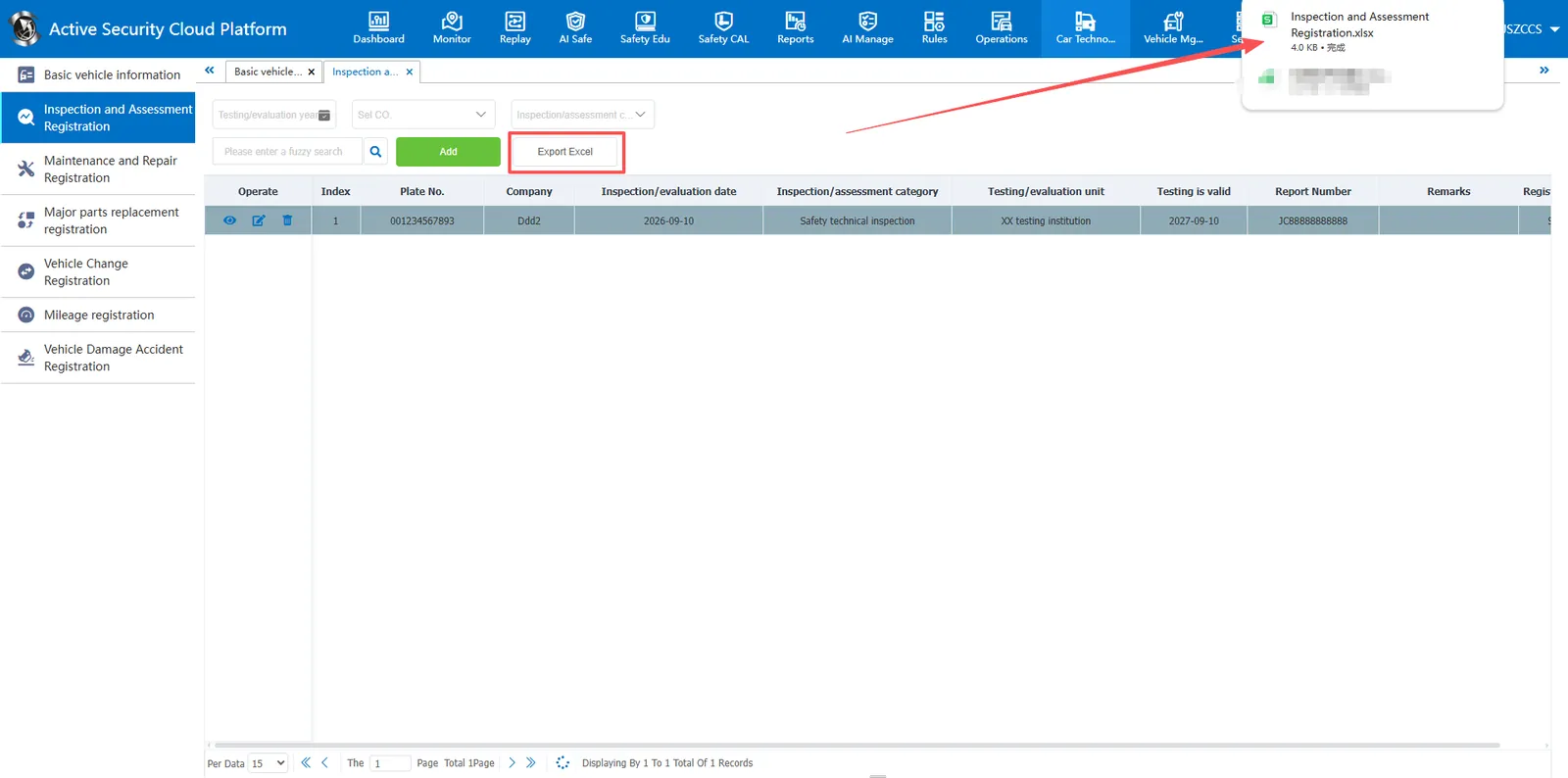
This module is used to manage vehicle inspection and evaluation files. It supports the addition, viewing details, modification, correction, deletion and removal of records such as safety technical inspection, environmental protection inspection and comprehensive performance inspection, and supports one- click export of Excel forms, which is convenient for enterprises to track vehicle compliance status, statistical inspection data and offline storage and archiving.
2. operating instructions
2.1 add detection and assessment information
Click the "Add" button to pop up the add window. Enter the vehicle detection and evaluation information according to the content of the page. Items with a red asterisk (*) on the page are required. Please be sure to complete them. The requirements for filling the specific fields are as follows:
- Plate No.: select an existing vehicle on the platform (required)
- Inspection/assessment category: click the drop- down menu to select the corresponding category (Safety technical inspection, Environmental inspection, Comprehensive performance detection) (required)
- Testing/evaluation unit: enter the name of the unit performing this inspection or evaluation (required)
- Inspection/evaluation date: Click the calendar icon on the right to select the actual test or evaluation date (required)
- Testing is valid: click the calendar icon on the right and select the actual expiration date (required)
- Report number: Enter the report No. issued by the testing/assessment agency (required)
- Registration personnel: enter the name of the person currently entering information (optional)
- Remarks: Fill in other information that needs supplementary explanation (optional)
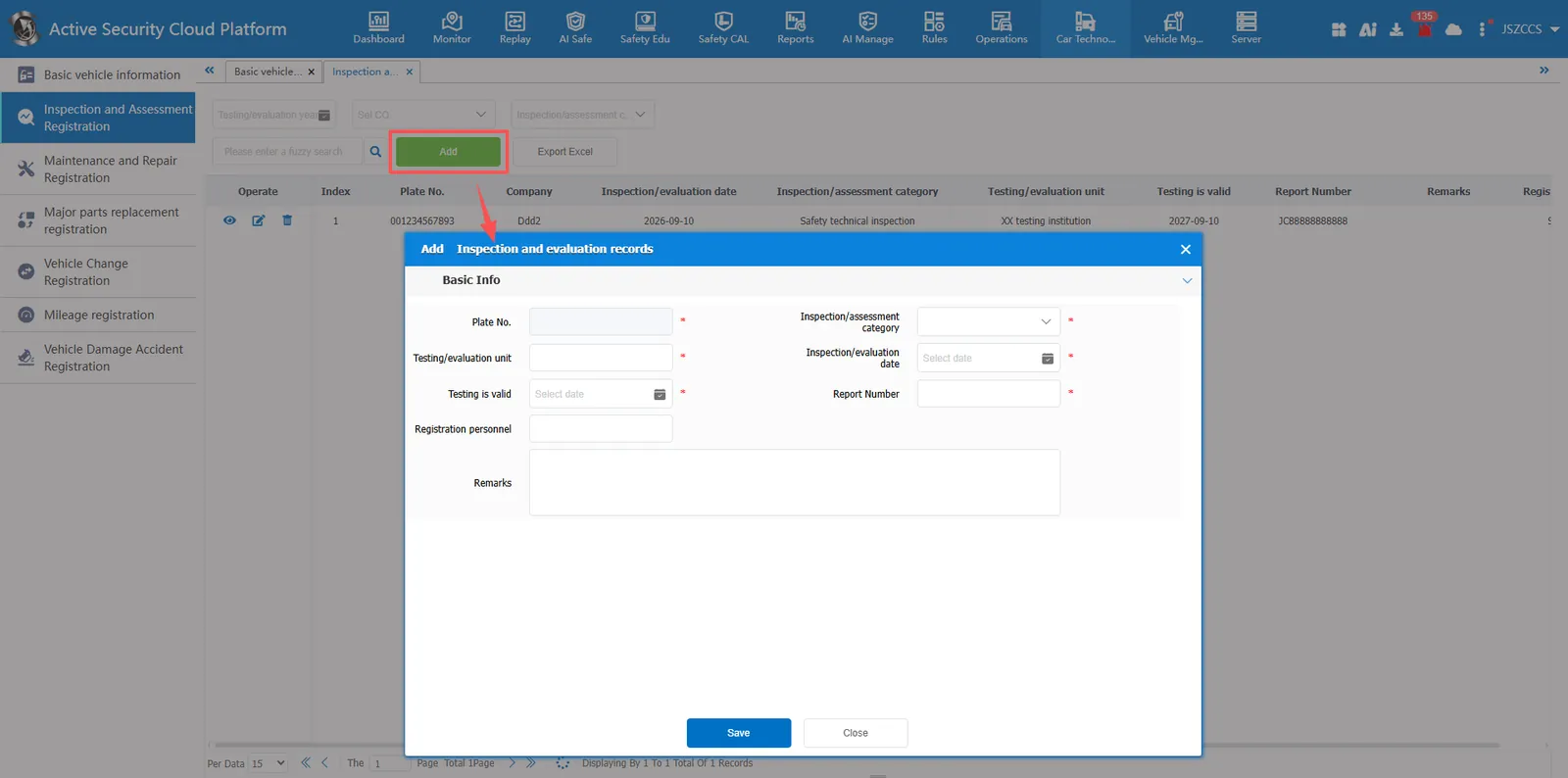
💡 Operation tip: after all the information is confirmed, click the "save" button at the bottom to complete the addition; Click the "close" button to abandon the current operation and exit the window
2.2 View inspection and assessment information
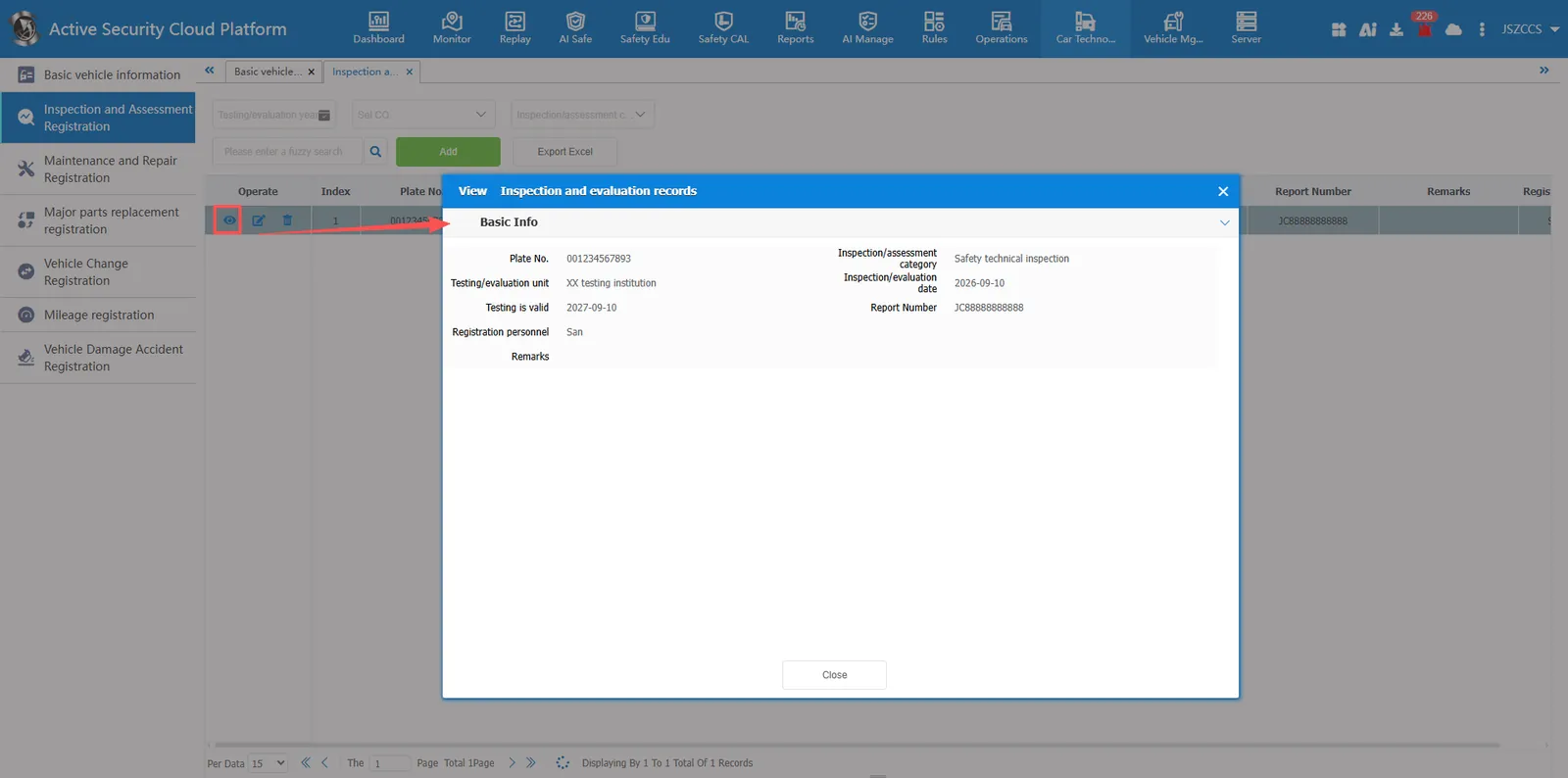
Click operation button, pop-up view window, you can query and browse the history of registered vehicle detection and assessment details.
2.3 modify detection and evaluation information
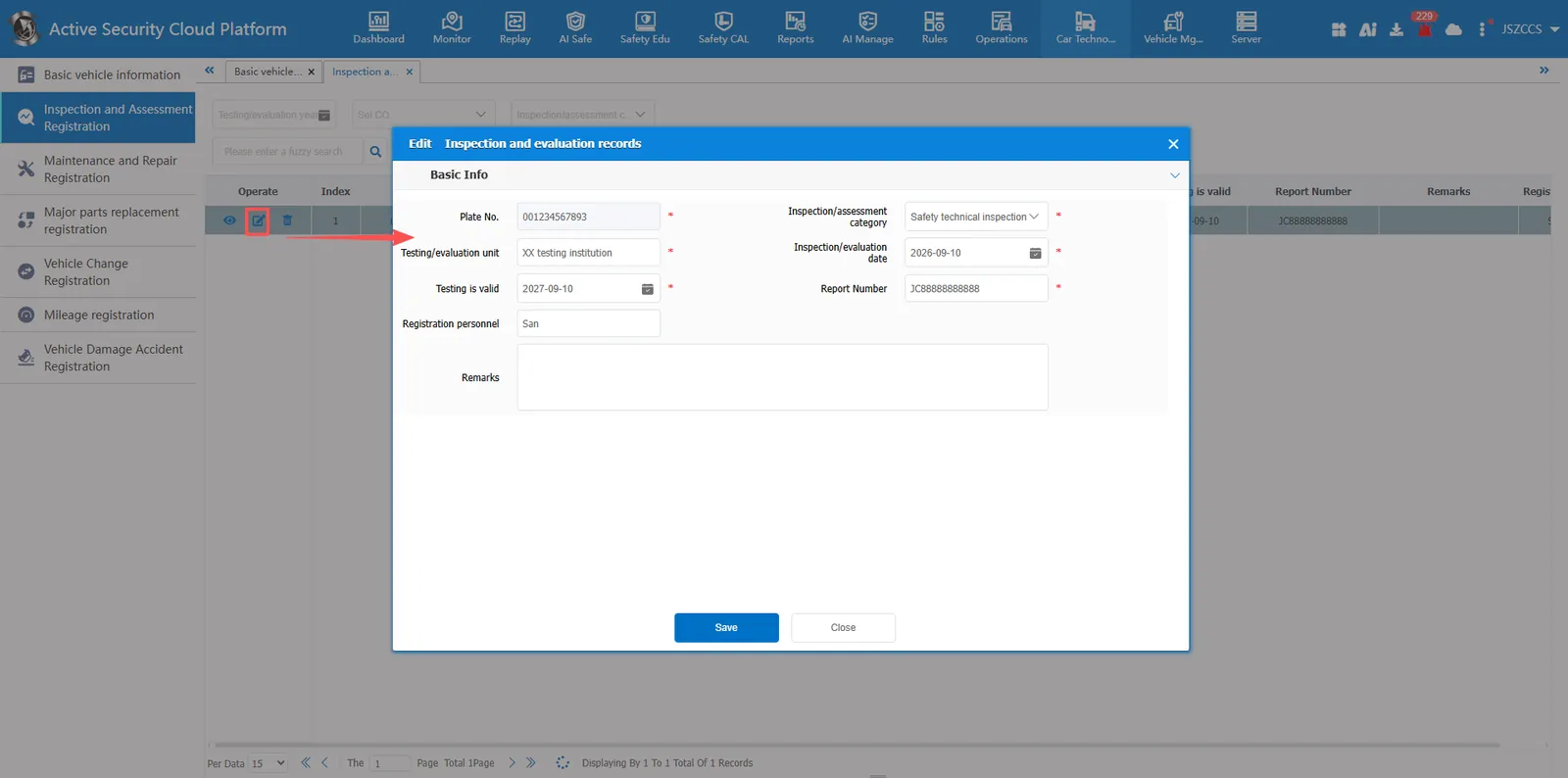
Click operation button, pop-up editing window, the registered record information update or edit correction.
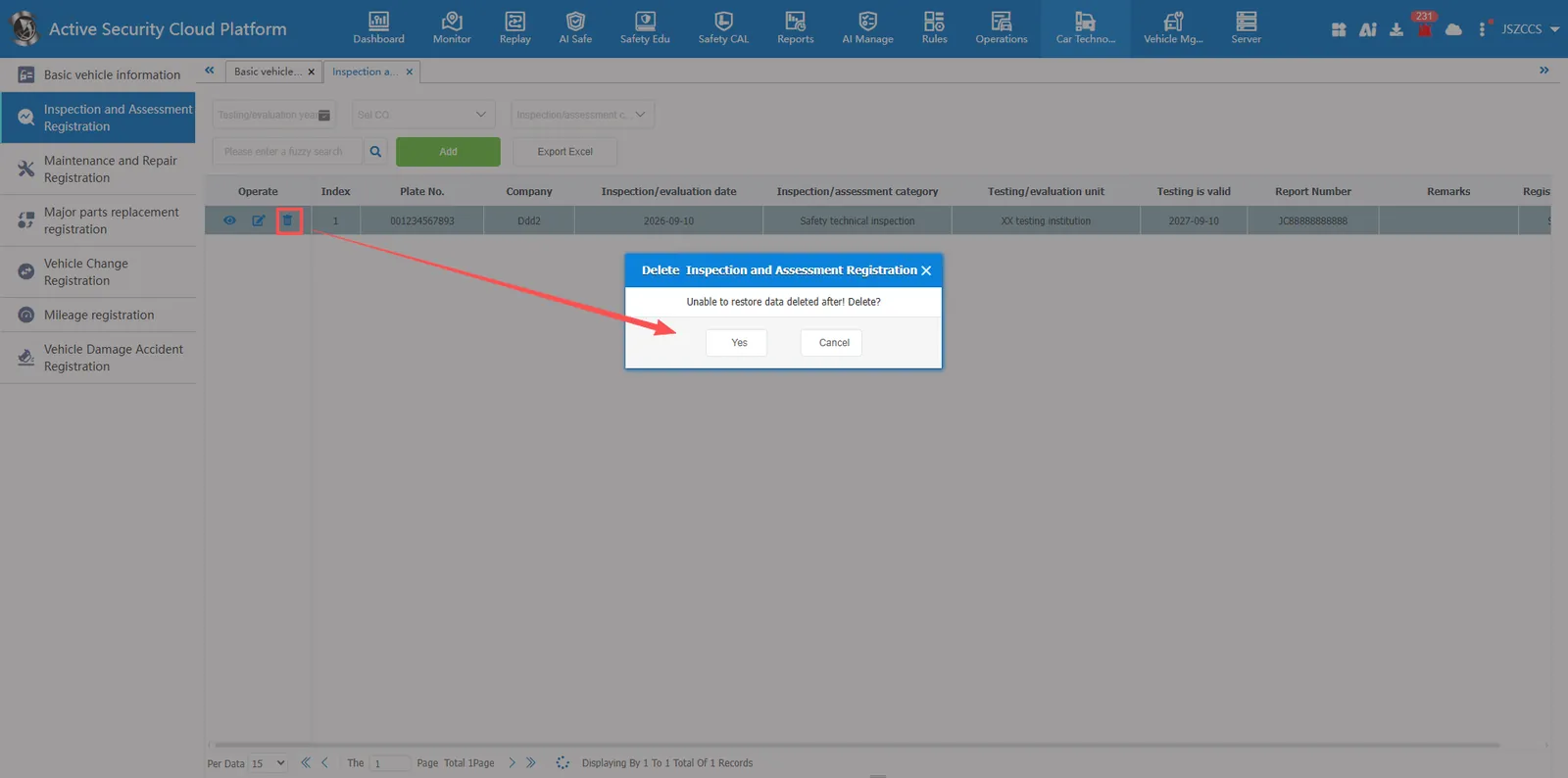
2.4 delete detection and assessment information
Click Operation button will pop up the deletion confirmation window to remove invalid or incorrectly entered detection and evaluation records, and the data cannot be restored after deletion.
2.5 export detection and evaluation information
Click the "Export to Excel" button, and the browser will generate a download task to export the detection and evaluation records to Excel files in batches for offline archiving or data statistics.