1. Function description
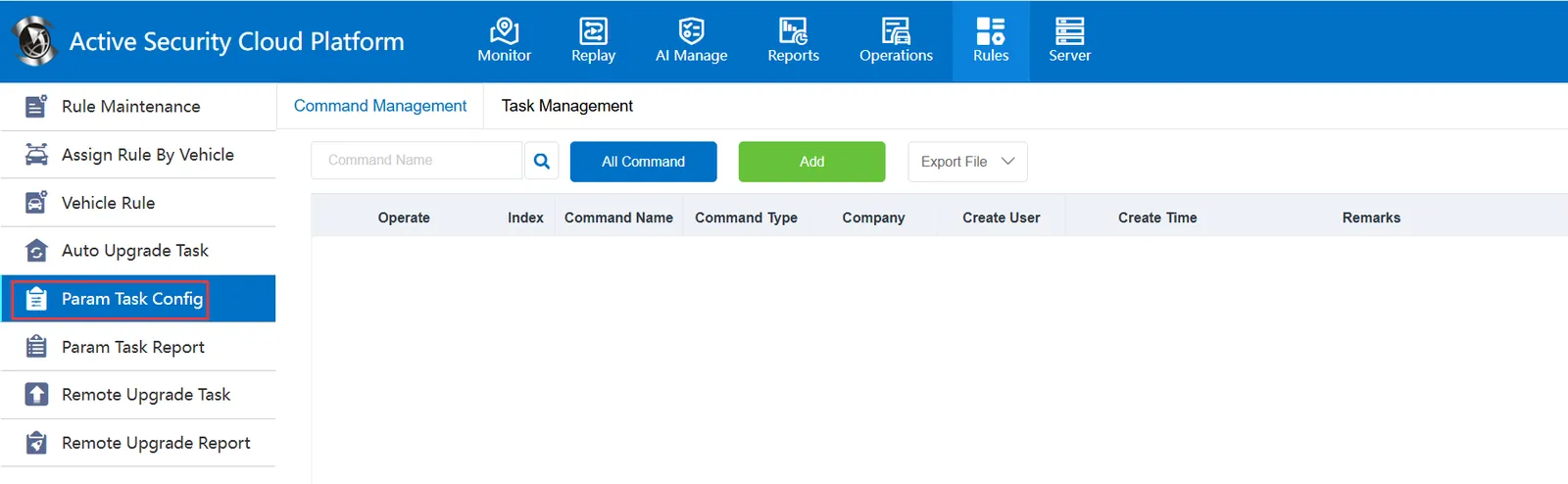
Currently, the parameter configuration task only supports parameter configuration (808- 2011);
1. Real- time monitoring. The parameter configuration in the vehicle tree can only support the parameter configuration of online equipment. The parameter configuration task can support both online and offline equipment, which is equivalent to the equipment parameter configuration function of the manufacturer's operation and maintenance platform.
2. The special report records the parameter configuration task module and saves the finally configured parameter information, which is convenient for users to manage.
3. It has two parts: instruction management and task management.
Note: To use the parameter configuration task normally, you need to follow the following steps
1, add an instruction, this instruction is to be issued to the equipment, only select the required parameters
2. Add a task management. In the task management, authorize instructions and vehicles. The task will be issued according to the instruction and the vehicle.
2. operating instructions
2.1 command management
Mainly to add instructions, query has been exported operation
2.1.1 Add
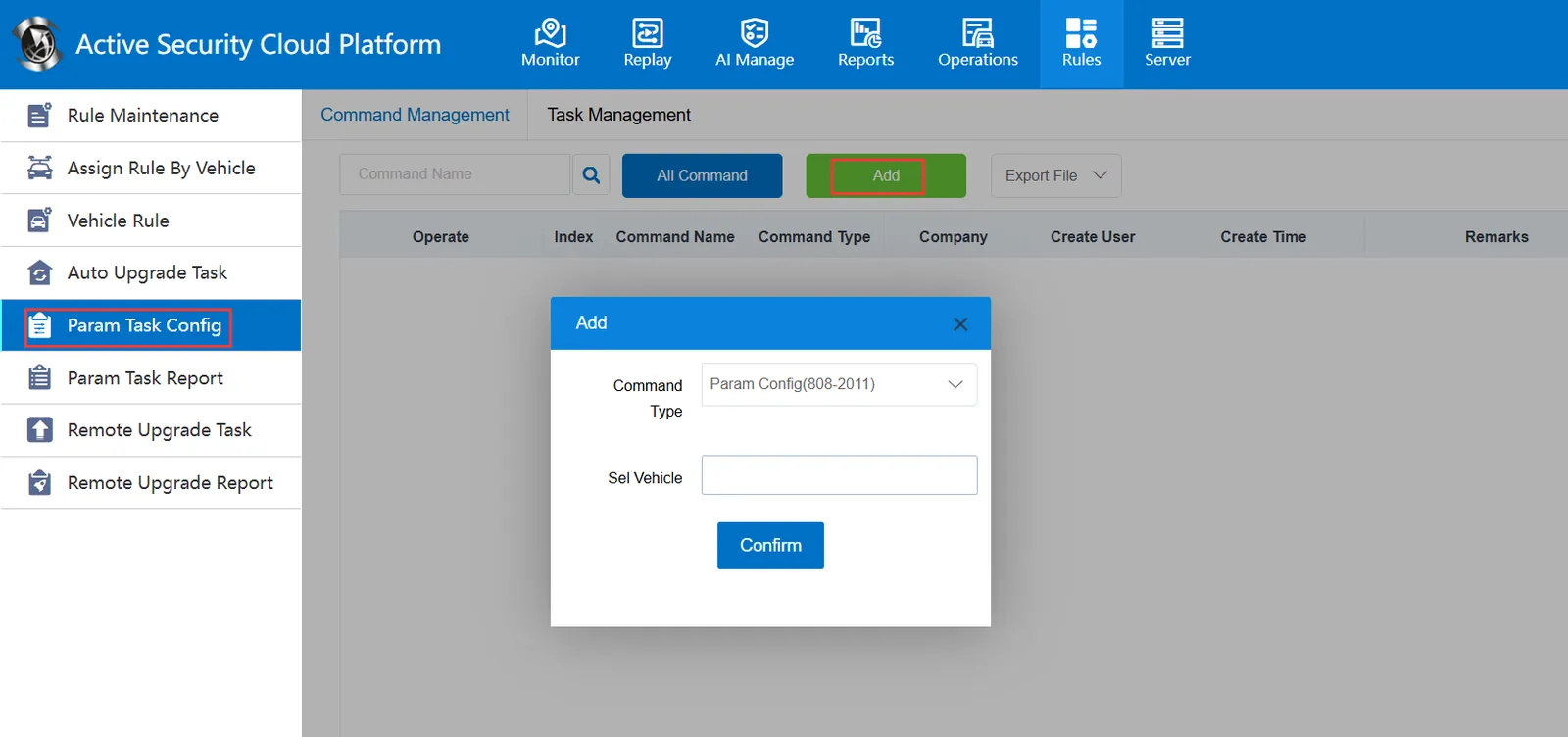
Click Add Yes, and a new instruction window will pop up. For the instruction type in this window, there is only one option: parameter configuration (808- 2011)
Select the vehicle column, refers to the parameter configuration task, which should take effect on the vehicle; this item can also be authorized to other vehicles after the task is added.
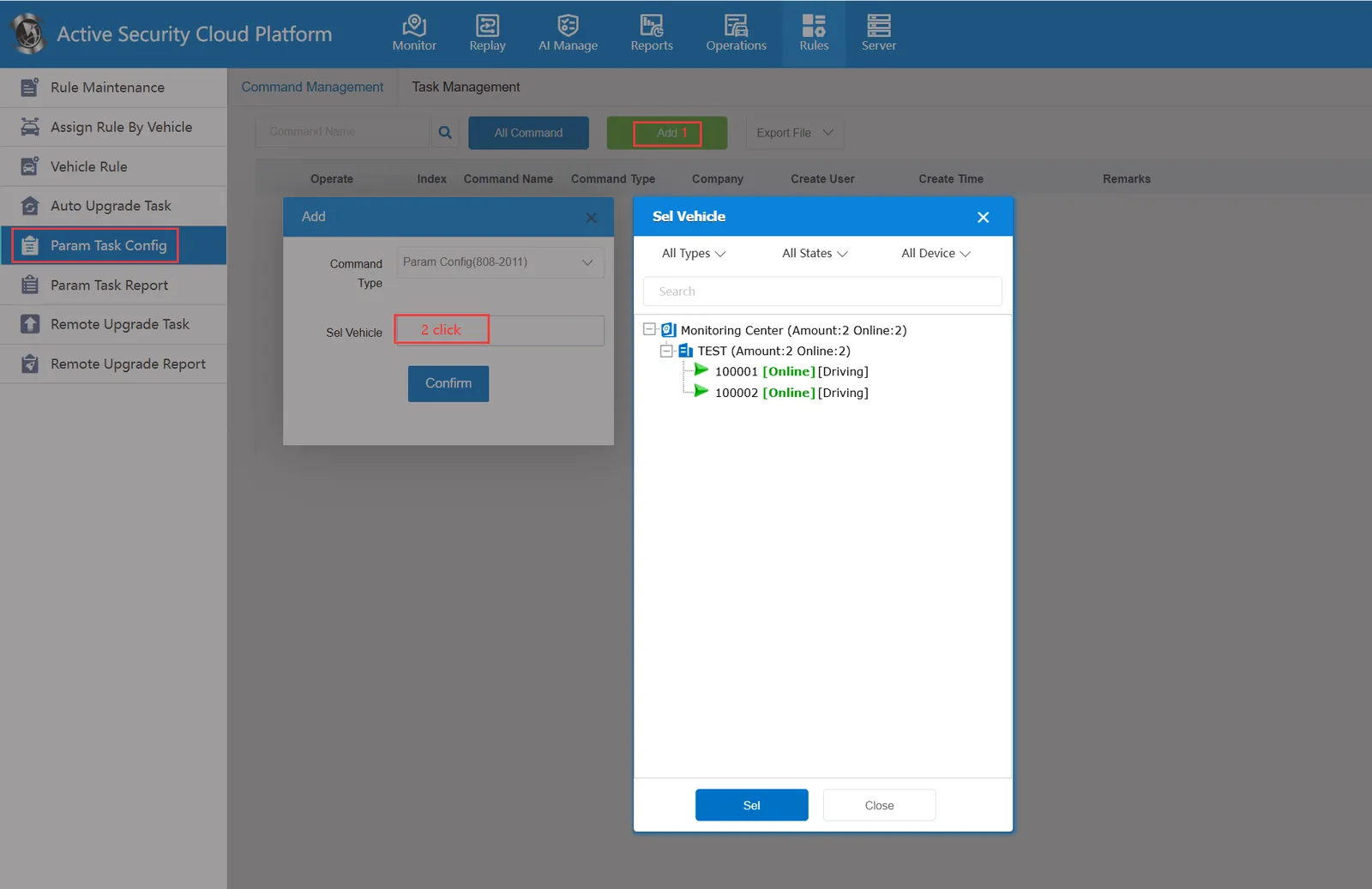
This step, targeted to choose a car can be
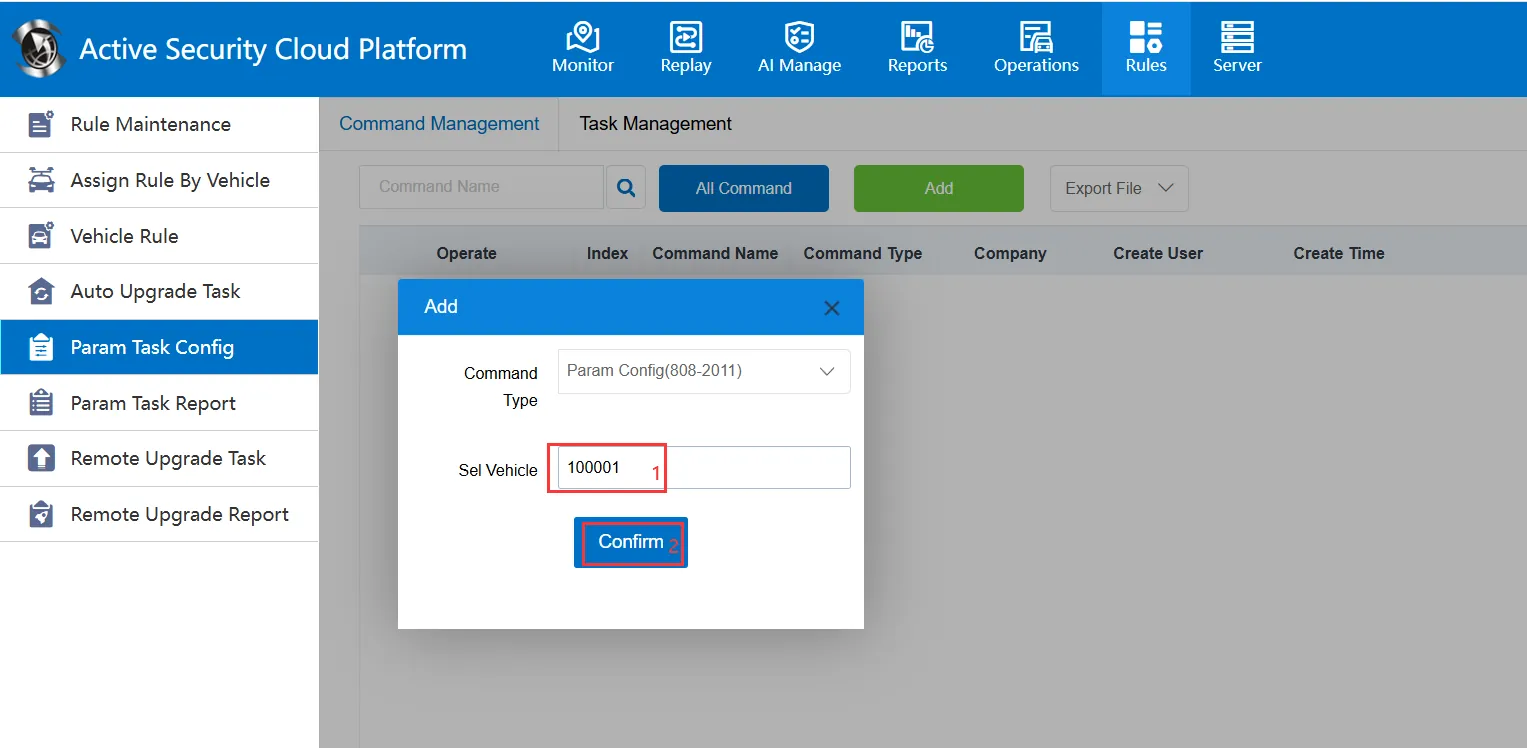
After selecting the vehicle, click "OK" in the "Add Command" interface to enter the parameter configuration interface.
Then in the interface, set up the parameters to be configured; And in the following "instruction name" custom a name, fill in, click "save", the task will be added
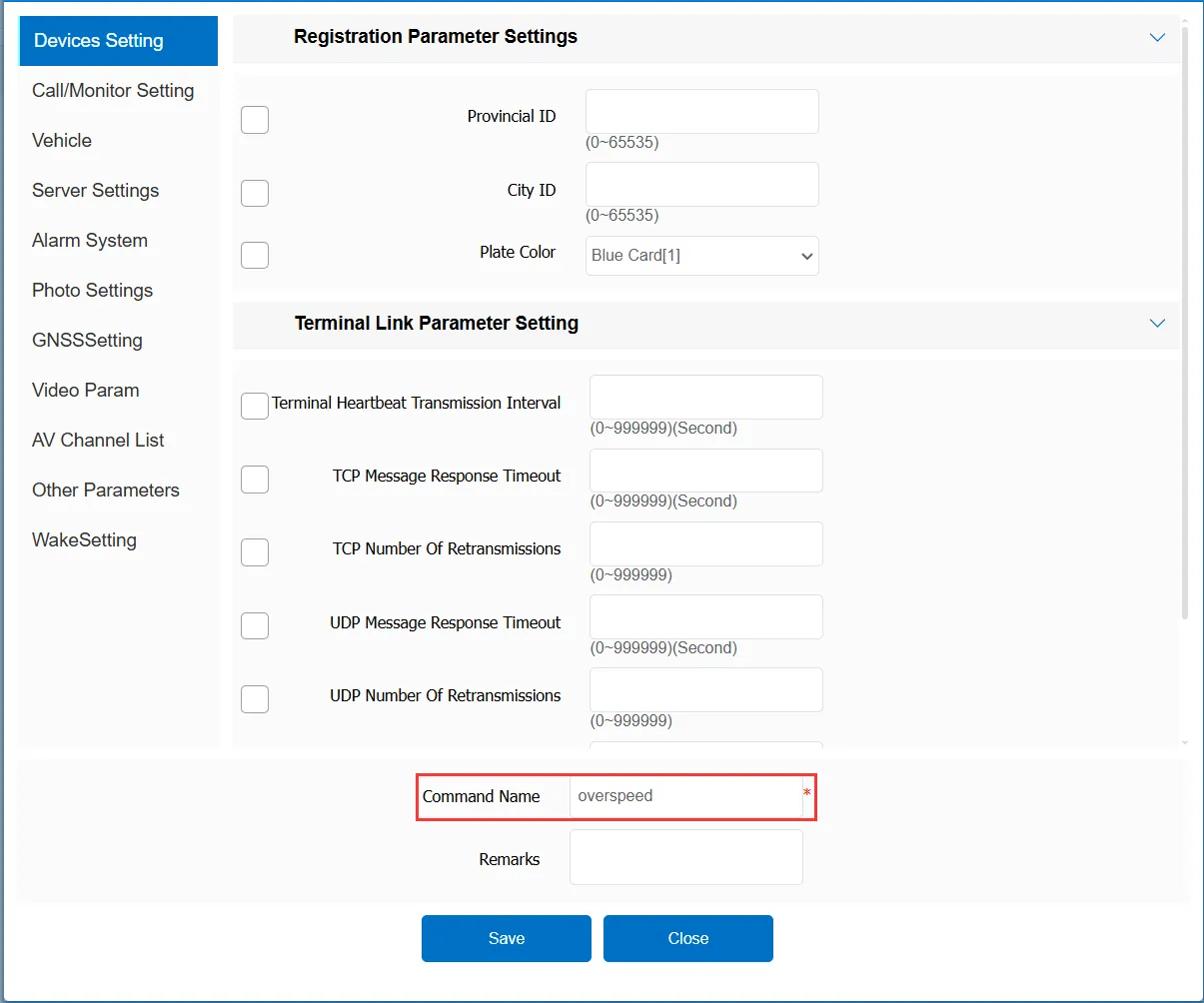
One command record is visible
2.1.2 Query
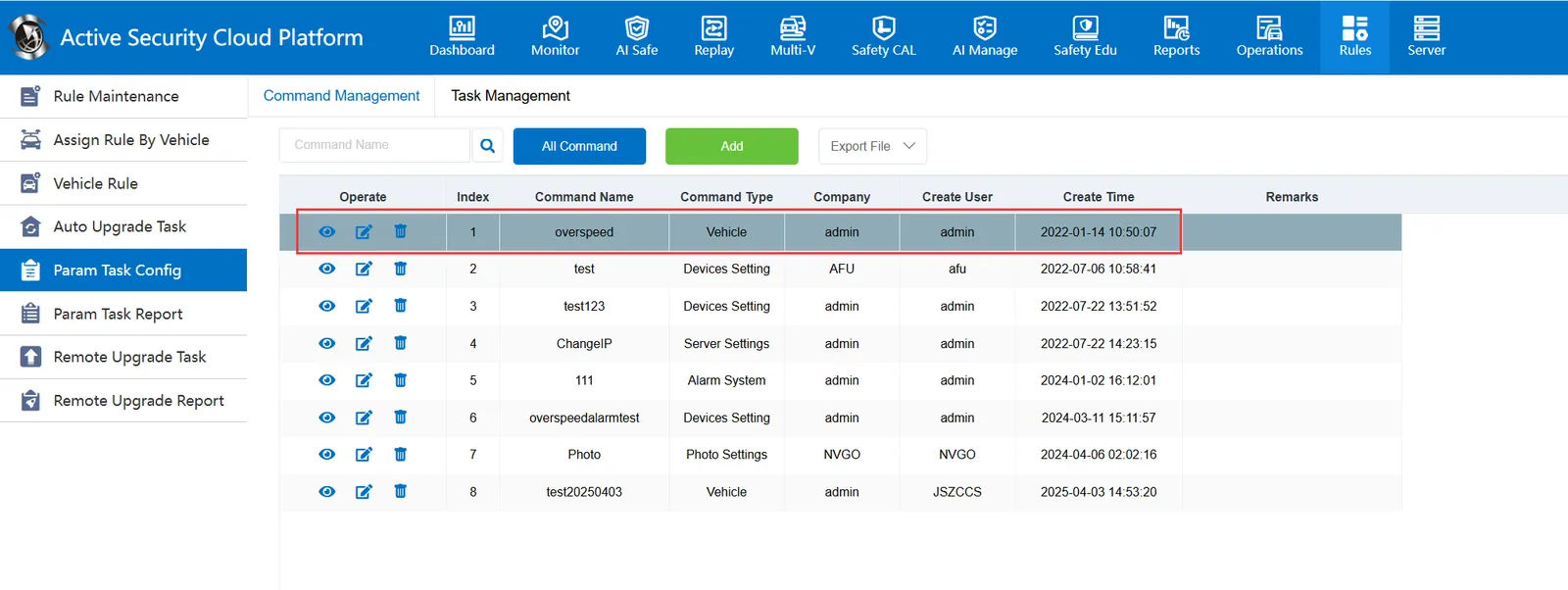
Supports querying and specifying instructions by instruction name; you can also use the "All Instructions" button to display all existing instructions
2.1.3 Modification
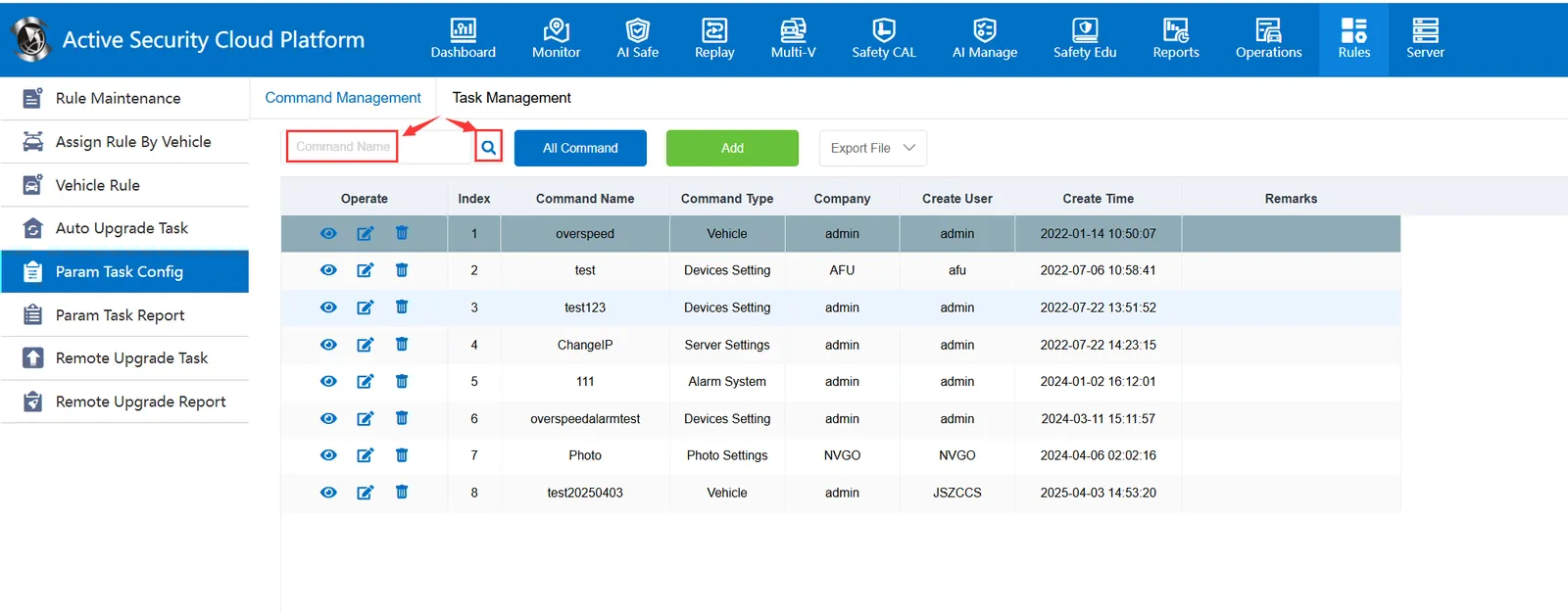
It is to provide an editing function for existing instructions.
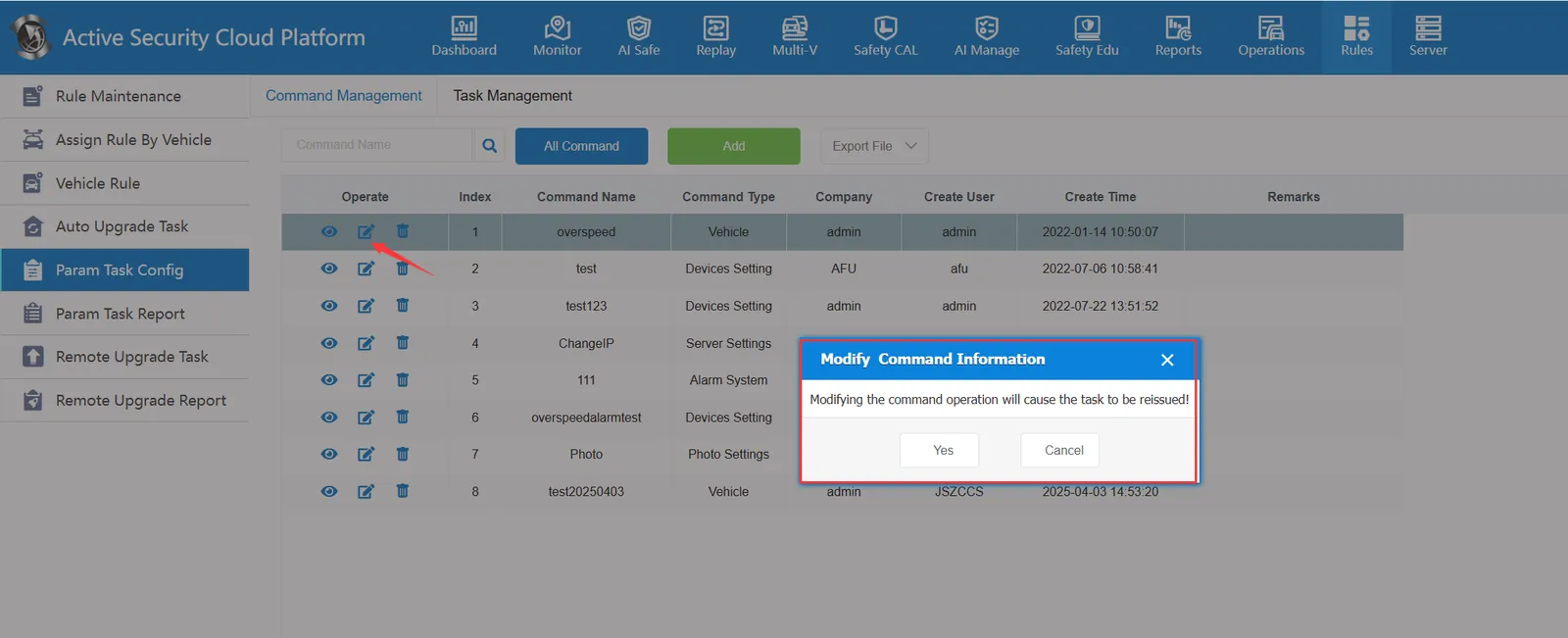
When you click Edit, a prompt window will pop up. If you click Yes, you will enter the parameter configuration editing window.
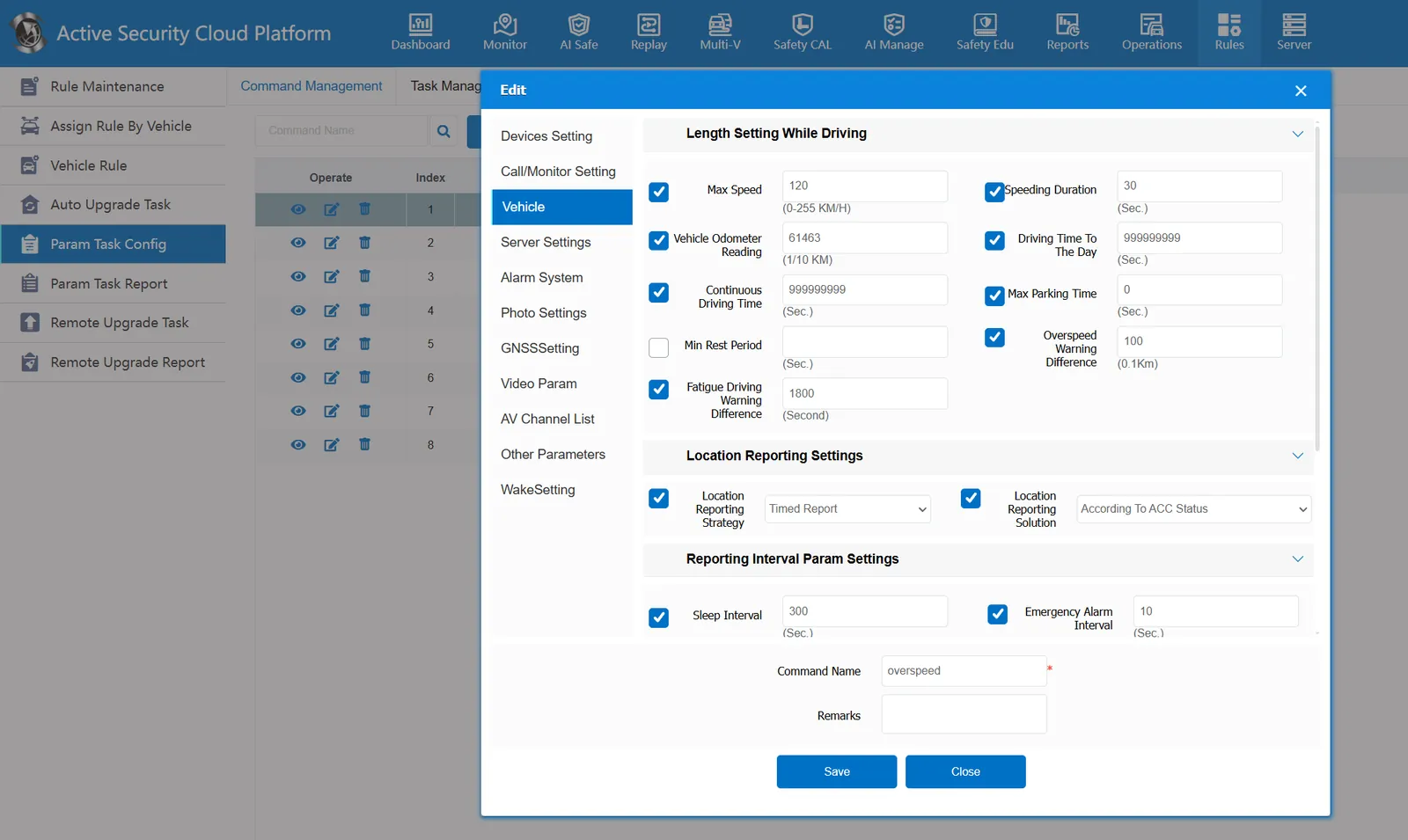
At this time, you can modify the previous configuration, and click "Save" after the modification is completed.
2.1.4 Delete
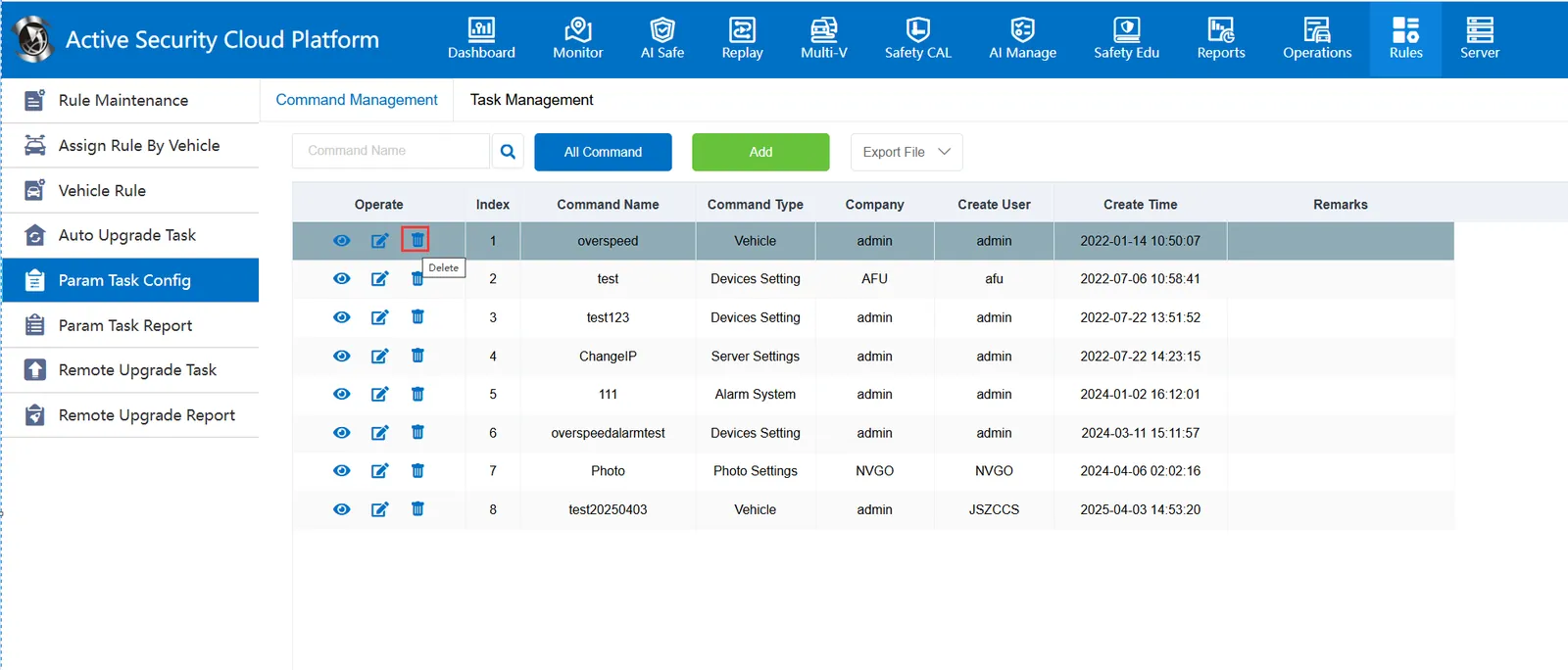
Delete this command
2.1.5 Export

It only exports the existing command record as a record, and does not export the parameters of the specific configuration.
2.2 task management
Instruction management only adds an instruction and will not be issued to the equipment. Task management authorizes existing instructions and vehicles. Associate specific instructions and vehicles and send them to the equipment in time or regularly according to the task type to achieve the purpose of modifying equipment parameters. Similar to instruction management, task management also provides adding, querying, modifying, deleting and authorizing vehicle operations.
2.2.1 Add
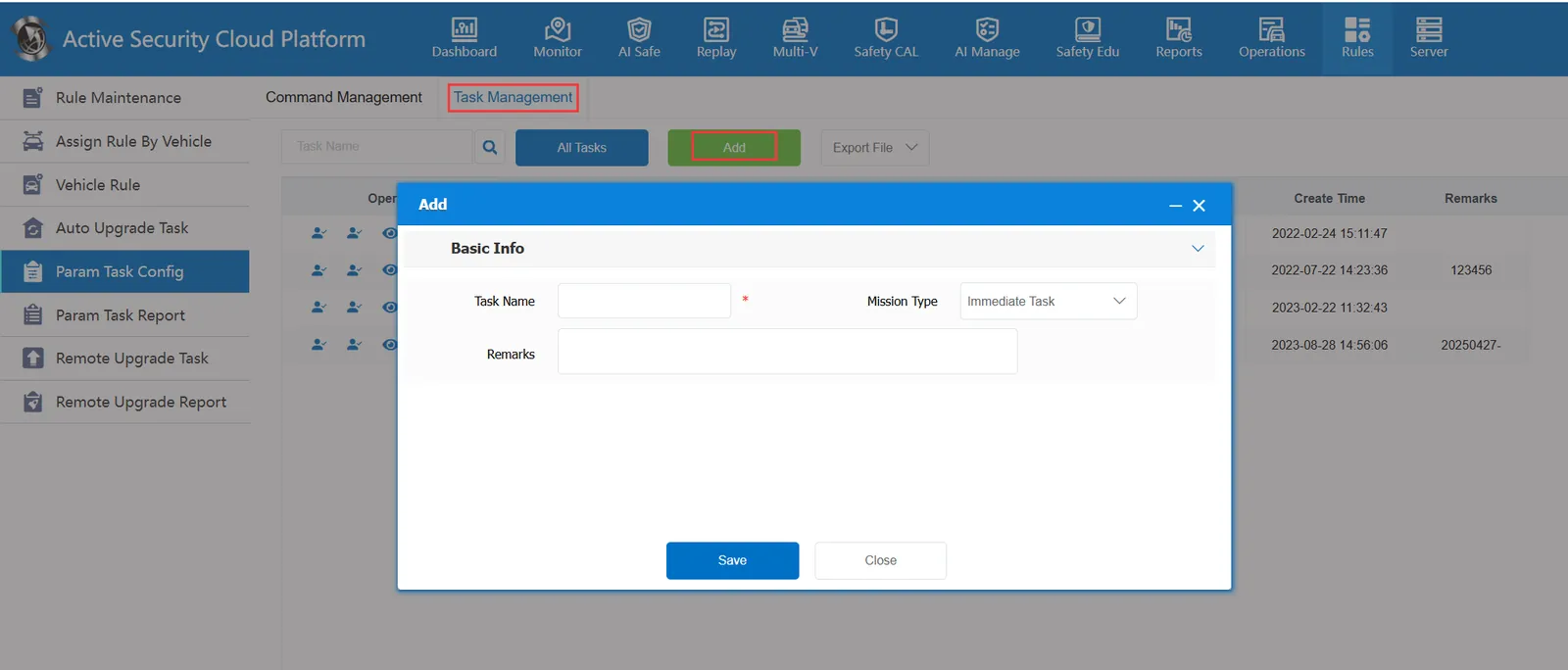
Task Name: You can customize a distinguishable name.
Task Type: Two types are available.
Timely tasks: add and complete tasks, authorize instructions, and issue them immediately after the vehicle is completed.
Scheduled Task: After adding and completing the task, the task is distributed within the time range composed of the task start execution time and the task end execution time after the vehicle is authorized.
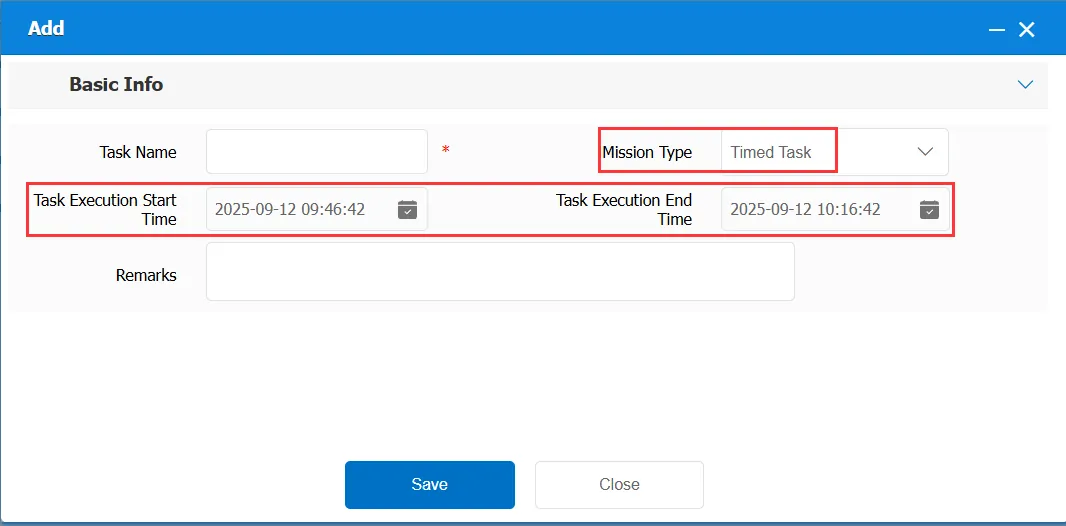
Remarks: Add some remarks to customize
After the addition is completed, there will be a record of task management.
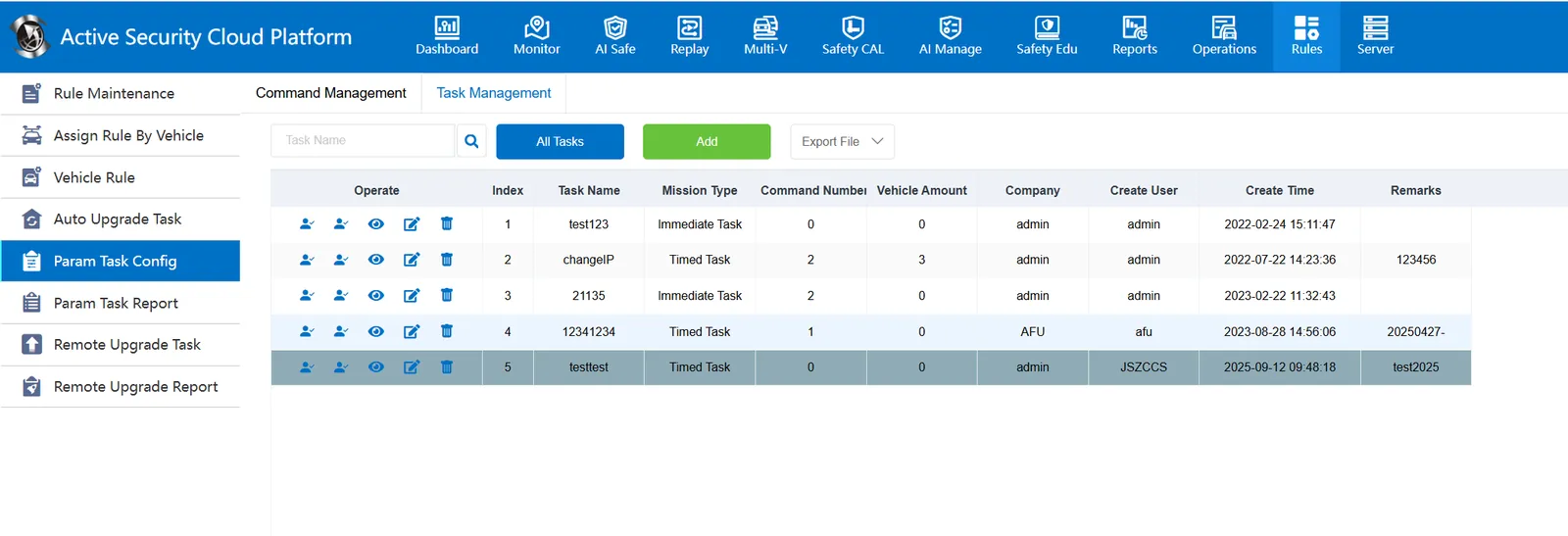
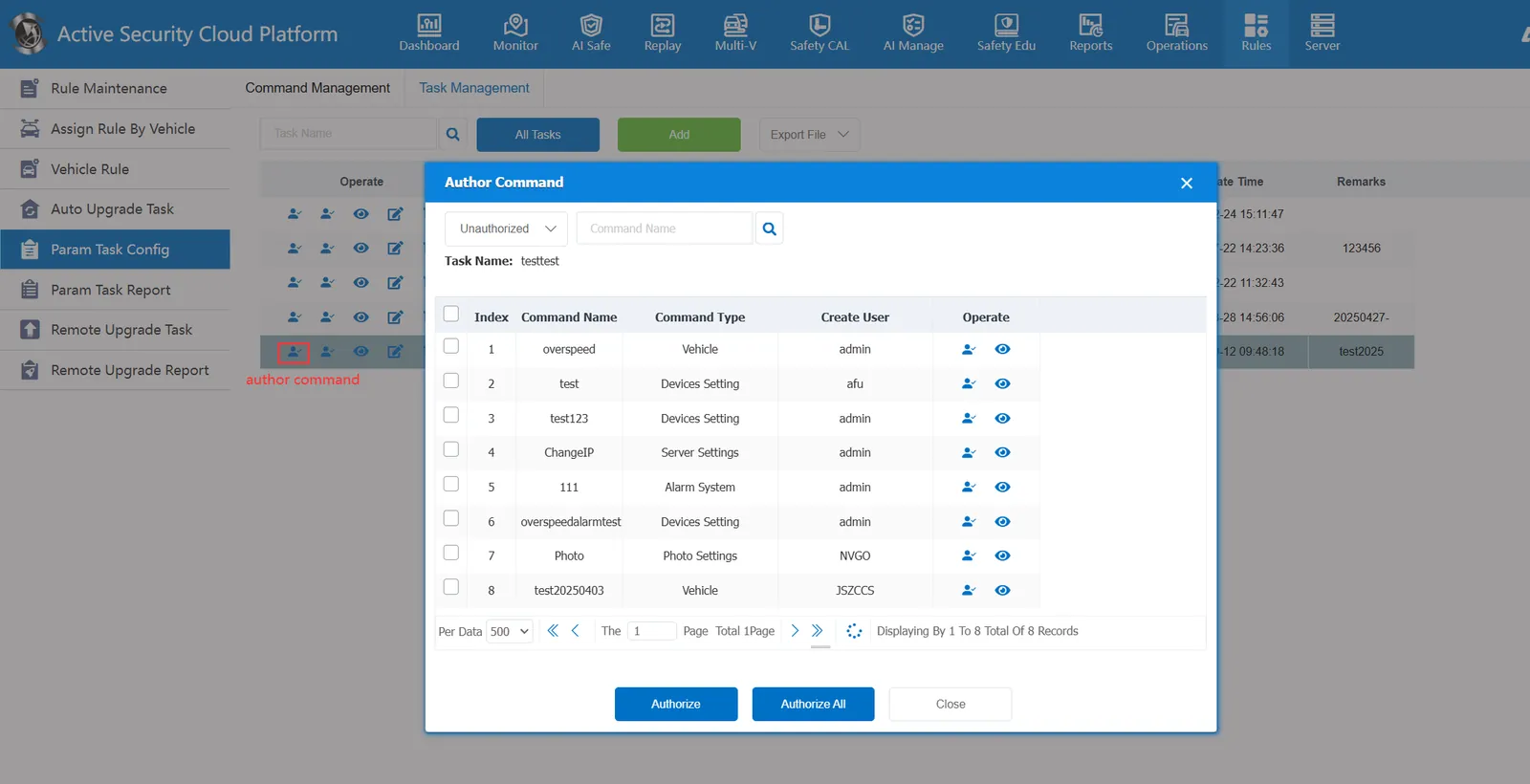
Operation: Operation is mainly: authorization instruction, vehicle authorization, detail, edit and delete several
Authorized Instruction: associates the task with the specified instruction. Select an instruction and authorize the task.
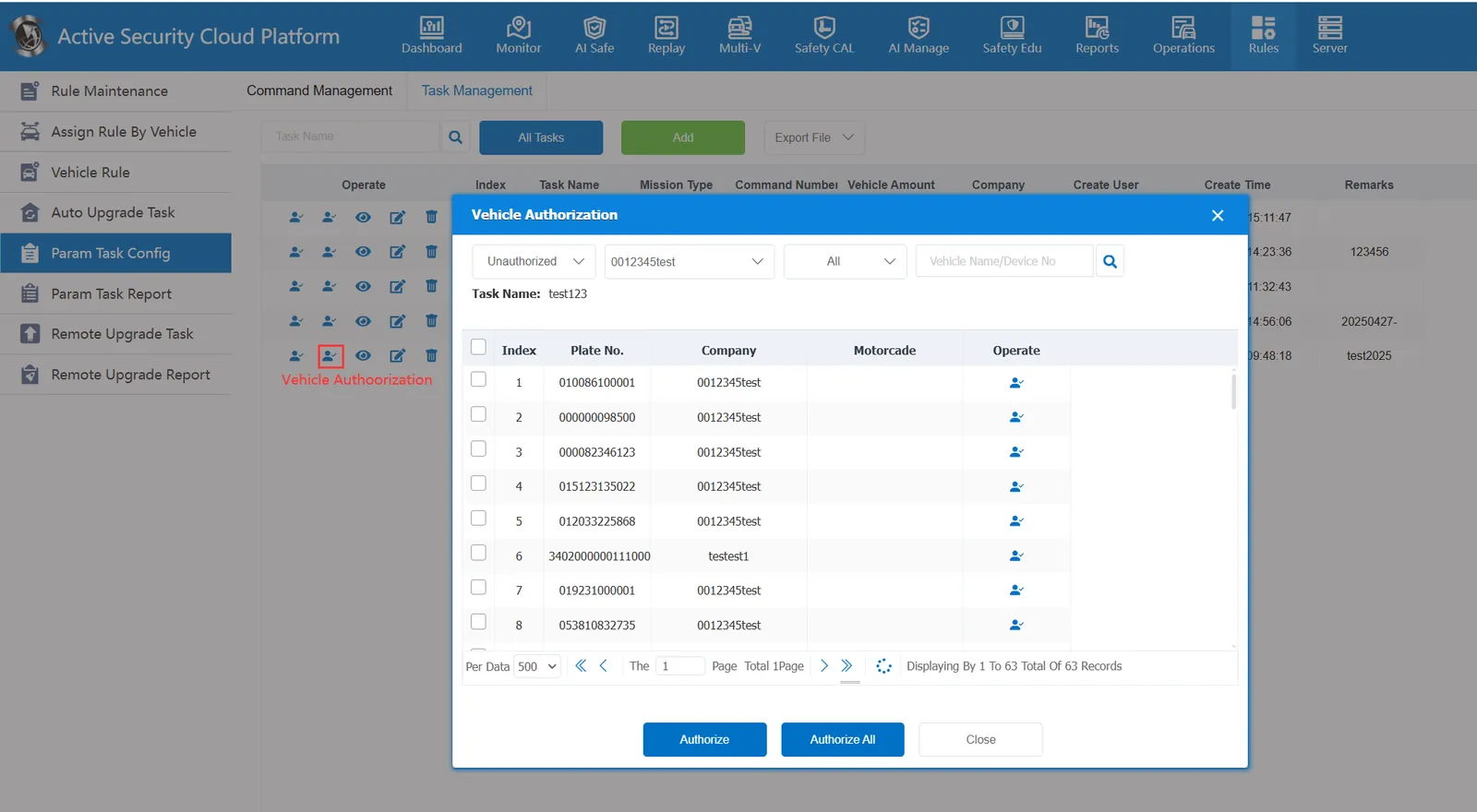
Vehicle authorization: It is to associate the task with the specified vehicle, and select the vehicle authorization.
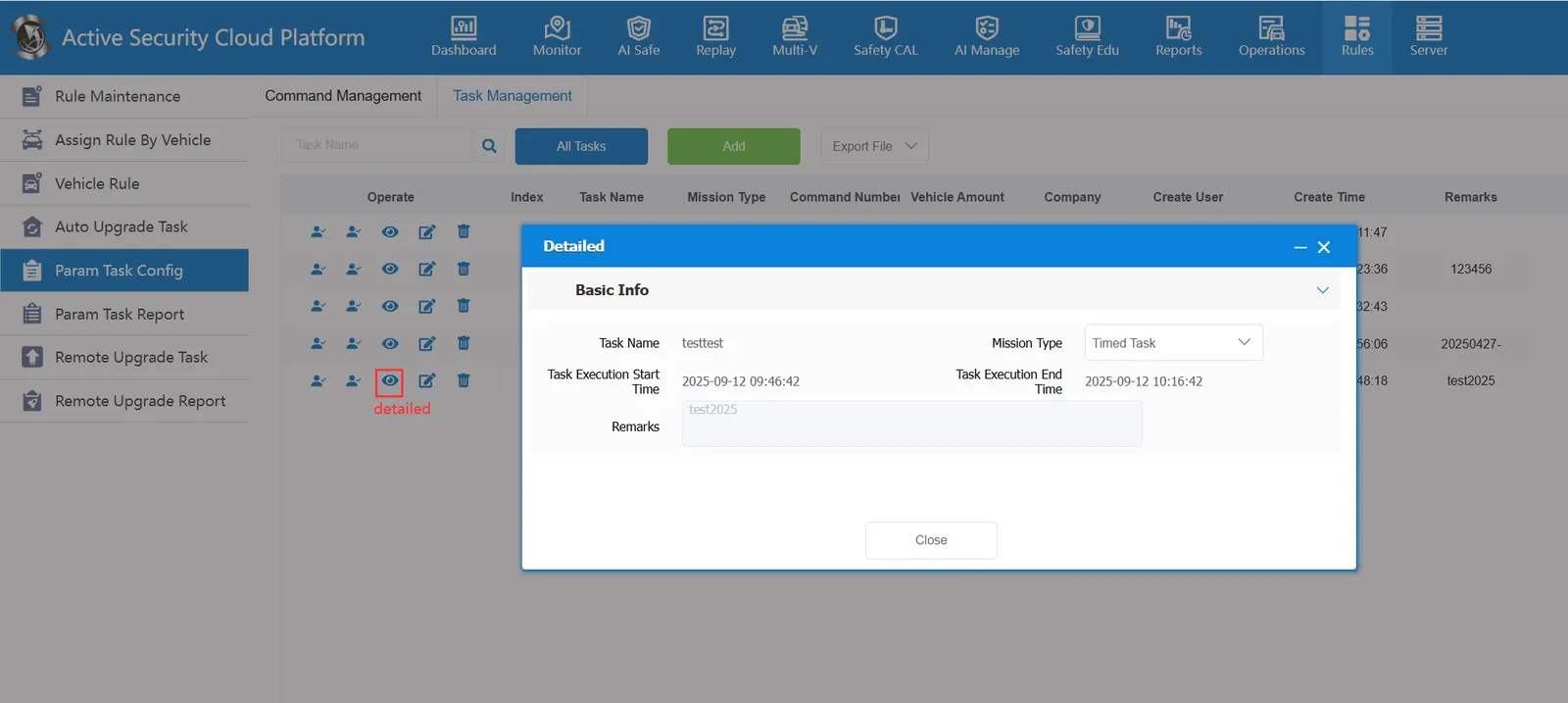
Details: displays the basic information of the task by viewing it.
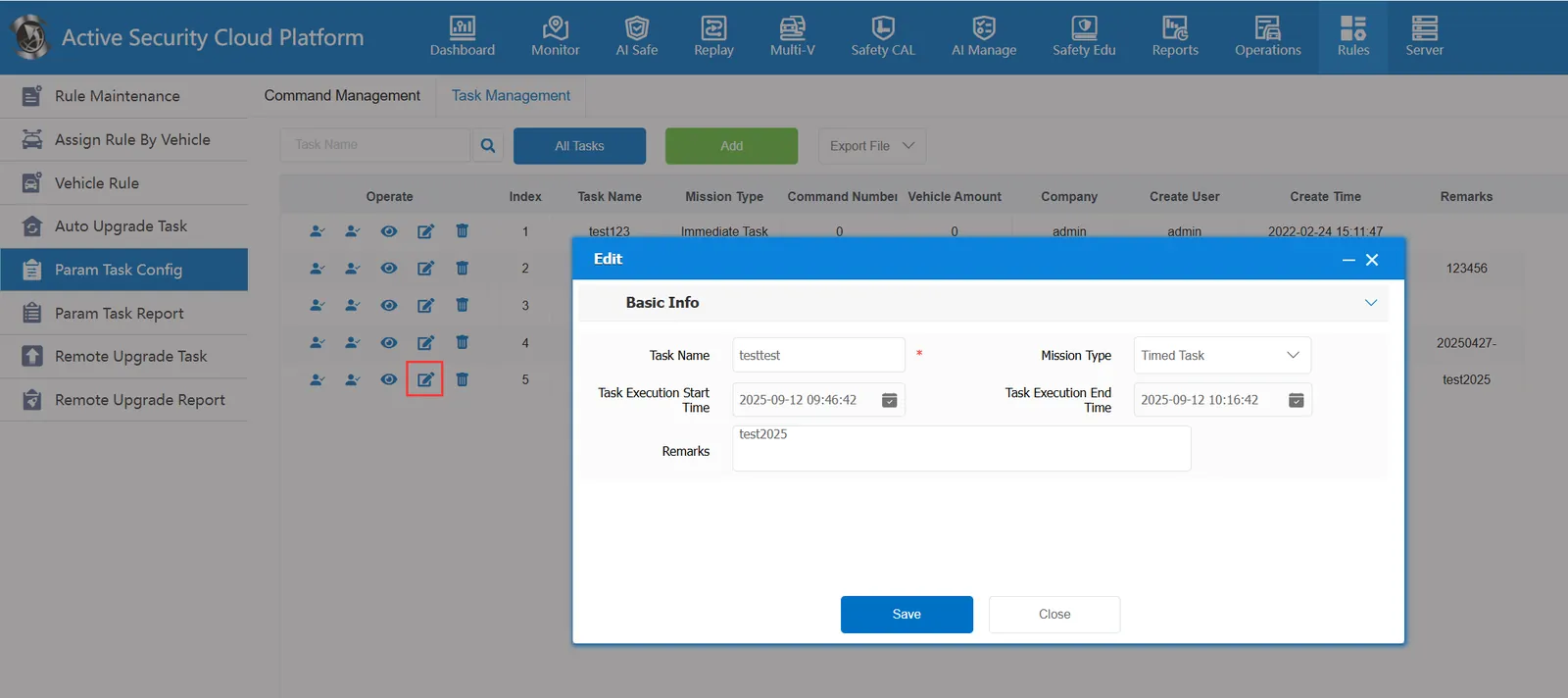
Edit: Modifies the basic information of a task.
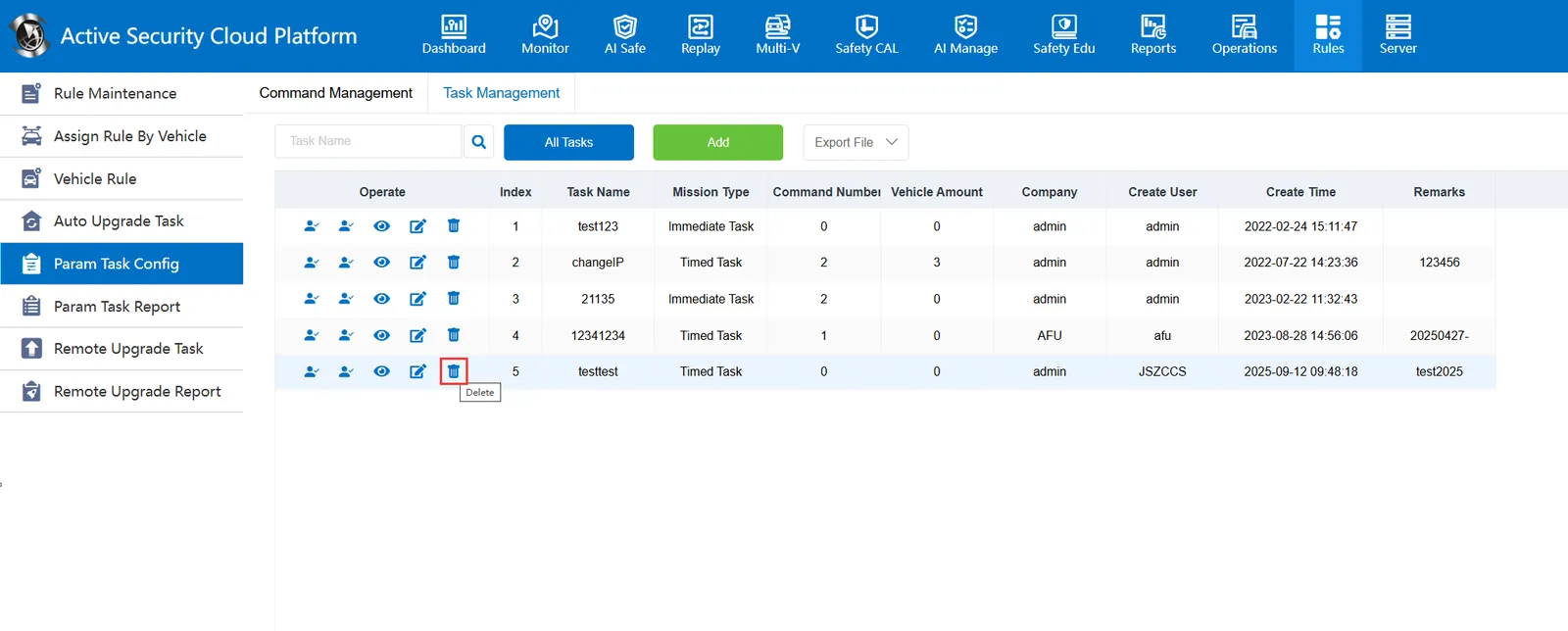
Delete: void the task and delete the task.
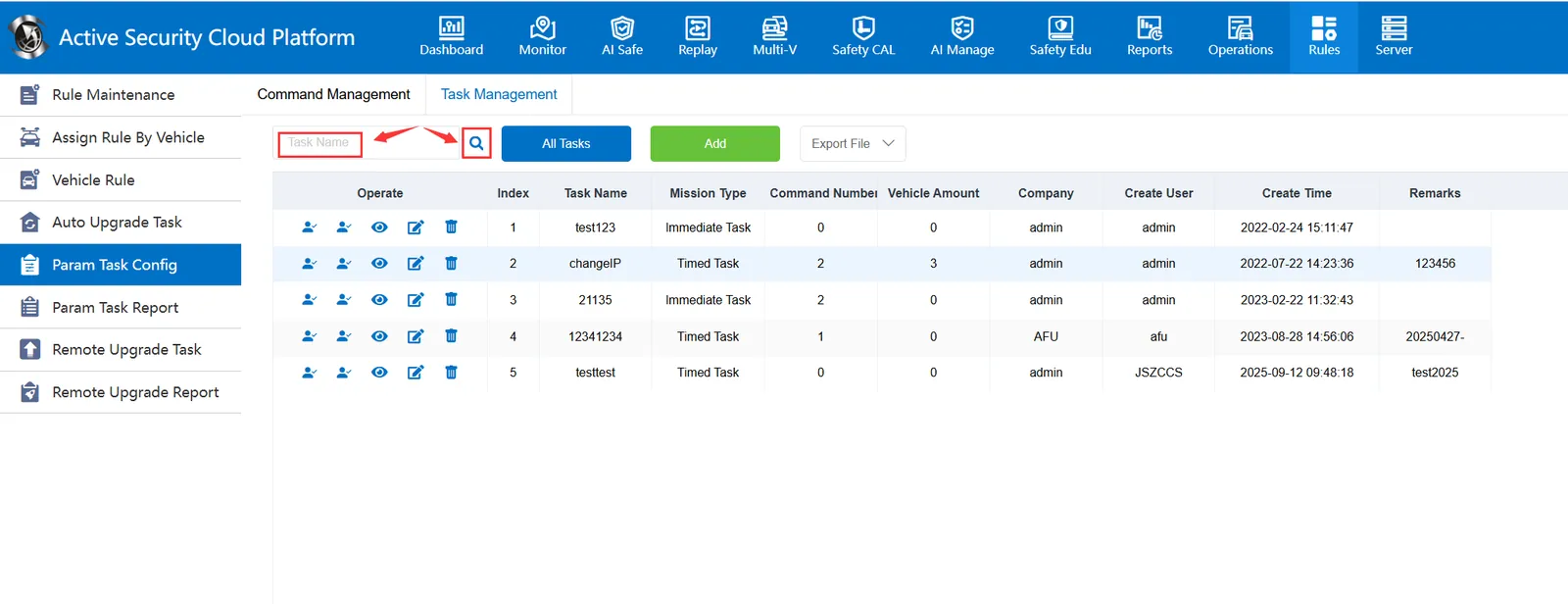
2.3 query
When more tasks are added, you can specify the task name to display only the required tasks.
2.4 Export
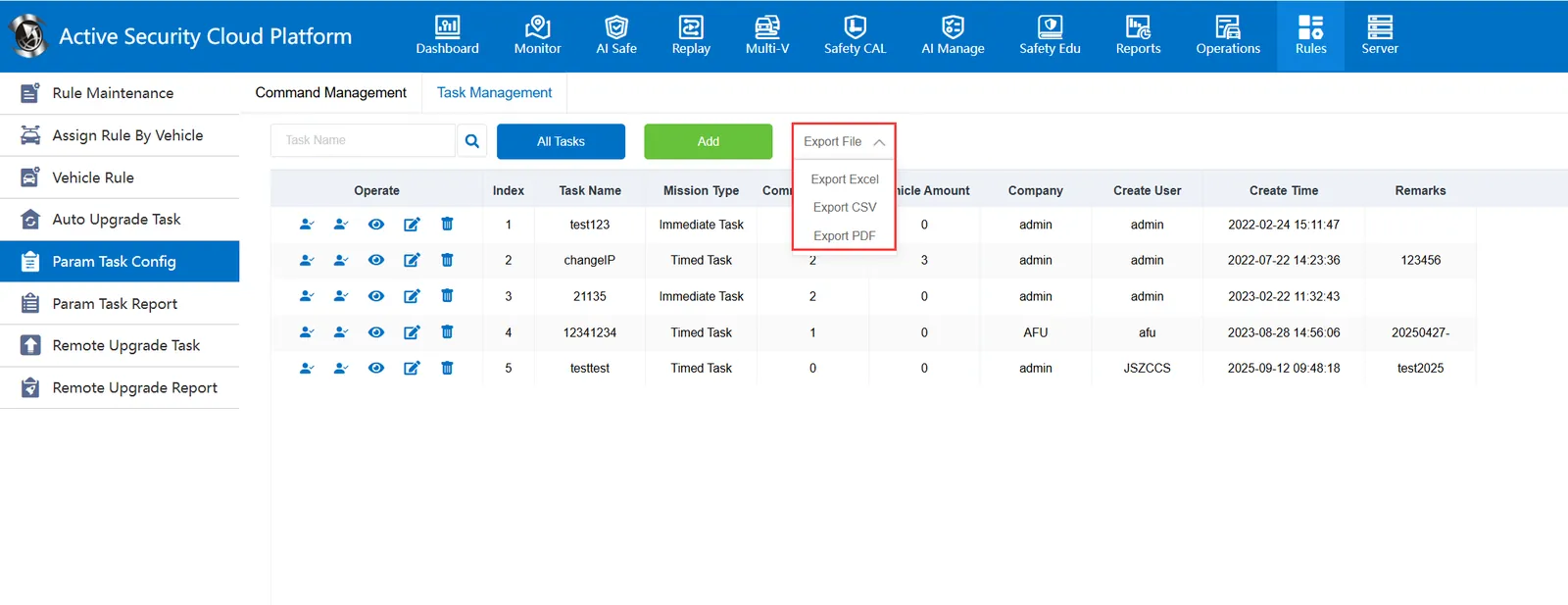
Just export the task to a file in the specified format in the form of a record.
