1. Function description
Based on the AI algorithm, the platform can automatically perform equipment health check regularly, covering the core modules such as camera (black screen/fuzzy detection), storage (video integrity check), positioning (pass rate analysis) and ADAS/DSM peripherals (alarm anomaly identification), greatly improving the inspection efficiency.
2. operating instructions
2.1 AI Equipment Inspection Configuration
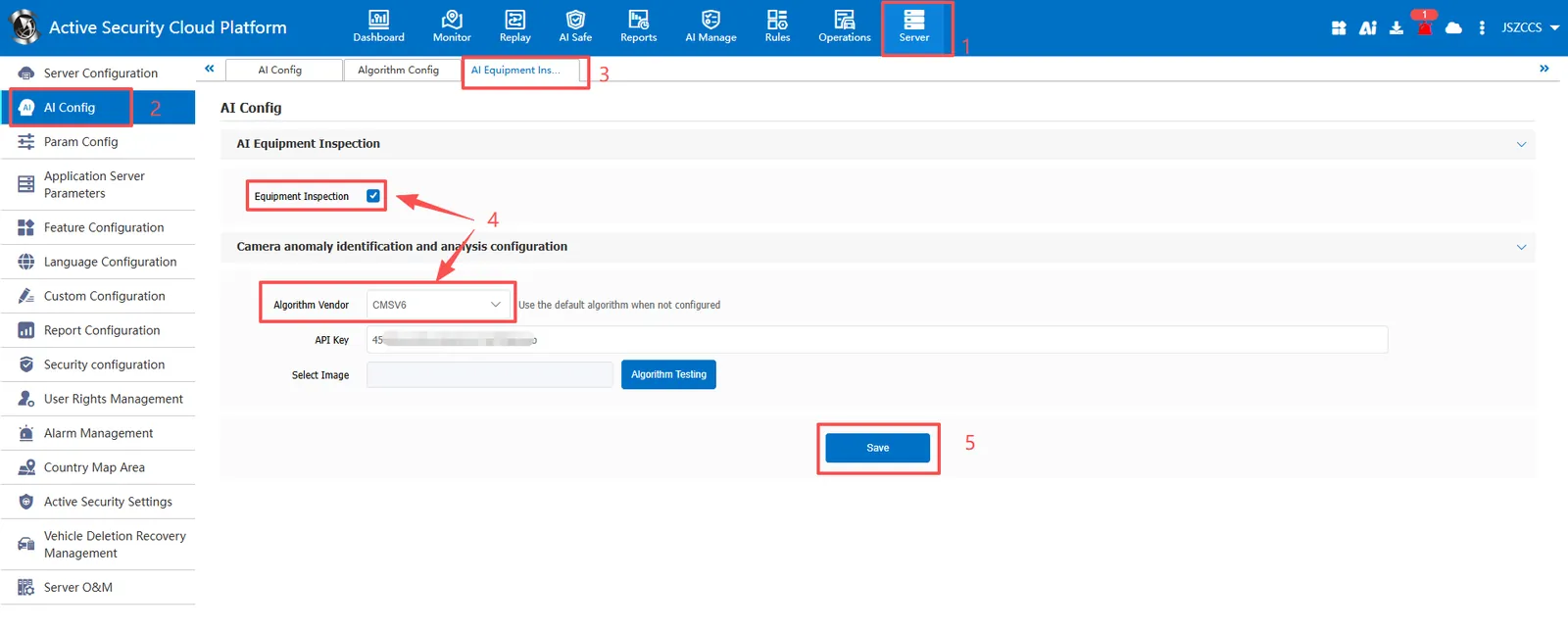
Function entry: [Server]> [AI Config]> [AI Equipment Inspection]
Camera anomaly recognition currently supports two algorithms:
Algorithm Manufacturer: Default
Algorithm manufacturer: CMSV6 (you need to apply for Key from the regional business manager, and this algorithm is recommended)
Both algorithms support uploading local images to test sensitivity.
2.2 Equipment Inspection Task
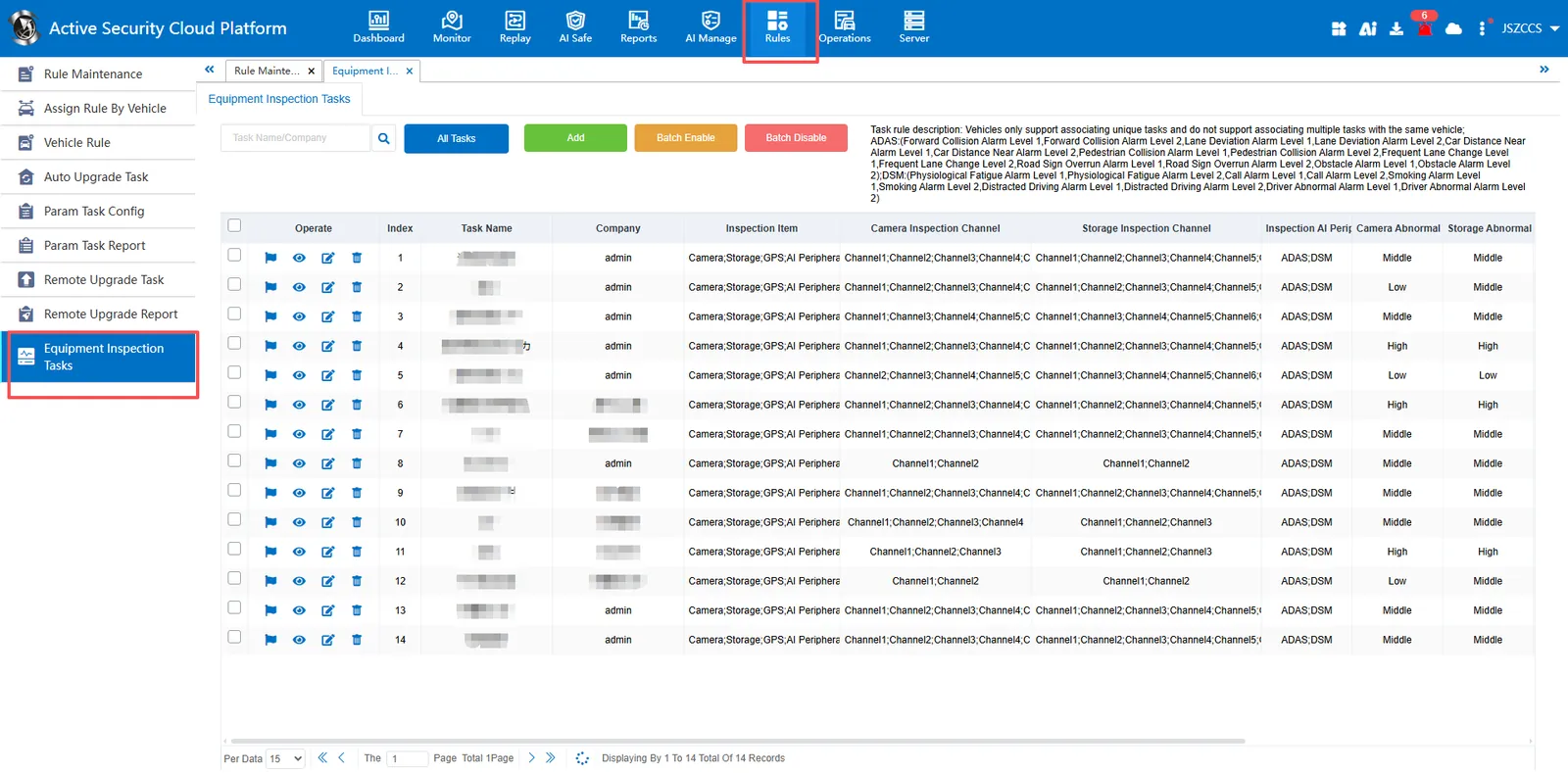
Function entry: [Rules]> [Equipment Inspection Task]
Equipment inspection items support four types: camera, storage, positioning, AI peripherals.
-
[Camera inspection]
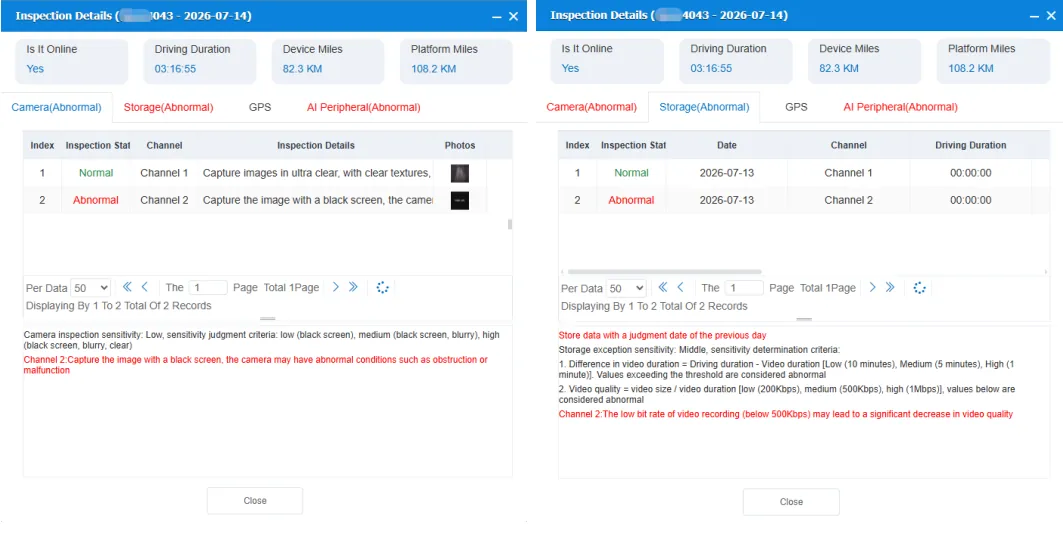
Camera inspection rules: During inspection, a snapshot of an image is sent to the corresponding channel, and the black screen status of the image is analyzed through the corresponding manufacturer's algorithm.
Camera inspection timing: start inspection from 07:00:00 to 23:59:59 every day, and trigger a round every 15 minutes.
Camera abnormal sensitivity criteria: low (black screen), medium (black screen, blurry), high (black screen, blurry, clear) -
[Storage Inspection]
Storage inspection rules: during inspection, the terminal video recording query of the previous day is sent to the corresponding channel, and the video recording duration difference and video file code rate are determined.
Timing of storage inspection: The inspection starts from 07:00:00 to 23:59:59 every day, and one round is triggered every 15 minutes.
Criteria for determining abnormal storage sensitivity:
1. Difference in video duration = Driving duration - Video duration [Low (10 minutes), Medium (5 minutes), High (1 minute)]. Values exceeding the threshold are considered abnormal
2. Video quality = video size / video duration [low (200Kbps), medium (500Kbps), high (1Mbps)], values below are considered abnormal -
[GPS inspection]
Positioning inspection rules: determine the positioning pass rate and discontinuous mileage ratio of the previous day.
Positioning inspection timing: the inspection is triggered after the daily report statistics are completed in the morning.
Determination criteria for abnormal positioning sensitivity:
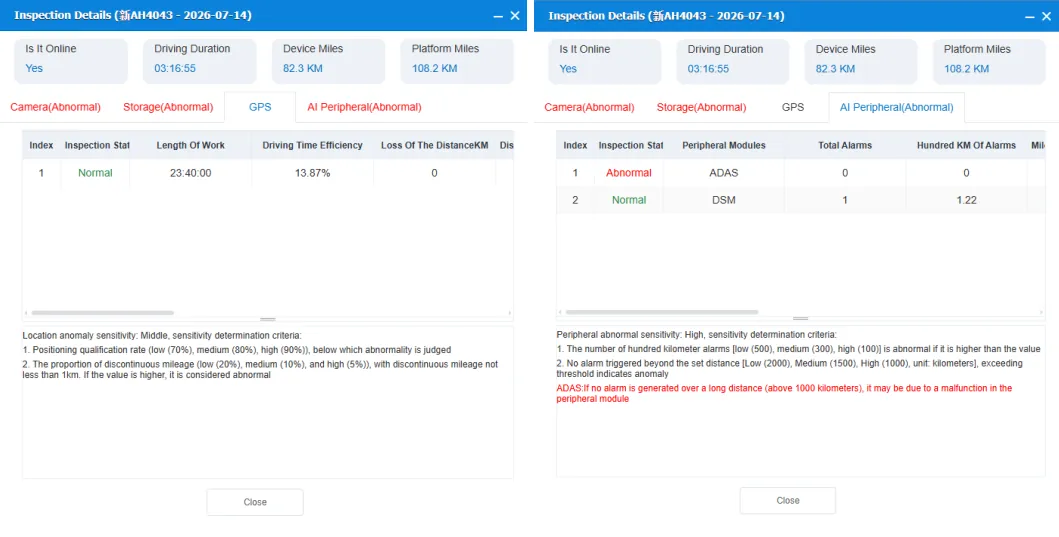
1. Positioning qualification rate (low (70%), medium (80%), high (90%)), below which abnormality is judged
2. The proportion of discontinuous mileage (low (20%), medium (10%), and high (5%)), with discontinuous mileage not less than 1km. If the value is higher, it is considered abnormal -
[AI Peripheral inspection]
AI peripheral inspection rules: Determine the number of alarms per 100 kilometers and the distance exceeded the previous day without alarms (only statistics of ADAS and DSM partial alarms are supported).
Timing of AI peripheral inspection: the inspection is triggered after the daily report statistics are completed in the morning.
Criteria for determining abnormal sensitivity of AI peripherals:
1. The number of hundred kilometer alarms [low (500), medium (300), high (100)] is abnormal if it is higher than the value
2. No alarm triggered beyond the set distance [Low (2000), Medium (1500), High (1000), unit: kilometers], exceeding threshold indicates anomaly
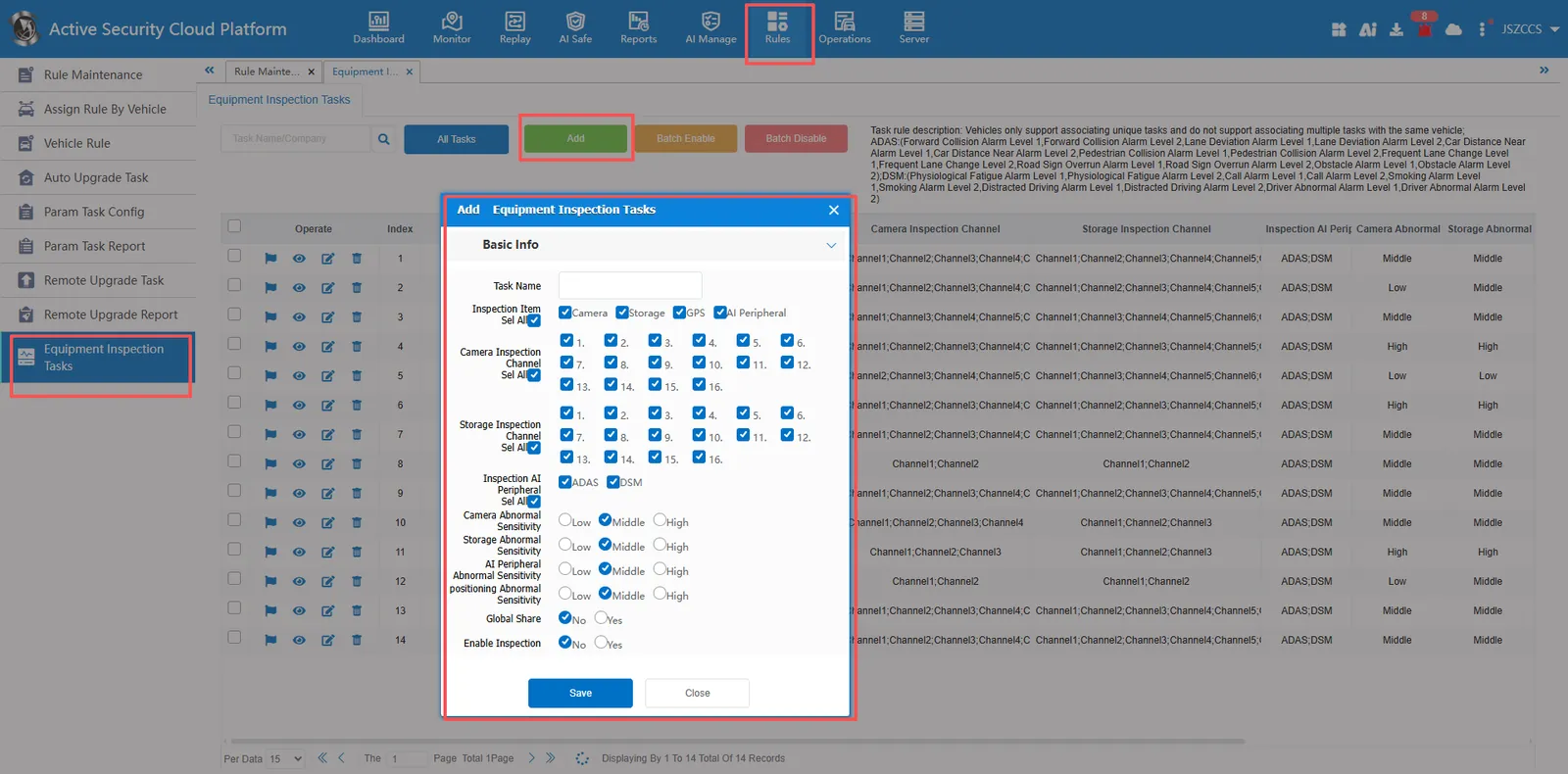
2.2.1 Add Equipment Inspection Task
Select the items and sensitivity to be inspected, and select Enable Inspection.
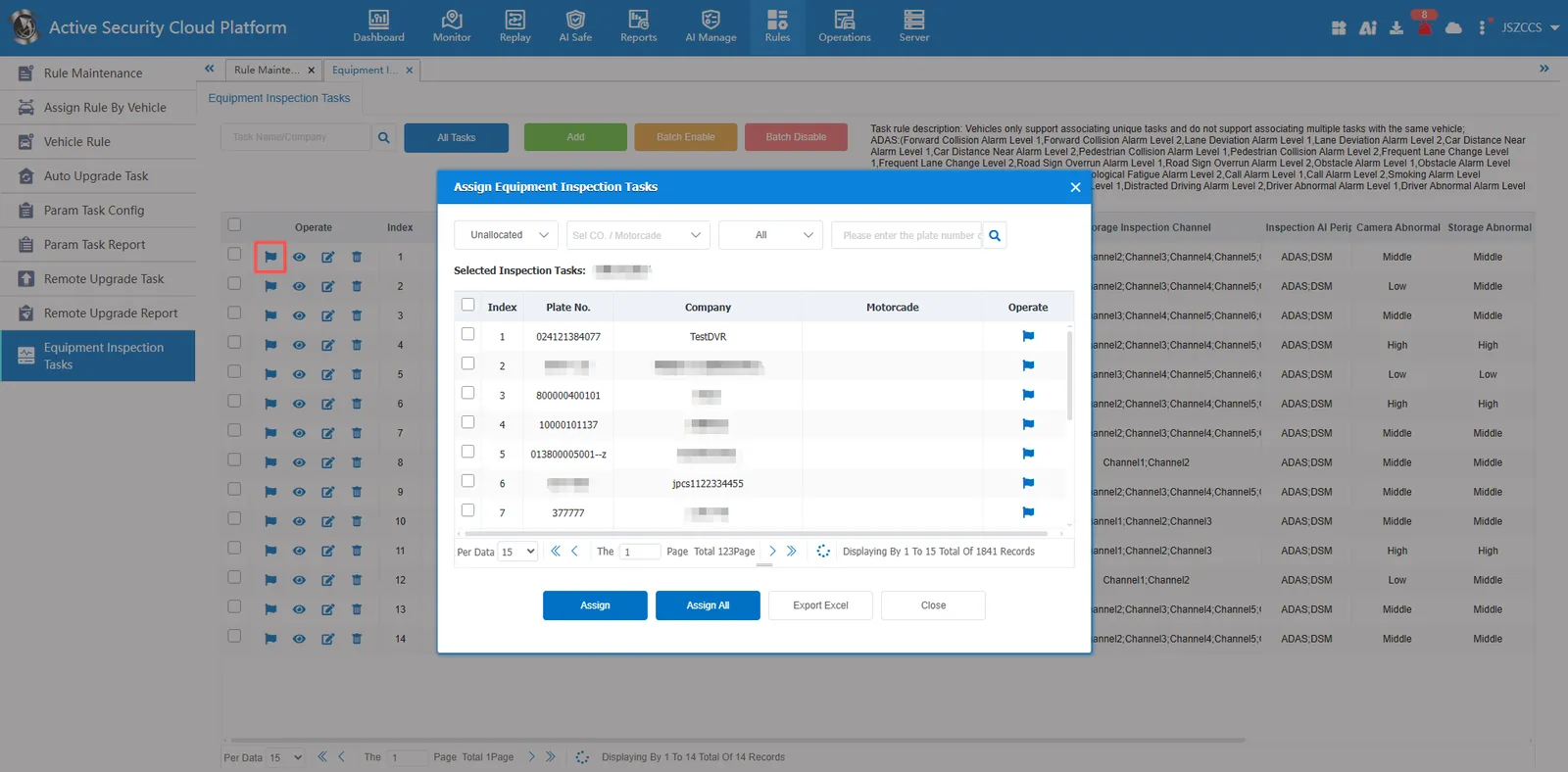
2.2.2 Assigning Equipment Inspection Tasks
After a patrol task is created, the associated vehicles are assigned. Each vehicle can only be associated with a unique task, not multiple tasks associated with the same vehicle.
2.3 Equipment Inspection Report
2.3.1 Report Entry
[Reports]> [Equipment Inspection Report]> [Equipment Inspection Details]
2.3.2 Query criteria
Query by vehicle: Query by license plate number to view the specified vehicle or all vehicle records.
Query by Time Range: You can query the start and end dates by today, yesterday, the last two days, the last seven days, the last month, or any date.
Query by Inspection Item: You can select Camera, Storage, Locate, or AI Peripheral to search by filtering.
Query by Inspection Result: You can select one or more of Normal, Abnormal, or Undetected to filter.
2.3.3 Query Results
Displays the online status of the equipment and the inspection results of each inspection item. Click to view the inspection details and manually modify the inspection results.
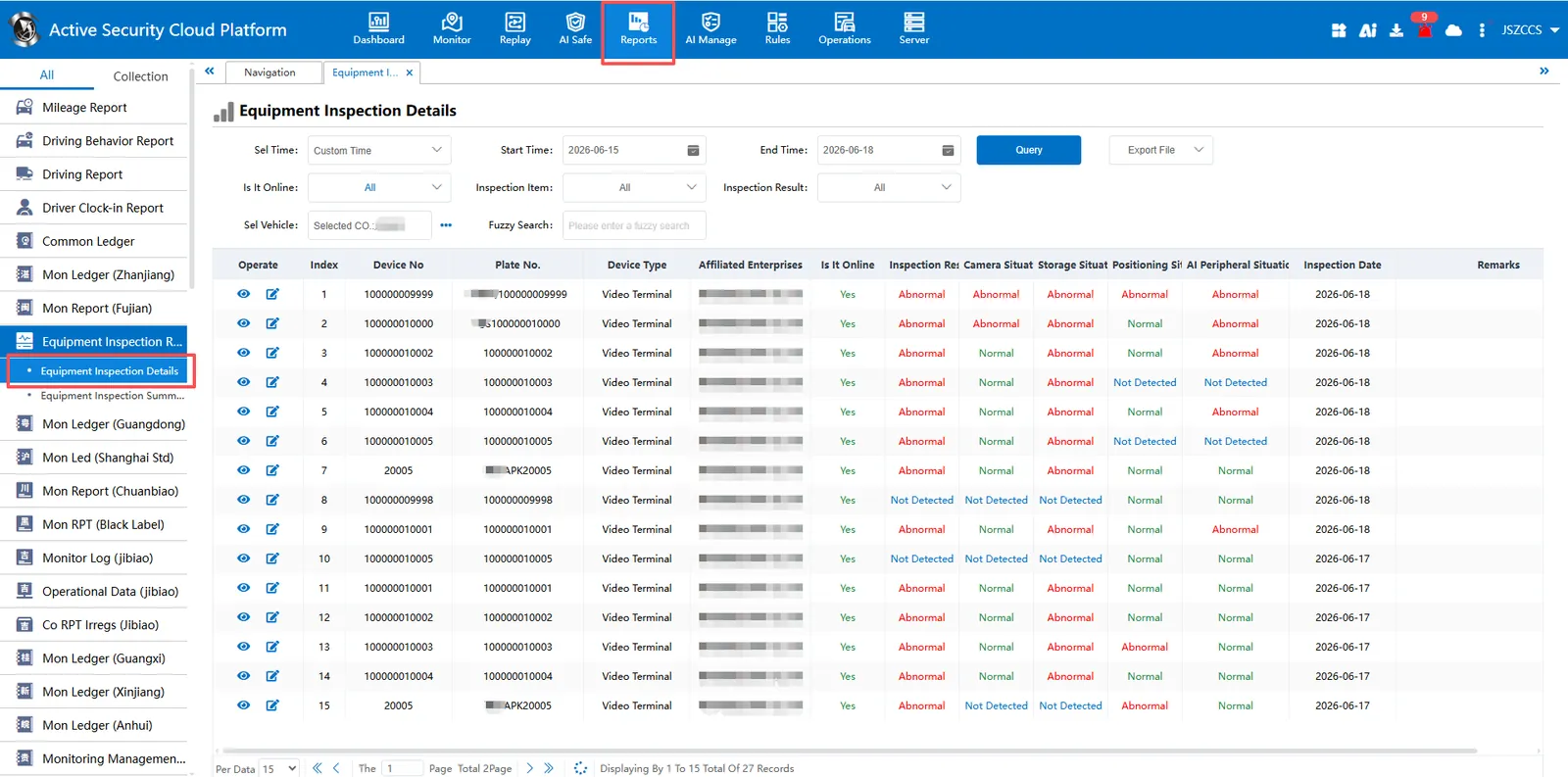
- Inspection results:
[Normal]: All items are normal and the display is normal.
[Abnormal]: There is an exception, showing an abnormal.
[Not Detected]: there is a normal + not detected, indicating not detected.
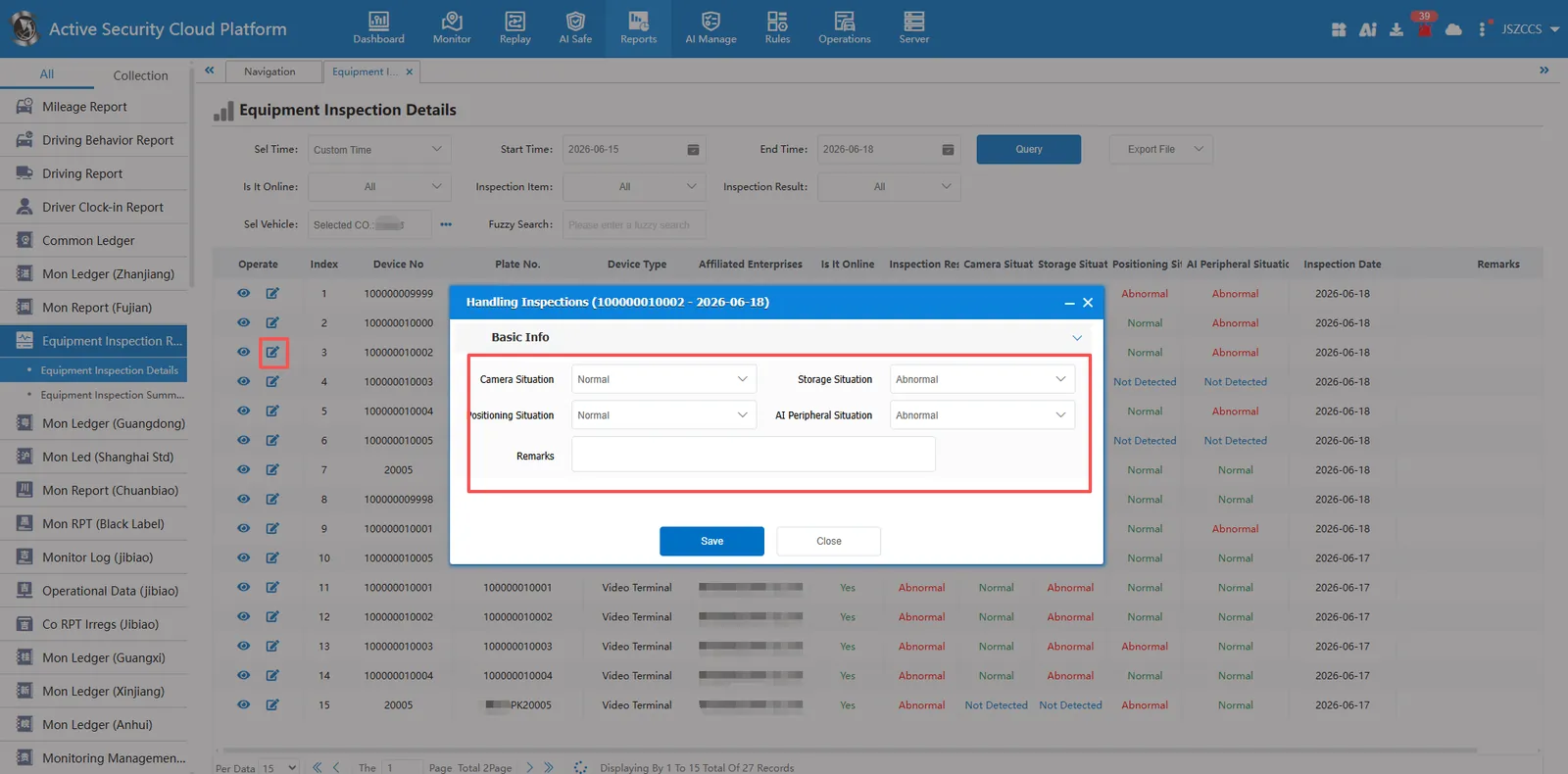
Click  the operation button to manually modify the result:
- Inspection details:
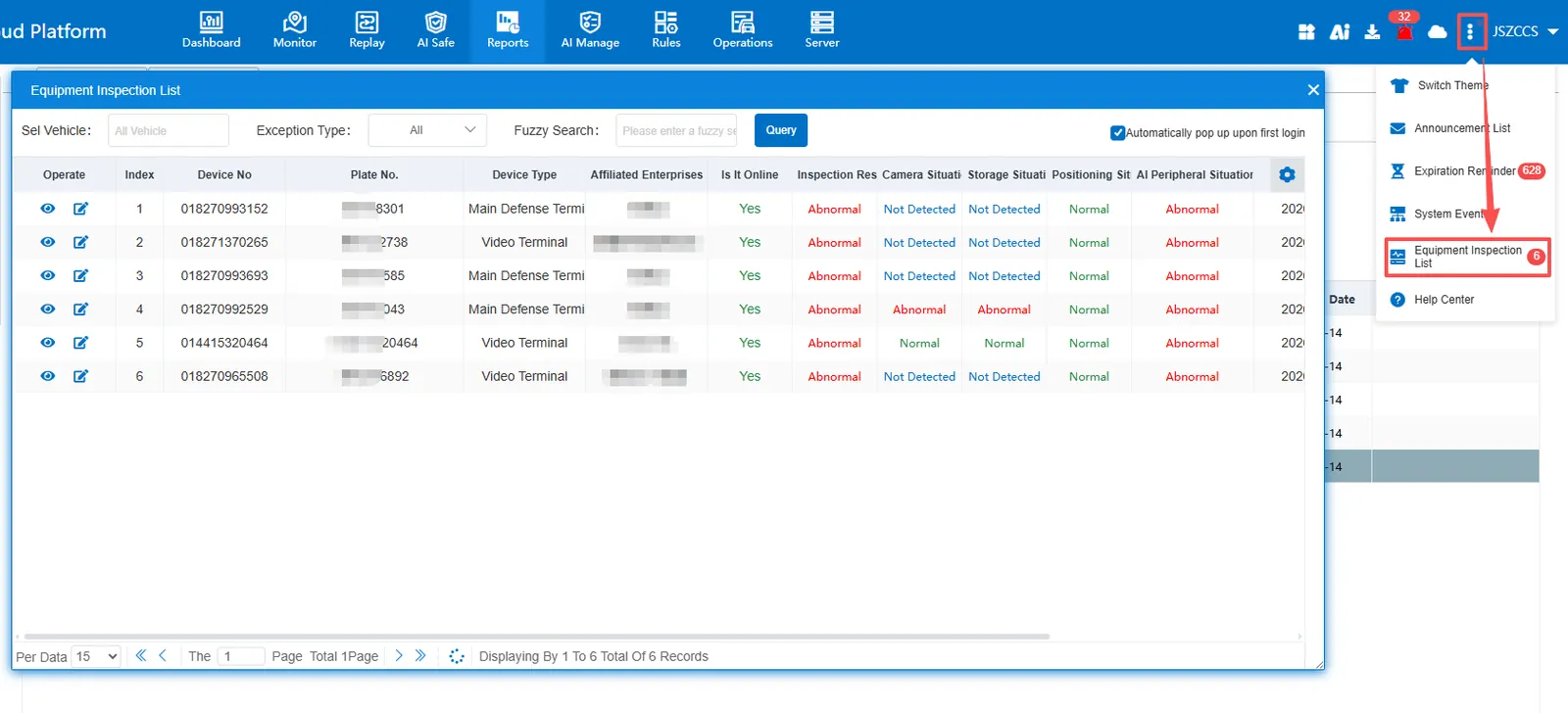
2.4 equipment inspection abnormal pop- up window
Log on to the platform for the first time every day, and the automatic pop- up window displays the equipment inspection list, which displays abnormal conditions and operation modification inspection results.
After closing the pop- up window, you can click the more button in the upper right corner to reopen the equipment inspection list.
3. Precautions
If the vehicle completes the module inspection on the same day, the task change will not trigger the second inspection, but will only take effect for the vehicle that has not been inspected.
