1. Function description
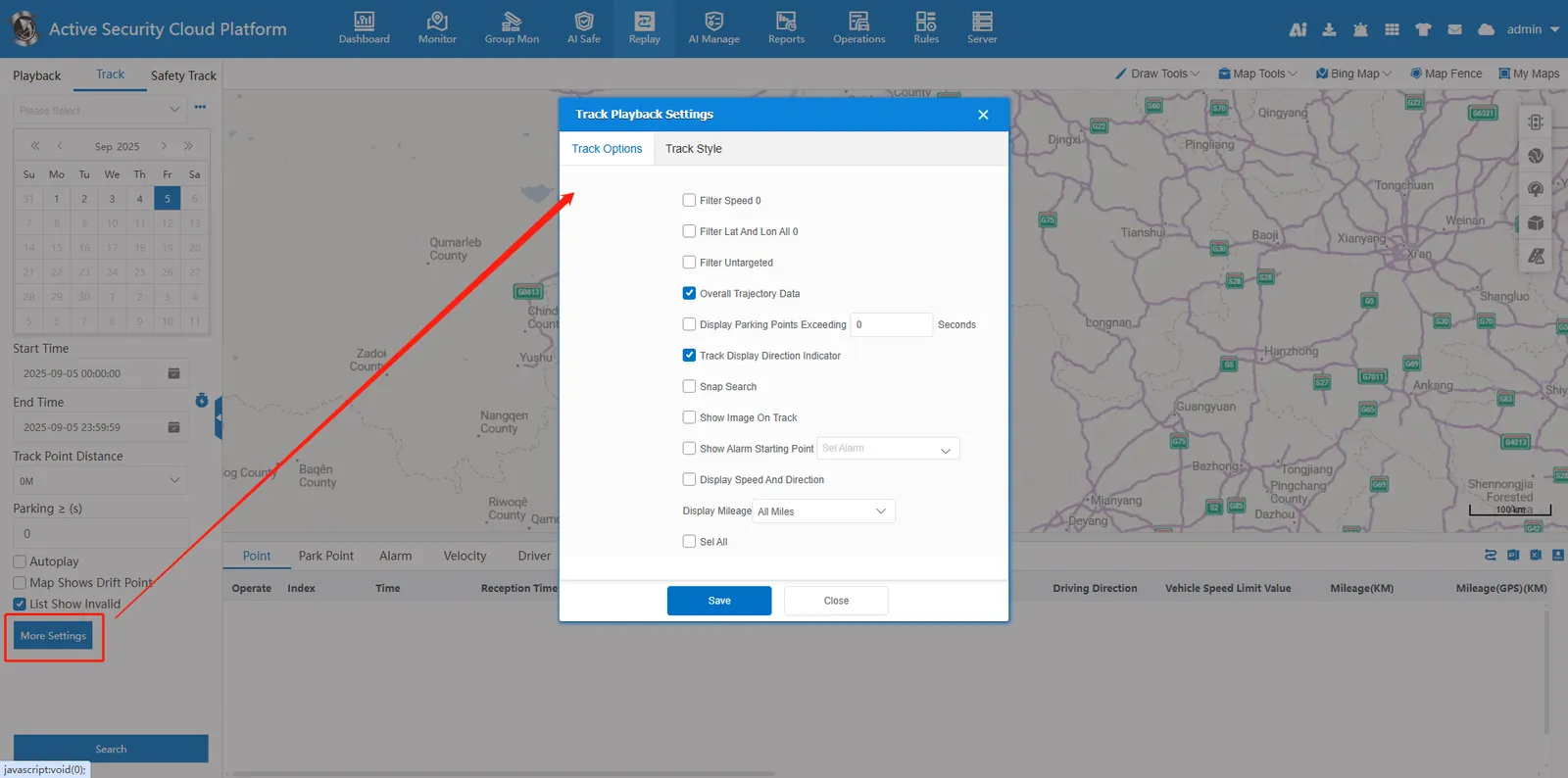
In "more configuration", it supports personalized setting of track display content, such as displaying parking points, displaying server pictures, displaying mileage, etc.
2. operating instructions
2.1 filtration speed is 0
Check: GPS points with a speed of 0 are not displayed in the track list.
Unchecked: GPS points with a speed of 0 are displayed in the track list.
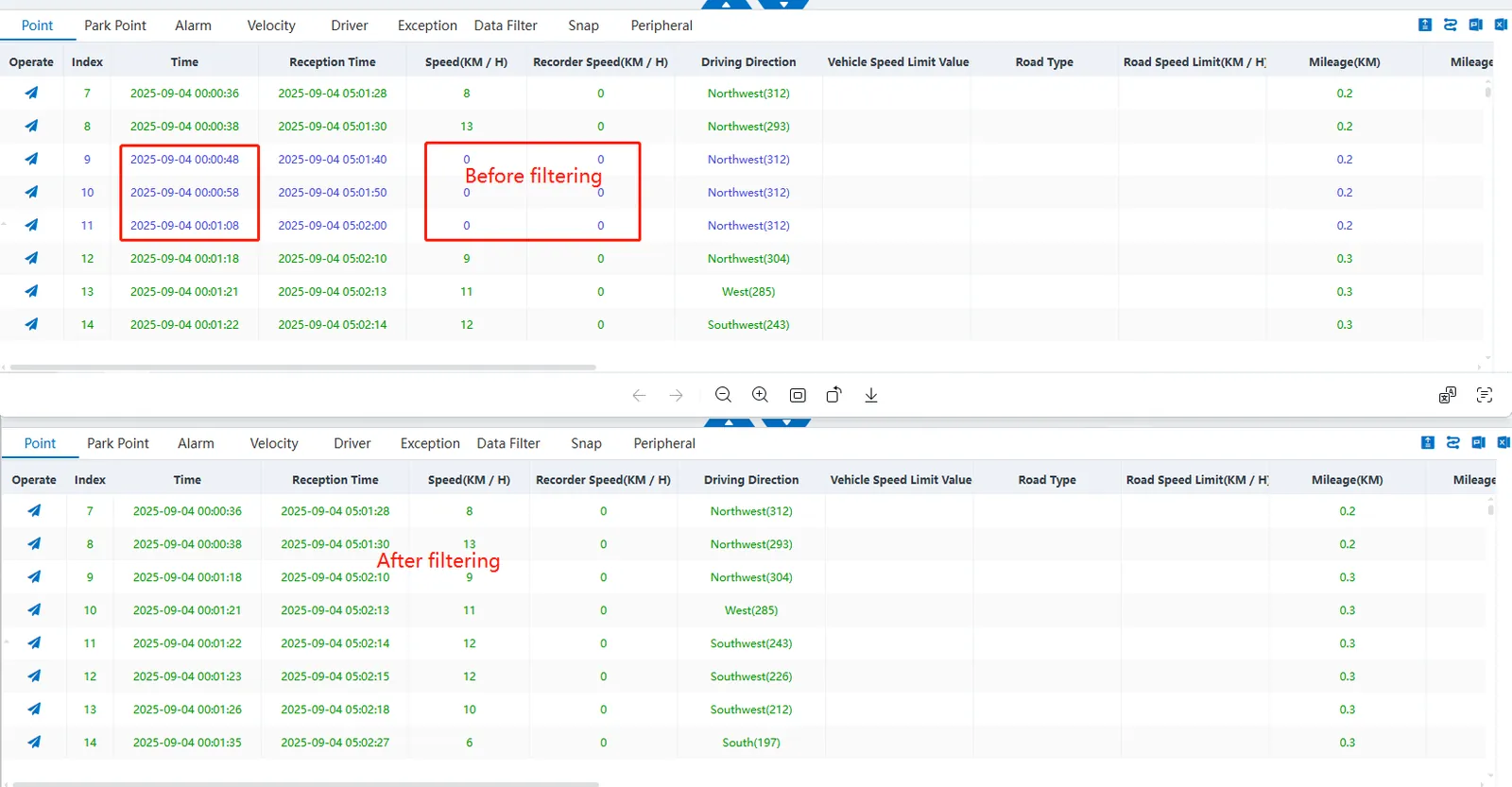
2.2 filtering latitude and longitude are all 0
Check: GPS points with longitude and latitude of 0 are not displayed in the track list.
Do not check: GPS points with longitude and latitude of 0 are displayed in the track list.
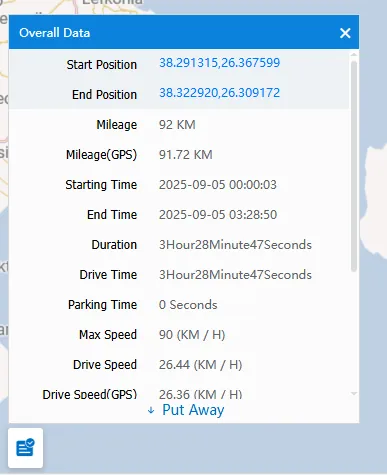
2.3 display track overall data
Check: After the trajectory search is completed, the overall trajectory data is displayed in a pop- up window in the lower left corner of the trajectory map.
Do not check: After the track search is completed, the overall track data is not displayed.
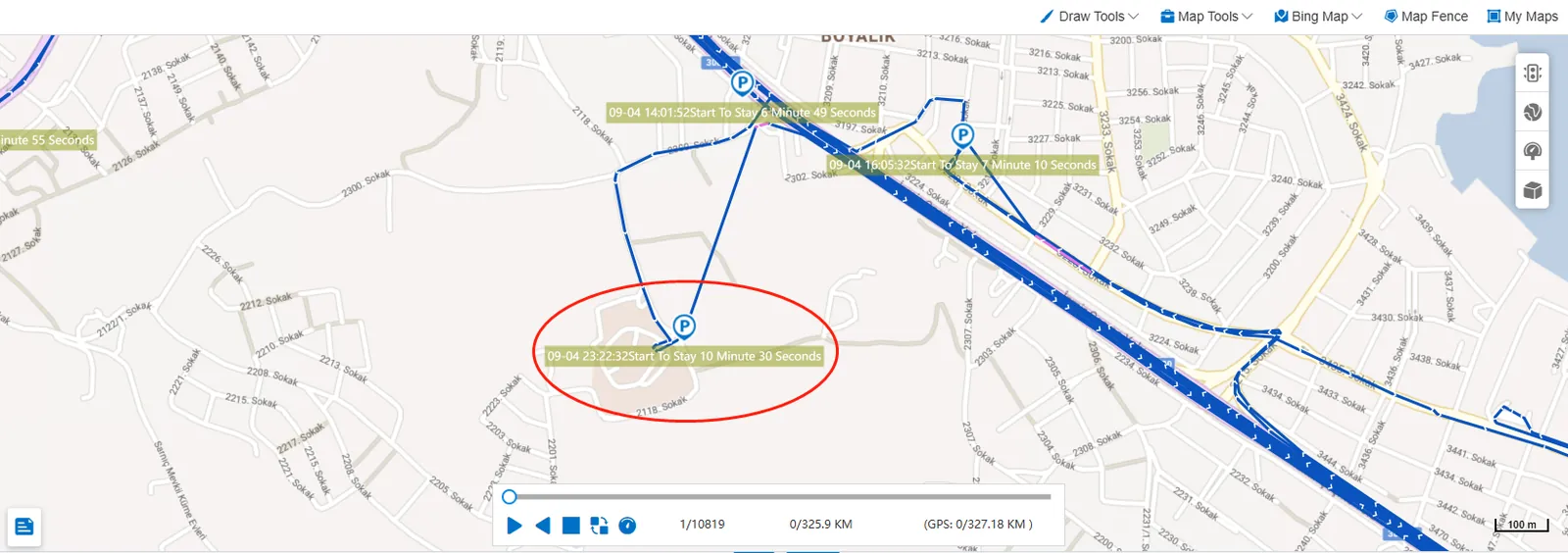
2.4 shows parking spots on the map for more than X seconds
Check: set the parking threshold, continuous parking/idling exceeds the set threshold, and the parking start time and duration are displayed on the trajectory map.
Do not check: no parking points are displayed on the trajectory map.
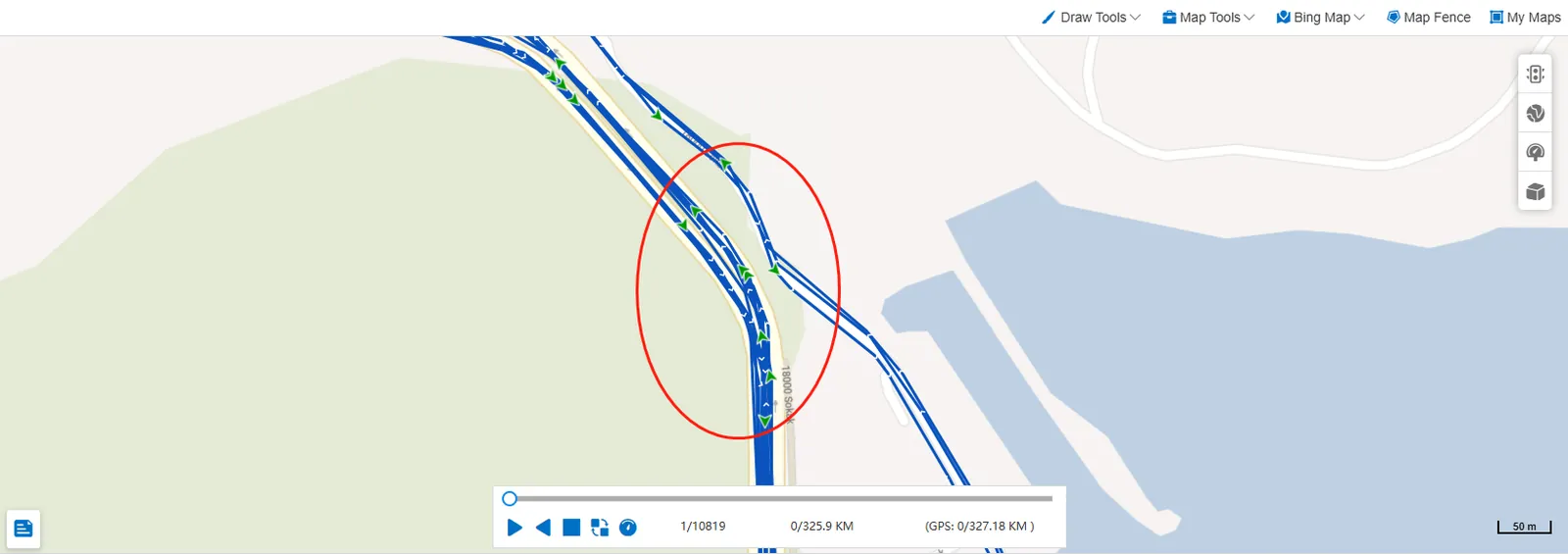
2.5 track display direction mark
Check: the driving direction sign of "green triangle arrow" is displayed on the track map.
Do not check: the driving direction sign is not displayed on the trajectory map.
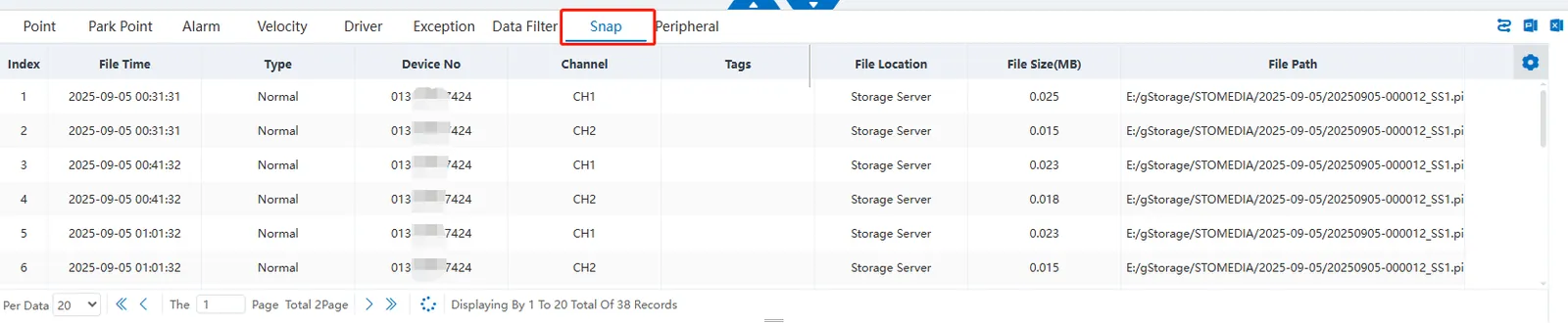
2.6 server image search
Check: the server picture is displayed in the track list. Double- click to view the picture details.
Do not check: the server picture is not displayed in the track list.
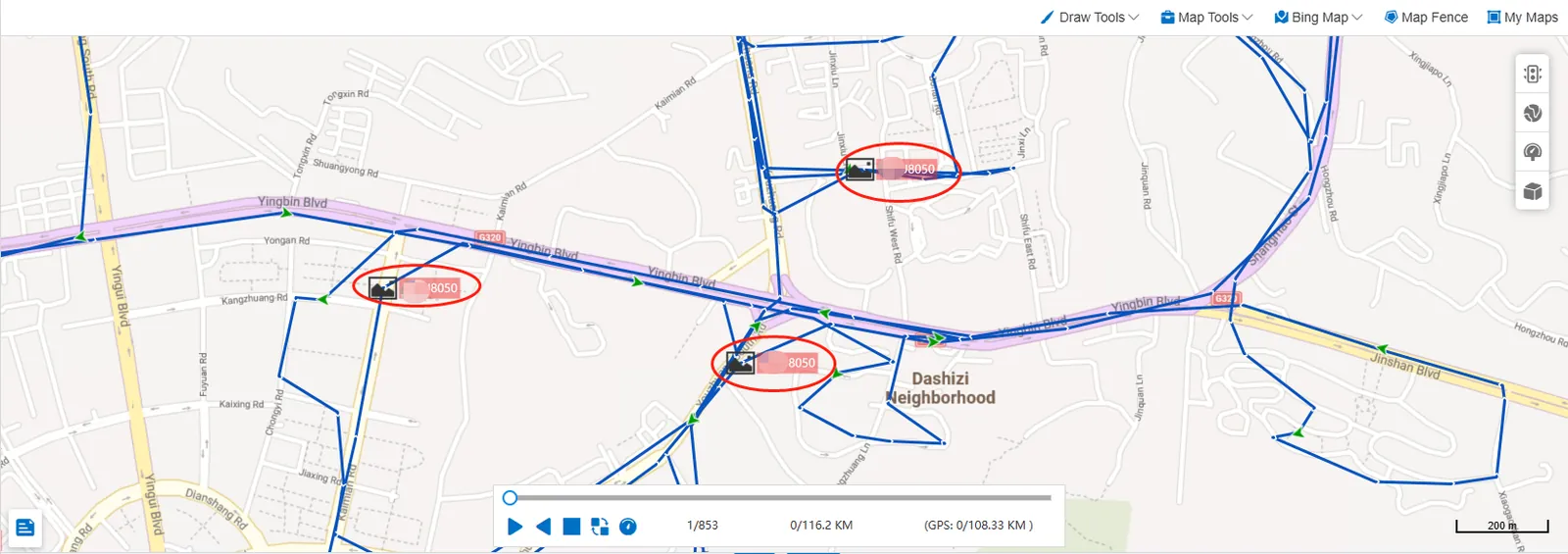
2.7 Display server image on the track
Tick: Display the image mark points stored on the server on the track map.
Do not check: the server image mark point is not displayed on the track map.
2.8 display alarm start mark
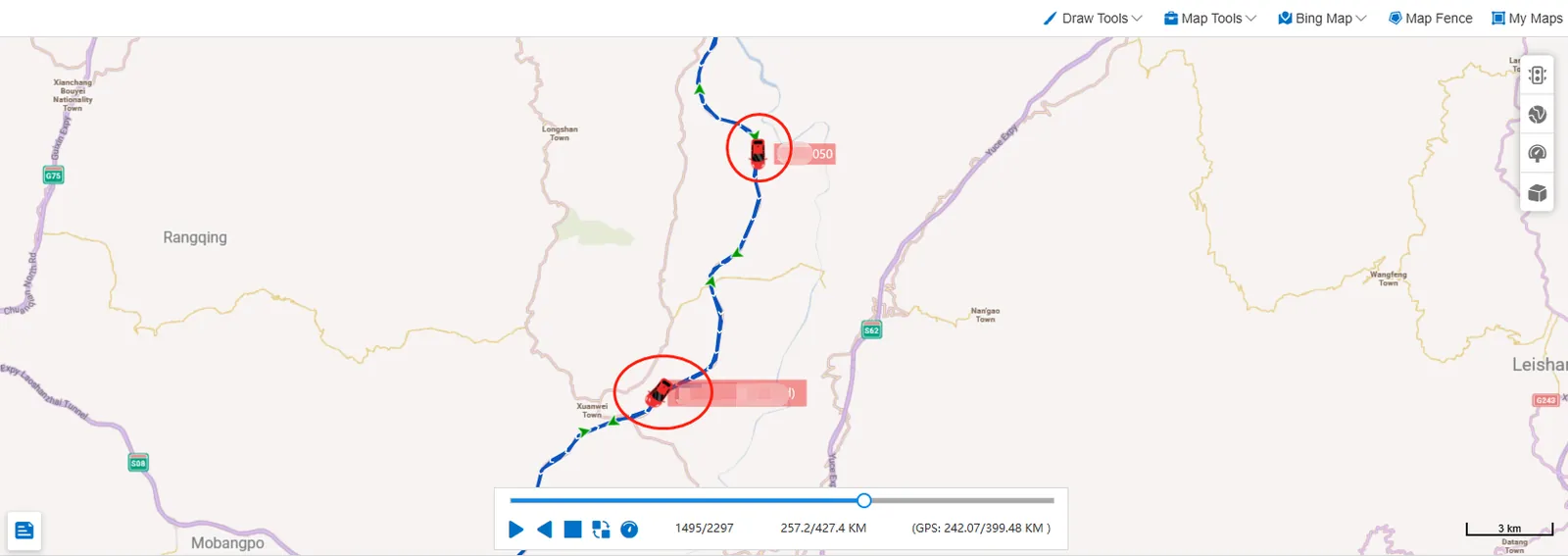
Check: "Red vehicle icon" is displayed as the alarm starting point mark on the trajectory map;
For the time being, only Fatigue Driving Alert, Fatigue Driving Alert, Overspeed Alert, Overspeed Alert, and Access Area Alert can be configured ".
Do not check: the alarm start mark is not displayed on the track map.
2.9 display speed and direction
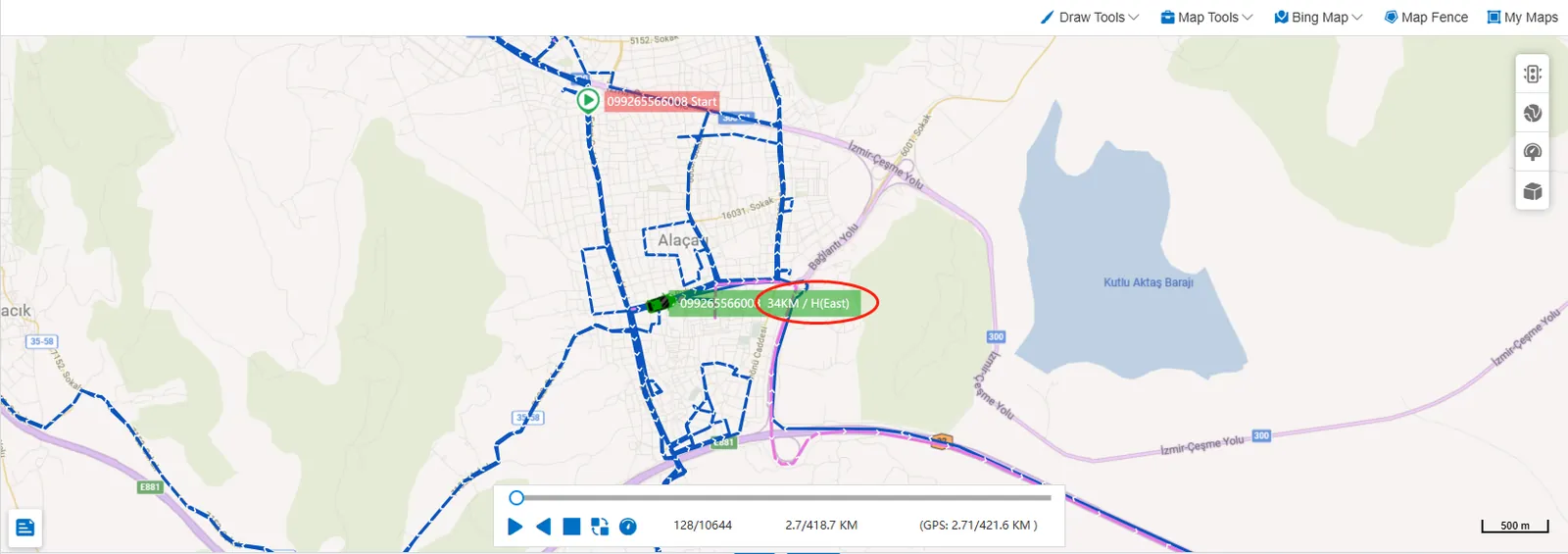
Tick: Show speed and direction on track map.
Unchecked: Speed and direction are not displayed on the track map.
2.10 display mileage
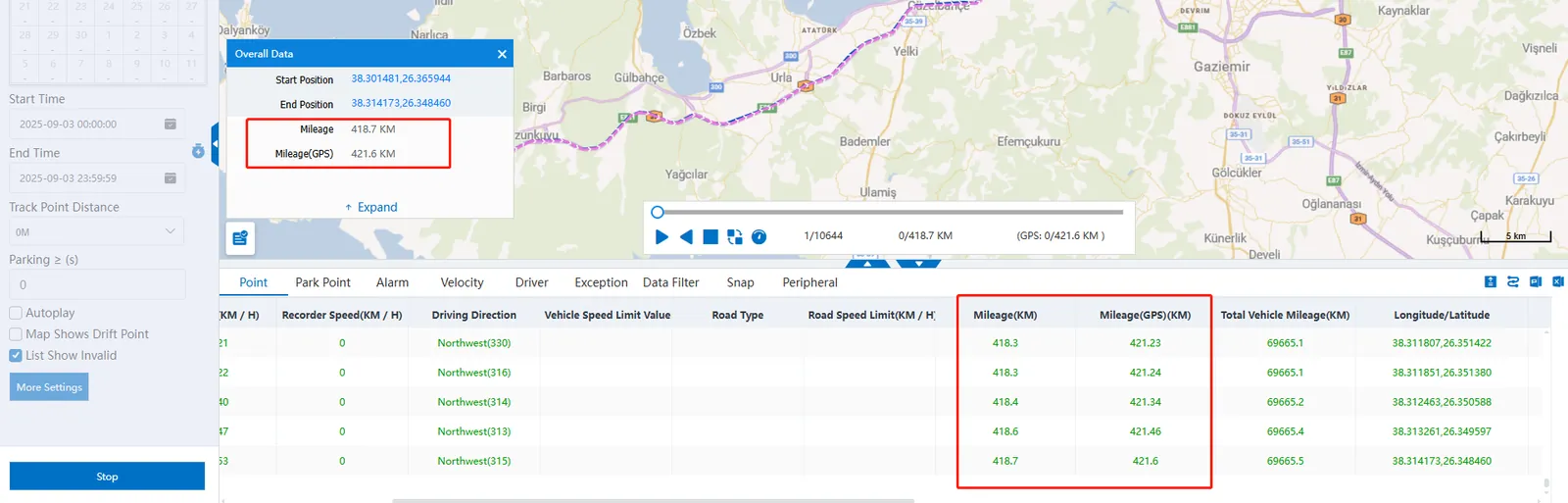
All mileage: display equipment mileage and positioning mileage at the same time (slight difference between the two mileage statistics is normal).
Equipment mileage: the platform calculates the vehicle mileage based on the total vehicle mileage reported by the terminal equipment.
Positioning mileage: vehicle mileage calculated by the platform based on GPS positioning.