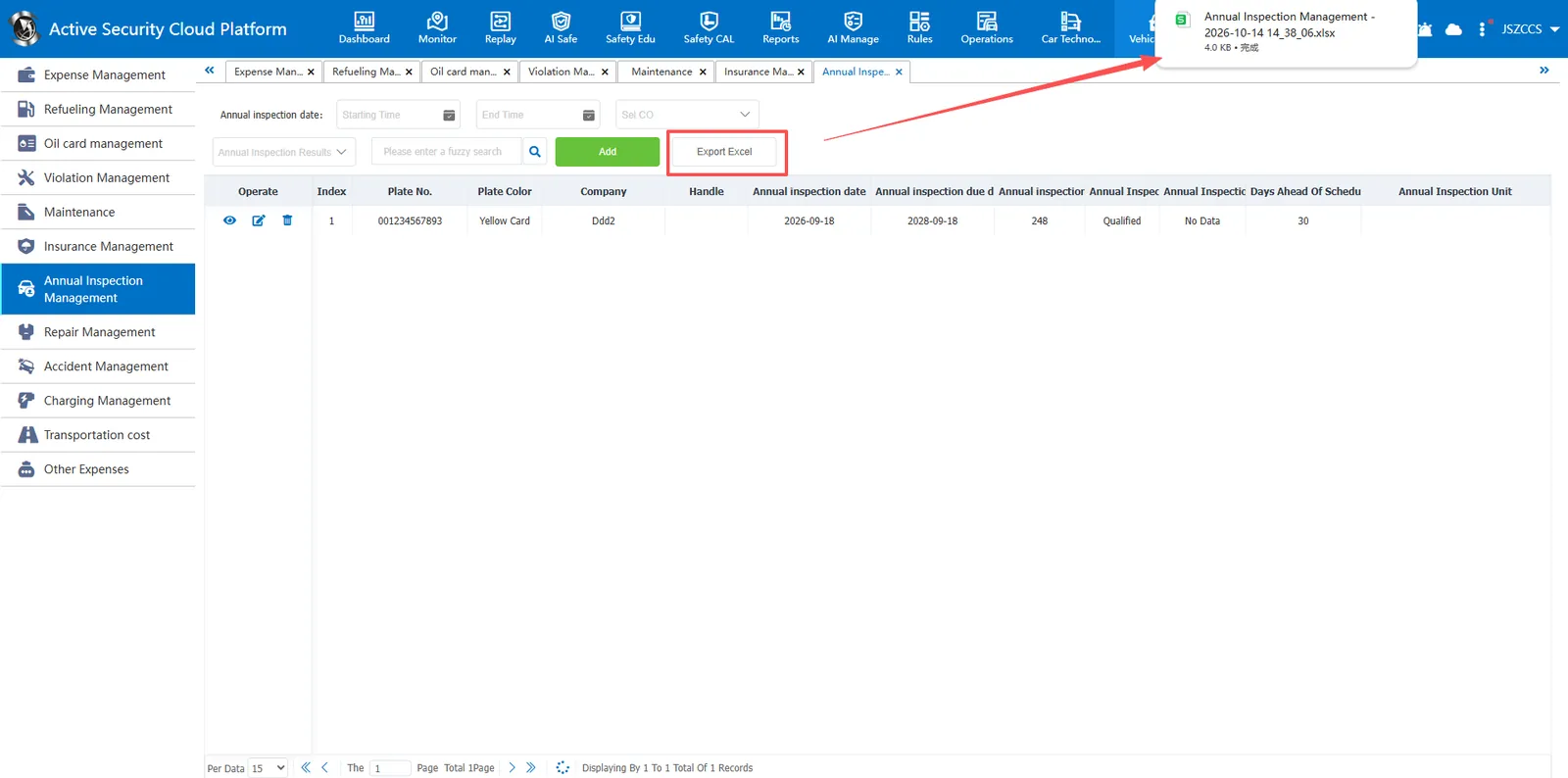
1. Function description
This module is used to manage the annual vehicle inspection files. It supports the addition, viewing details, modification, correction, deletion and removal of records such as annual inspection date, annual inspection fee and annual inspection result, and supports one-click export of Excel forms, which is convenient for enterprises to track the annual inspection status of vehicles, count the annual inspection data and keep them offline for archiving.
2. operating instructions
2.1 add annual inspection information
Click the "Add" button to pop up the add window. Enter the annual vehicle inspection information according to the page content. Items with a red asterisk (*) on the page are required. Please be sure to complete them. The requirements for filling the specific fields are as follows:
- Plate No.: select the existing vehicle on the platform (required)
- Handle: enter the name of the person handling the annual inspection (optional)
- Annual inspection date: click the calendar icon on the right to select the actual annual inspection date (required)
- Annual inspection due date: Click the calendar icon on the right to select the due date of the annual inspection (required)
- Annual Inspection Fee (Yuan): Enter the total cost of this annual inspection (required, number only)
- Annual Inspection Results: Click the drop- down menu to select the results of this annual inspection (e.g. qualified or unqualified) (required)
- Days Ahead Of Schedule: Enter the number of days in advance for annual inspection due reminder (required, number only)
- Annual Inspection Unit: enter the name of the company executing the annual inspection (optional)
- Annual Inspection Voucher: Click the button or drag the file to the dashed box. Upload up to 6 files (required). Supported formats: png, jpg, jpeg
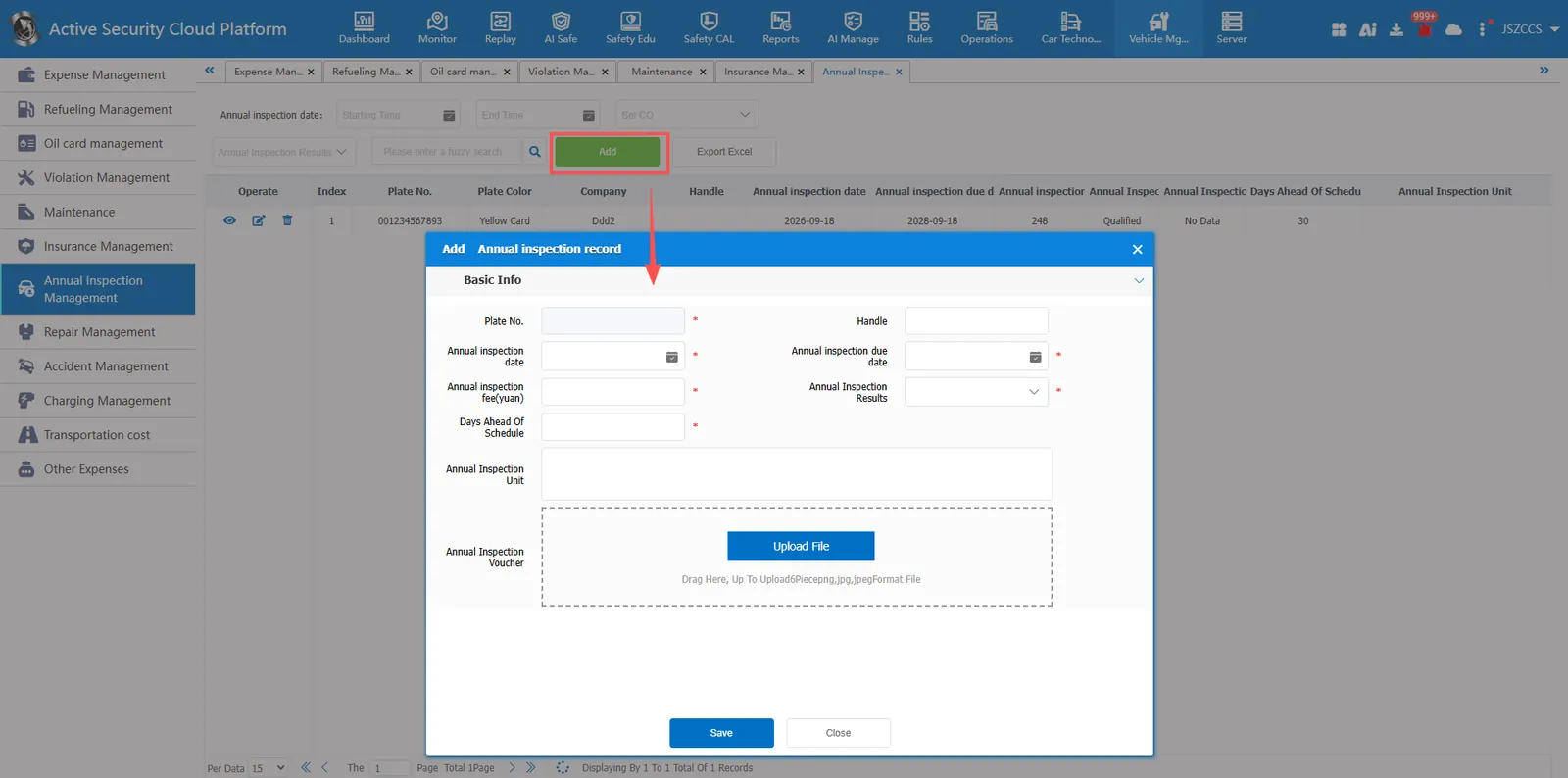
💡 Operation tips: after all the information is confirmed, click the "save" button at the bottom to complete the addition; Click the "close" button to abandon the current operation and exit the window.
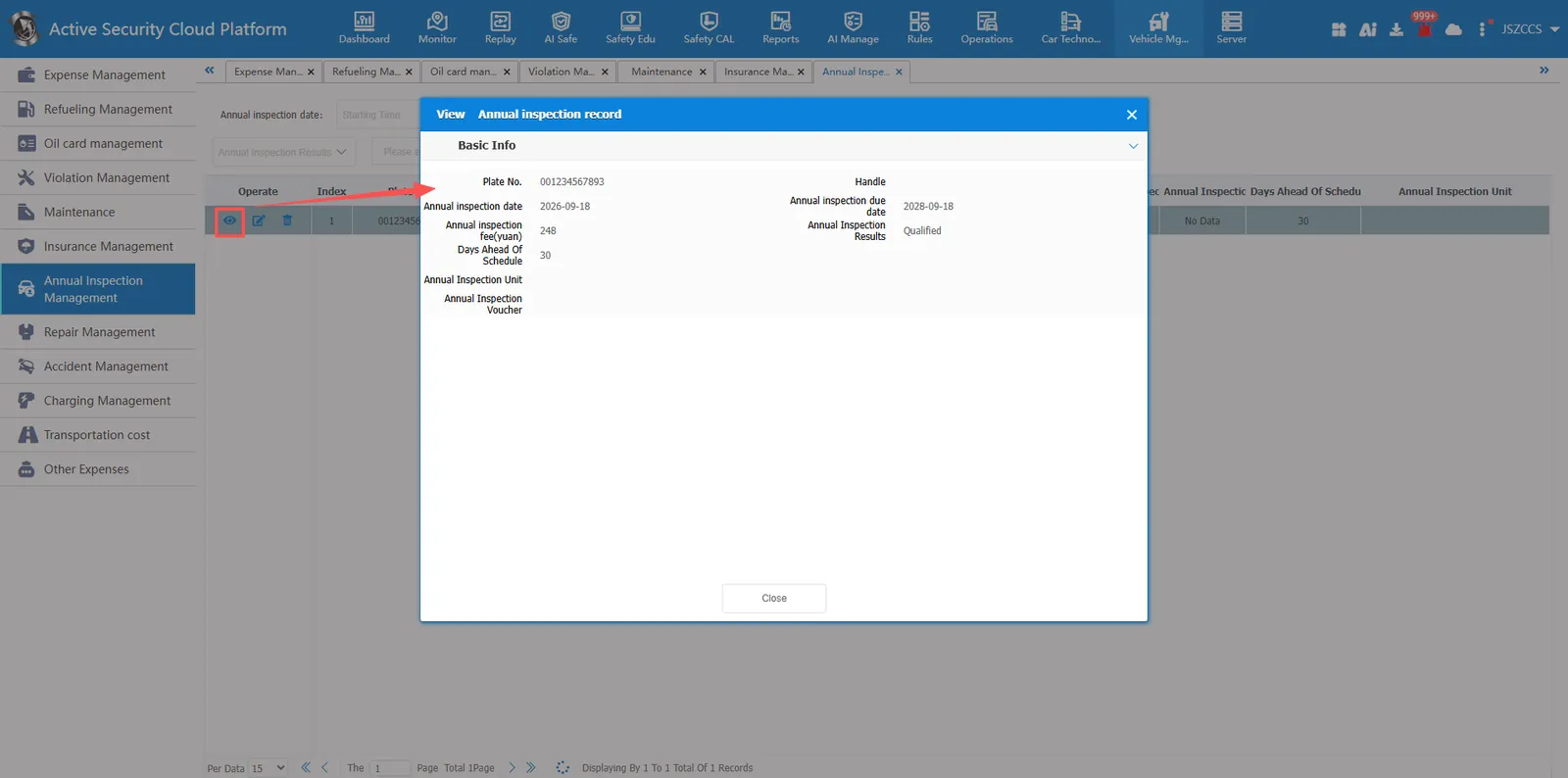
2.2 view annual inspection information
Click operation button, pop-up view window, you can query and browse the history of registered vehicle annual inspection details.
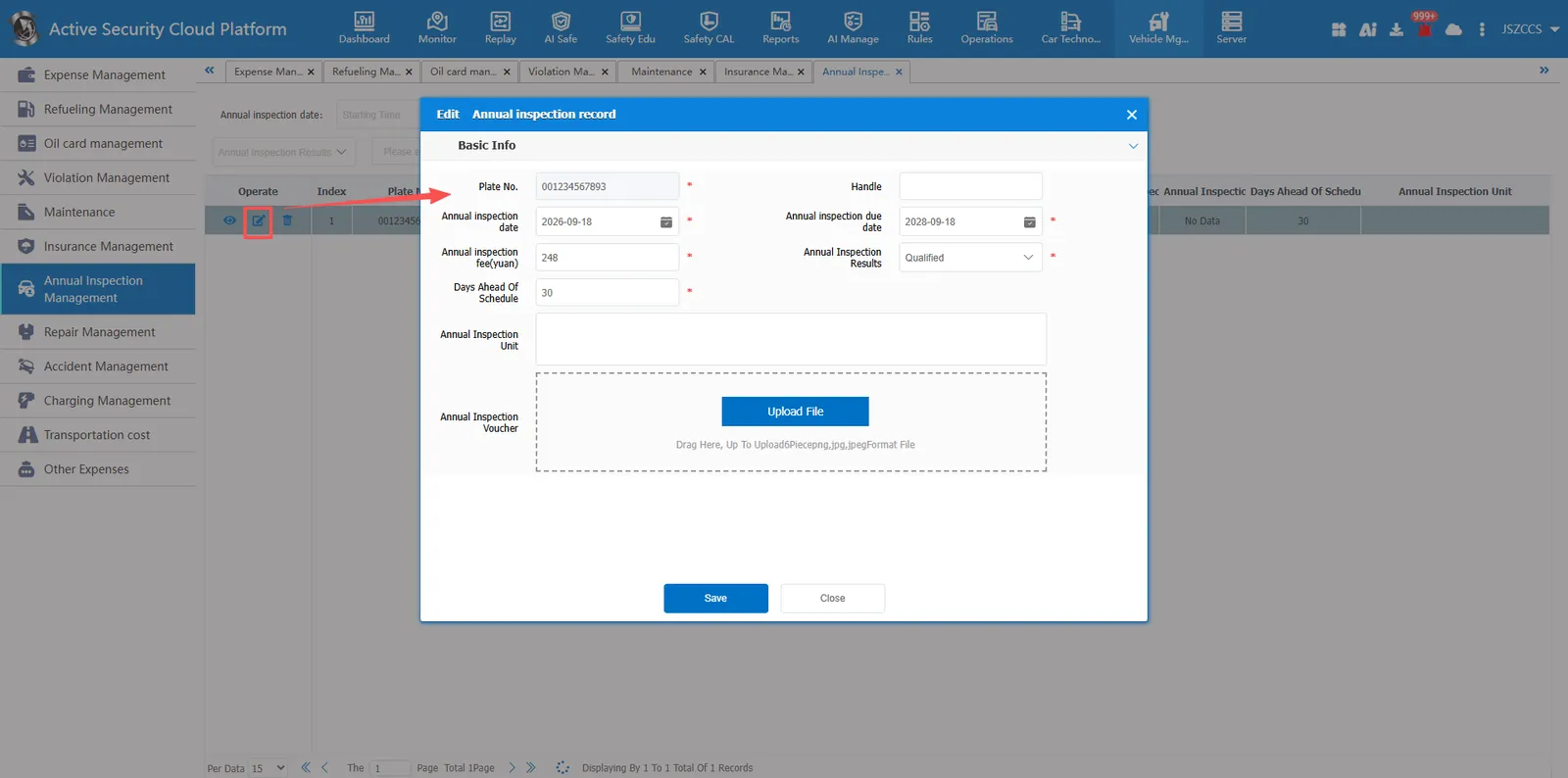
2.3 modify annual inspection information
Click operation button, pop-up editing window, the registered record information update or edit correction.
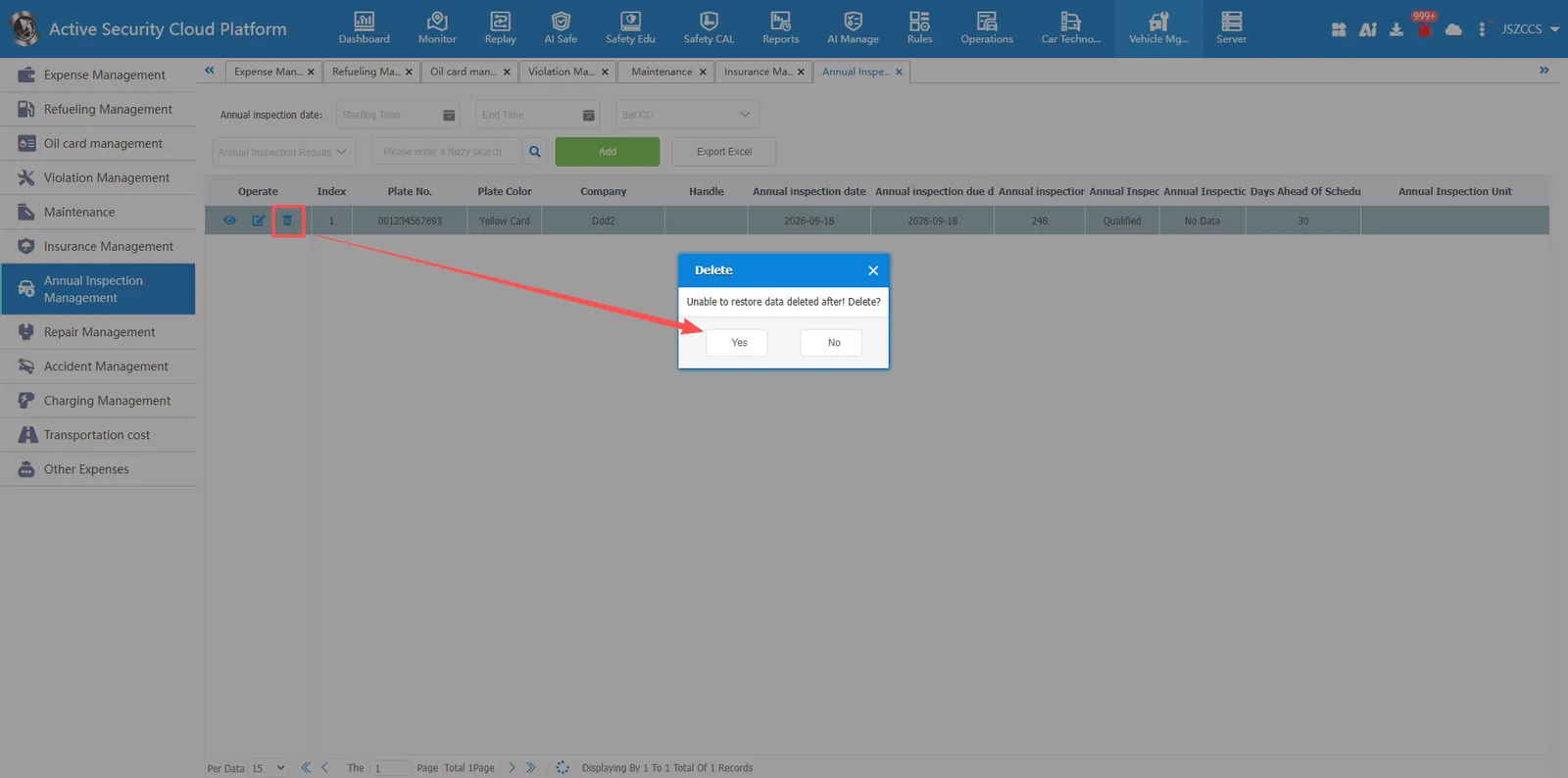
2.4 delete annual inspection information
Click Operation button will pop up the deletion confirmation window to remove invalid or incorrectly entered annual inspection records, and the data cannot be restored after deletion.
2.5 export annual inspection information
Click the "Export Excel" button to generate a download task in the browser and export the annual inspection records to Excel files in batches for offline archiving or data statistics.