1. Function description
Driving fatigue refers to the imbalance of physiological and psychological functions of the driver after a long period of continuous driving, and the phenomenon of objectively declining driving skills. The platform rule determines whether the vehicle triggers fatigue driving by setting the continuous driving time and rest time of the vehicle, and then determines whether the vehicle triggers fatigue driving according to the actual driving time and rest time of the vehicle. The trigger rule will generate a fatigue driving alarm.
2. operating instructions
2.1 basic information
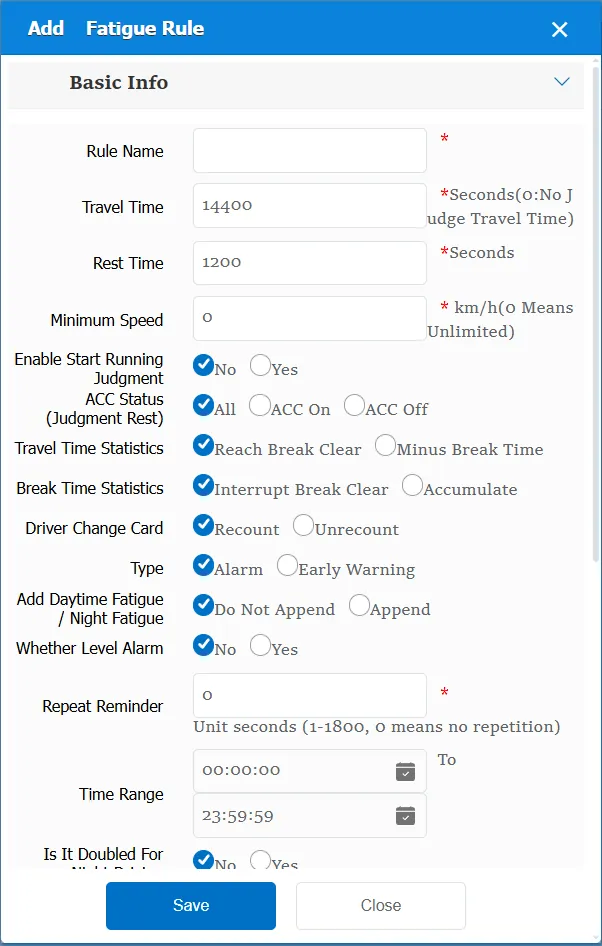
Rule Name: The rule name can be customized for easy identification.
Driving time: The driving time of the vehicle (the default is that the GPS speed of the vehicle is greater than 0, which is regarded as driving)
Break Time:
The time of parking and rest (the default is that the GPS speed of the vehicle is 0, which is regarded as rest)
Rest judgment: minimum speed and ACC status
The minimum speed is not 0. When the speed and ACC state meet the conditions, it is considered to be rest. When the ACC state is all, only the driving speed is judged to be less than the set value. When the ACC state is on or off, it is judged that the driving speed is less than the set value, and the ACC state is equal to the set value.
When the minimum speed is 0, only the ACC state is judged at this time and it is considered to be rest.
Minimum speed: If the GPS speed is lower than the specified value, the vehicle is considered to be at rest
Enable Start Run Judgment: Select whether to add the start time of fatigue driving, select whether to ignore this condition; If yes is selected, it will be displayed.
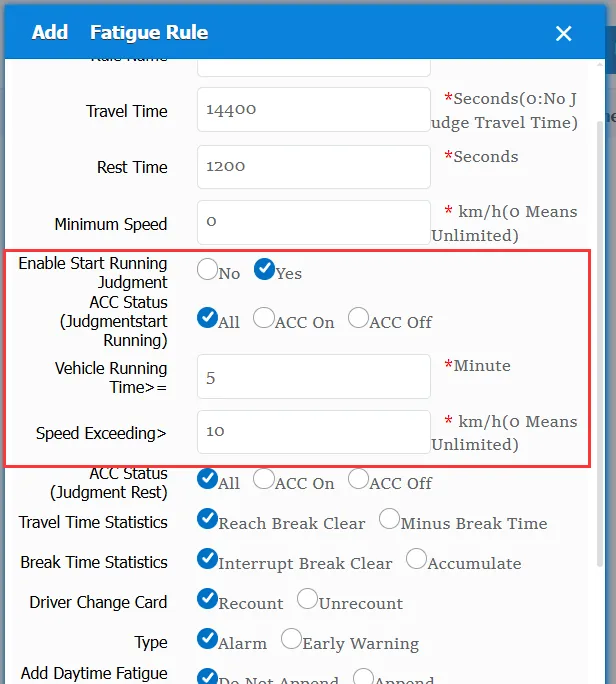
ACC status (judging start running): ACC status when statistics are started based on the selected determination
Vehicle running time> =: According to the filled time, the statistics will start after the specified time when the vehicle starts to drive
Speed Exceeds>: According to the filled speed, statistics will start after the GPS speed of the vehicle is greater than the specified value
The first trajectory that meets these three conditions at the same time is marked as the starting driving state, that is, the fatigue driving time is calculated from this trajectory.
** ACC state (judging rest) **: rest is judged only when it meets ACC state. when all ACC states are selected, this is not effective.
Travel time statistics:
Reaching the rest time clearing: refers to the rest time of the vehicle. After the specified rest time is exceeded, a new round of fatigue time statistics will be started; for example, driving for 4 hours and resting for 20 minutes, at this time, the driving time will become 0
Subtract rest time: refers to the actual driving time of the vehicle (excluding rest time). Only when the driving time is greater than the specified driving time, the alarm will be triggered; for example, driving for 4 hours and rest for 1 hour, at this time, the driving time will become 3 hours.
Break time statistics:
Interrupt rest reset: refers to the rest time does not exceed the specified time, then clear the rest time; For example, after 10 minutes of rest and 5 minutes of driving, the rest time becomes 0 minutes.
Accumulate: accumulate all rest time; For example, rest for 10 minutes, drive for 5 minutes, and rest for 10 minutes. At this time, the rest time is 20 minutes.
Driver card change:
This item needs to be able to identify the driver's information, and the punch- in driver is different from the current driver, which is mainly determined on the basis of the driver's professional qualification certificate.
Re- statistics: when the driver changes the card, re- statistics time; driving duration and rest time are both zero
Do not re- count: when the driver changes the card, do not re- count the time; driving duration and rest time are not 0
Alarm Type:
Alarm: Alarm Name: Fatigue Driving Alarm (Platform) Alarm Type: 306
Warning: Alarm Name: Fatigue Driving Warning (Platform) Alarm Type: 429
Day fatigue/Night fatigue added:
Do not append: this item does not take effect
Append: Nighttime needs to be enabled first
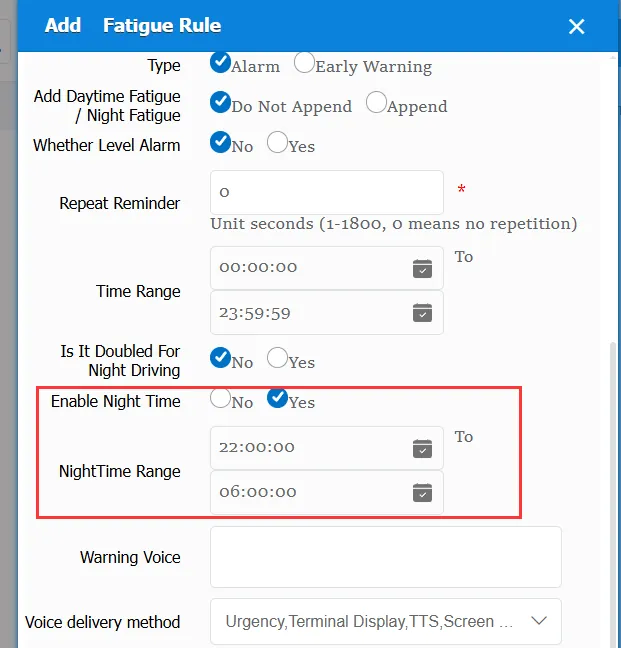
If the alarm start time is in daytime, daytime fatigue (platform) will be additionally generated.
Alarm start time, at night, additional generation of night fatigue (platform)
Level alarm:
No: This item does not take effect
Yes: generate corresponding fatigue driving alarm level alarm according to the continuous driving time; after this item is turned on, this rule will not generate fatigue driving alarm (platform), and will directly generate fatigue driving alarm
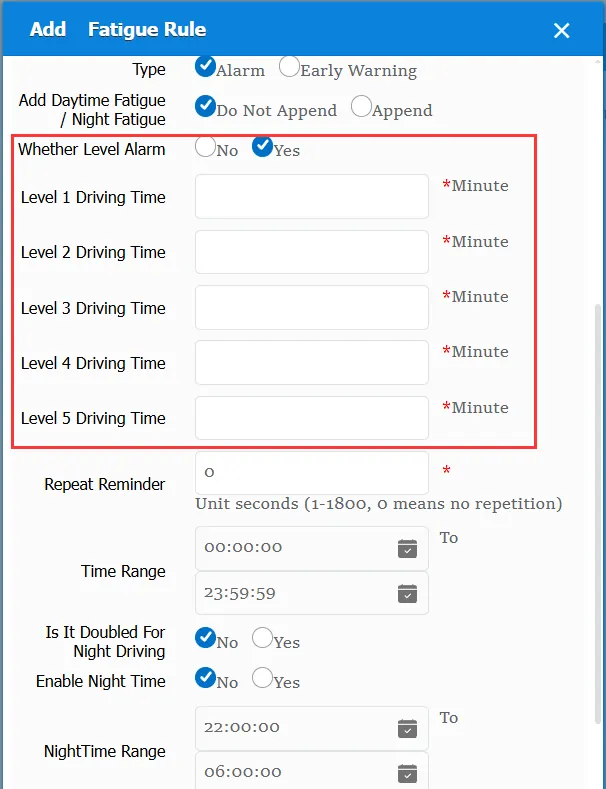
Figure:
When the continuous driving time is greater than 240 minutes, a level 1 platform fatigue driving alarm will be generated.
When the continuous driving time is more than 270 minutes, the platform fatigue driving alarm level 2 will be generated.
When the continuous driving time is greater than 300 minutes, the platform fatigue driving alarm level 3 will be generated.
When the continuous driving time is more than 330 minutes, the platform fatigue driving alarm level 4 will be generated.
When the continuous driving time is greater than 600 minutes, a level 5 platform fatigue driving alarm will be generated.
Repeated Reminder: During the alarm continuation phase, an alarm voice is sent to the device every specified time.
Time Range: the time period when the rule takes effect.
Alarm voice: a custom alarm reminder sent to the device via TTS
Match all vehicles:
No: Only valid for vehicles assigned by this rule
Yes: this rule is effective for all vehicles of the company.
Global Share:
No: Only visible to this company
Yes: visible to all companies on the platform
2.2 How to quickly create new fatigue driving rules?
New Fatigue Rule:
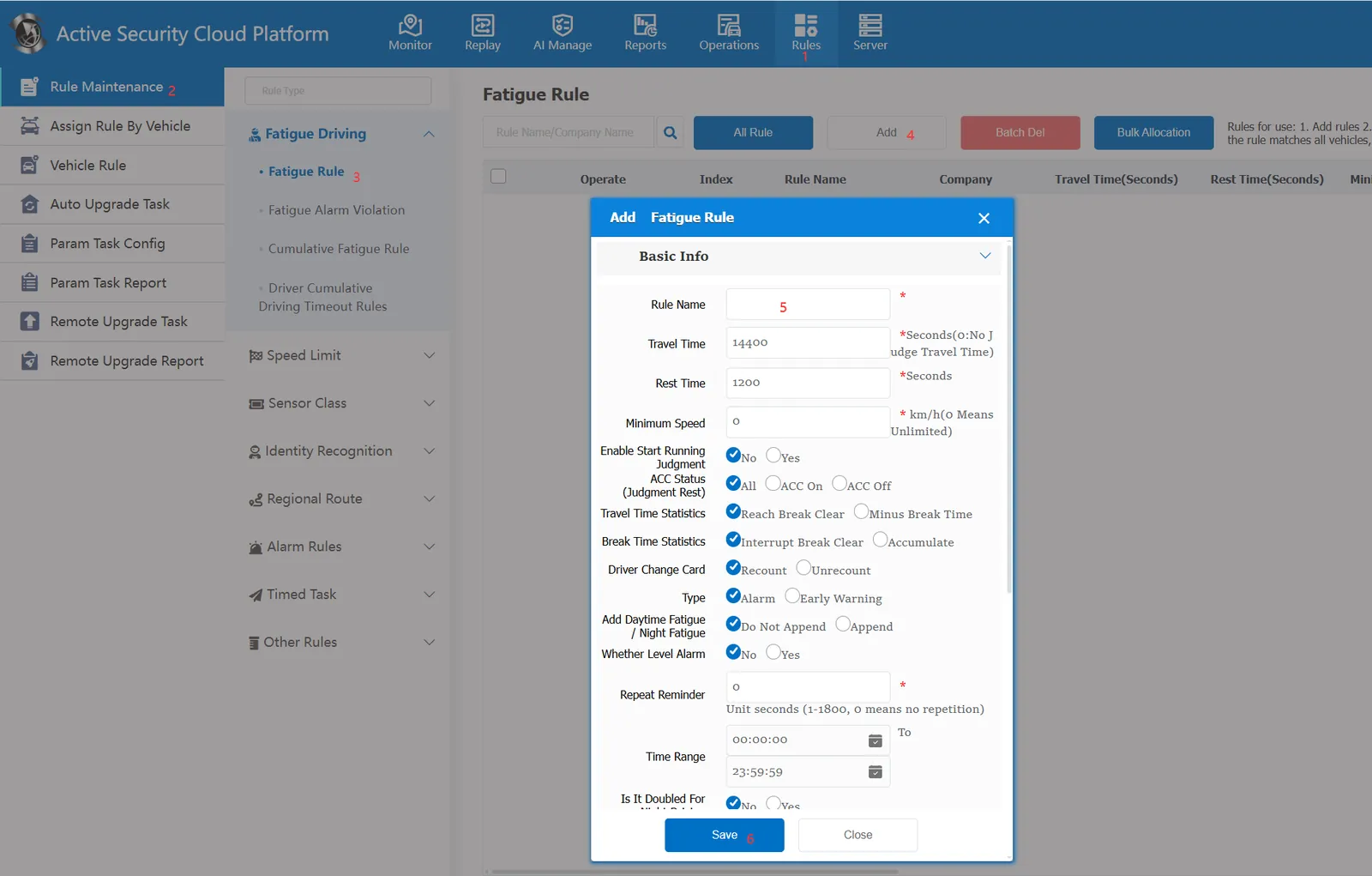
Click the menu one by one according to the order marked in the figure. At 5, customize a name and save it directly at 6. This creates one of the most common fatigue rules, with default values for all parameters.
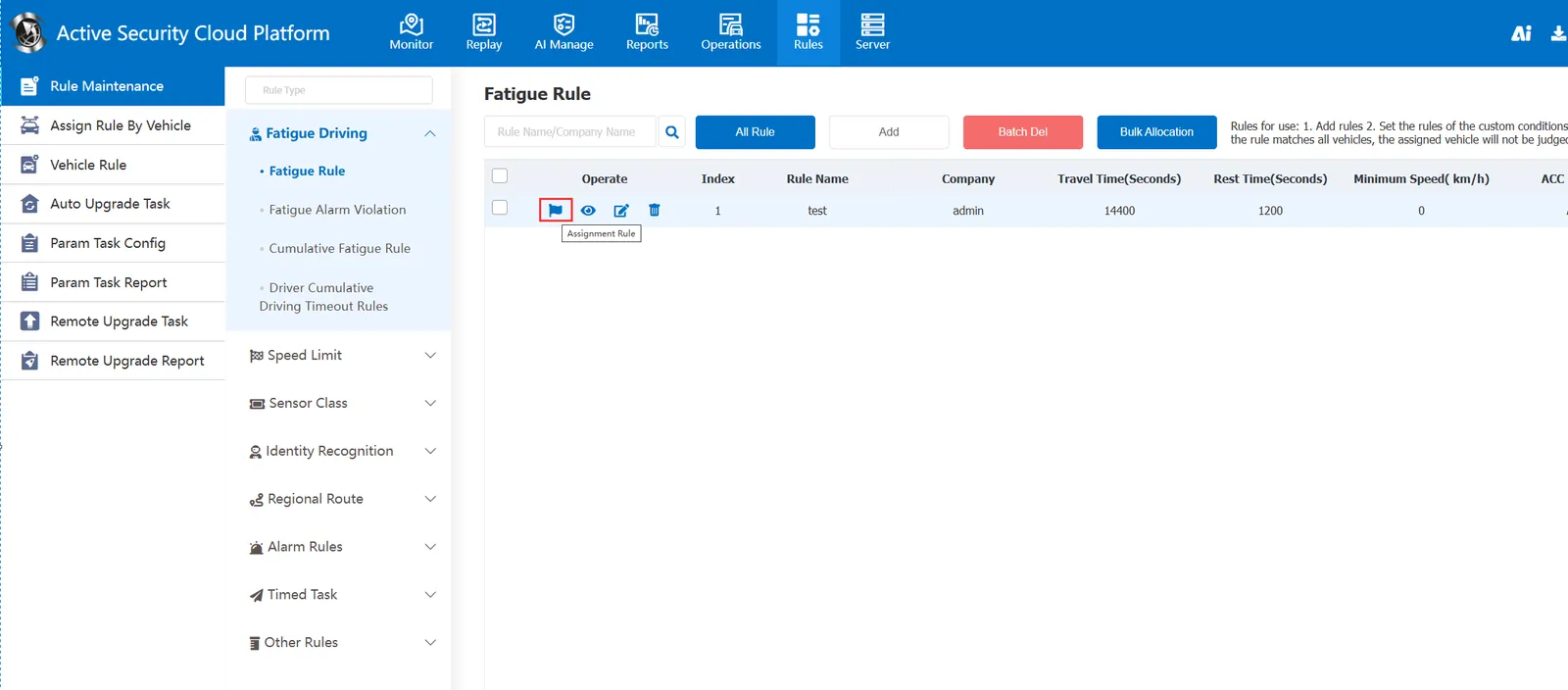
Allocation Rules:
Select the rule to which you want to assign the vehicle, click the small "Assign rule" icon
The "Allocation Rule" page will load and display "unallocated" vehicles by default; You can directly click the small icon behind the vehicle information to allocate; You can also select the check box in front of the vehicle information and click "Assign" after selecting it.
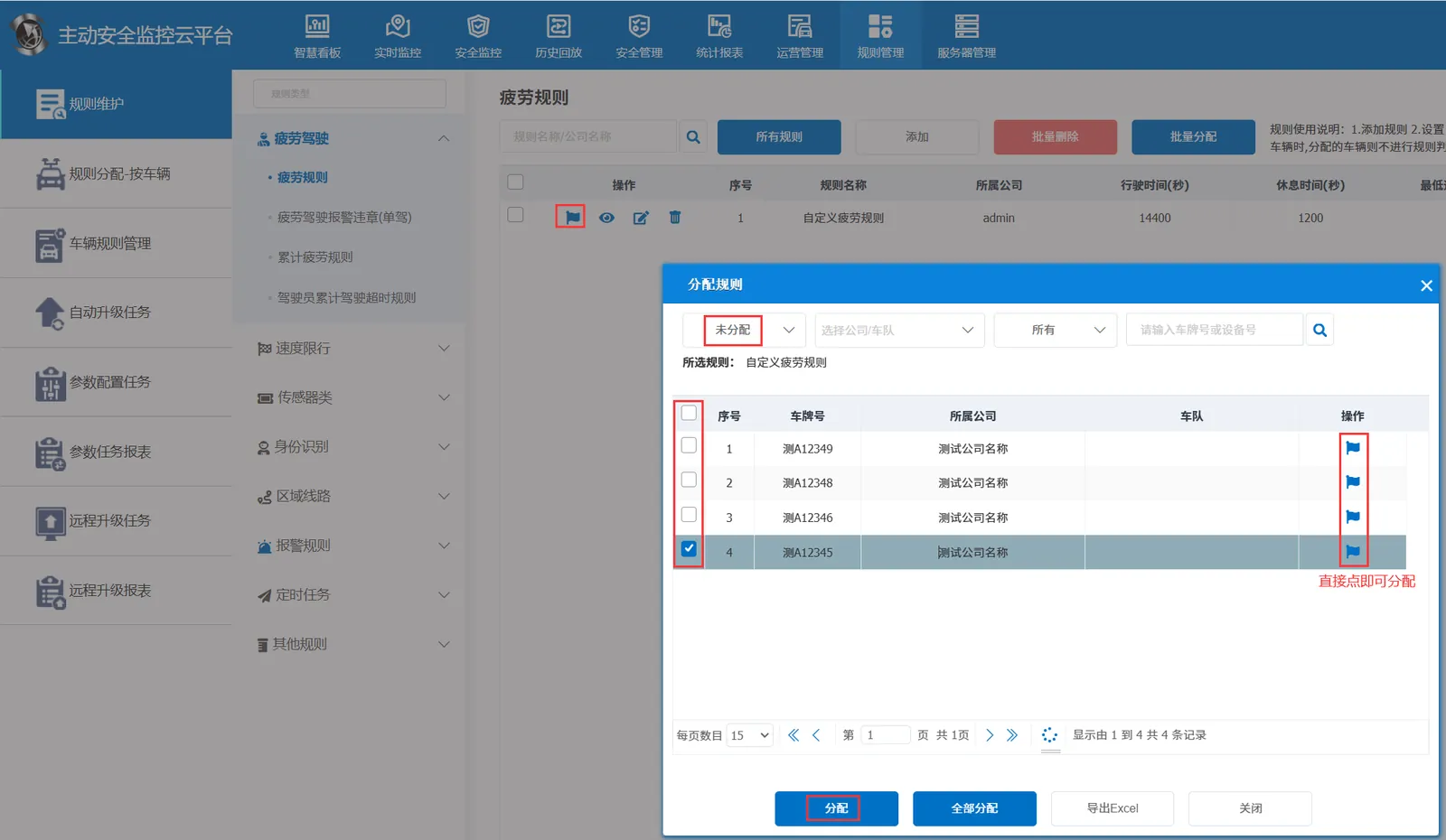
After the allocation, the vehicles allocated by this rule will take effect, and the driving time will be counted and judged from time to time, and the alarm will be triggered in real time.
2.3 How to enable fatigue driving level alarm?
When creating or modifying an existing rule, select [Yes] instead of [Level Alarm]]
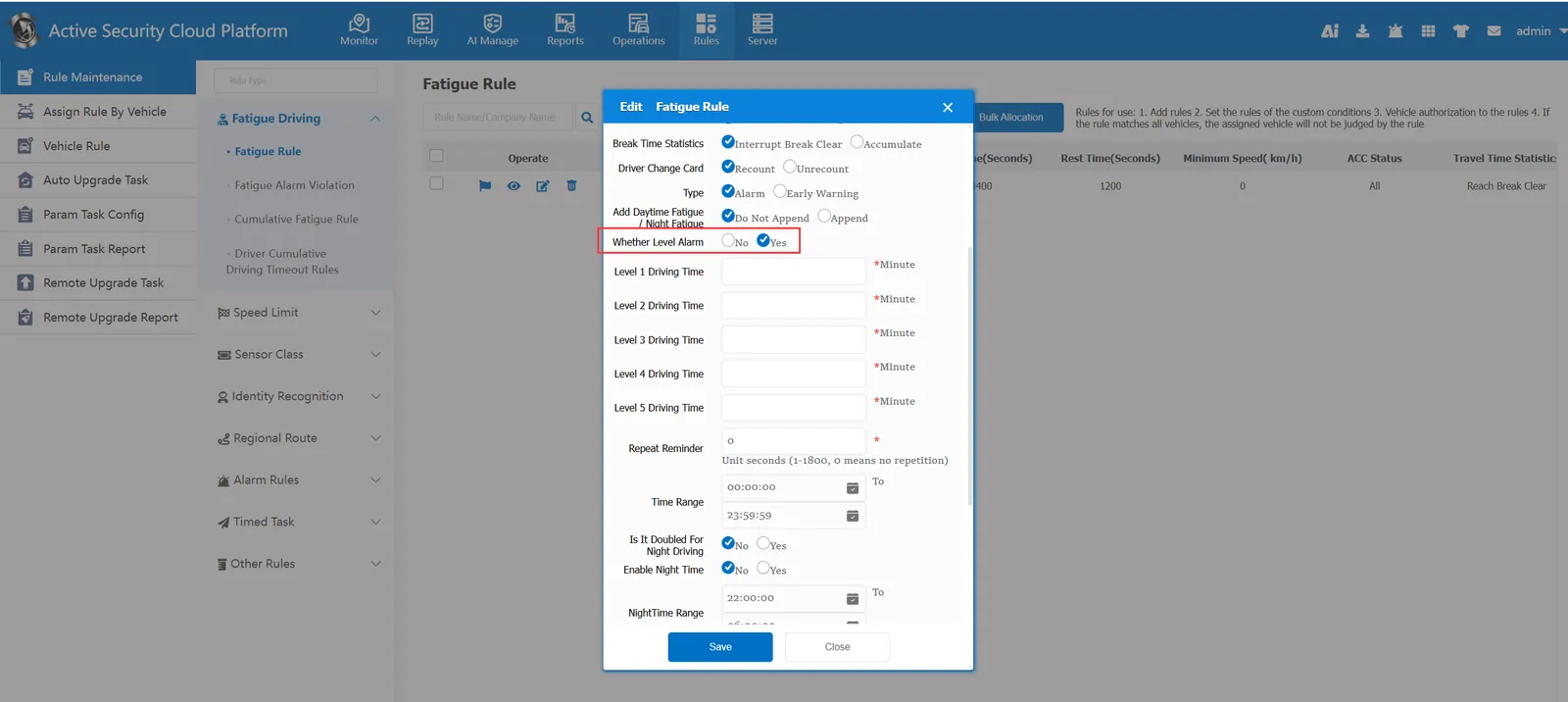
You can customize the continuous driving time of level 1~5
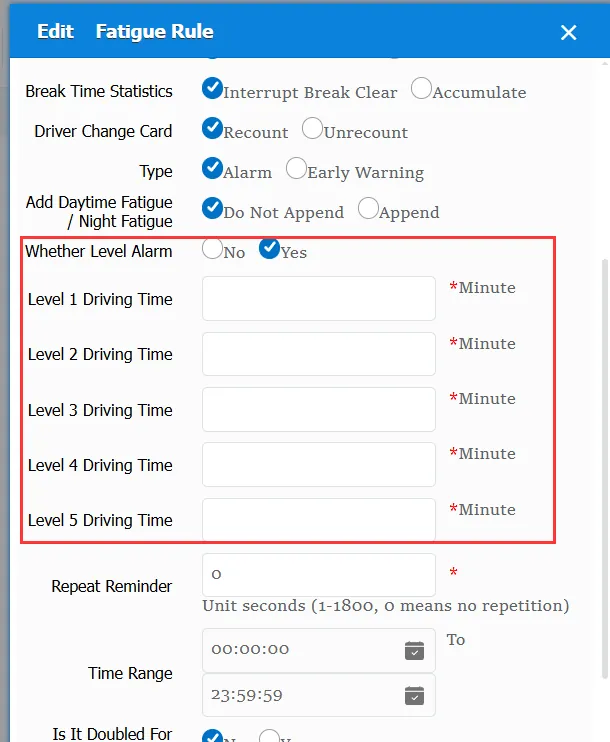
Figure:
When the continuous driving time is greater than 240 minutes, a level 1 platform fatigue driving alarm will be generated.
When the continuous driving time is more than 270 minutes, the platform fatigue driving alarm level 2 will be generated.
When the continuous driving time is greater than 300 minutes, the platform fatigue driving alarm level 3 will be generated.
When the continuous driving time is more than 330 minutes, the platform fatigue driving alarm level 4 will be generated.
When the continuous driving time is greater than 600 minutes, a level 5 platform fatigue driving alarm will be generated.
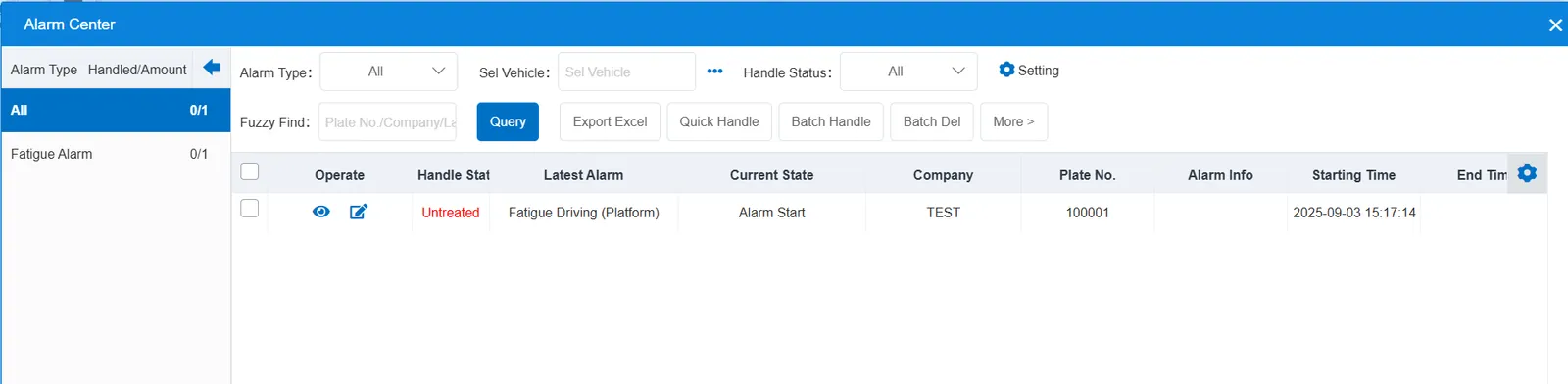
2.4 fatigue driving alarm effect display
2.5 How to query fatigue driving alarm information
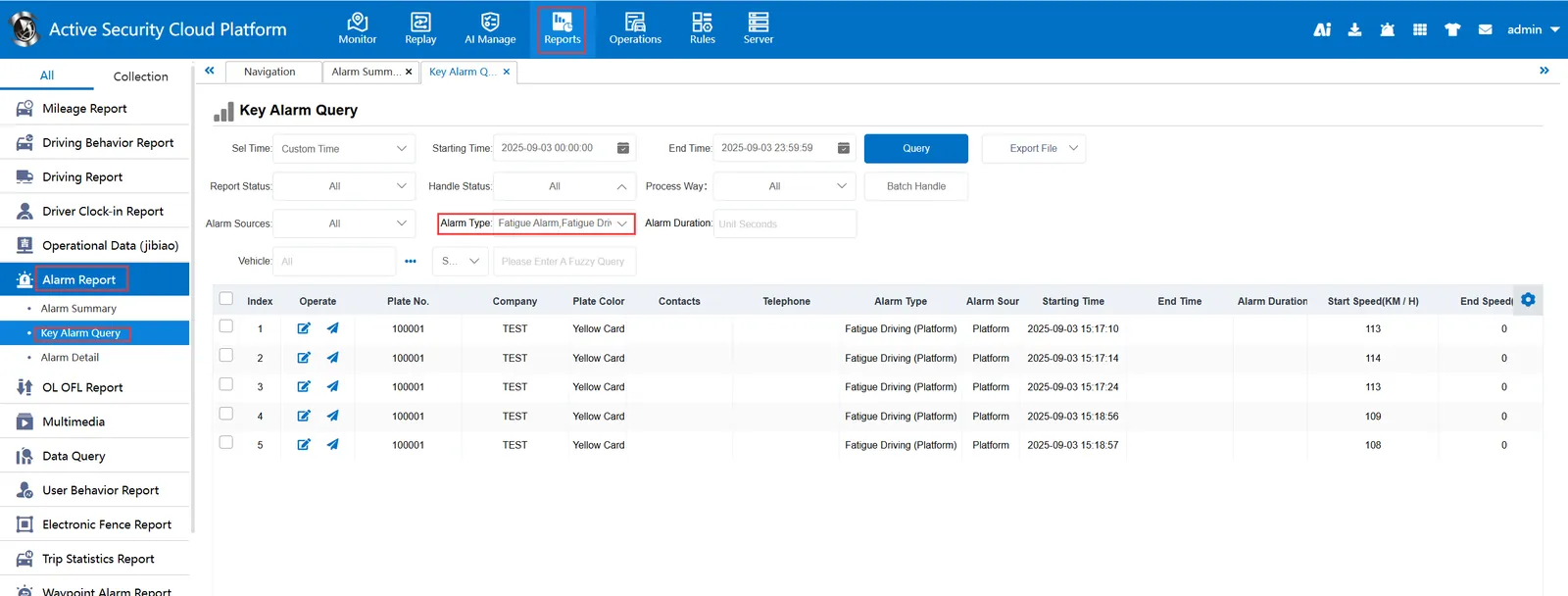
When querying alarms, you can select "fatigue driving (platform)" for "alarm type" in the "Reports"- "Alarm Report"- "Key Alarm Query" report