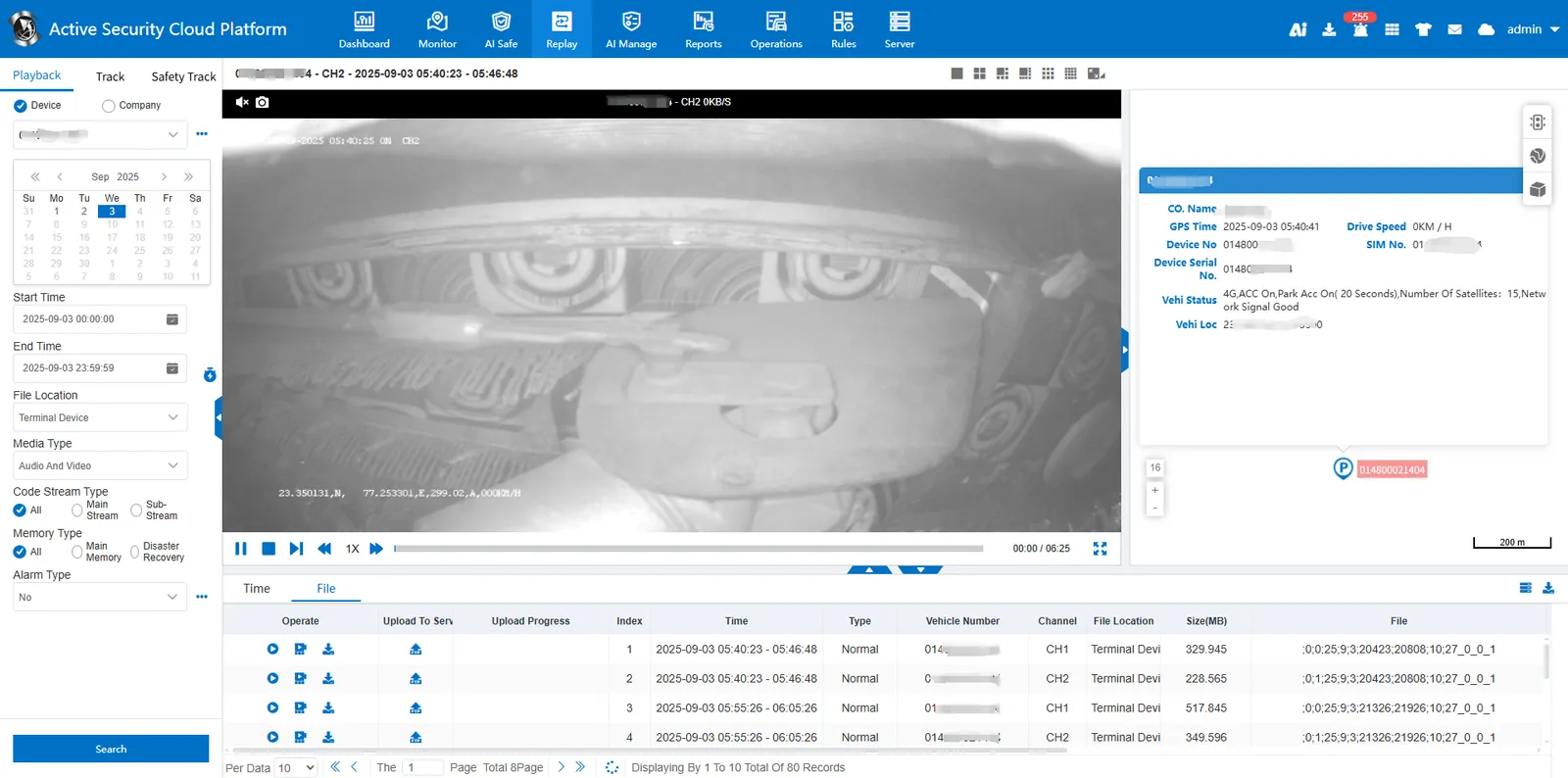
1. function description
The document is designed to provide a quick way for first- time users to use the CMSV6 platform and help users better understand and apply the platform software.
Users can quickly become familiar with the platform software by following the process:
[How to log in to the platform]> [Add company information]> [Add vehicle information]> [Device reporting]> [Platform monitoring]
2. operating instructions
Step 1 how to log in to the platform
1.1 http server
Open the IP web port of the http server (such as http://121.13.64.17:80) in the web address bar and enter the account number, password and verification code to log in.
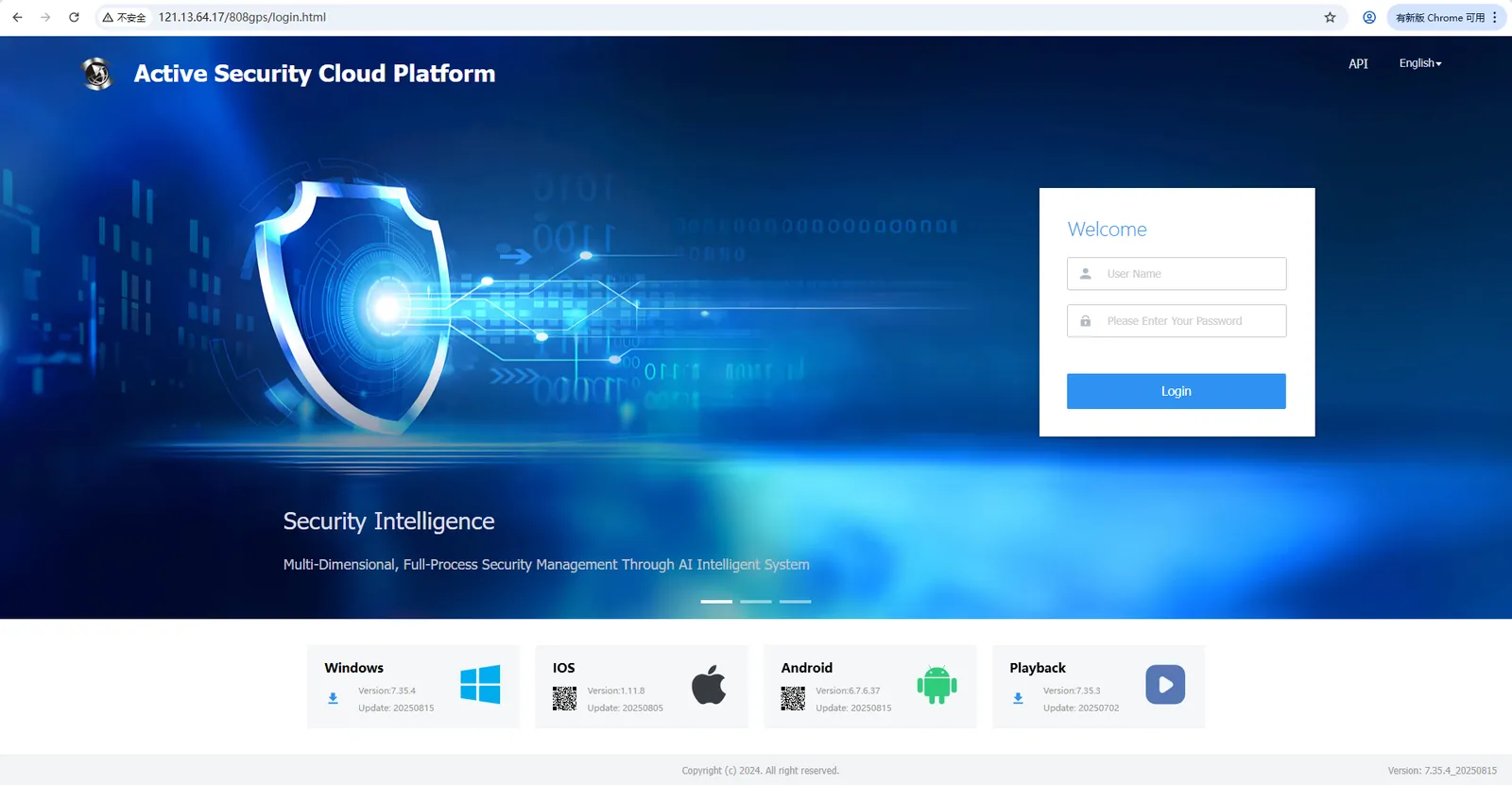
1.2 https server
Open the https domain name (such as https://v7.cmsv8.com) in the web address bar, enter the account number, password and verification code to log in.
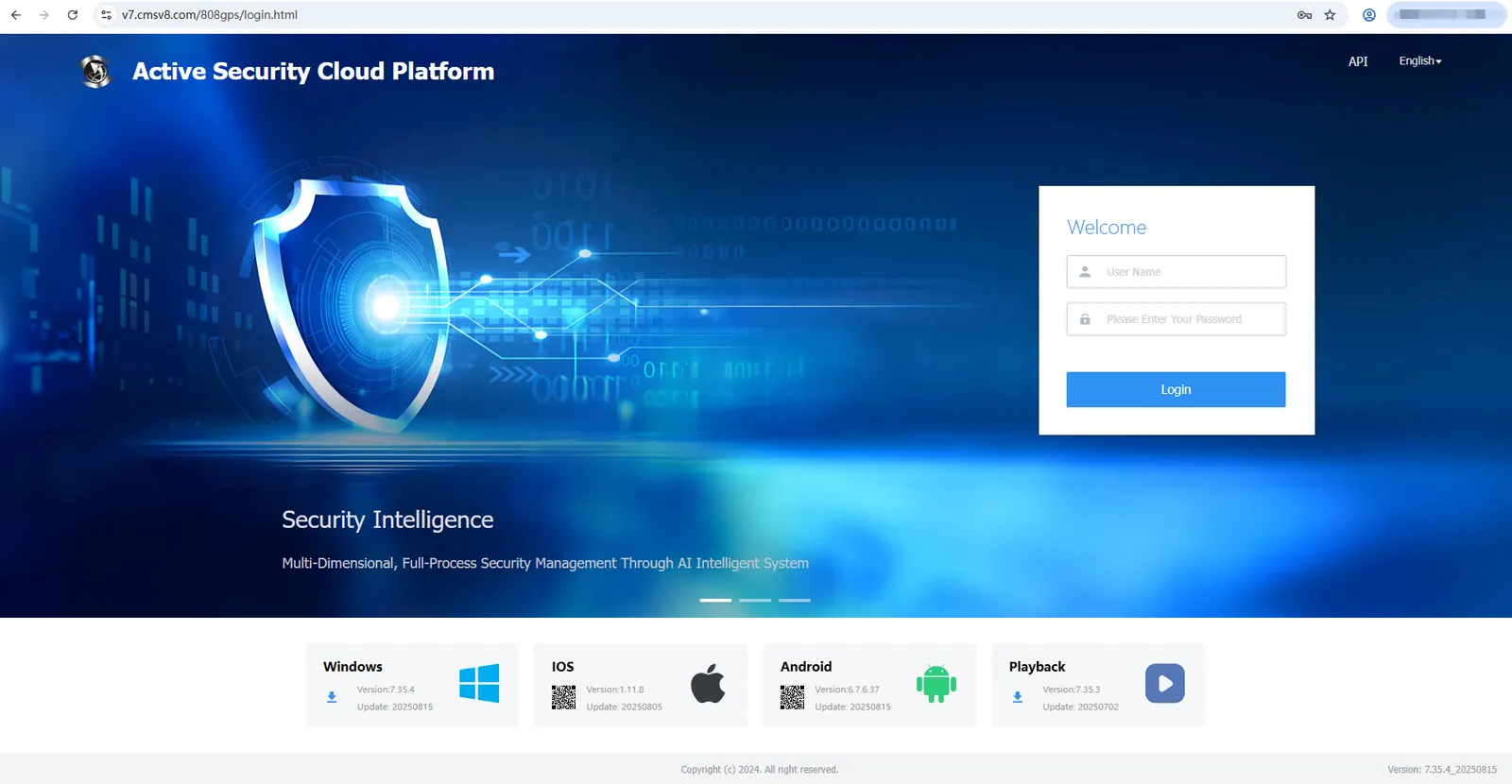
Special Notes:
A. how to judge whether your server is http or https
Answer: After the server is deployed, the default is http. To enable https, you need to start the nginx service.
B. How to enable https
Answer: You can refer to the operation document:
1864
Step 2 add company information
A. click ** add ** in the company information, enter the company name, main account and other information to be filled in, and then ** save ** (the marked * is required)
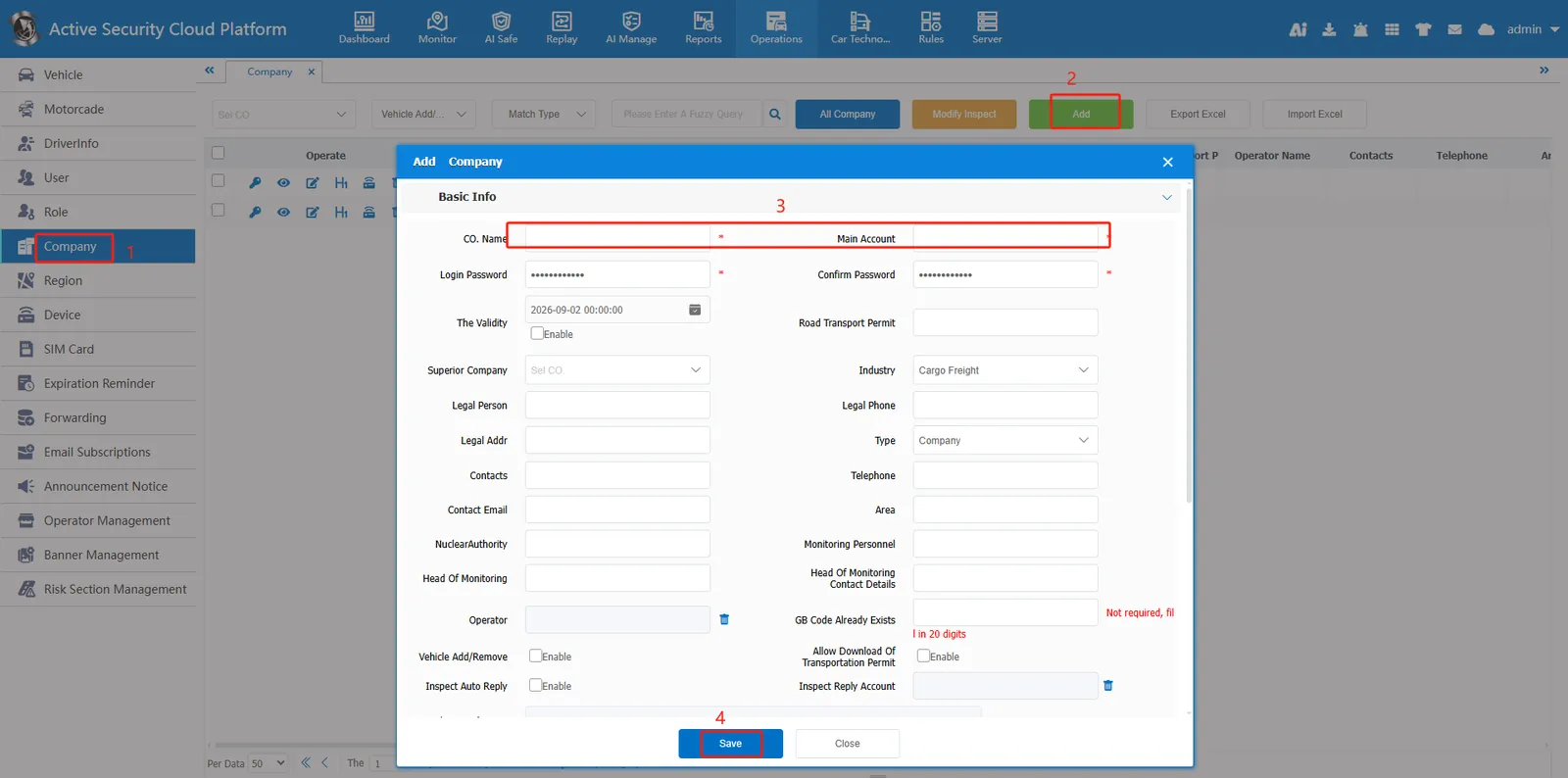
B. After adding a company, you can also add a subordinate company. You only need to select the parent company when adding the information of the subordinate company. If the parent company is not selected, the top company will be added.
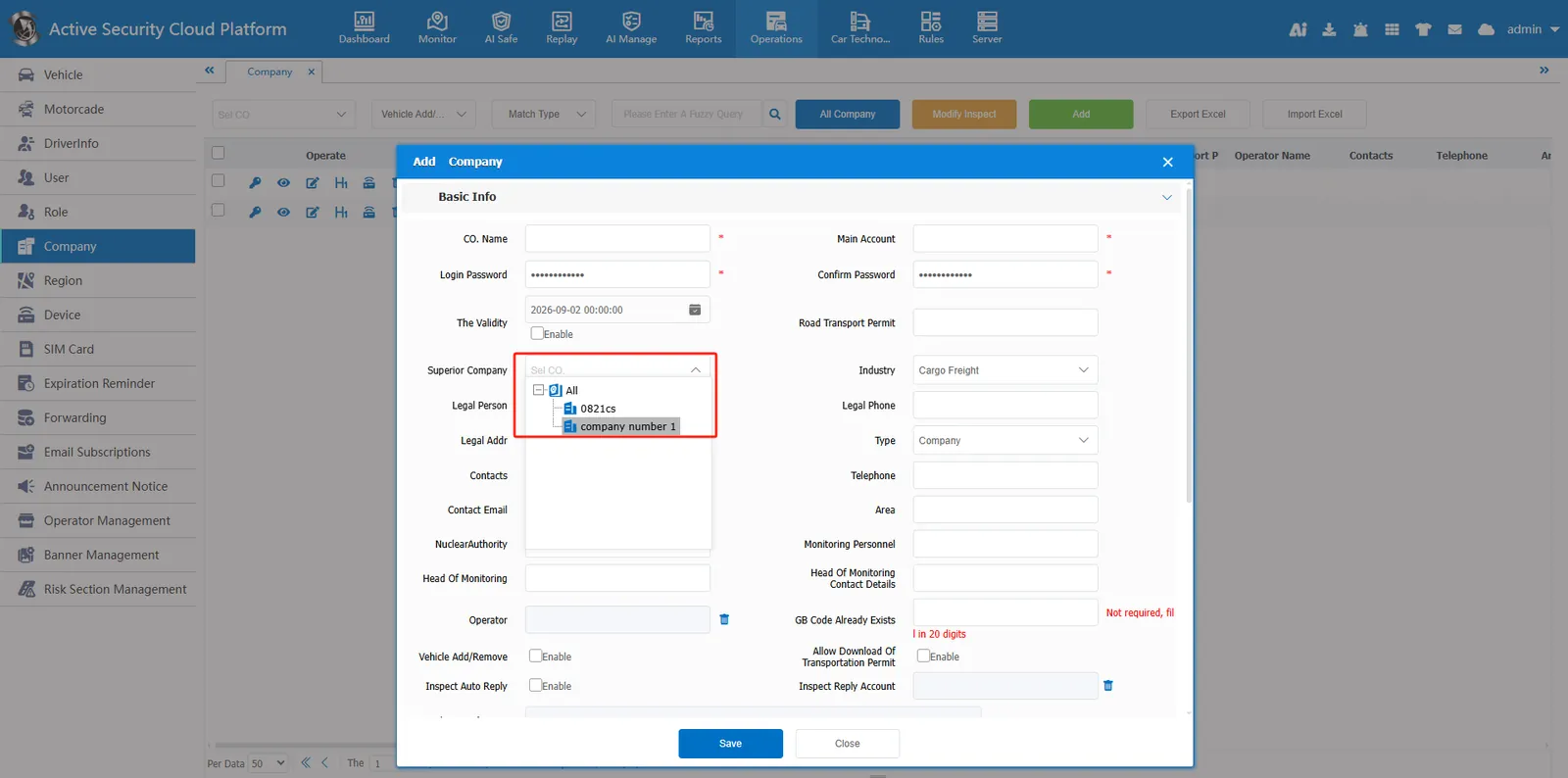
Special Notes:
A. When you create a company, you will also create a company master account, which is the company's administrator account.
B. the password of the main account can be customized. the default password is CmsV6.666888
C. there is no limit on the number of levels of the company. there can be fleets under the company. under the fleet, lower- level fleets can be added and vehicles can be allocated.
D. There is no limit to the number of the company's fleet
Step 3 Add Vehicle Information
- Enter ** Vehicle Information , click ** Quick Add Vehicle , fill in ** Equipment Number, License Plate Number, Terminal Type, Company ** (Red Star is required), and then ** Save **.
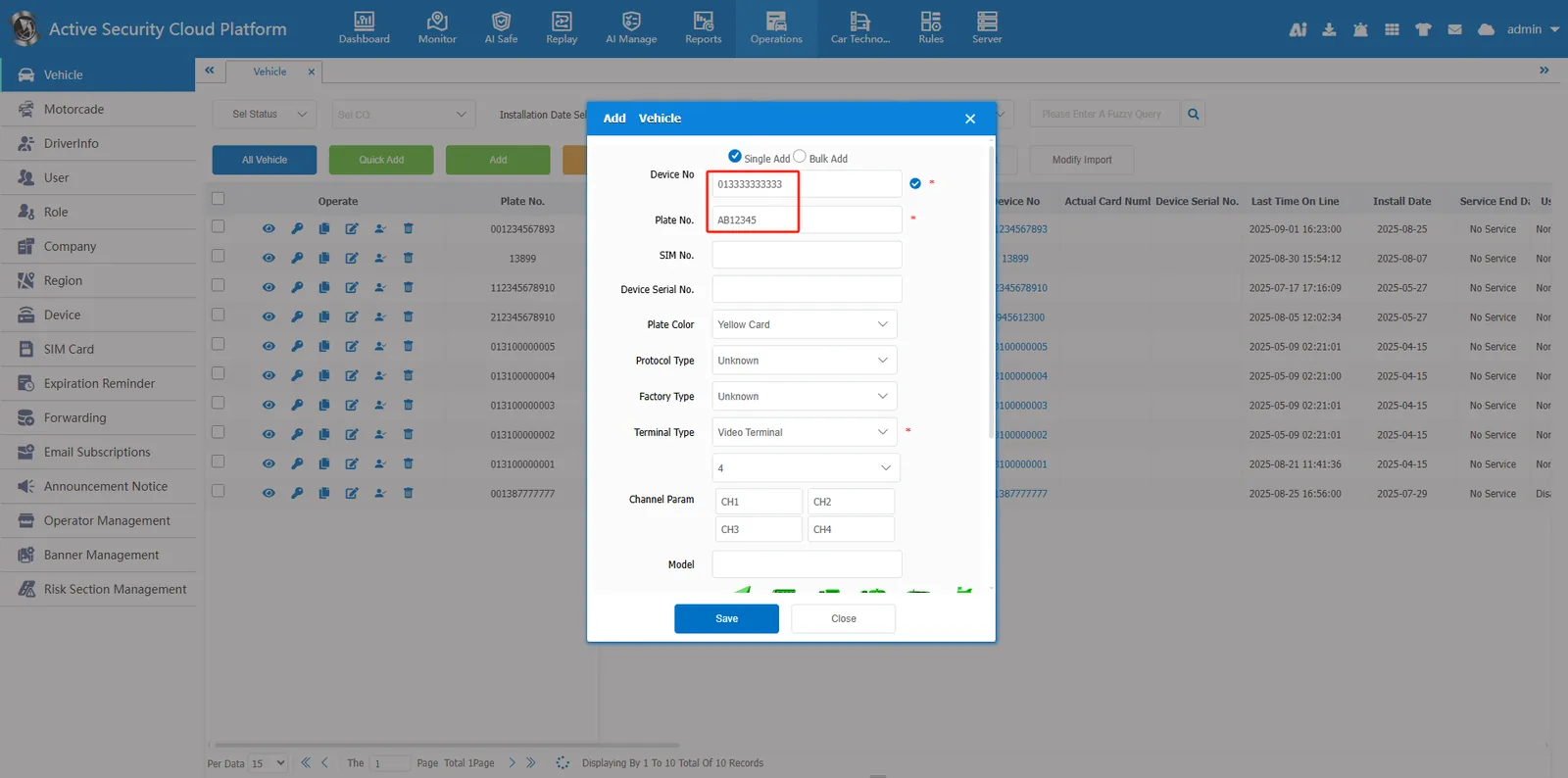
Special Notes:
A. if it is a video device, terminal type to select the video terminal, and select the number of channels
B. the default protocol type is ** unknown **, which will be adaptive.
Step 4 Equipment Reporting
A. if the device number of the ministry standard protocol device is 12 bits, if it is less than 12 bits, add 0 to the front to make up 12 bits, and take the last 12 bits if it is more than 12 bits.
B. the parameters of the equipment number of different manufacturers may be different, and some are filled with 0 before the 11- digit sim card number; Some are filled with 0 before the 11- digit terminal mobile phone number. Please consult the equipment manufacturer for details.
C. configure the server IP and online port on the device, and the port is 6608 by default
Step 5 Platform Monitoring
5.1 How to view positioning
A. enter [real-time monitoring]> [map mode], the vehicle list on the left, check the box in front of the license plate number, and display the real- time position of the vehicle on the map
B. Information such as the company, time, speed, mileage, location and current status of the vehicle are displayed in the bubble box.
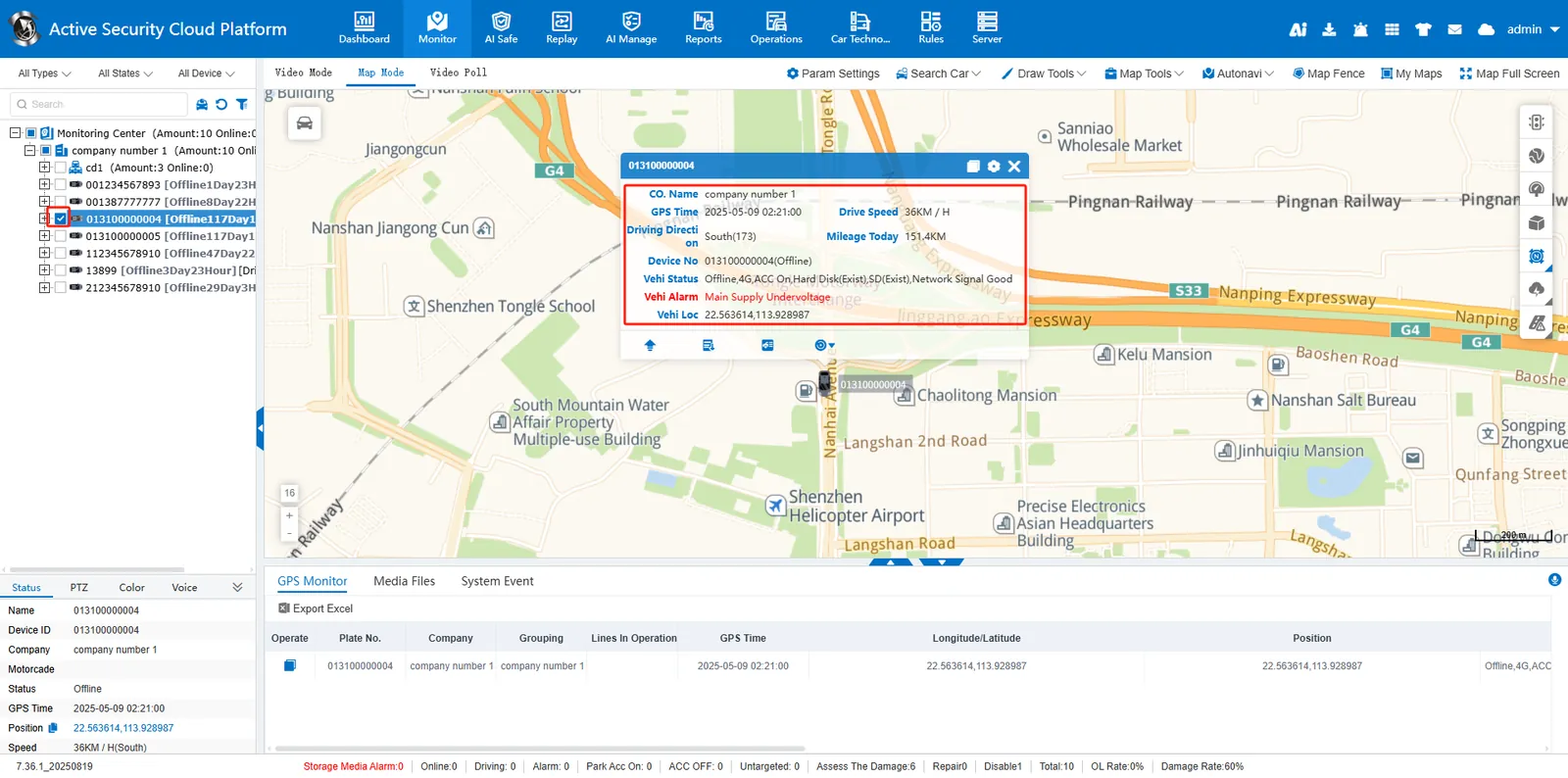
5.2 how to view real- time video
A. switch to [video mode] and select the required number of video windows
B. Vehicle list on the left, double- click the online vehicle to enter the real- time video preview
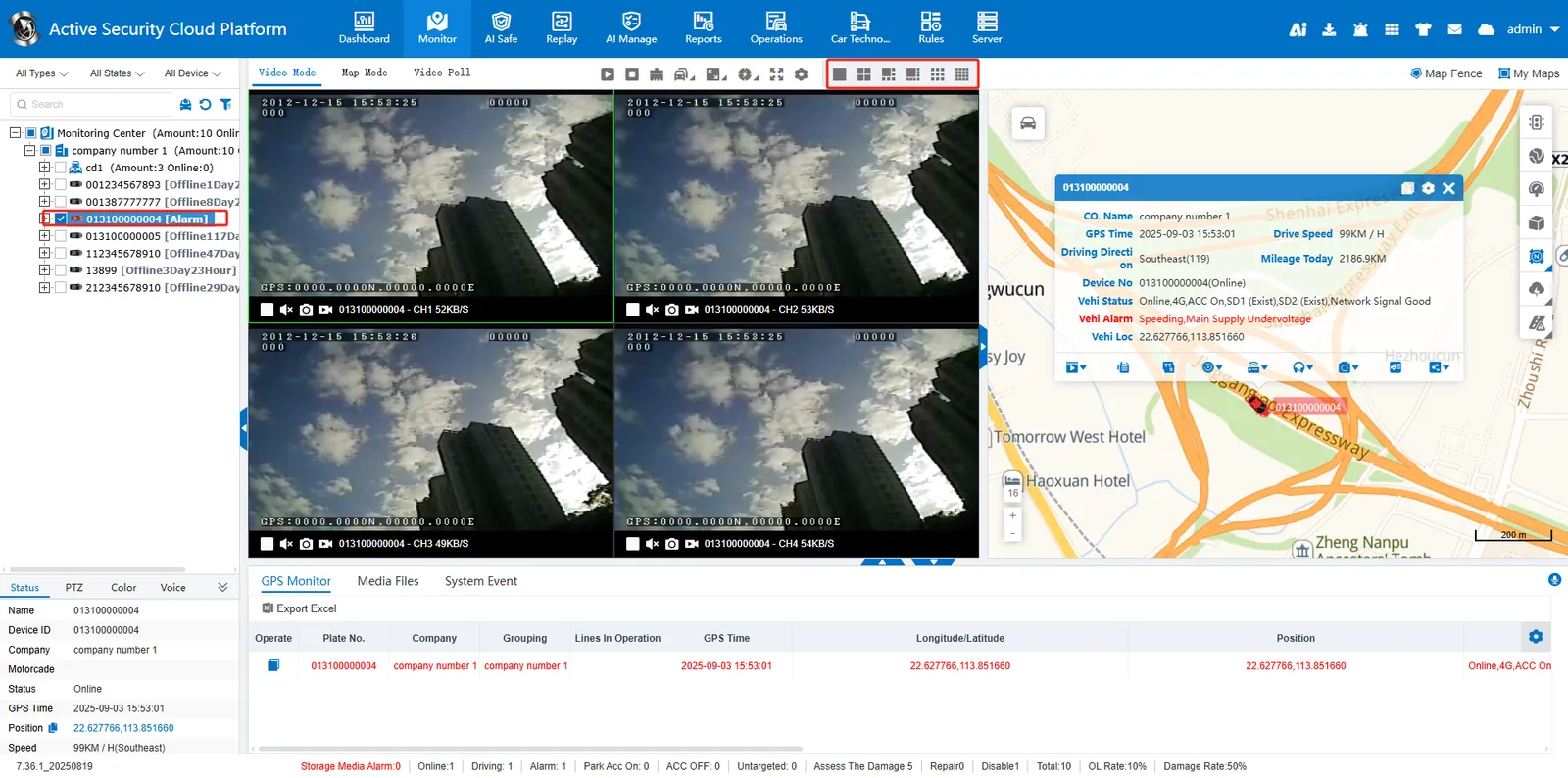
5.3 how to track playback
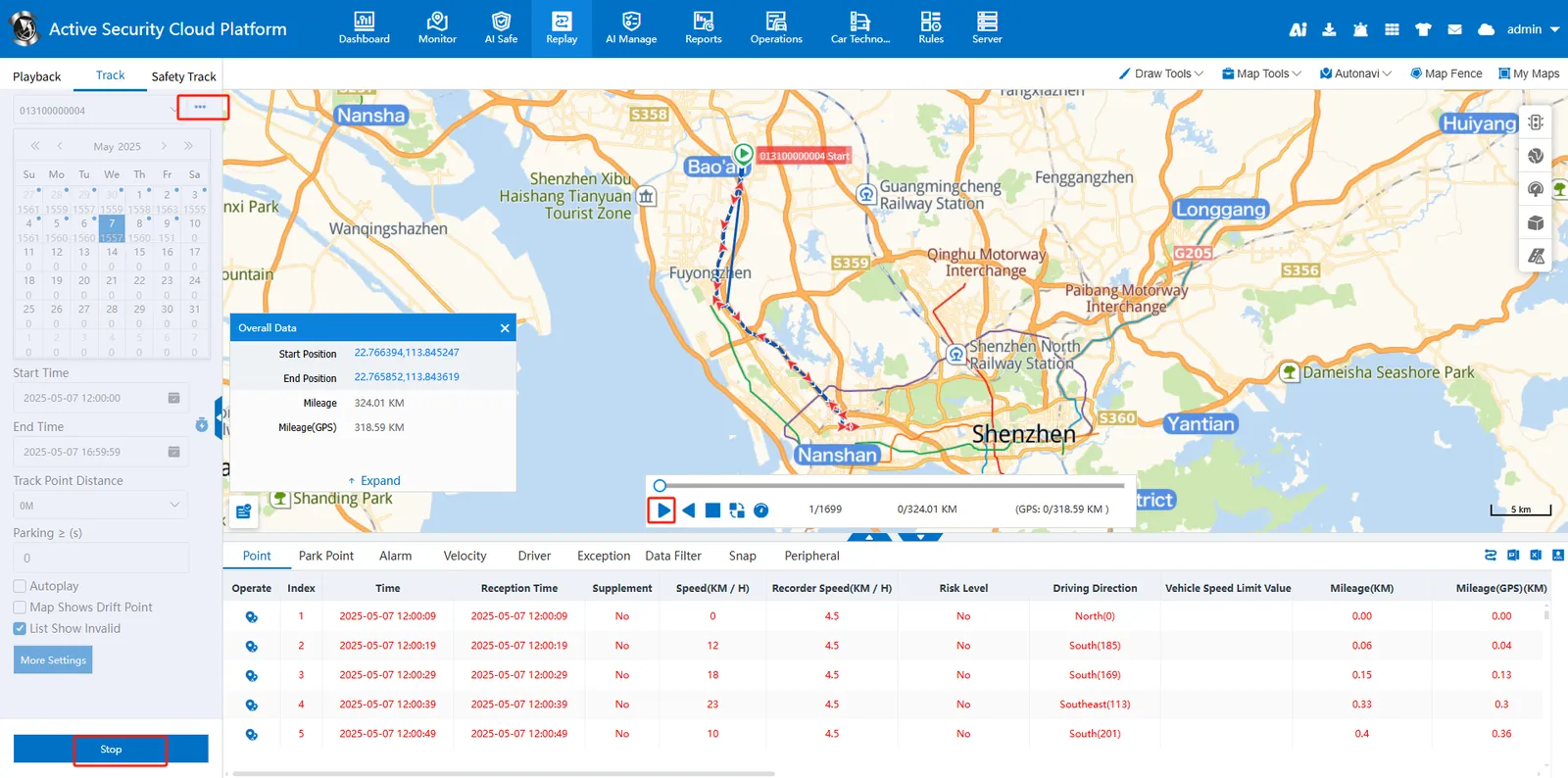
A. Enter [History Playback]> [Track Playback], select the vehicle whose track needs to be played back, the playback date and time period, and click [Search Now] to return the track information.
B. The right middle map area displays the trajectory distribution map, and the lower part is the trajectory point list.
C. click [ play ] to start track playback. Track support excel, pdf format export
5.4 how to video playback
A. Switch to [Video Playback] to support searching for video files by device and company, where only storage servers and download servers are supported by company.
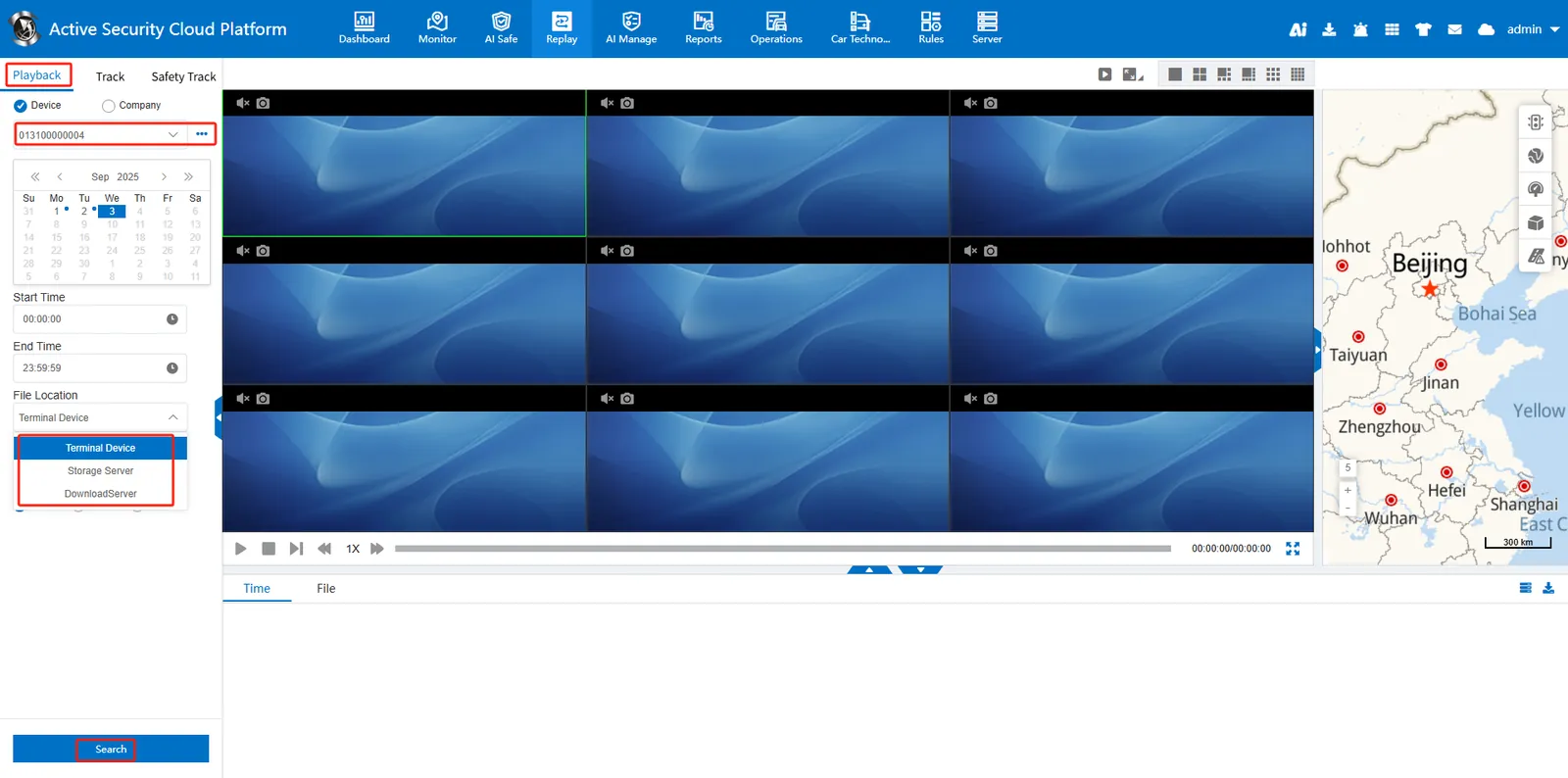
B. select the vehicle, date and time period to play back the video, and the file location can be selected from [terminal device], [storage server] and [download server]]
C. file location: [terminal device] (terminal SD card or hard disk), [storage server] (server disk, video uploaded to server), [download server] (video downloaded via WIFI)