1 Function description
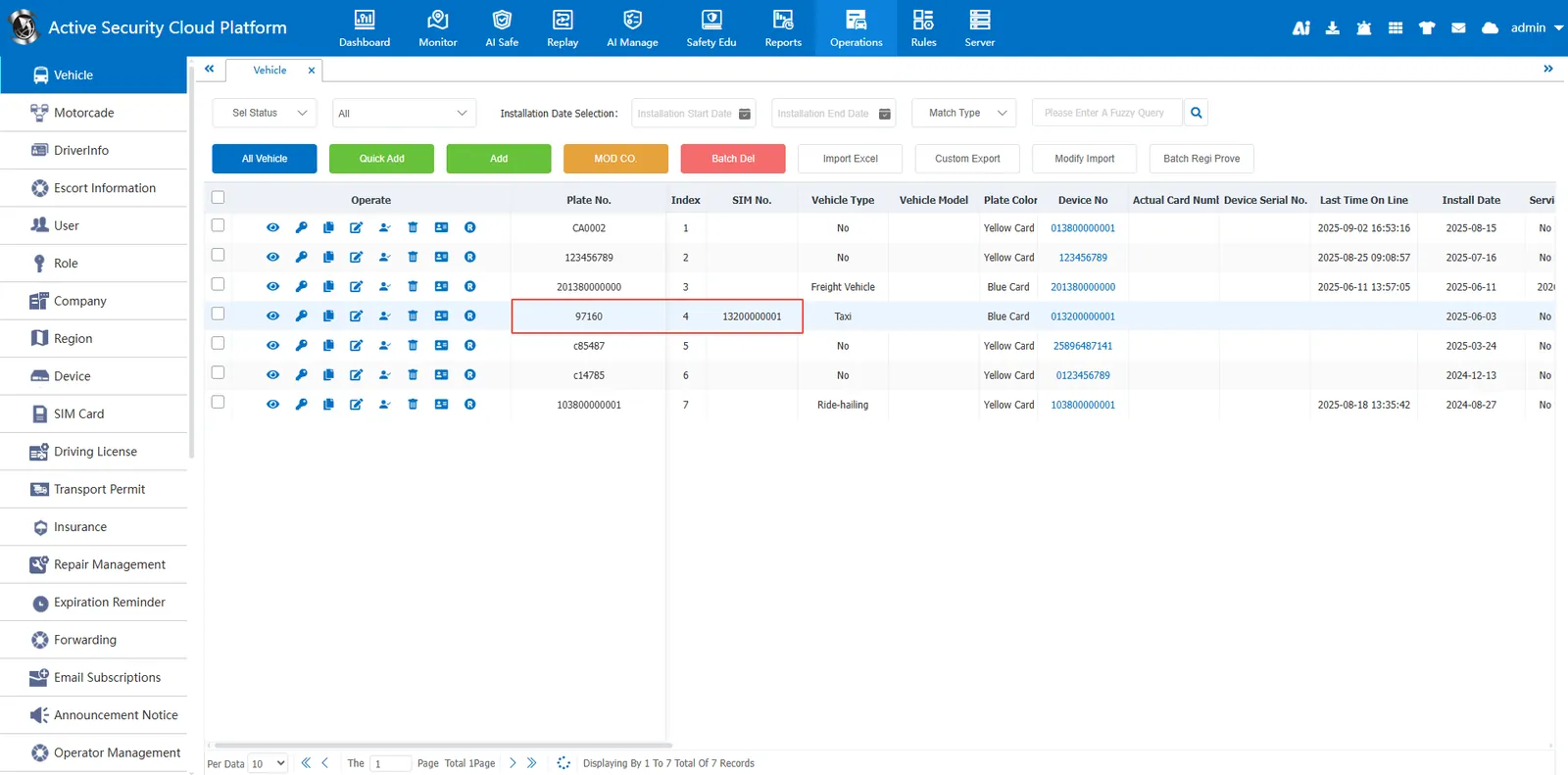
The platform provides a complete vehicle information management system to help users manage and monitor vehicle information efficiently. Through this platform, users can easily add vehicles, modify, delete, import and export operations, and real- time monitoring of vehicle dynamics
2 operating instructions
2.1 Quick Add Car- Recommended
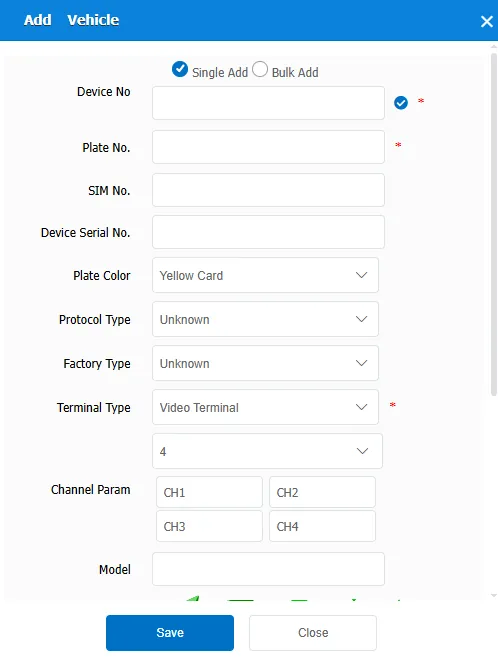
- Only the basic information of the vehicle can be added individually and in batches. The items marked with red stars are required.
- Enter parameters such as equipment number, license plate number, agreement type and terminal type. The device number of the component equipment is usually 12 bits; TTX protocol equipment has no bit number requirement.
- Batch loading is applicable to continuous equipment numbers for batch entry; Non- continuous recommended manual entry or excel import
2.2 add vehicle- - enter complete vehicle information
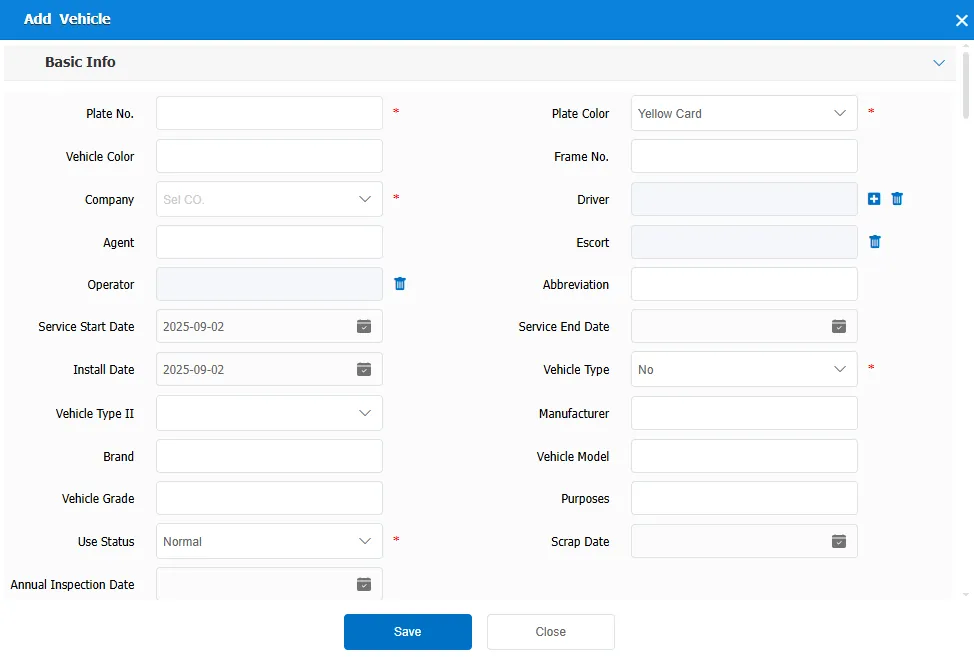
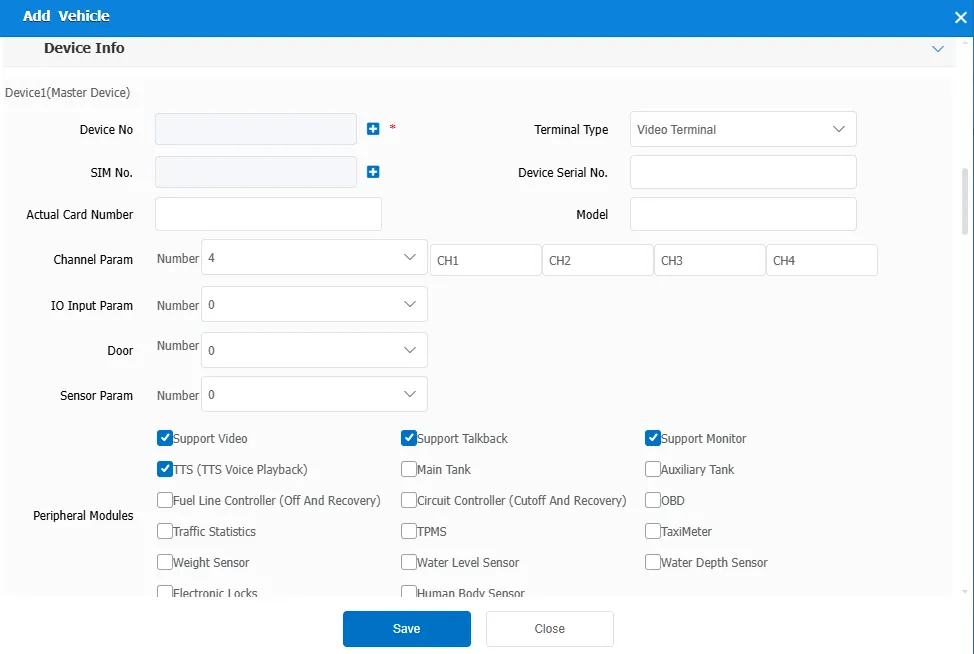
Click the " Add " button to enter the vehicle information addition page, where more and more complete vehicle information can be entered. The items marked with red stars are required,
** Note **: When the device is connected to the peripheral module, the corresponding function will be displayed on the client. For example, support video, support intercom, main fuel tank, passenger flow statistics, etc. under equipment information.
Batch import vehicles 2.3 Excel
Click Import from Excel
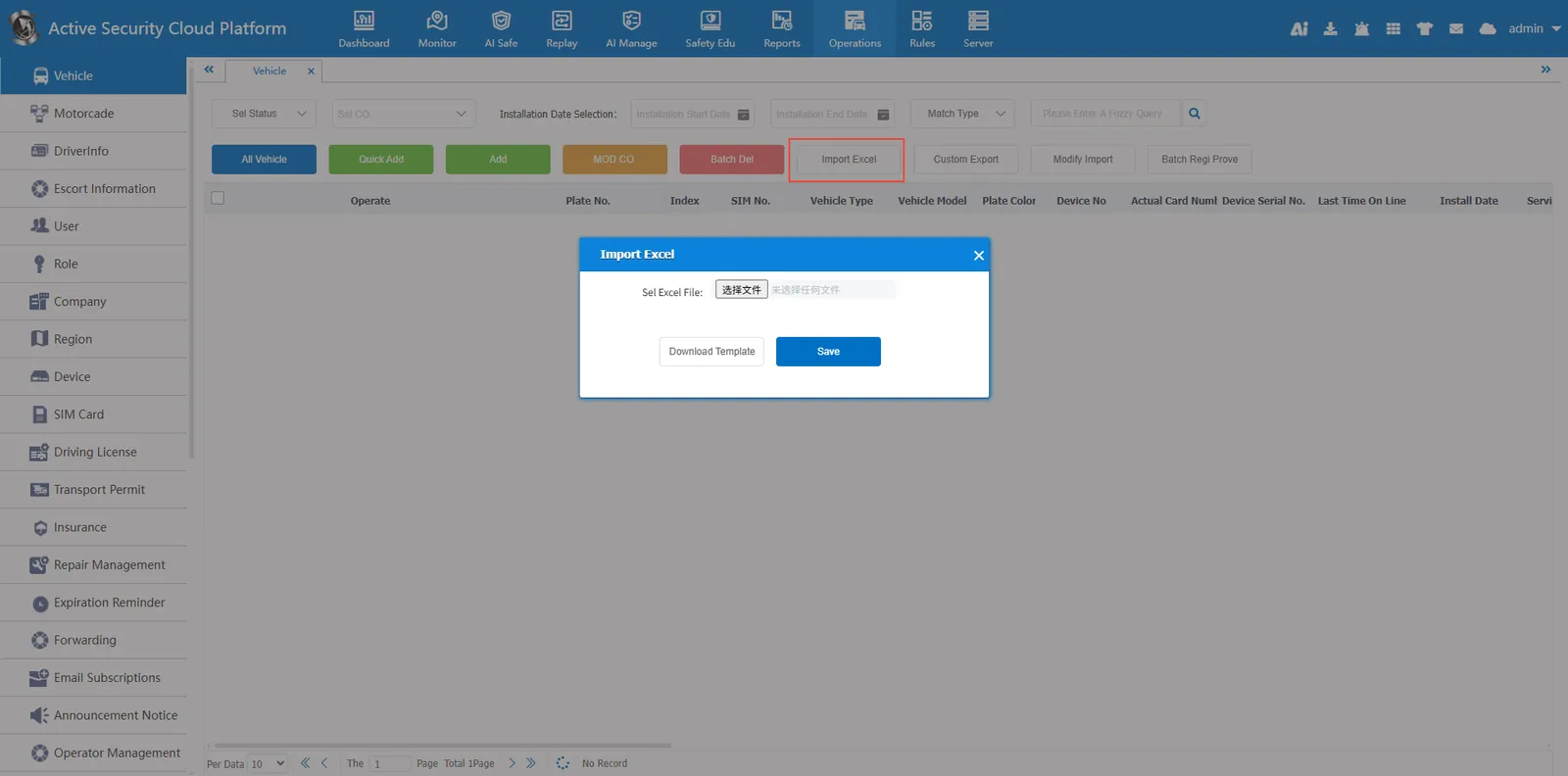
Download the template and open the template file.
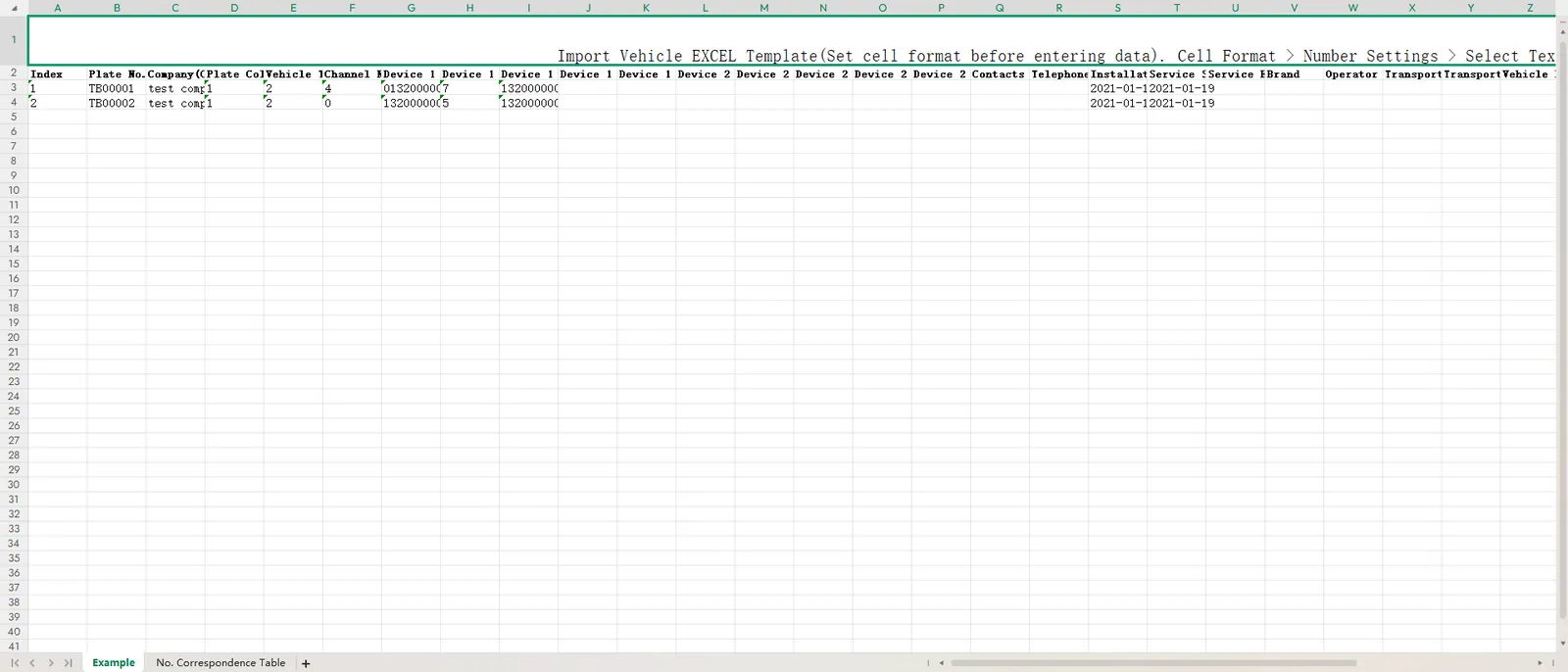
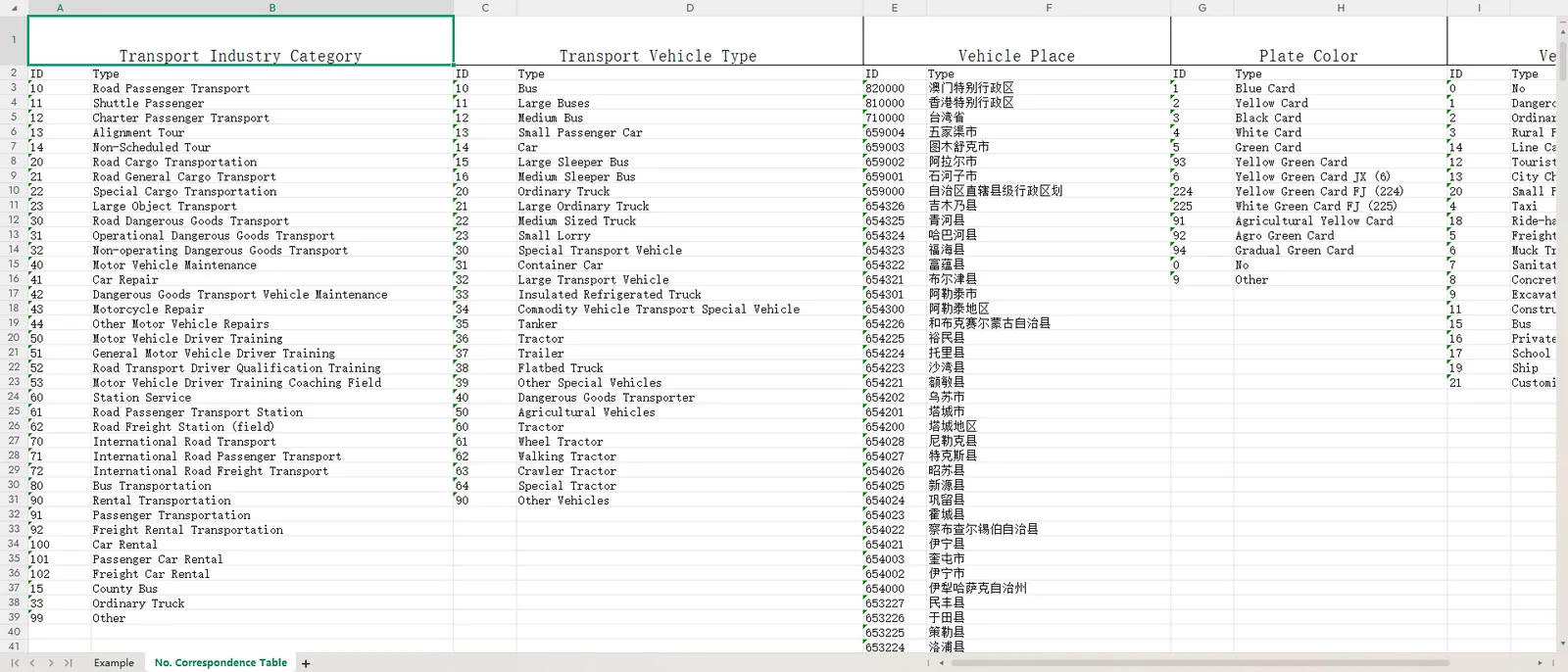
Set the cell format to text format, and fill in the vehicle information according to the template.
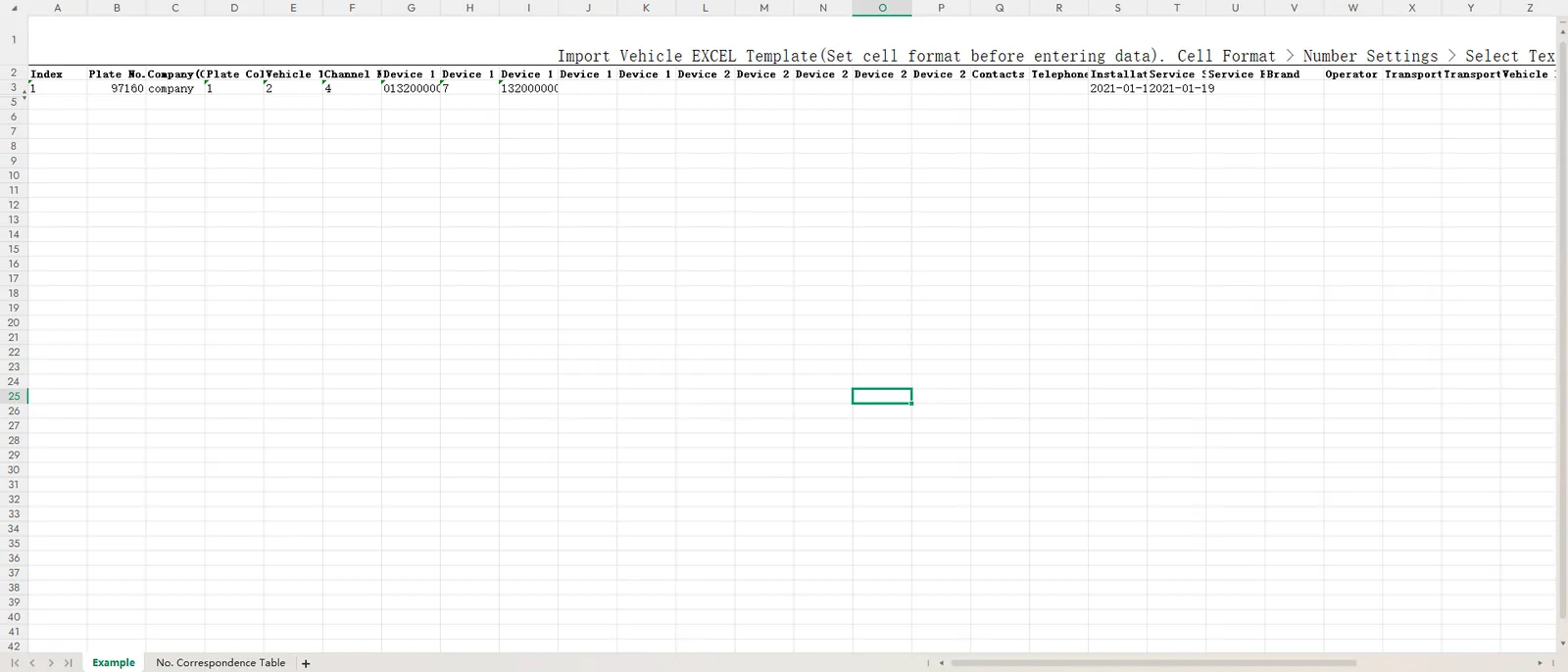
On click Import from Excel, select the template file
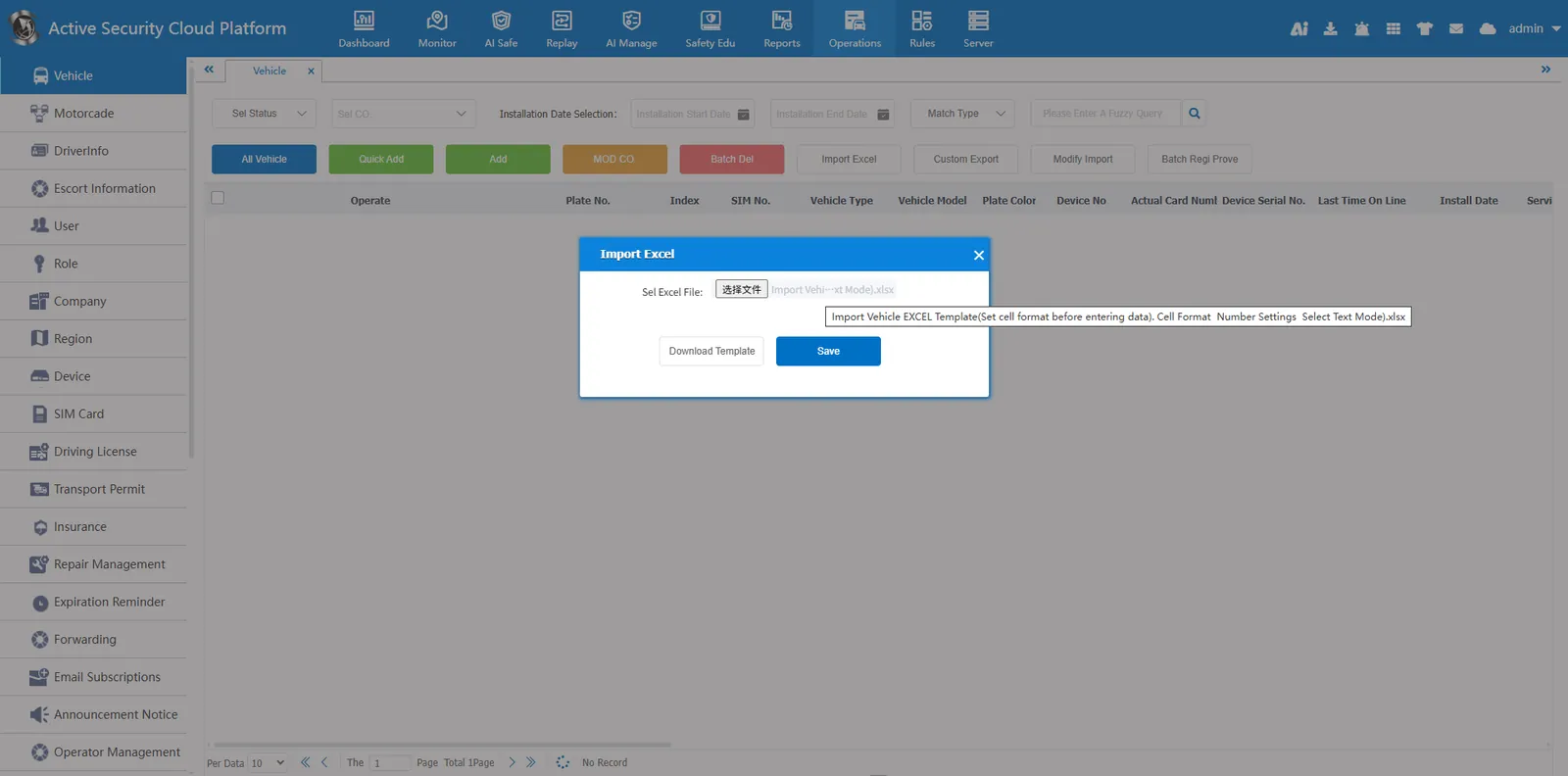
Click Save, the import is successful.
Operation video:
2.4 query vehicle
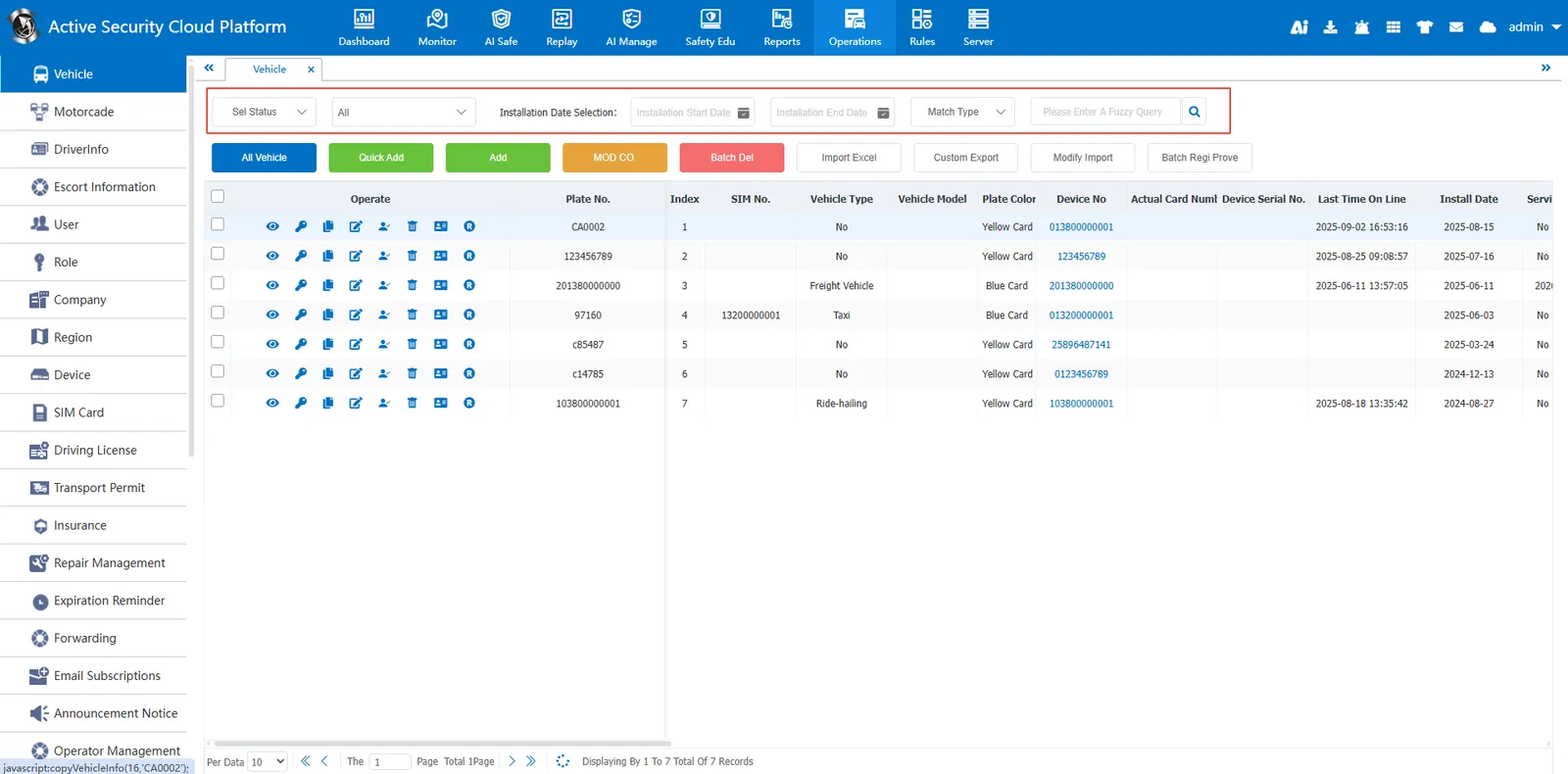
Vehicles can be found by keyword fuzzy, and the matching types include: license plate number, equipment number, company name, brand, product model, operating line, driver name, vehicle type, SIM card number, fleet, vehicle frame number, engine number, abbreviation, operator, vehicle model, region, actual card number, and agent.
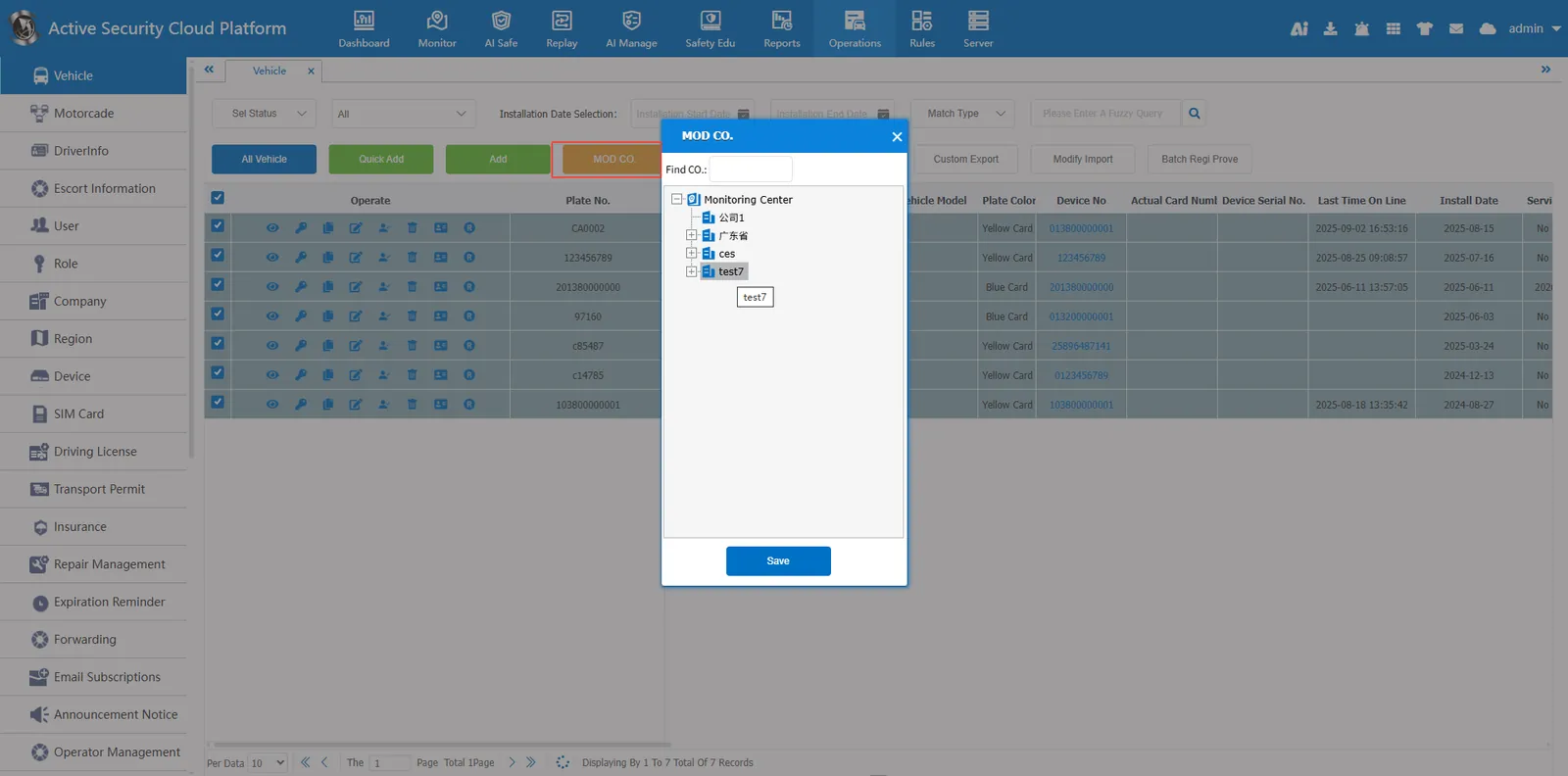
2.5 modify the company to which the vehicle belongs
Check the box on the left to modify the company of the vehicle (batch operation is possible)
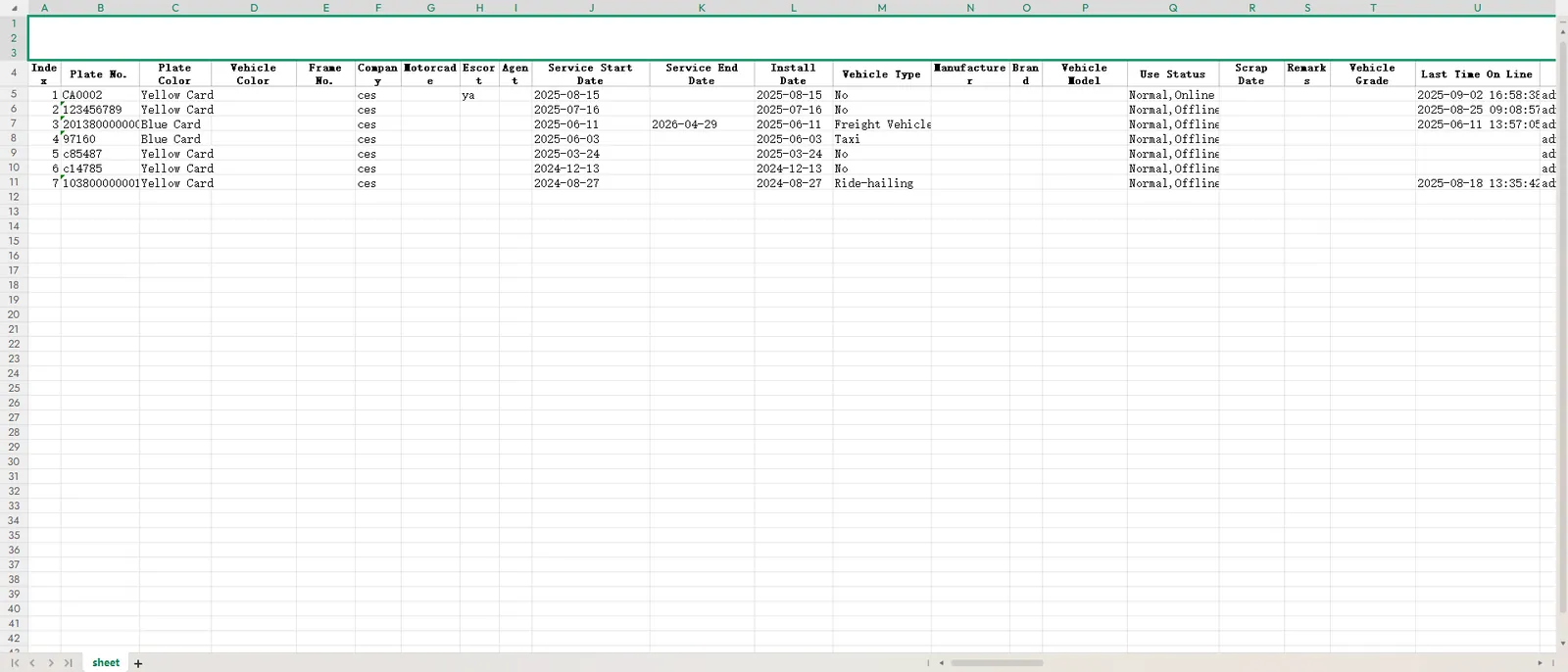
2.6 custom export
Select fields to import
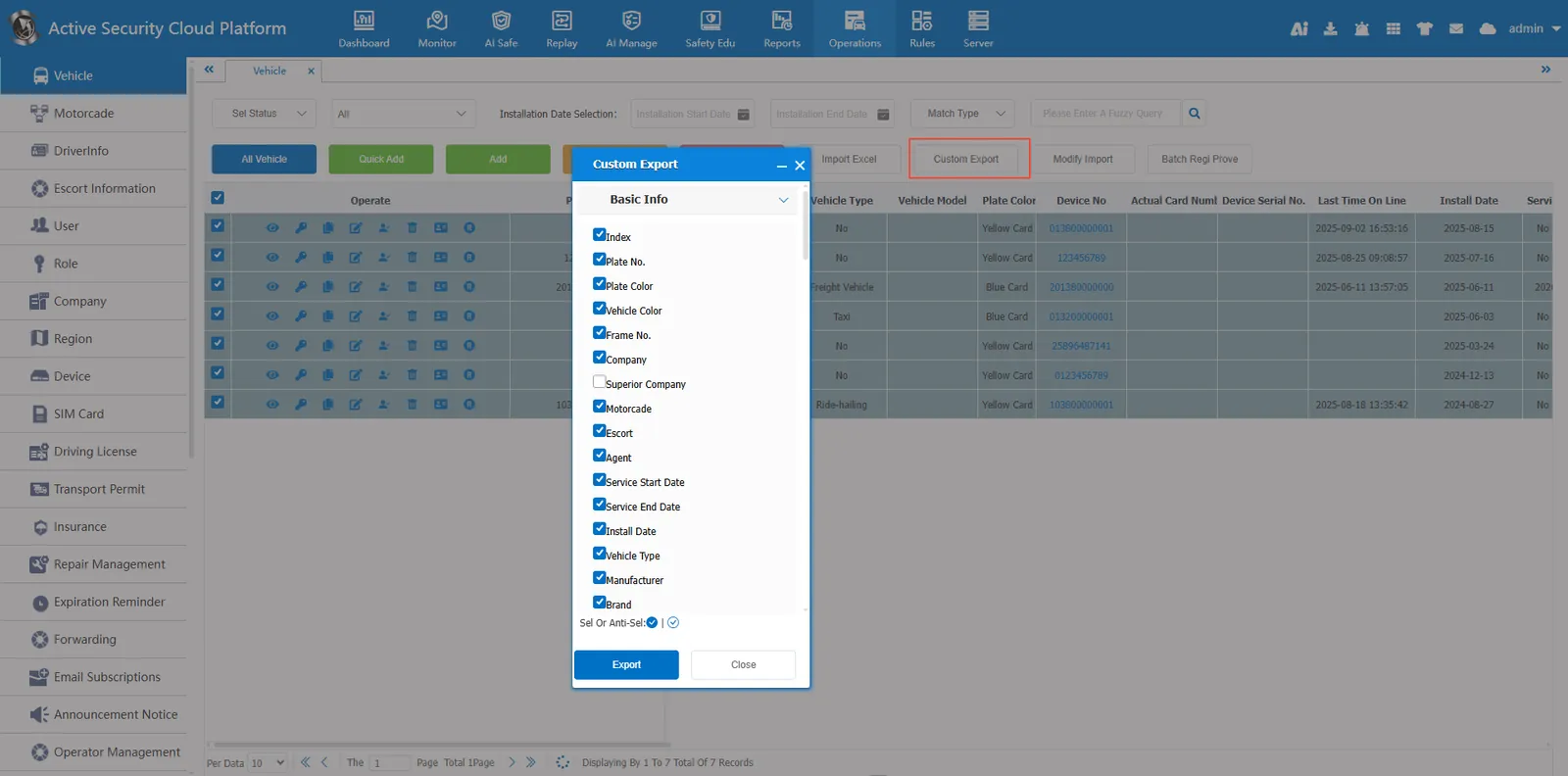
Click Export, the effect is as follows
2.7 batch import modification
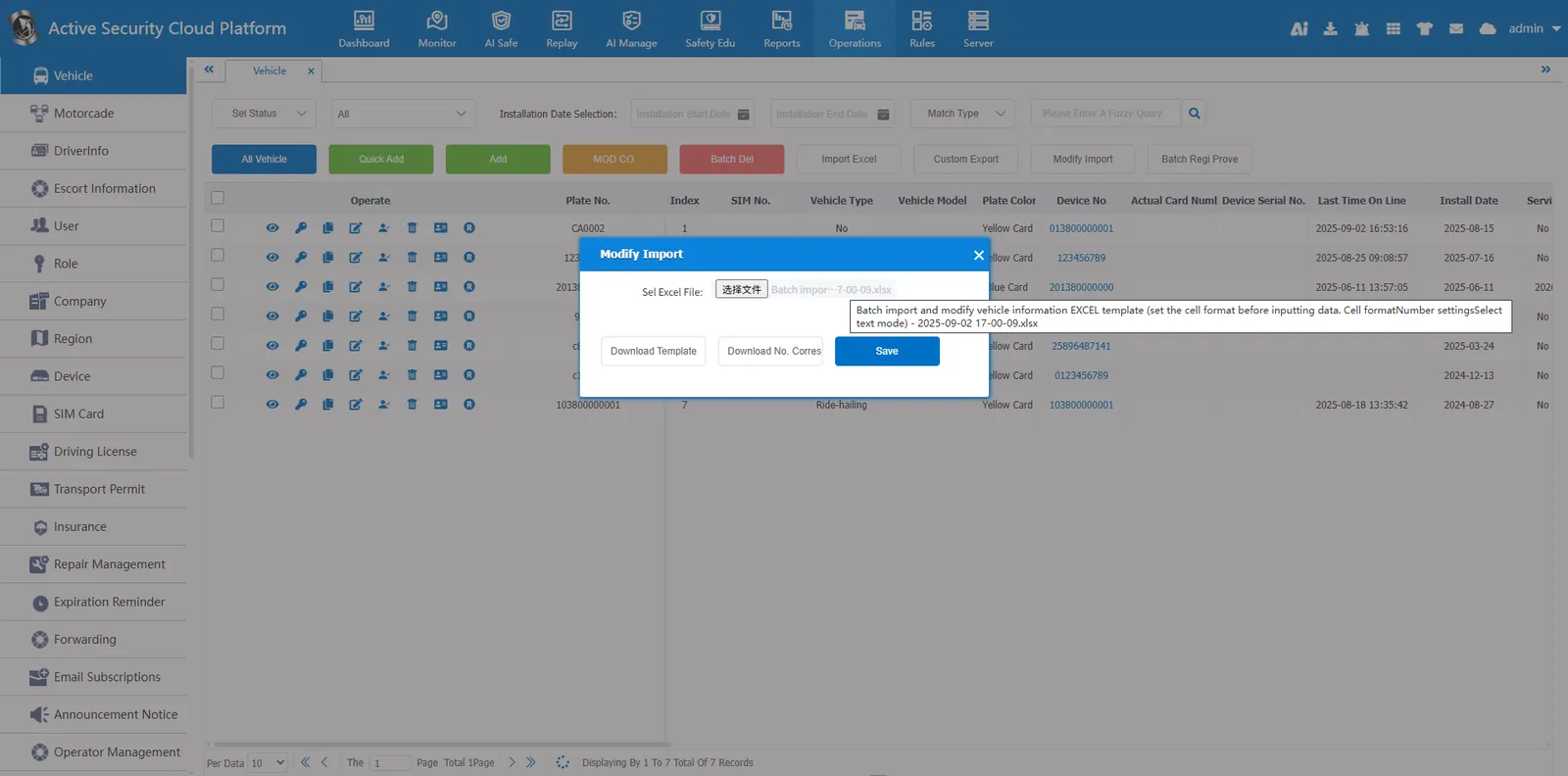
Click Batch Import to modify, download the template, check the items to be modified, save the execl file after modification, and import the file.
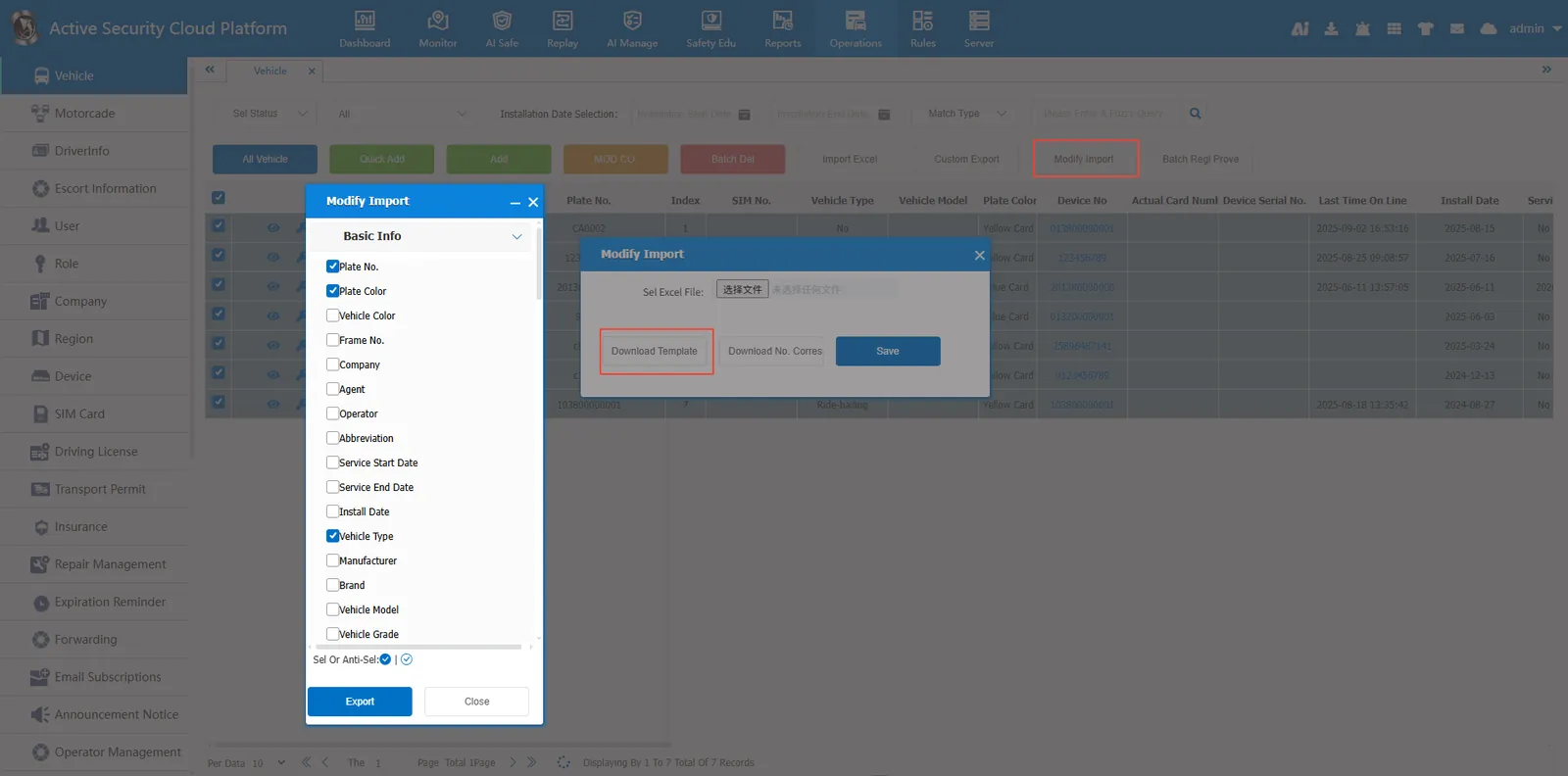
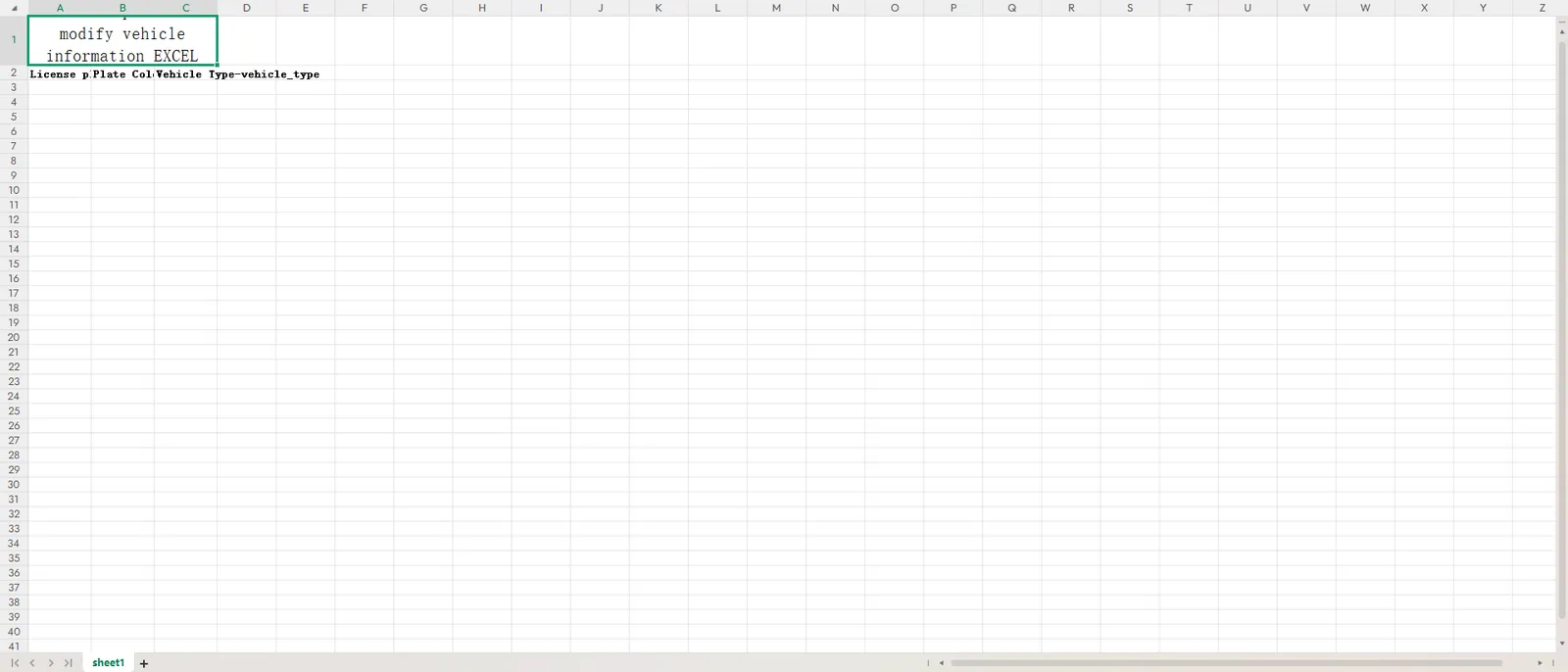
Select the fields to be modified and click Export to open the template file.
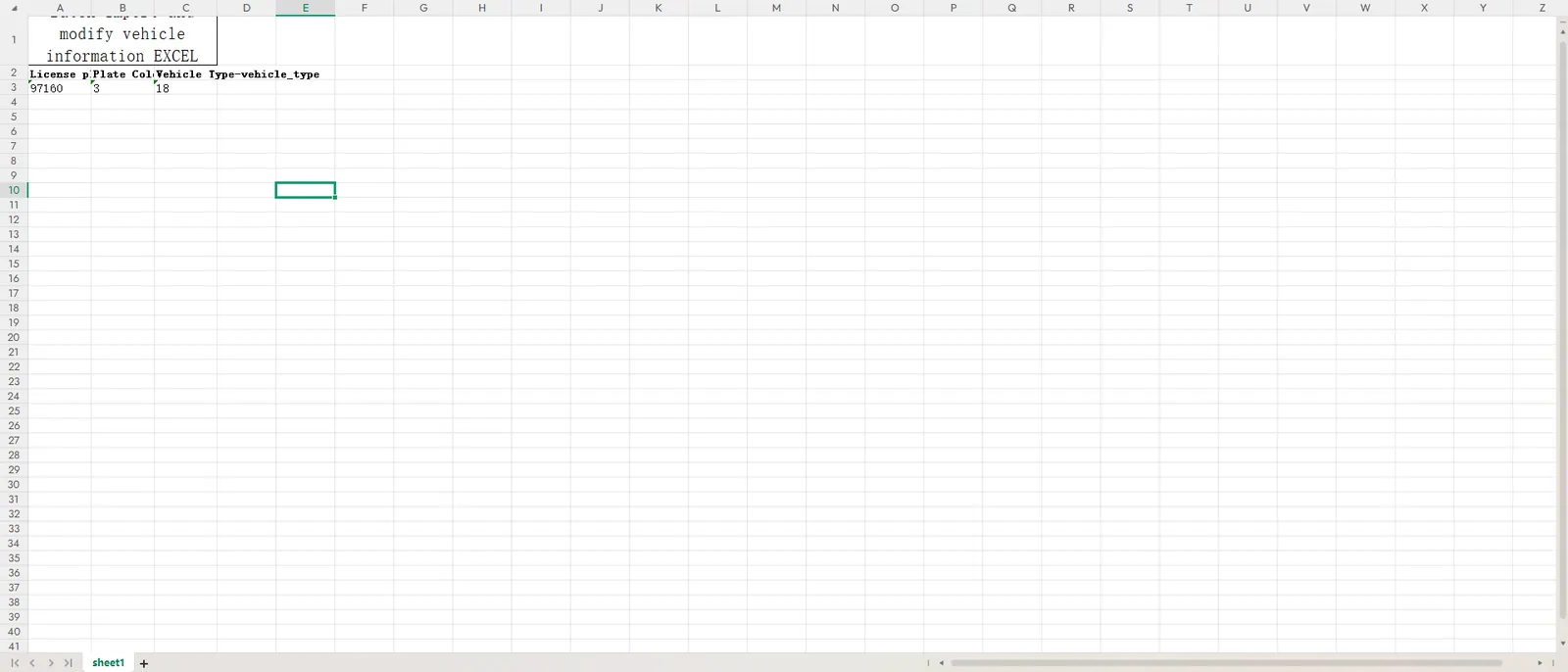
Fill in the license plate number and the contents to be modified.
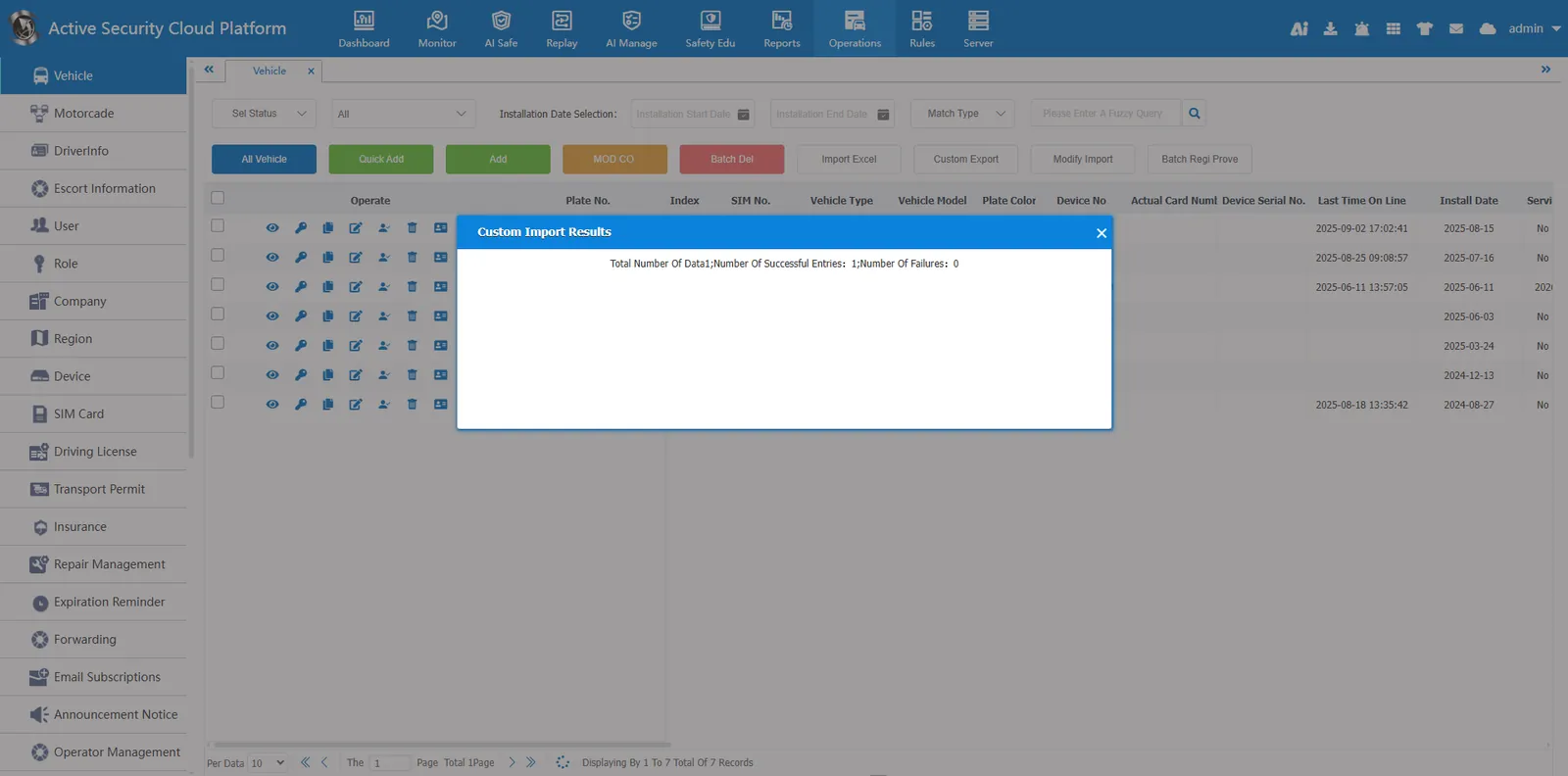
Select the template file and click Save. The import is successful.
2.8 delete vehicle
-
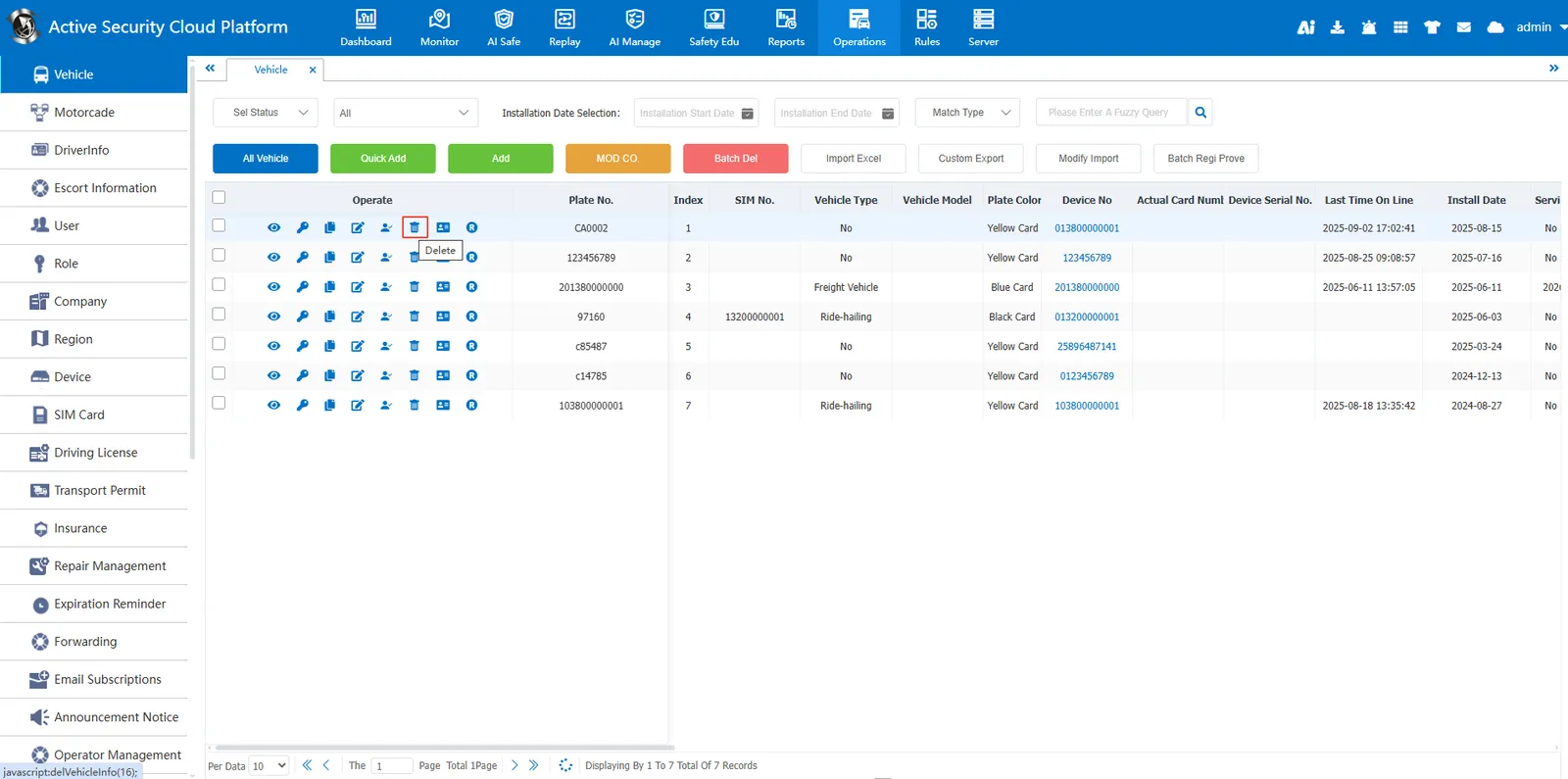
Click the Delete button to delete the vehicle
-
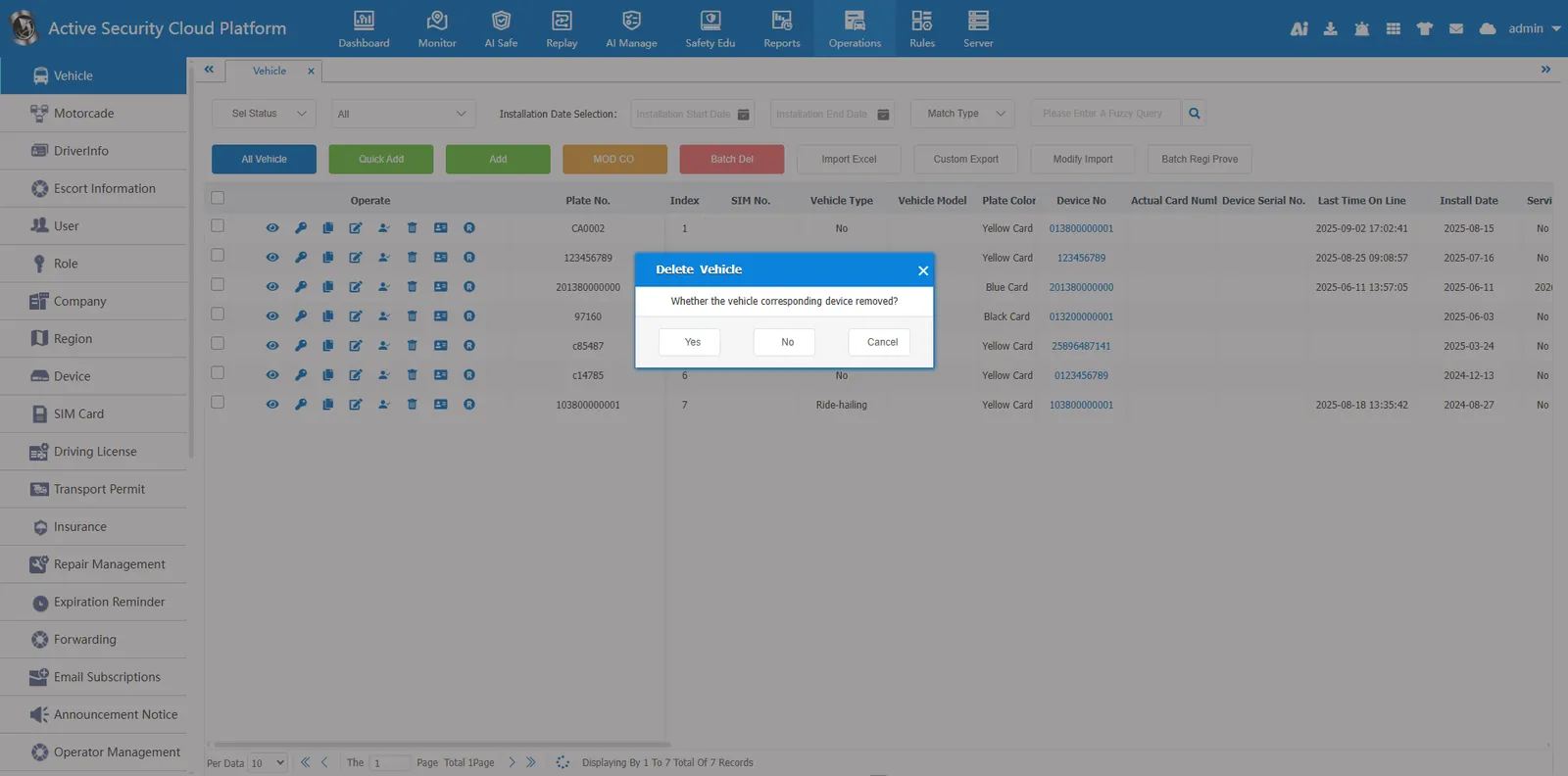
Select the vehicle, click the batch delete button to delete, you can choose to delete the associated equipment together.
2.9 Recover Deleted Vehicles
https://help.cmsv8.com/helpCenter/doc/index.html?isStudy=1&pageType=2&docType=9&docId=1802&type=1
