1. Function description
The user information module is the core function module used to manage user accounts, permissions, and basic information in the system. It supports users to add, edit, delete, and batch import/export operations to ensure the accuracy of user data and permission compliance.
2. operating instructions
2.1 add user
2.1.1 Add button
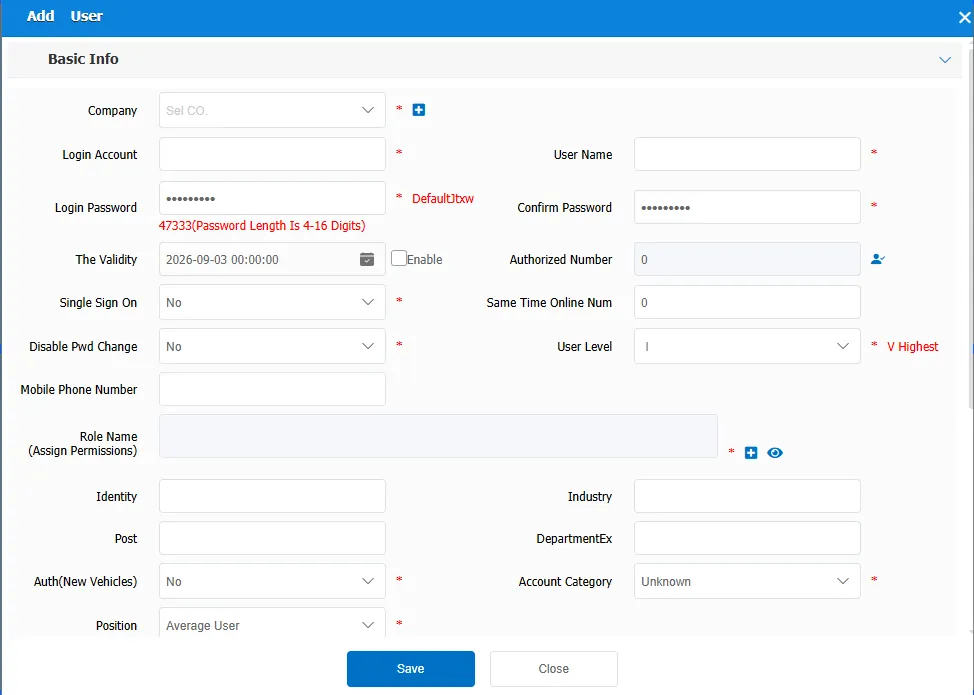
Click the Add button, enter user information in the Add User Information dialog box, select the company where the user is located, enter the account number, password, name, etc., and assign roles to the user, which can be used to restrict the functions of the user account. For role functions, please refer to role management. You can also control the length of time the user watches video and the length of time the user logs in in other control parameters. Red asterisks are required.
Login Account: the account used to log on to the platform.
User Password: the password used by the user to log in to the platform.
Validity Period: Users cannot log in to the validity period after activation.
Authorized Quantity: The number of authorized company vehicles.
Single sign- on: After opening, you can only log in on one device
Maximum number of simultaneous online users: If the maximum number of simultaneous online users is exceeded, the previously logged- in users will be kicked out.
Change Password Disabled: You are not allowed to change the password of the account.
Role Name: assigns the role to restrict the user's permissions.
2.1.2 Import from Excel
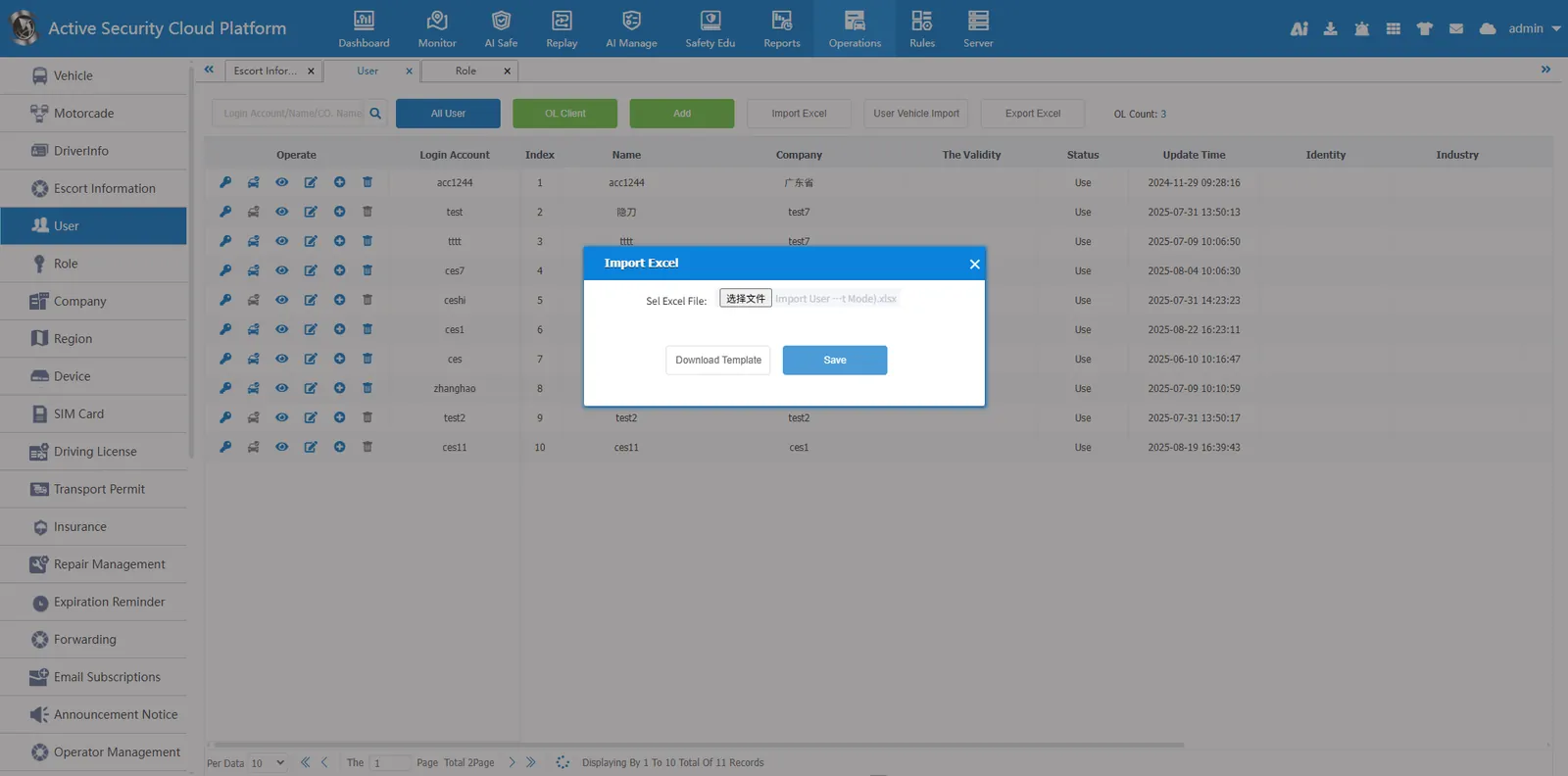
Click Import from Excel
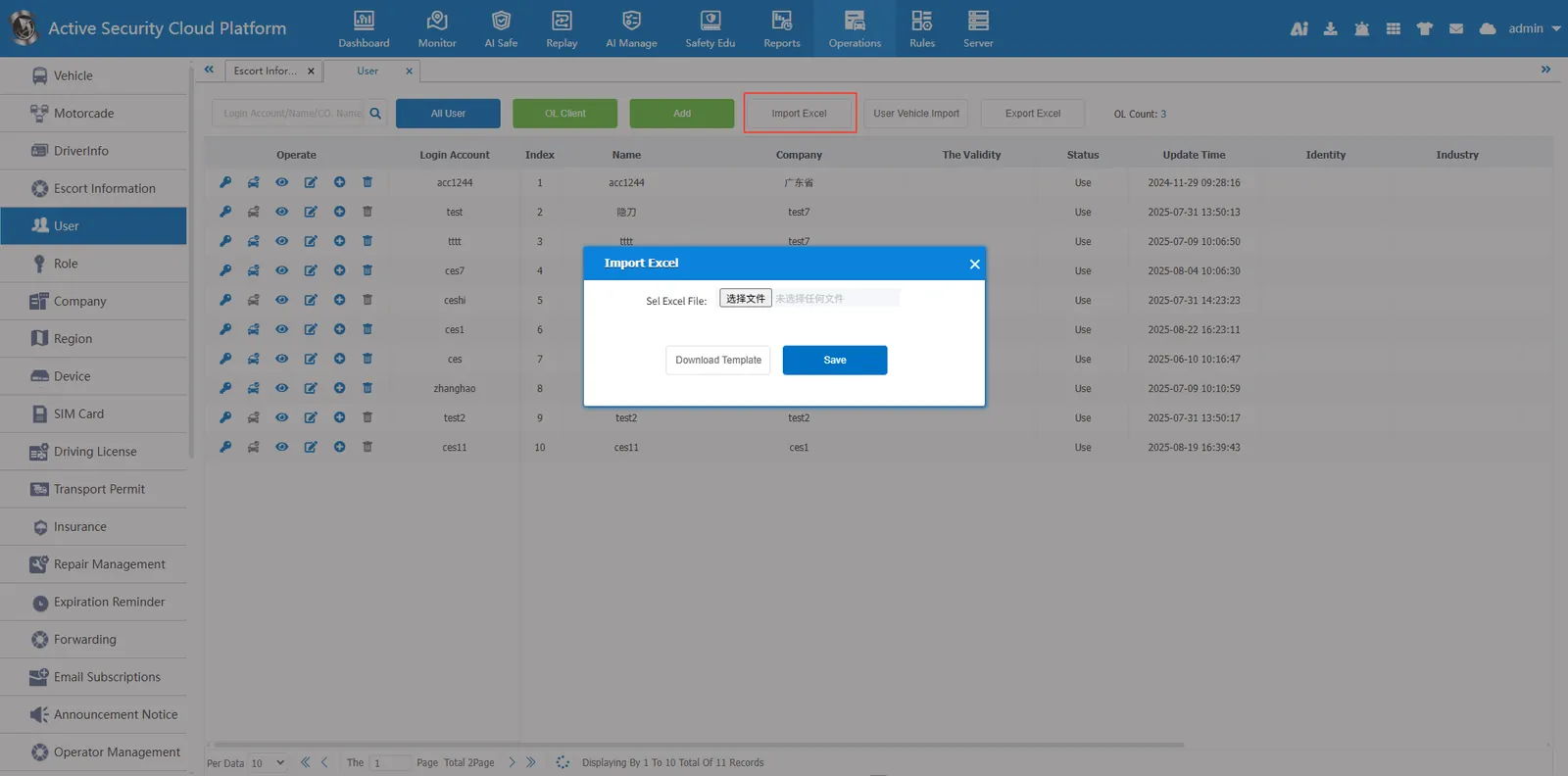
Download the template and open the template file
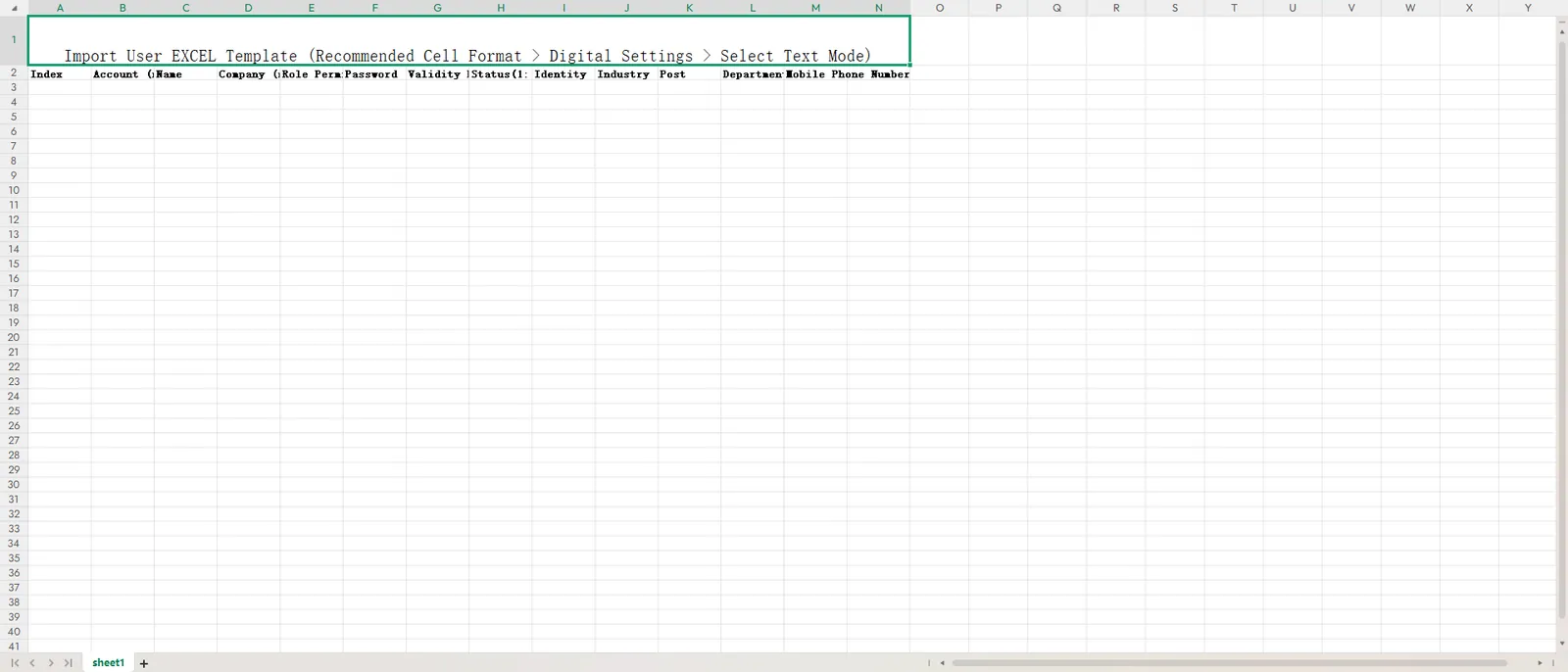
Set the cell format to text format and fill in the user information.
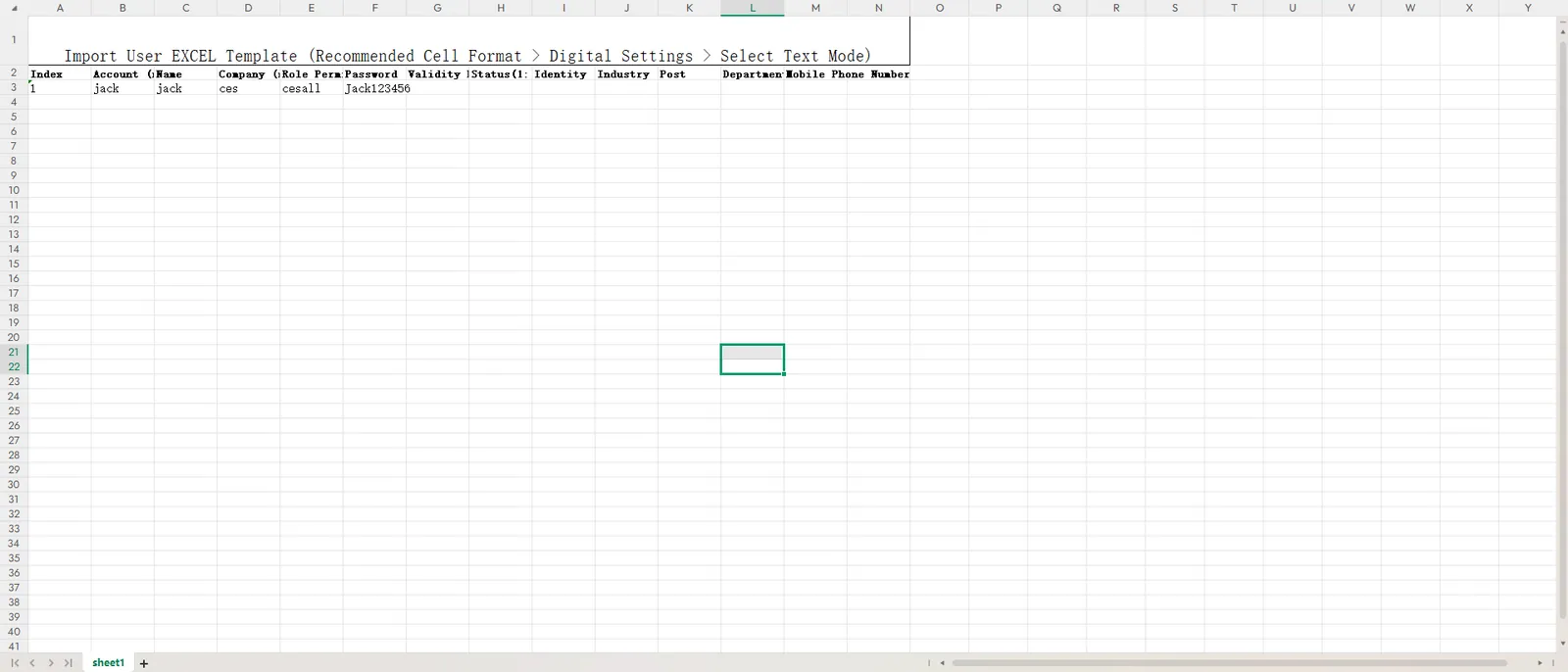
Select the template file and click Save
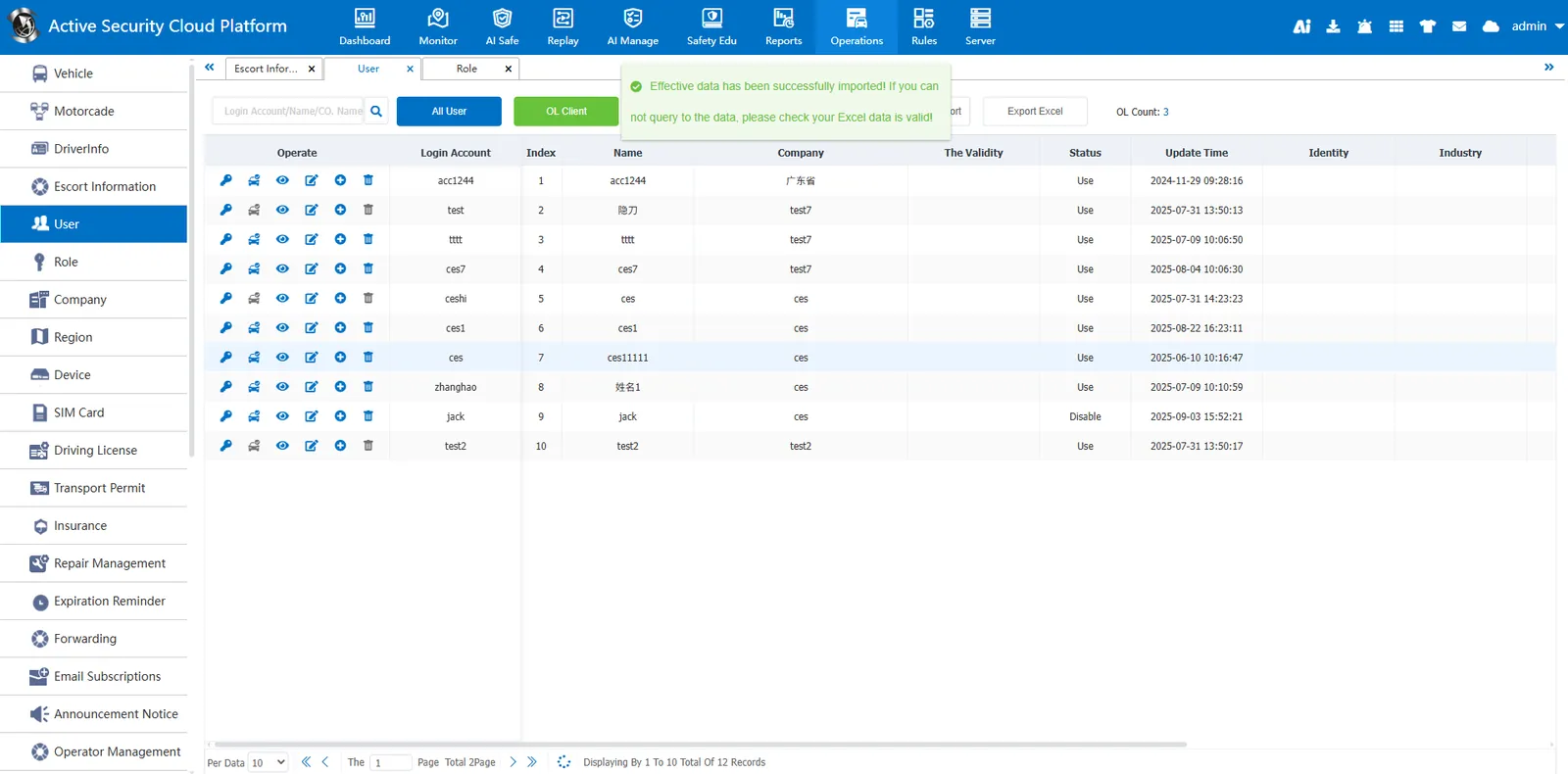
Import succeeded
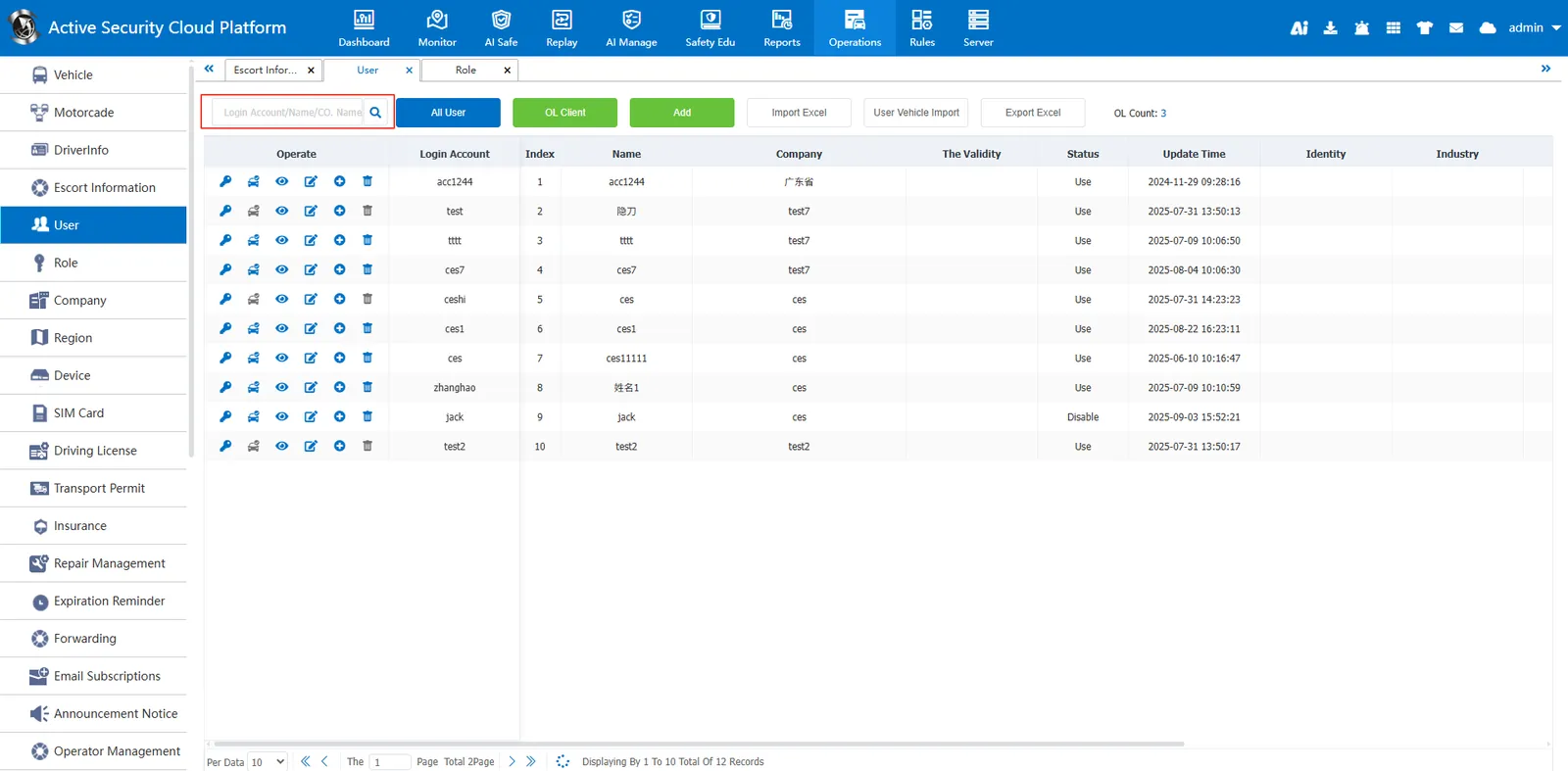
2.2 search function
You can search by login account, name, company name, click the search icon will be displayed in the list.
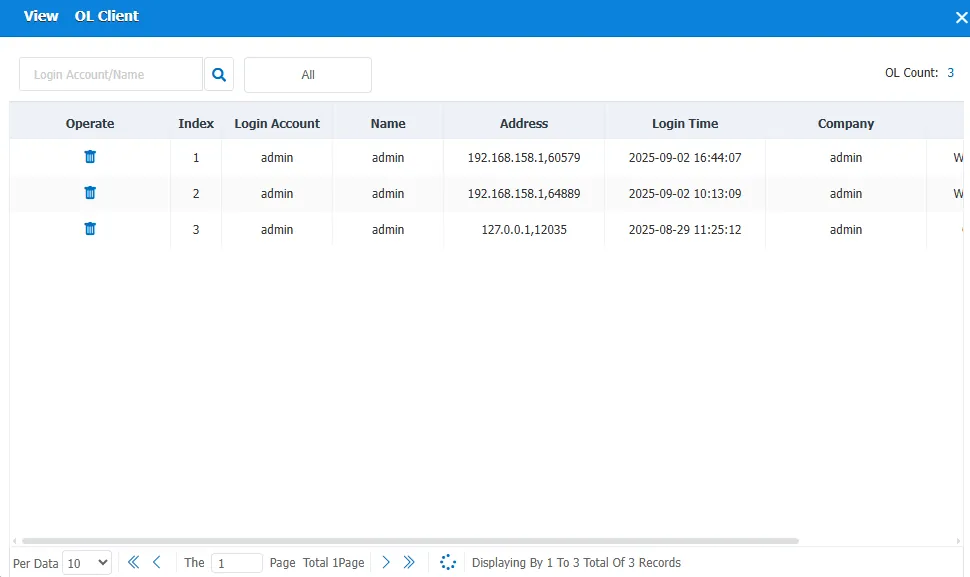
2.3 online client

The user account that can be currently logged in. You can see the ip address, login time and type. Click Force Logoff under Operation to force the account to go offline.
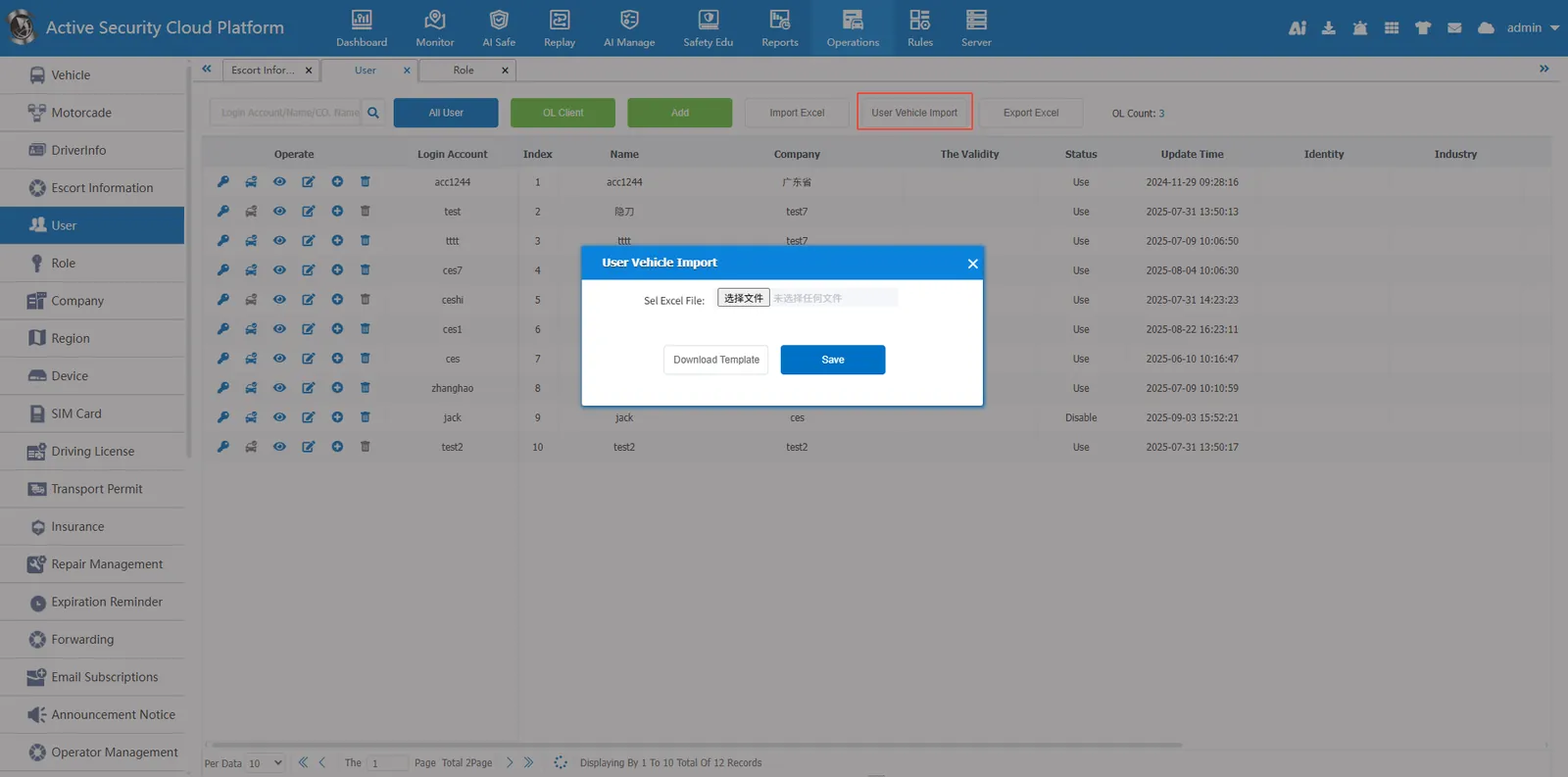
2.4 User vehicle authorization import
Authorize the vehicle to the user, use the excel display, download the number template, enter the user and vehicle according to the excel title, set the cell format to text format, and import after saving
2.5 Export to Excel
Click Export to Excel
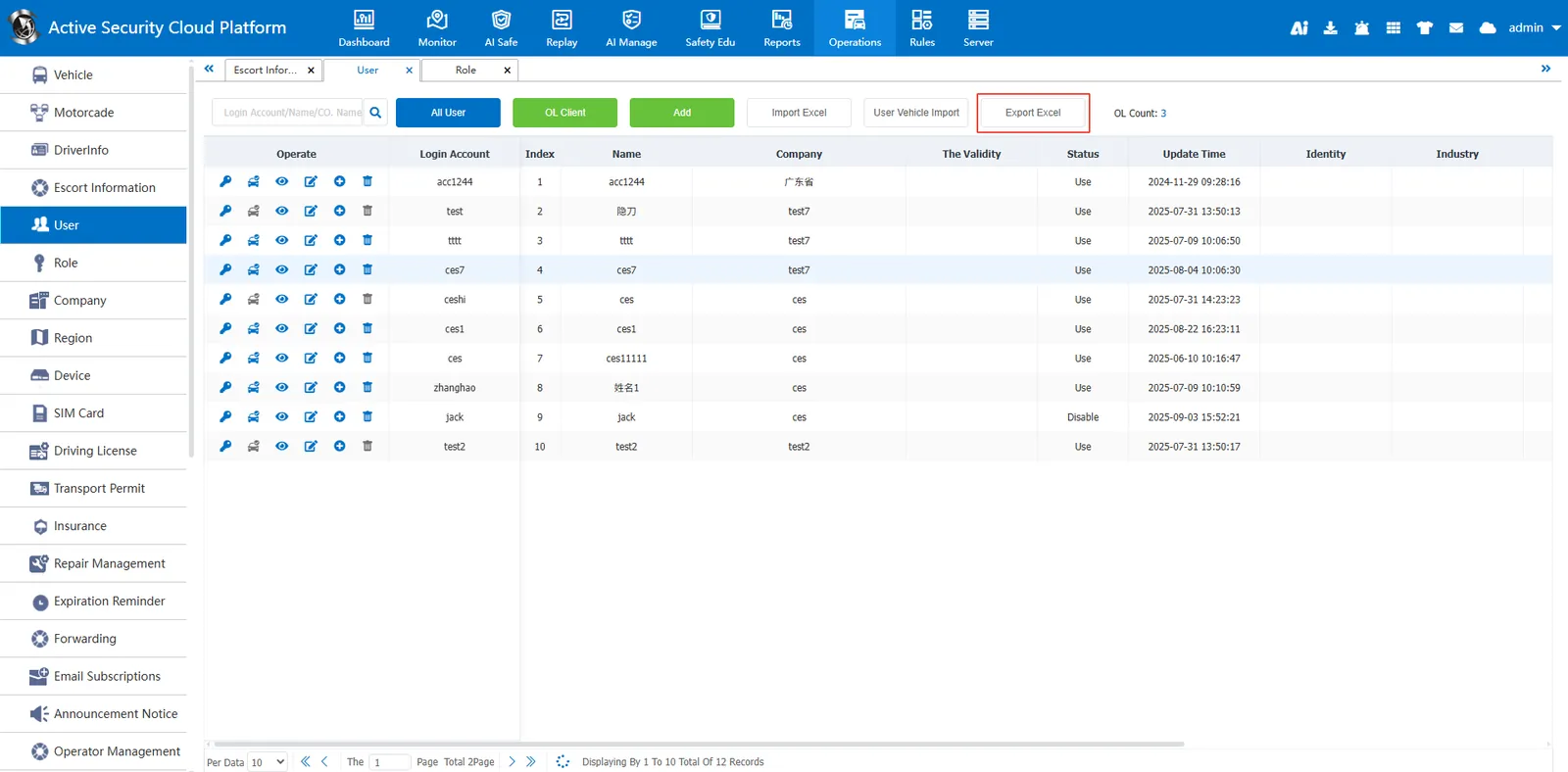
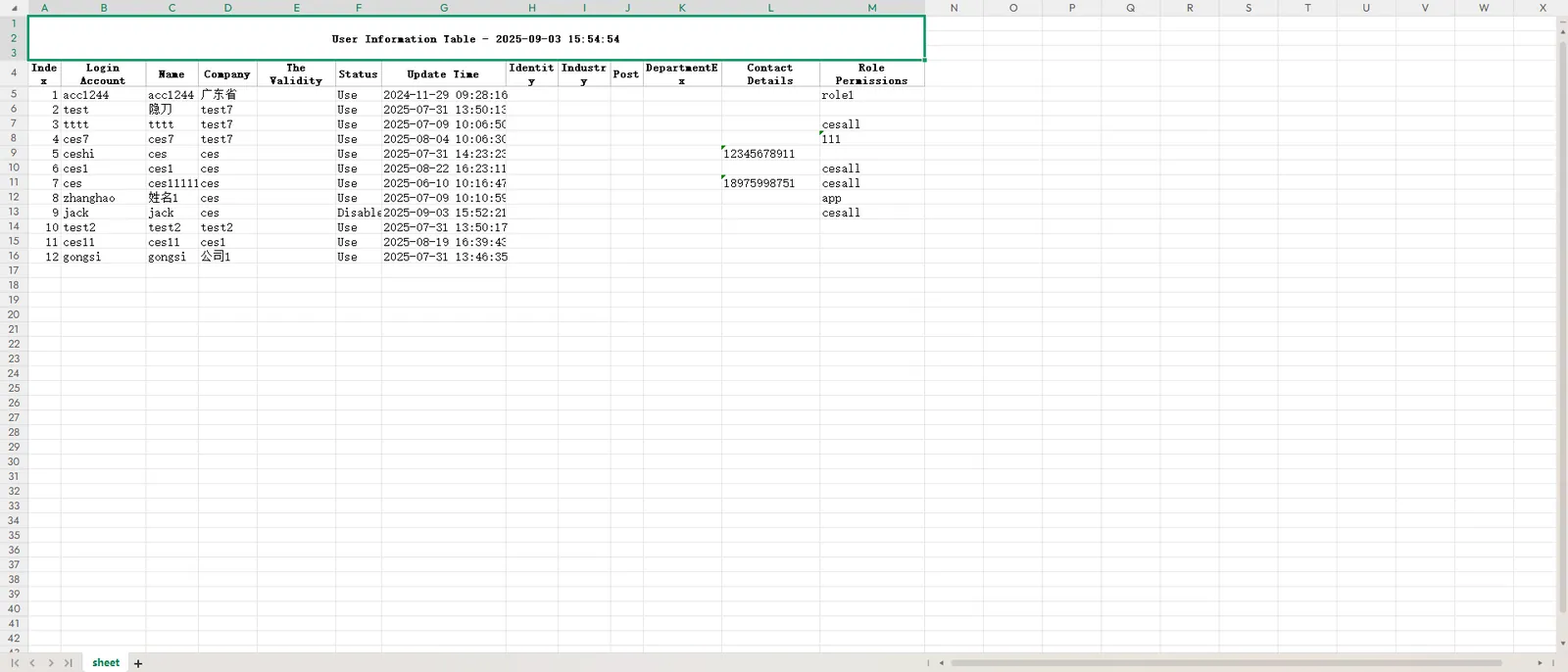
Export user information to an excel file, including login account, name, company, etc.
2.6 operation button
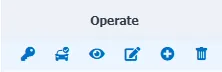
Change Password: Change the login password of a user account
Vehicle Authorization: Authorize the company's vehicle to the user, and the vehicle will be available under the user's account. The gray status is unavailable, and the main account is in gray status, because the main account has the permission of all vehicles under the company.
Details: View user information details
Edit: Edit user information
Title log Settings: Set the logo in the upper right corner after the user logs in to the platform.
Delete: deletes the user. The gray status is unavailable. The primary account cannot be deleted. The primary account exists with the company. The primary account is automatically deleted after the company is deleted.
3. Precautions
Operation needs to be cautious: delete users, modify permissions and other operations will affect the business, need to confirm before execution.
Data consistency: Make sure that the format of the Excel template is consistent with the system requirements before batch import to avoid data errors.
Permission compliance: When adding users, roles and permissions must be strictly matched to prevent unauthorized operations.
