1. Function description
Risk road sections are added through manual entry and track playback, which can be visually displayed on the map. It supports setting early warning rules, batch management, filtering query and data export, and helps control the potential safety hazards of vehicles passing through risk road sections.
2. operating instructions
2.1 add risk sections
2.1.1 General Additions
Enter 【Operation Management】>【Risk Road Section Management】, click the "Add" button, and the add window will pop up. Enter the risk road section information according to the page content, and manually draw the risk road section. Items with red asterisks (*) on the page are required. Please be sure to complete them. The requirements for filling the specific fields are as follows:
- Name: Enter the name of the risk section (required)
- Company: Click the drop-down menu to select the company to which the section belongs (required)
- Type of Risk: Click the drop-down menu to select the corresponding risk type (long downhill, sharp bend, accident-prone) (required)
- Risk level: Click the drop-down menu to select the corresponding risk level (low risk, medium risk, high risk) (required)
- Speed limit value: enter the speed limit value of the road section (required, only numbers, default pre-filled 60)
- Longitude/Latitude: Click to pop up the electronic map, and manually draw the risk road section on the map (required). After drawing the road section, it will be displayed as longitude and latitude. If you need to clear it and redraw it, click the delete icon on the right.
- Share: Click the drop-down menu to select whether the road section information is shared (unshared, group shared, global shared) (required)
- Location description: enter the specific location of the section and the description of the surrounding environment (optional)
- Risk description: describe in detail the specific safety risks of the road section (optional)
- Enable: Check the checkbox to enable the risk road section alert (it is checked by default)
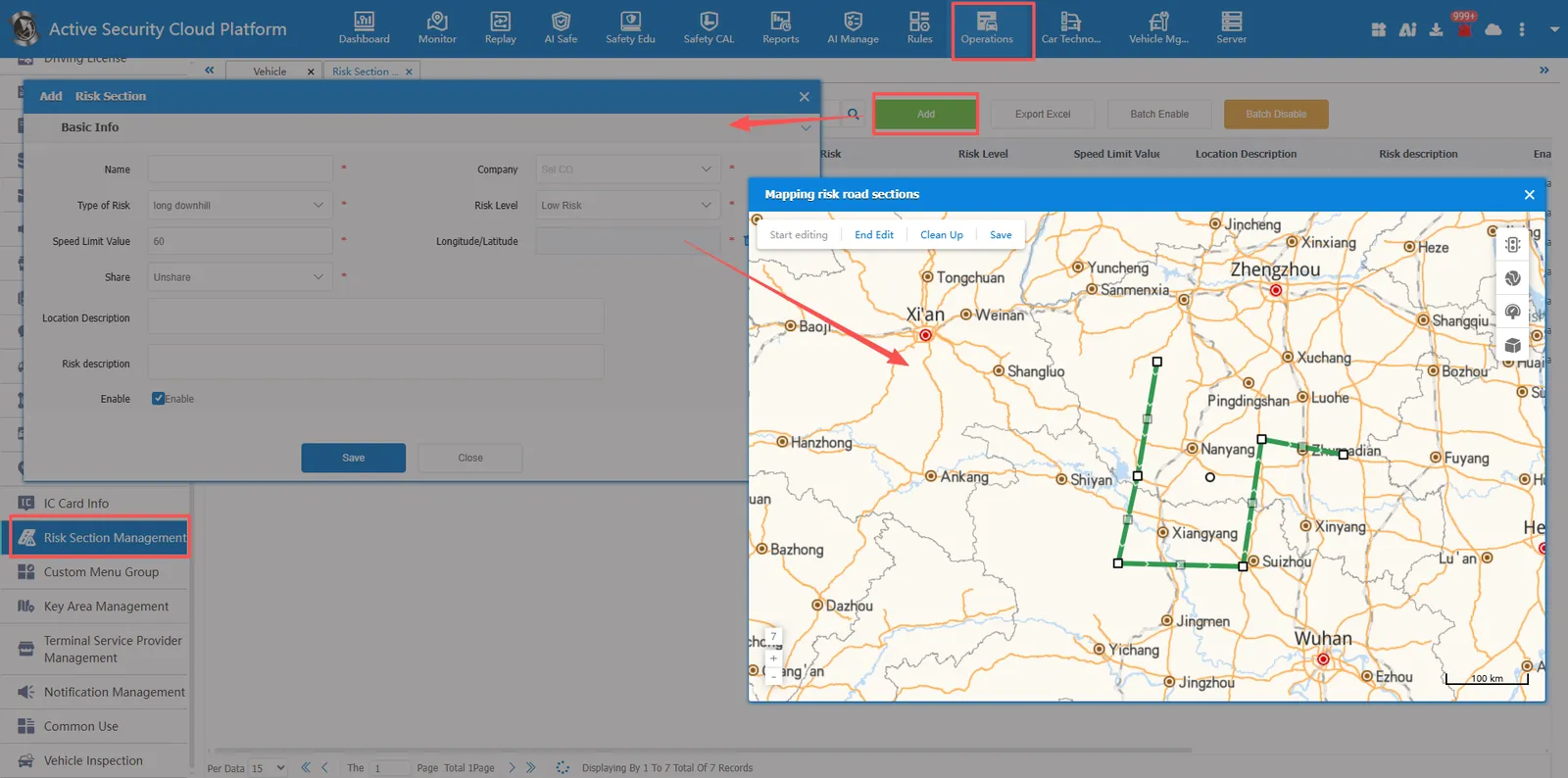
💡 Operation tips: after all the information is confirmed, click the "save" button at the bottom to complete the addition; Click the "close" button to abandon the current operation and exit the window.
2.1.2 Track Add
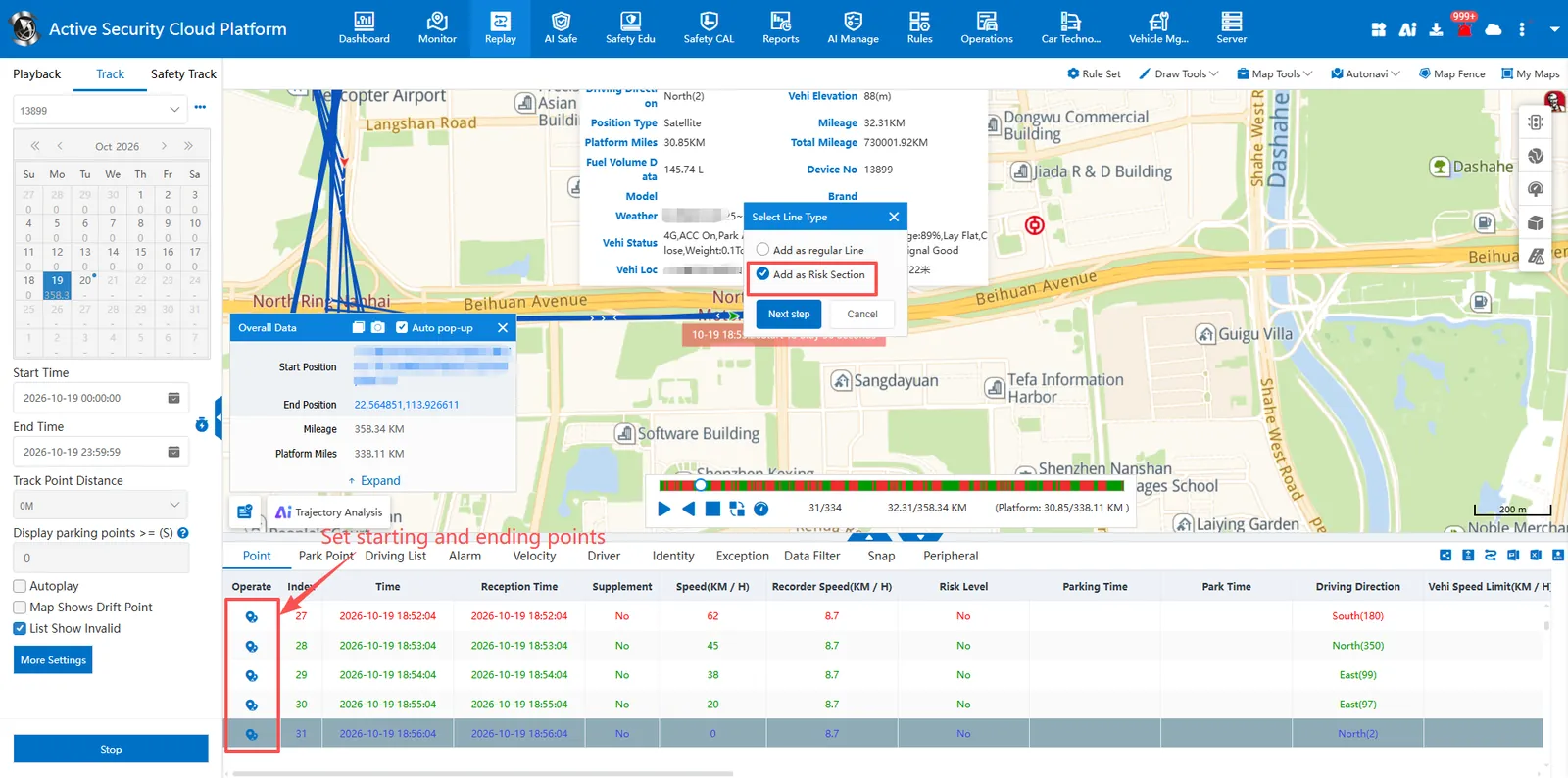
Search the historical driving track of the vehicle in the track playback, set the starting and ending points of the line, and can be added as risk sections.
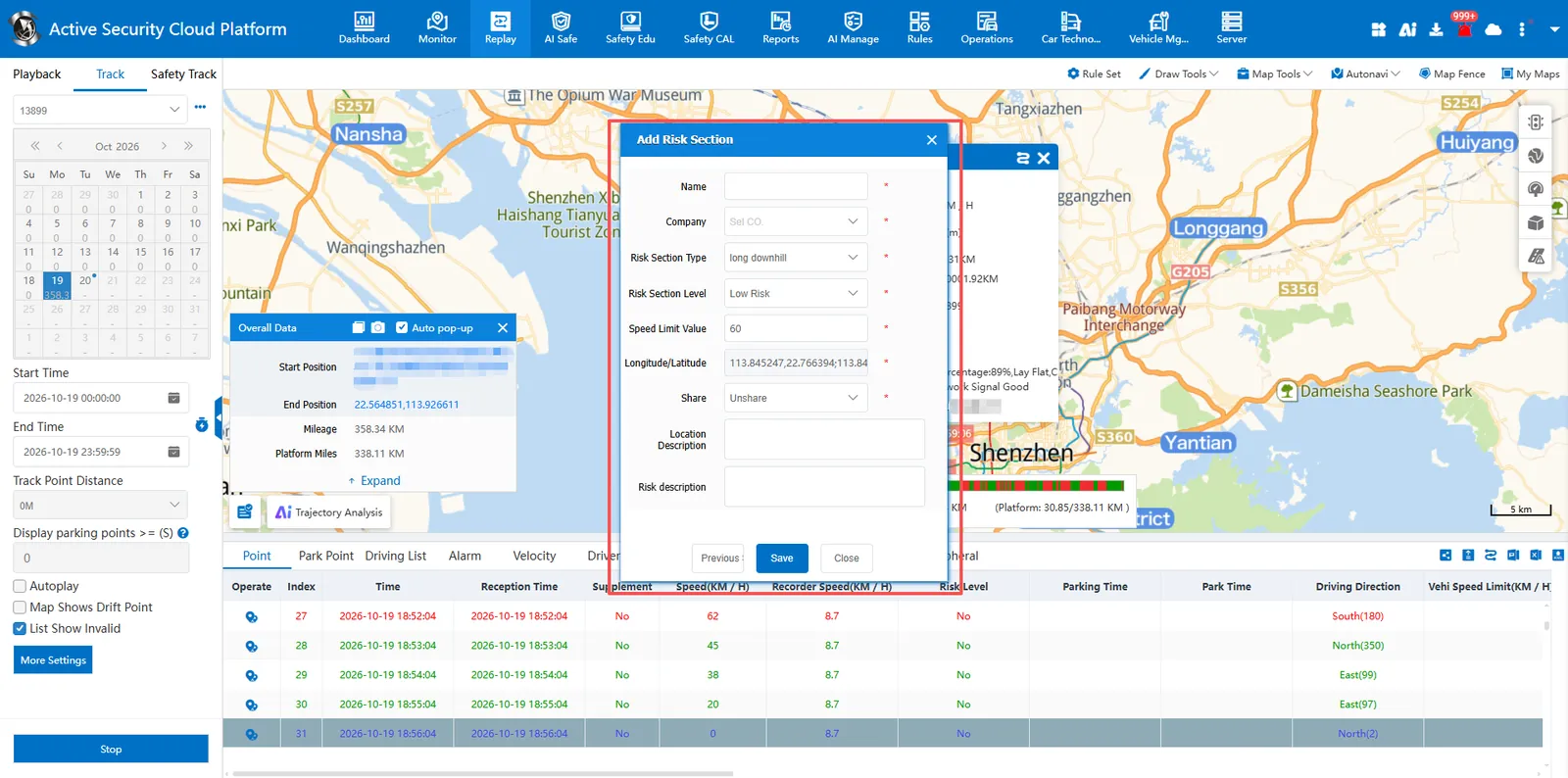
Fill in the risk road section information according to the description of the conventionally added fields and save it.
2.2 viev the risk section
On the right side of the real-time monitoring electronic map tool bar, click After the button, the "risk section" added by the platform user can be displayed on the map. The icon status is displayed
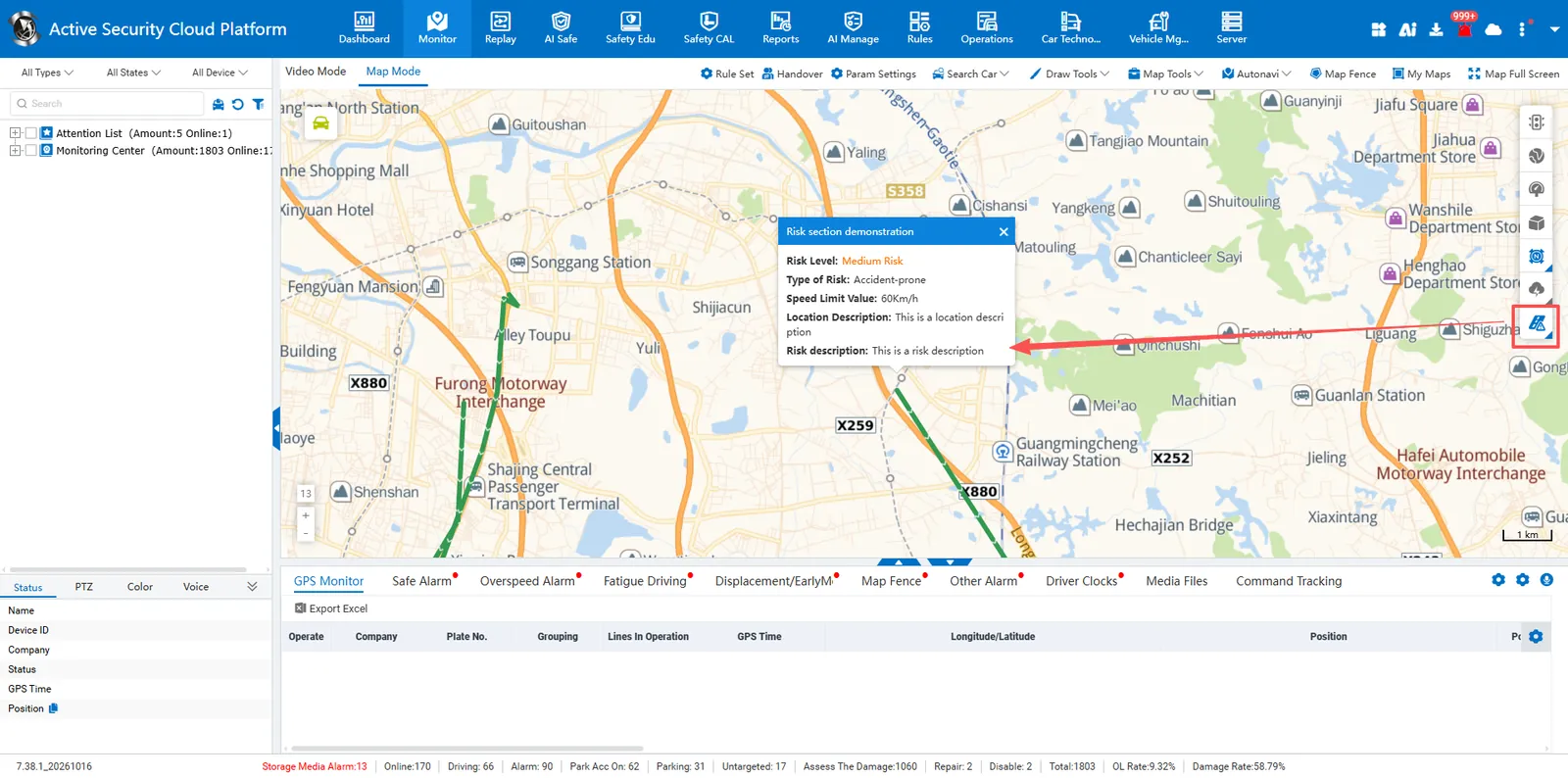
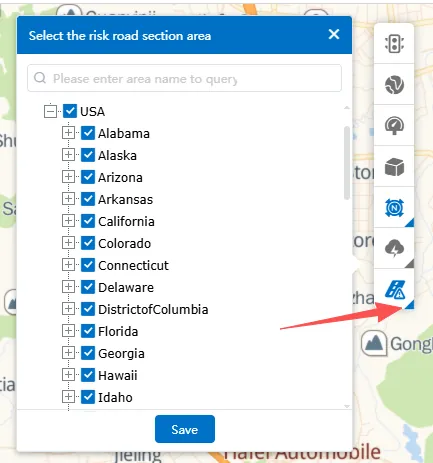
After opening the "risk section" display, you can click the corner mark to customize the selection display area.
2.3 risk section alarm
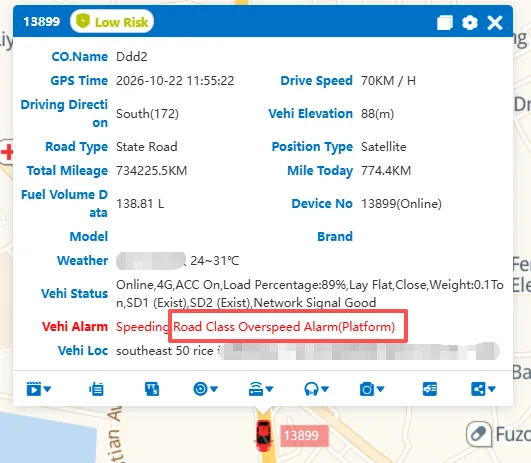
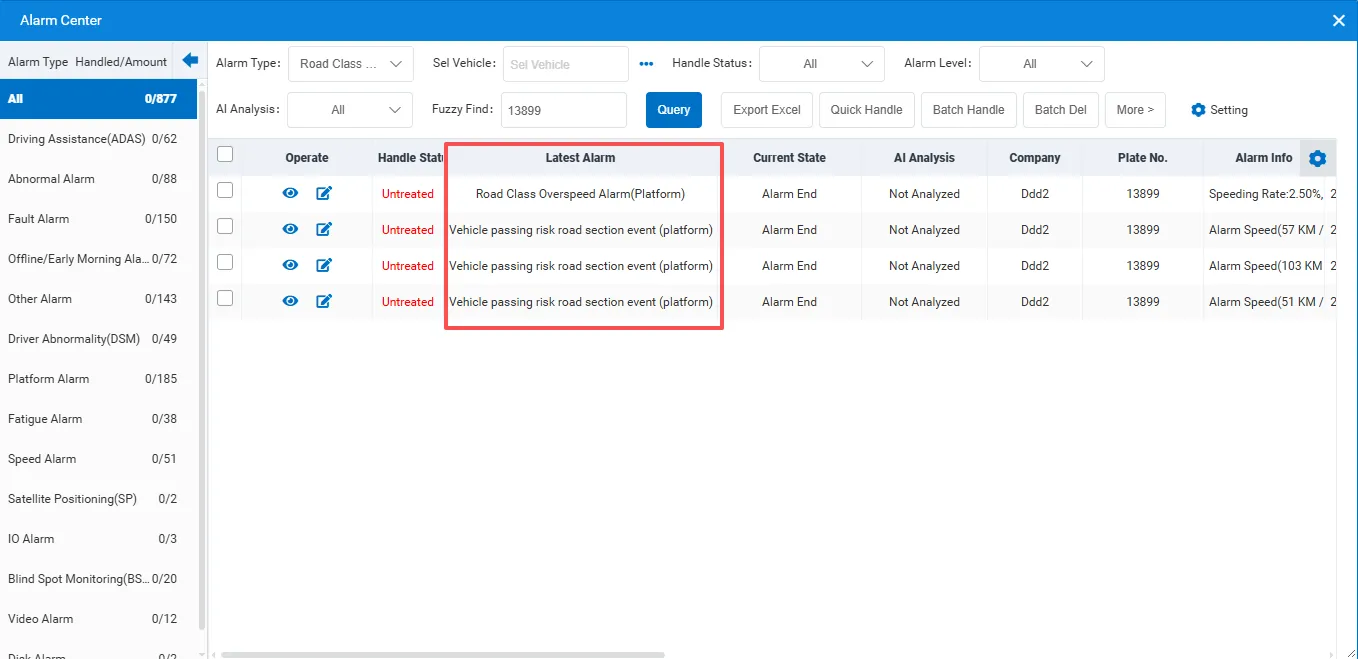
After adding a risk road section, if a vehicle passes through a risk road section or exceeds the speed limit on a risk road section, relevant alarms will be generated. can be created Risk Section Warning Rules are implemented to promptly remind drivers to pay attention to driving safety
2.4 batch enable/batch disable
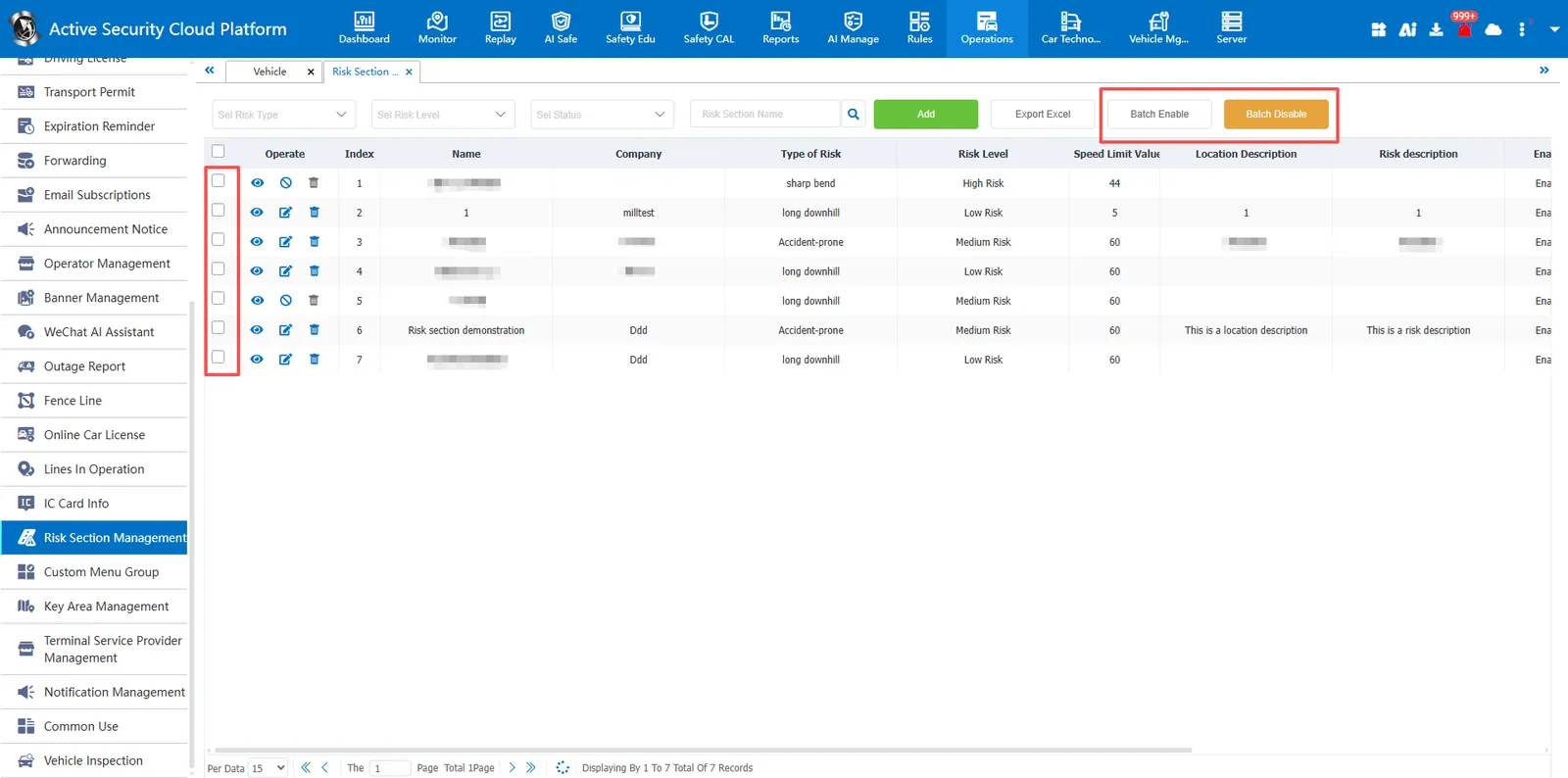
Support multiple records, one-click batch enable or batch disable road sections, the disabled road sections will not be displayed on the electronic map, and no related road section alarm will be generated.
2.5 search risk section information
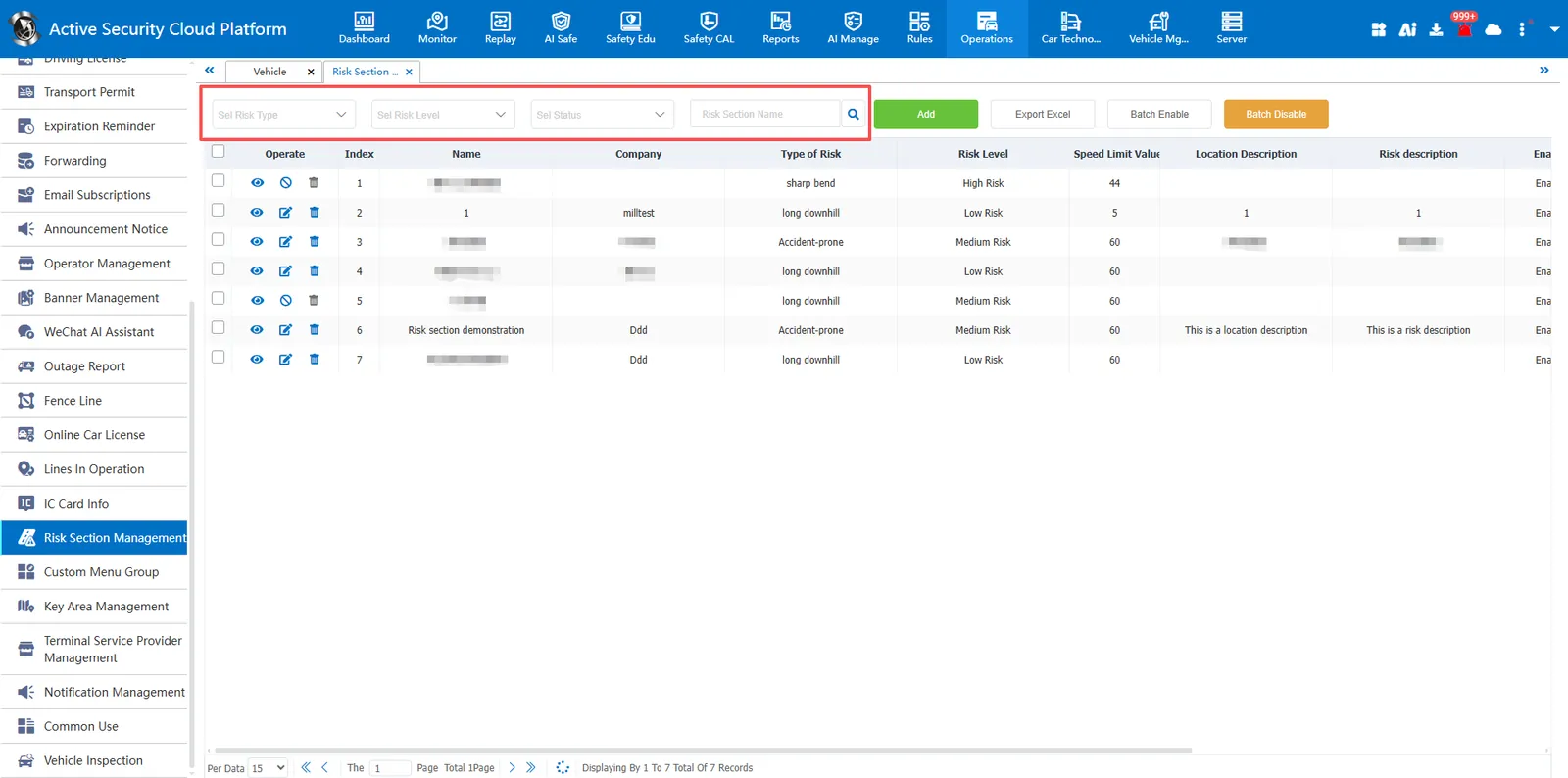
You can filter by risk type, risk level, or enable status, or enter the name of the added risk road segment for fuzzy query.
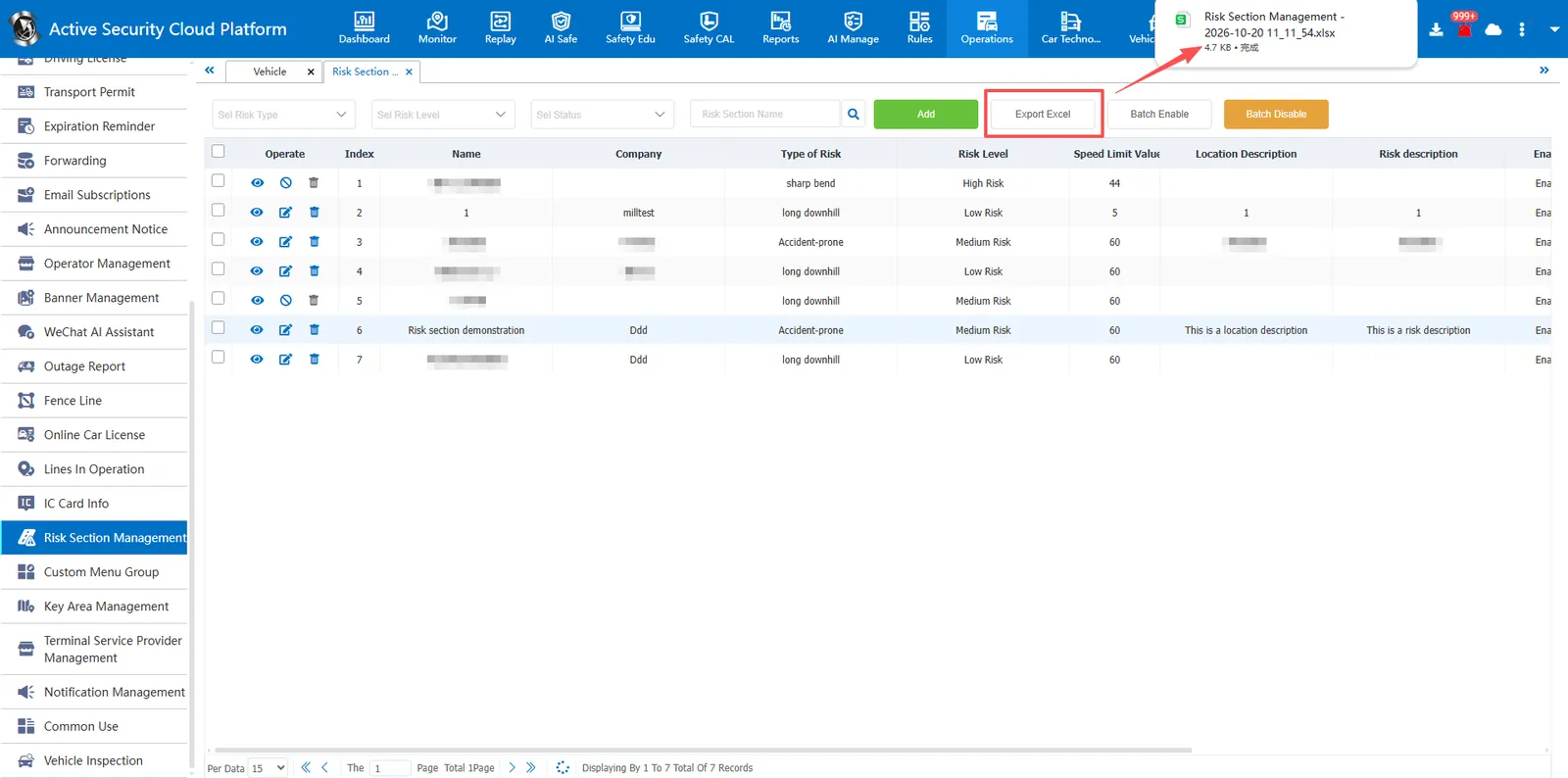
2.6 export risk section information
Click the "Export Excel" button, and the browser will generate a download task to export the risk road section records to Excel files in batches for offline archiving or data statistics.