1. Function description
** Configuration applet, public number alarm push **
- Customers deploy their own public numbers, which can realize alarm push and jump applets on the public numbers.
2, operating instructions
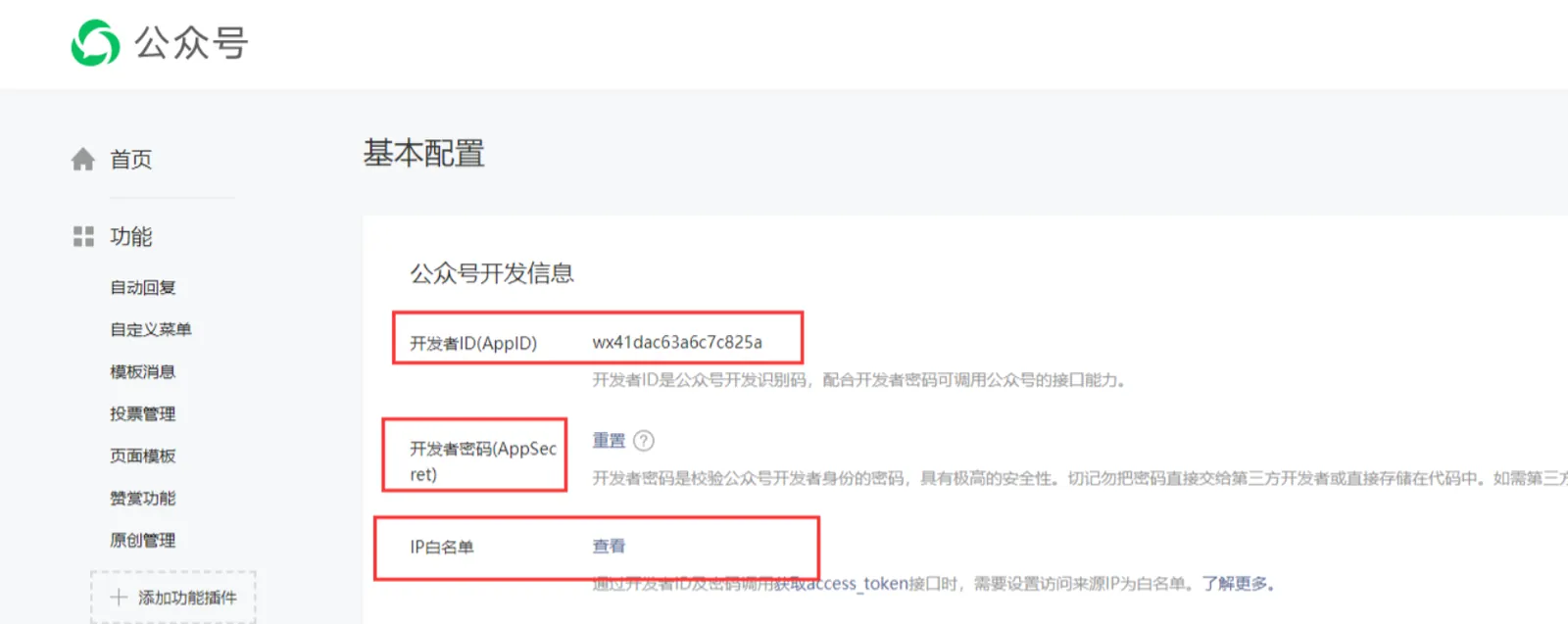
2.1. Apply for WeChat public number- service number, obtain AppID and AppSecret, and configure IP white list
- Obtain the developer ID and developer password, configure the white list, and save the developer password separately after obtaining it.
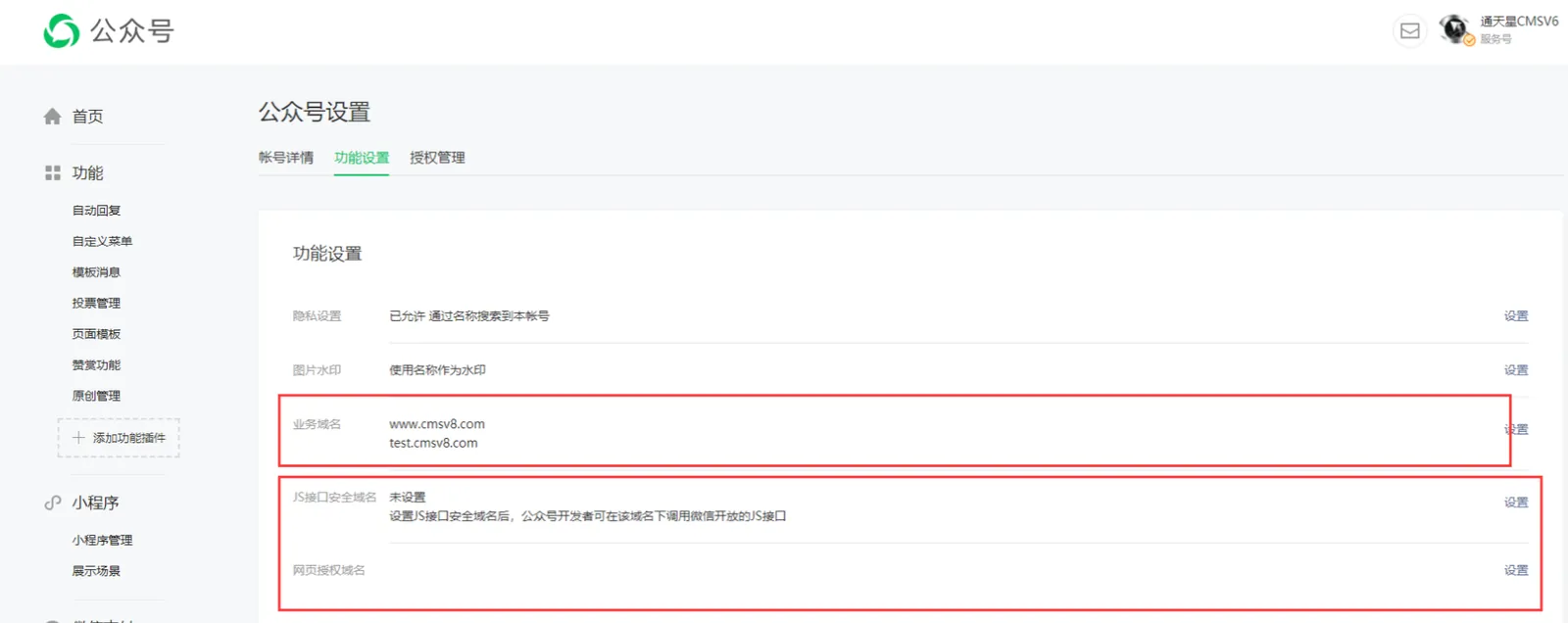
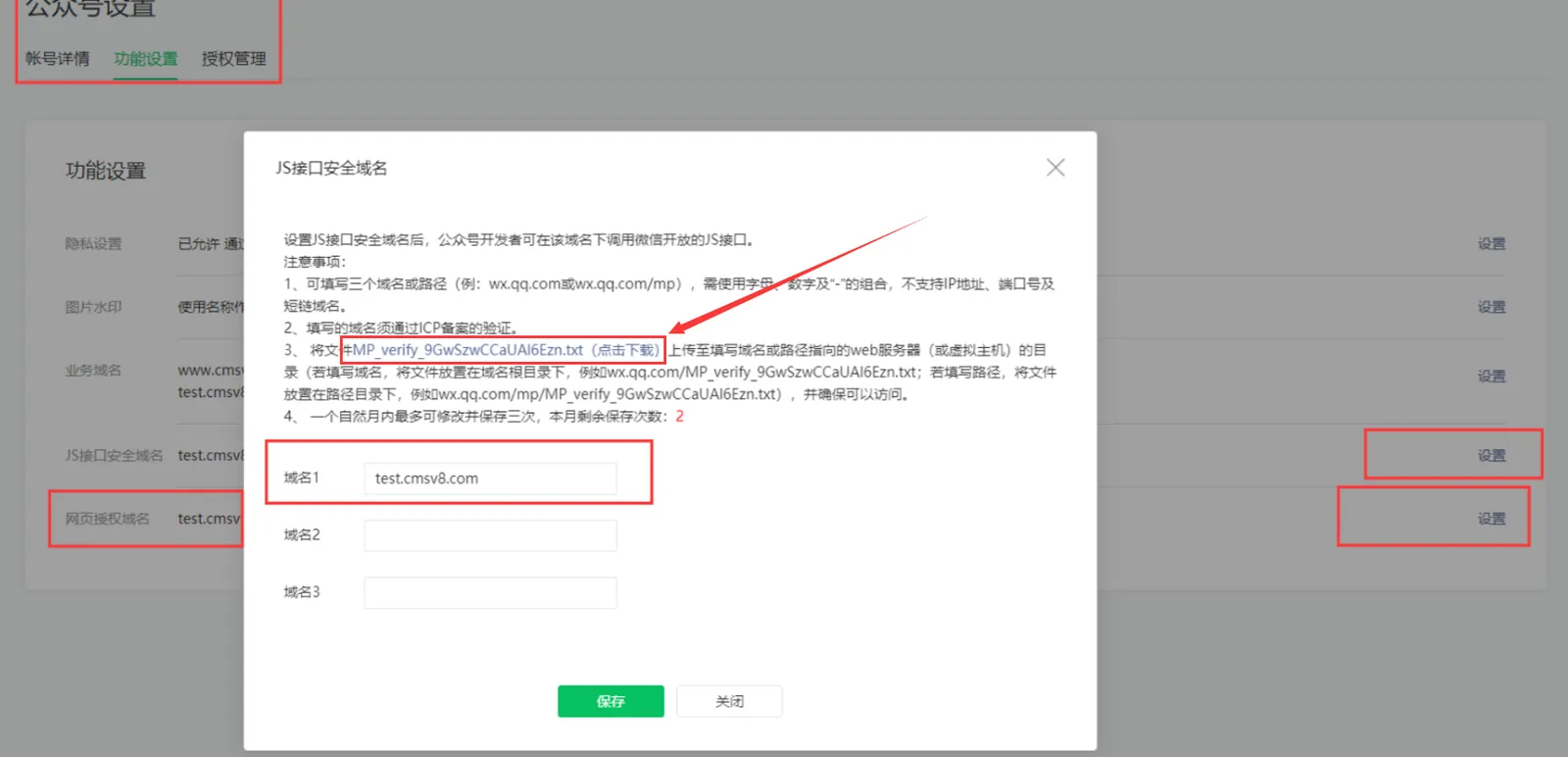
2.2, configure business domain name, JS interface security domain name, web page authorization domain name
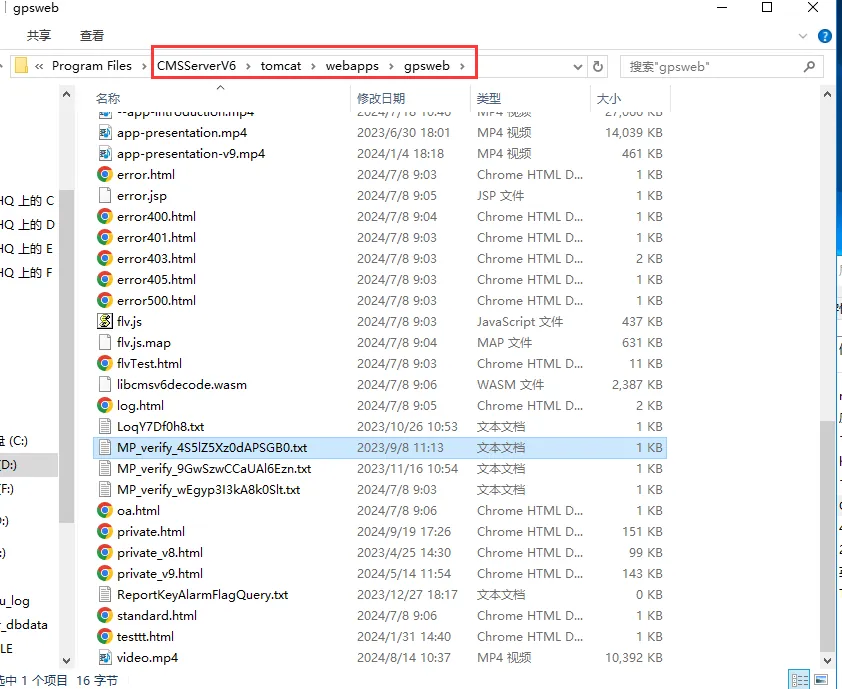
2.3, download the txt file for key verification and configure the file to the server
2.4. Application TemplateID (Alarm Push Template ID)
TemplateID Application Tutorial: https://jingyan.baidu.com/article/eae078278446c31fed548543.html
2.5. Configure AppID, AppSecret and TemplateID to the platform
[Server] - [Parameter Configuration] - [WeChat Configuration]- [WeChat Settings Management] Configure AppID, AppSecret, and TemplateID
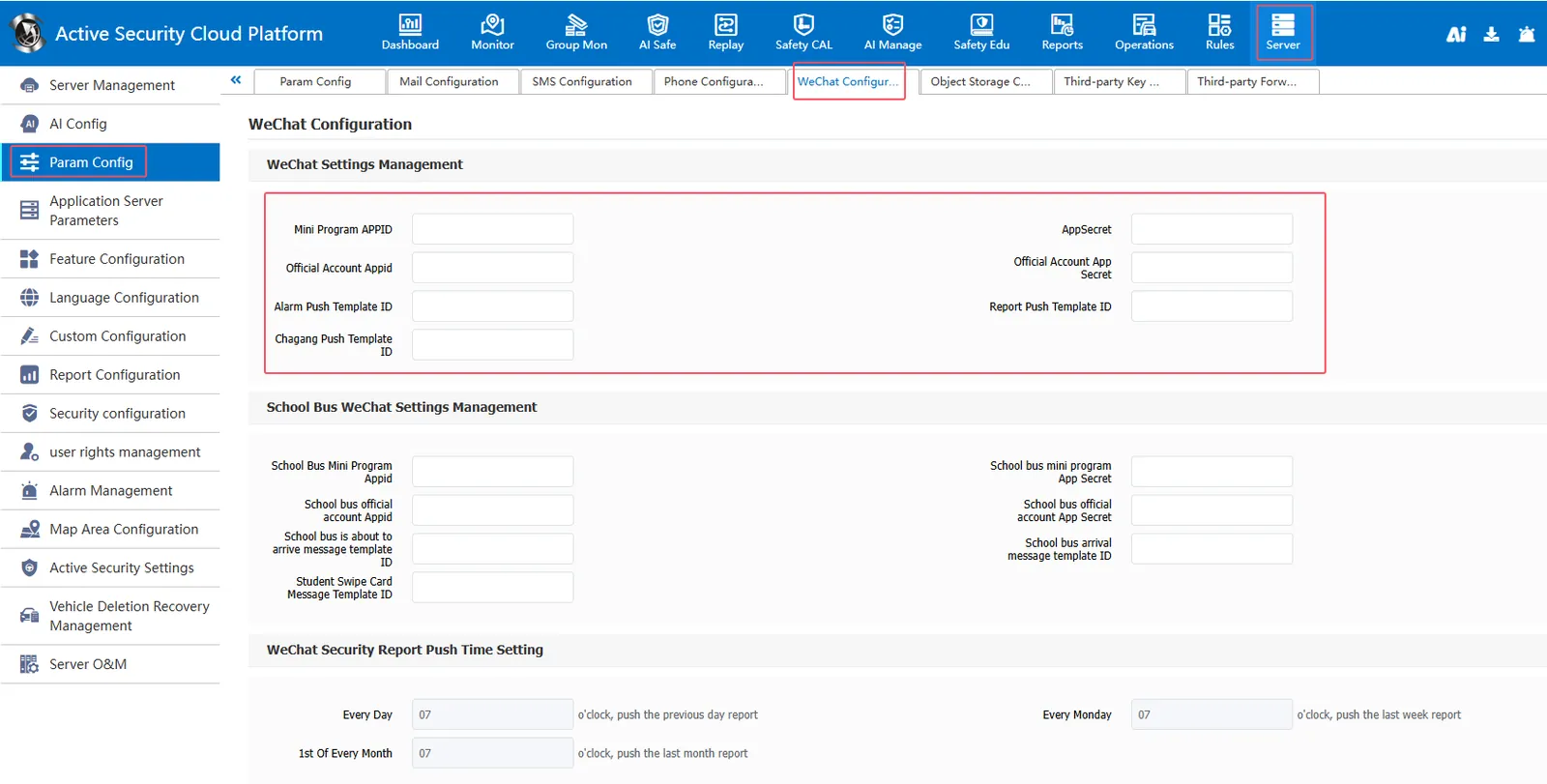
2.6, configure the public number to customize the menu
2.6.1, bind H5 alarm push subscription link in wechat public platform- > function- > custom menu
Link example:
http:// business domain name/808gps/wechat/module/login/login.html
http://192.168.1.143/808gps/wechat/module/login/login.html
2.6.2, follow- up access to the alarm push subscription page through the public number menu
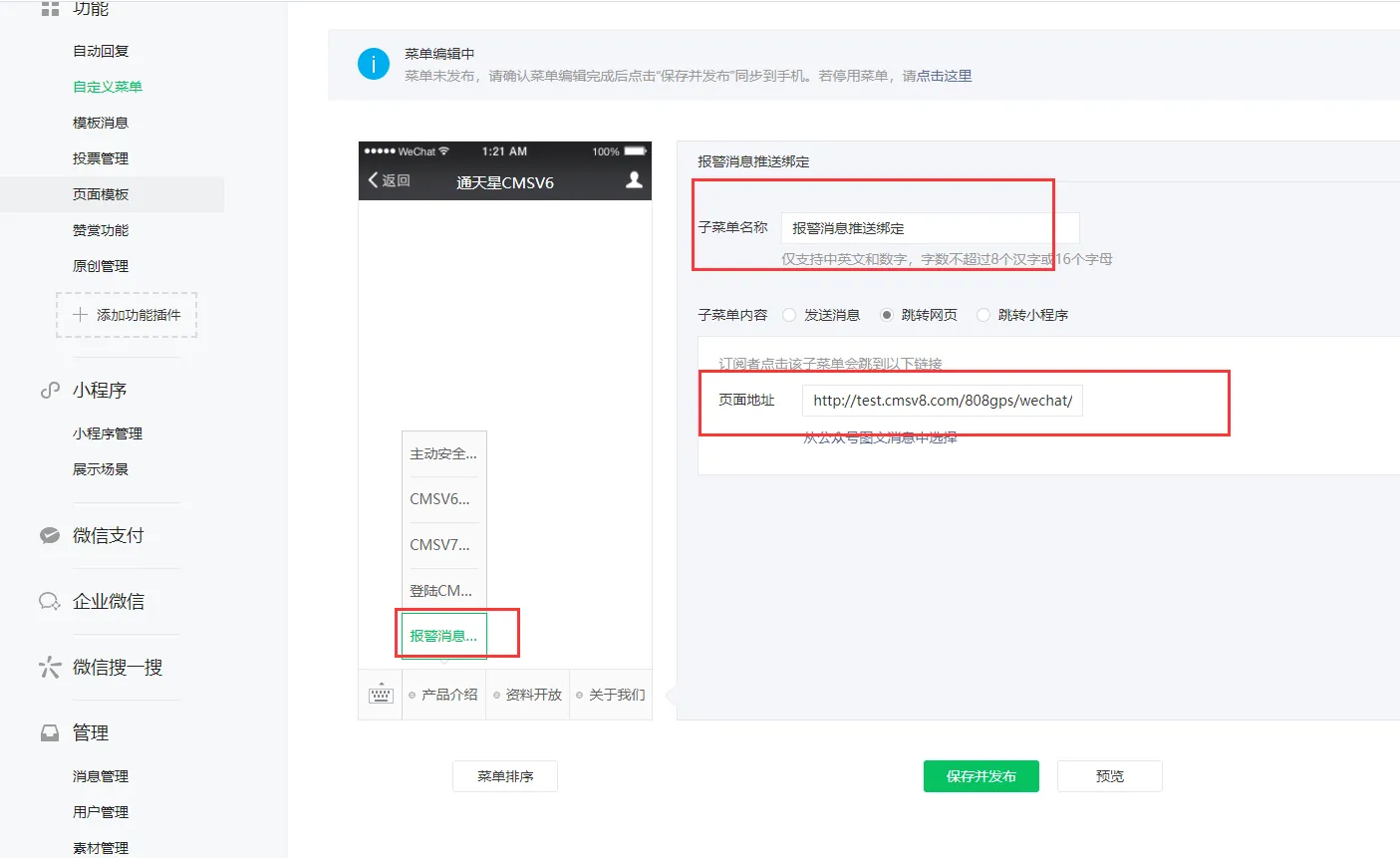
2.7, WeChat Public Number Interface Related Operations
2.7.1. For the first login, you need to check the alarm type to subscribe to the alarm. After the subscription is successful, the next login will push the alarm message to the user.
2.7.2. If you need to stop receiving alarm messages, click "Logout" and you will stop receiving them.
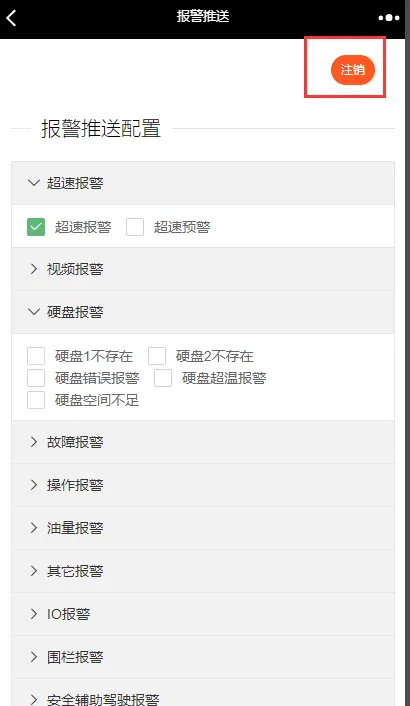
2.7.3, Automatic Login: After logging in once, you will log in directly and jump to the monitoring page after entering.
2.8, configure the platform IP address, configure the login server- device service address 1 (public network) as the domain name
[Server] - [Server Management] - [Login Server] Configure Device Service Address 1 (Public Network) as Domain Name
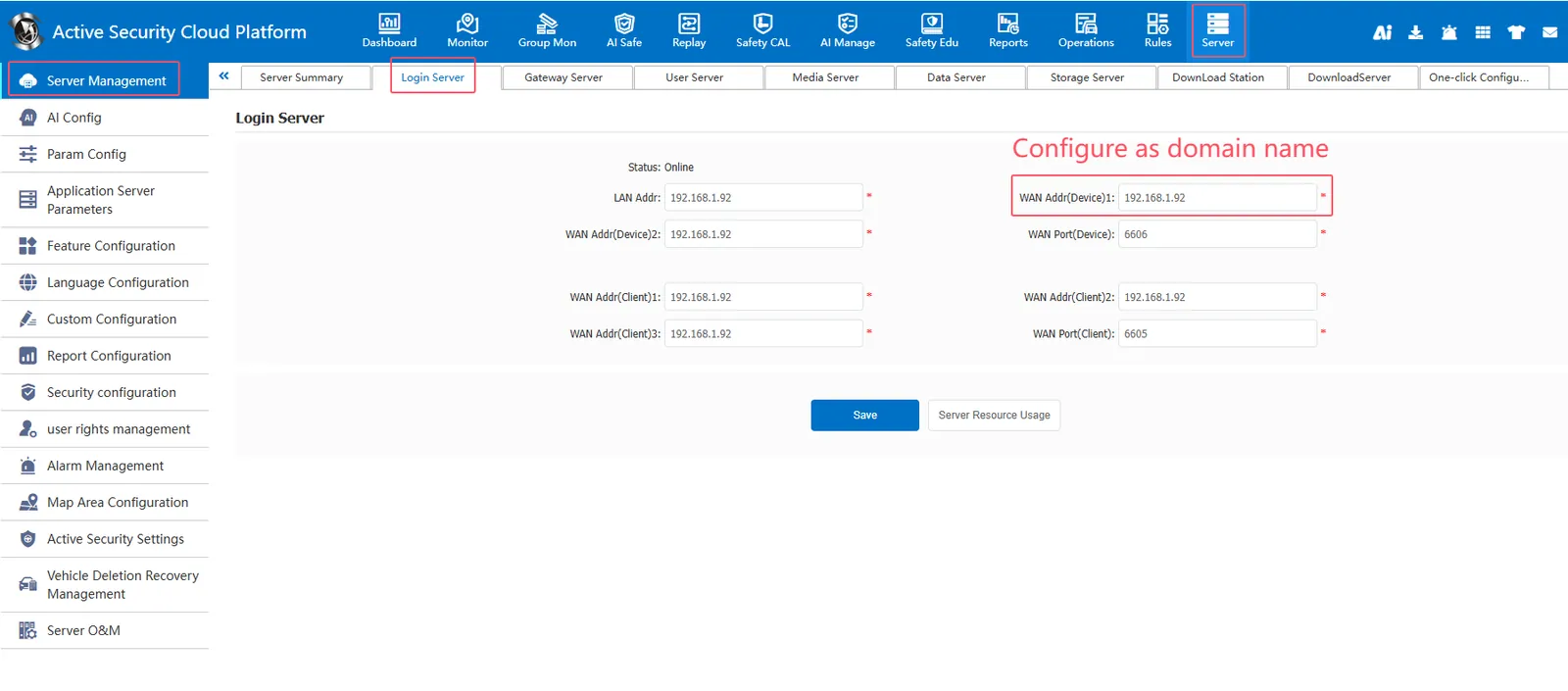
3. Precautions
3.1. Click on the alarm details to prompt "This address is an IP address, please use the domain name to access". You need to operate 2.8
For domain names configured in##3.2 and 2.6.1, 2.8 also need to configure domain names
