1. Function description
Mail subscription push time configuration
Periodically push a subscribed report to a user's specified mailbox by sending a mailbox
2, operating instructions
2.1 configure the sending mailbox
[Server] - [Parameter Configuration] - [Mail Configuration] Configure mail subscription push time
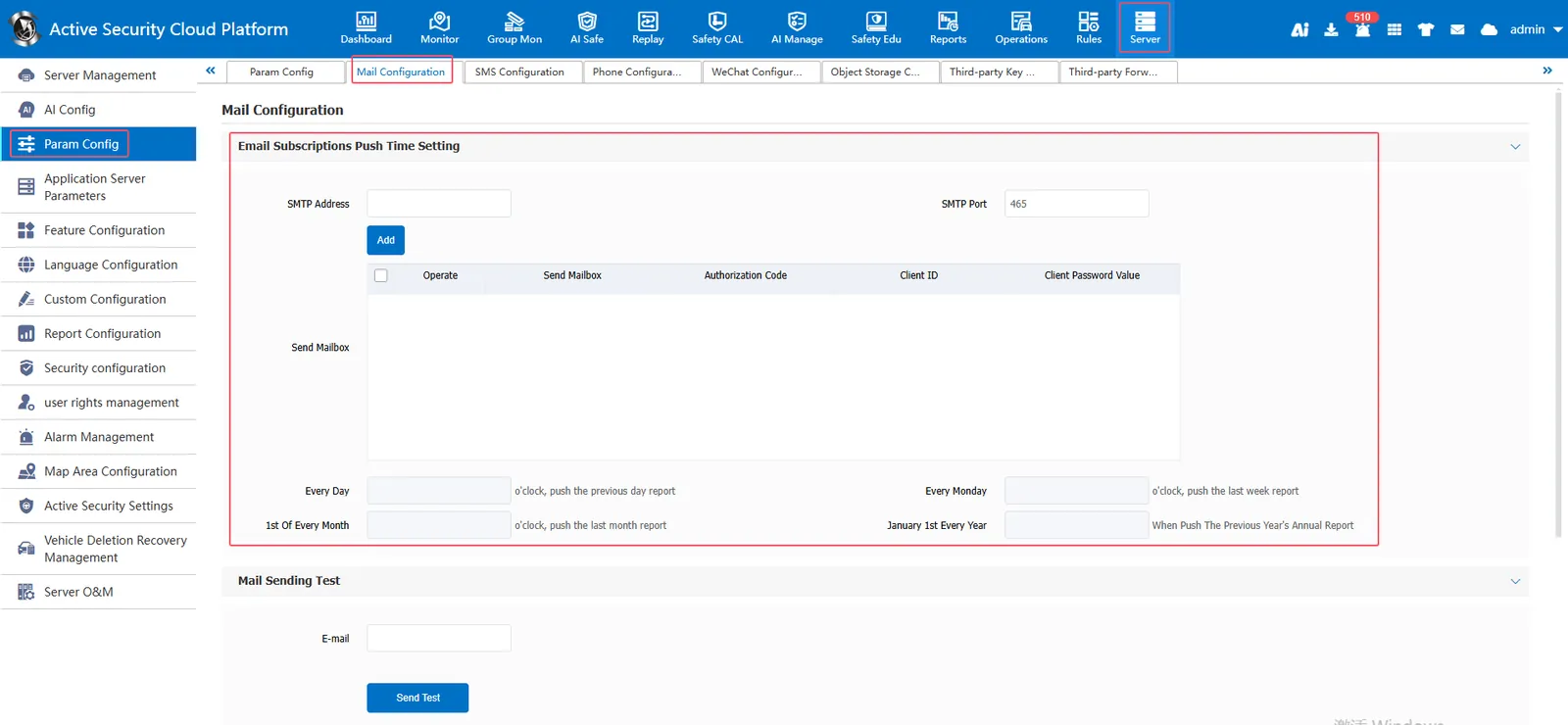
2.1.1 Configure the SMTP address and SMTP port of the sending mailbox
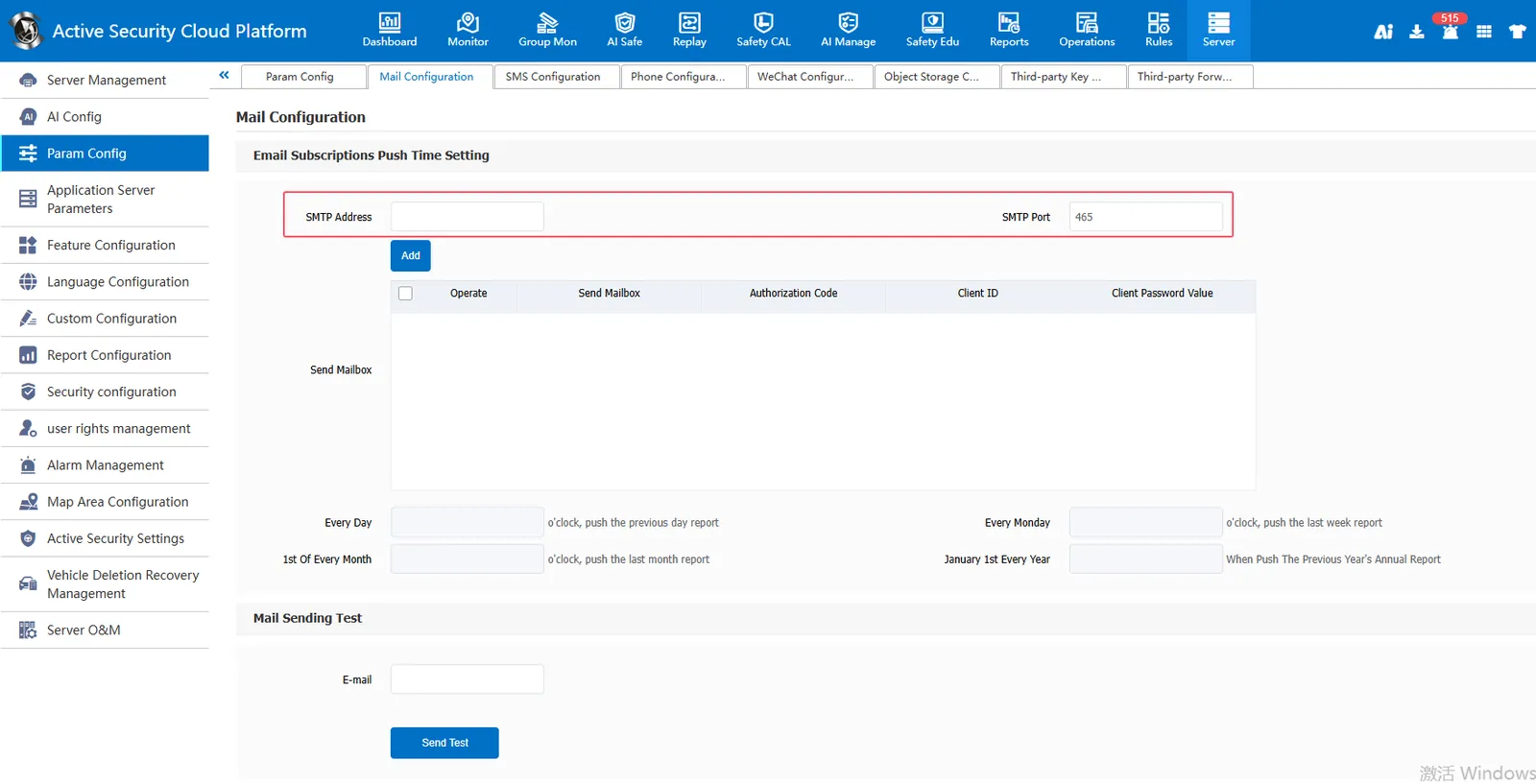
163 mailbox SMTP address Default: smtp. 163.com
QQ mailbox SMTP address default: smtp.qq.com
SMTP port General default: 465
2.1.2 Add Send Mailbox
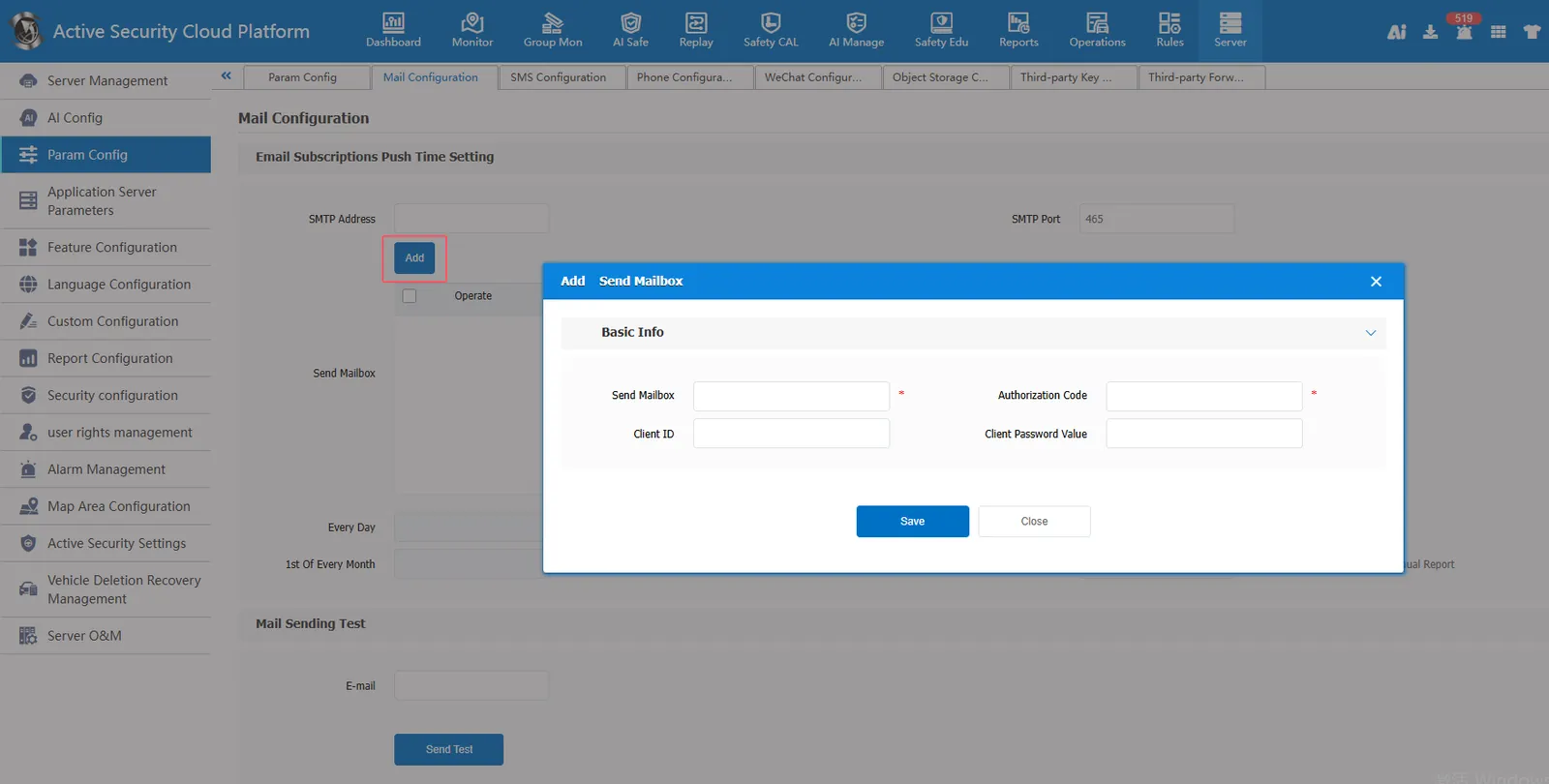
Fill in the sending mailbox and authorization code (note: the sending mailbox has a limit on the daily sending volume and concurrency, and multiple sending mailboxes of the same type can be configured. when the mail fails to be sent, use the second mailbox to continue sending)
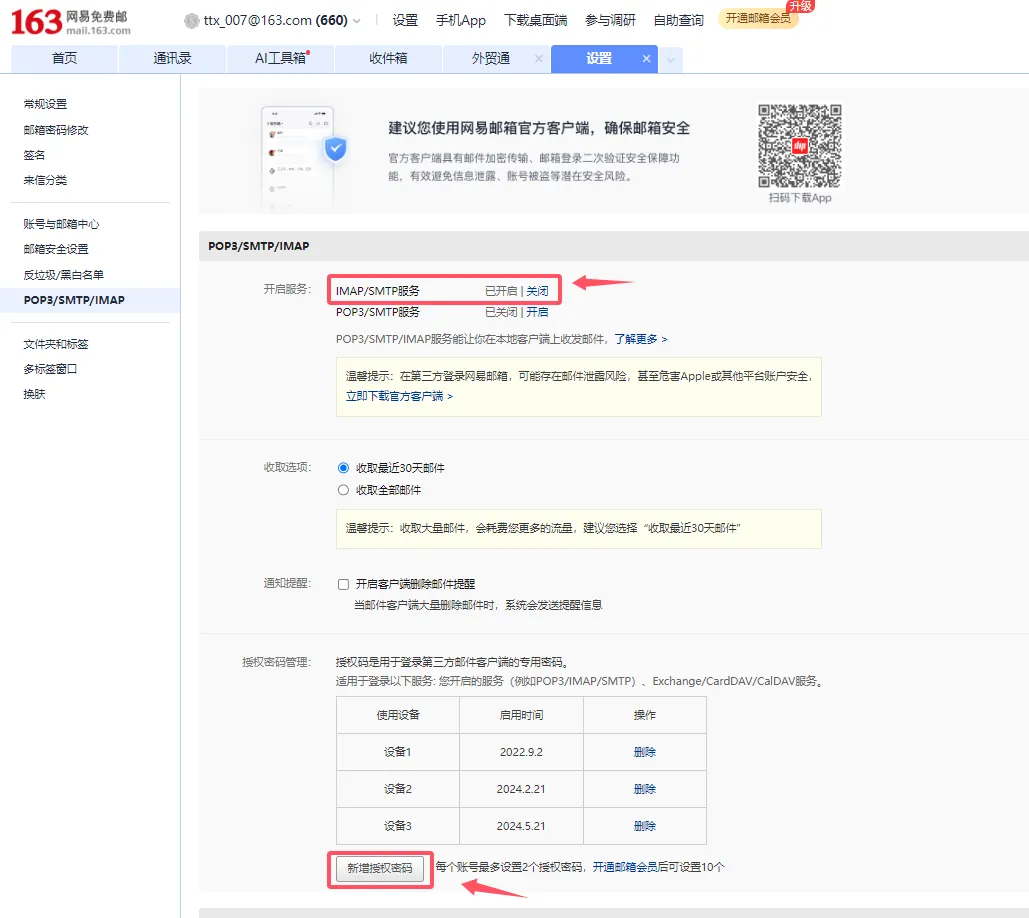
Send mailbox authorization code to obtain (163 mailbox as an example):
Login to 163 mailbox → Settings → POP3/SMTP/IMAP
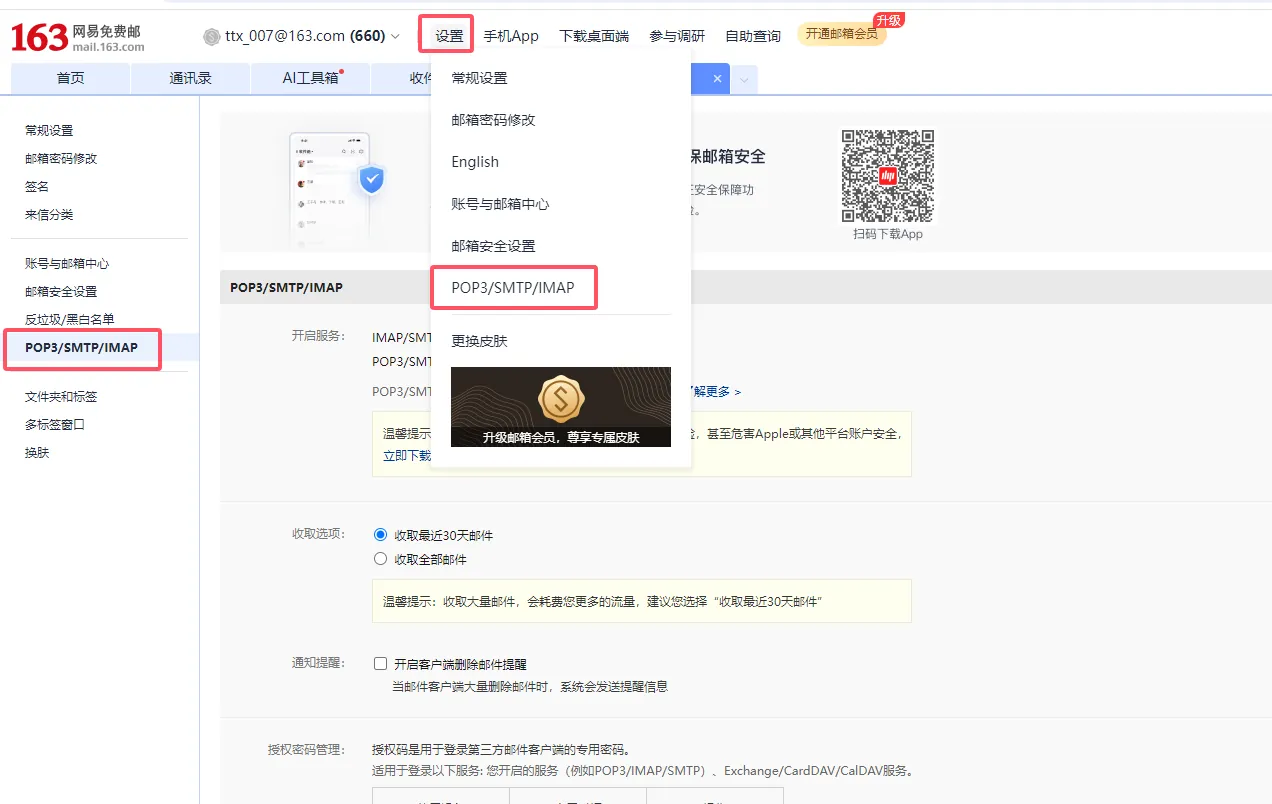
Enable the IMAP/SMTP service and add an authorization password
2.1.3 Time to configure push report
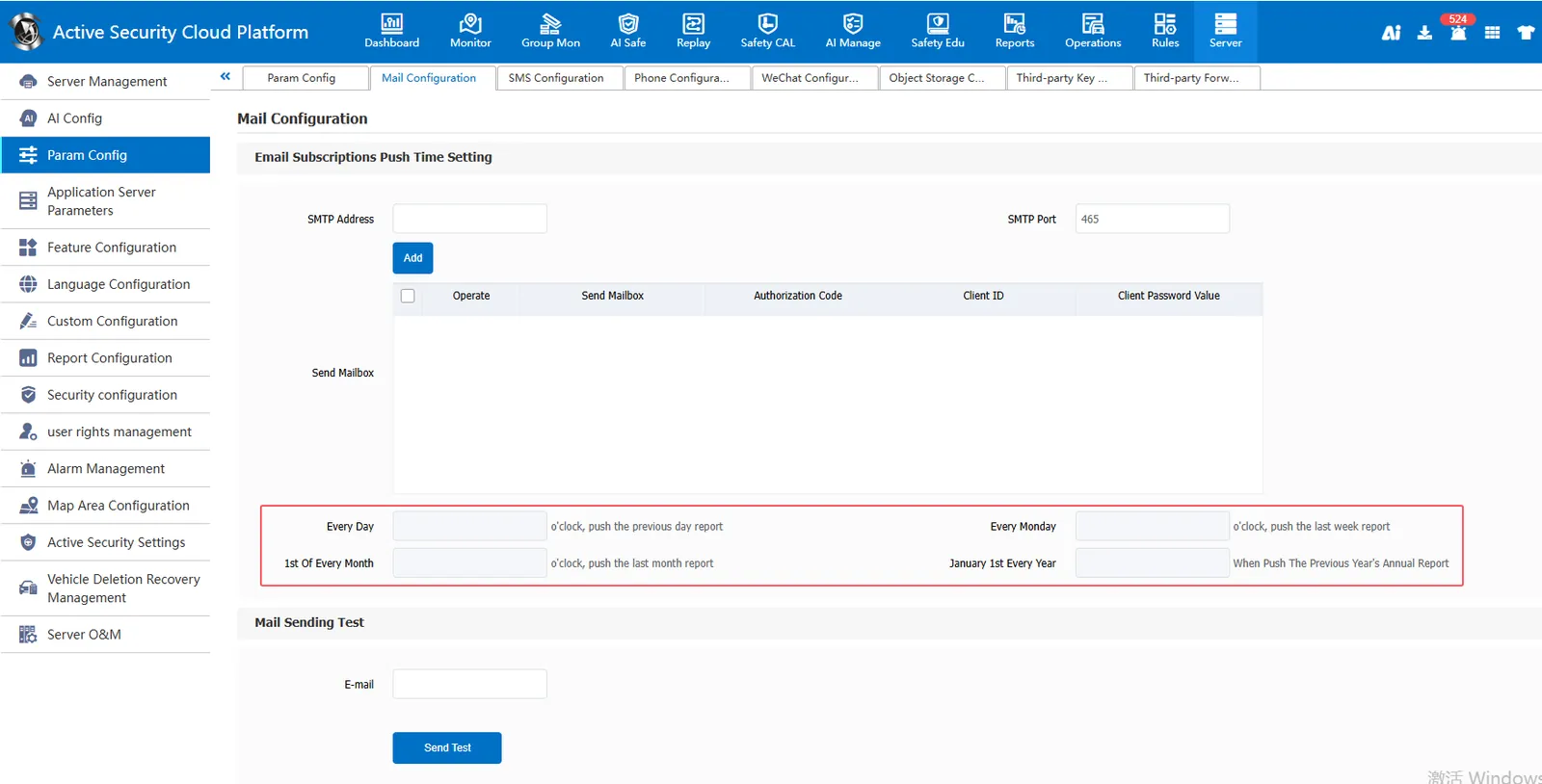
Every day, every Monday, on the 1st of each month, the mail sending time on the 1st of January every year
2.2 configure the receiving mailbox and select the report to be sent
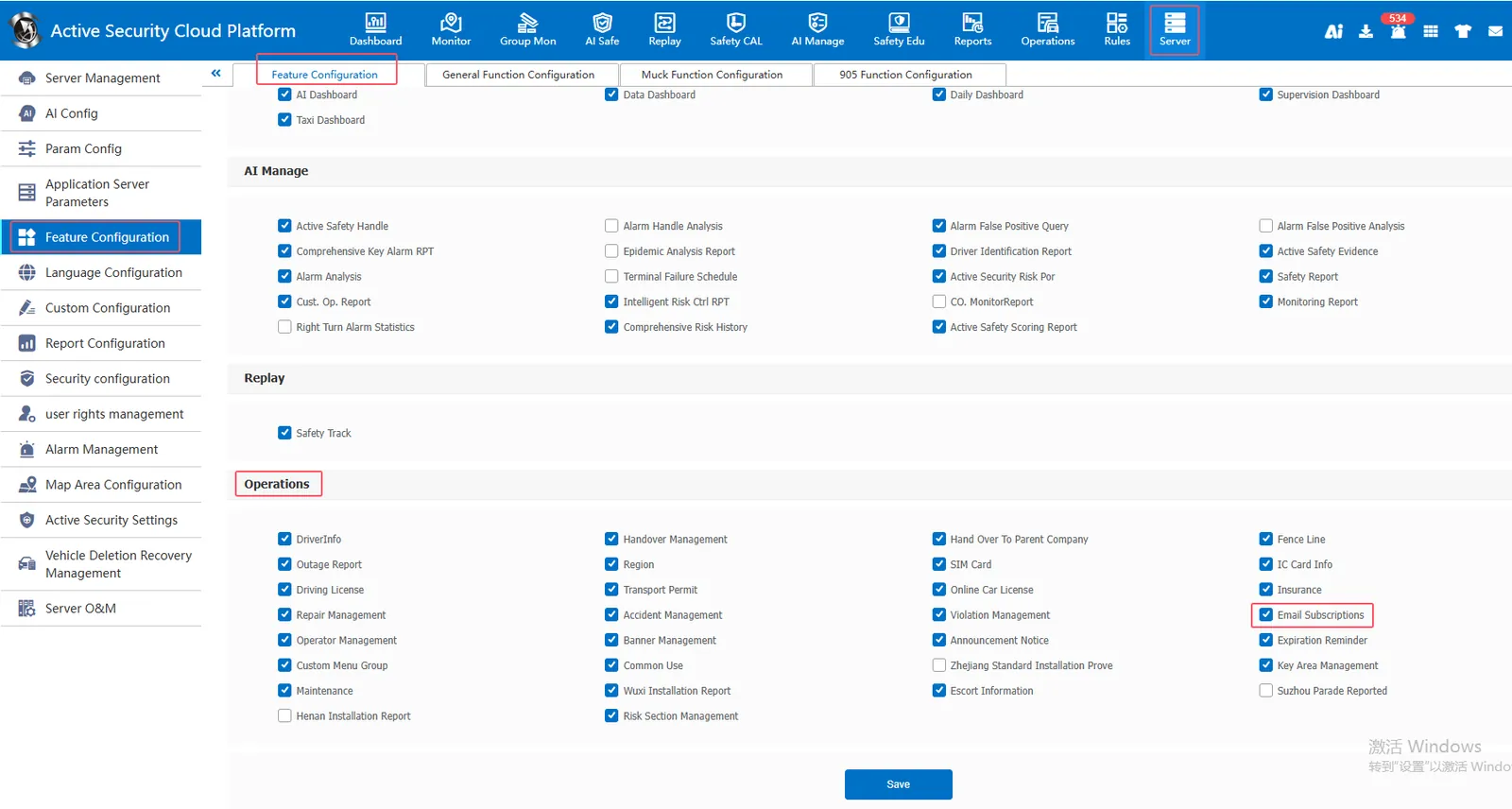
2.2.1 Enable Mail Subscription Feature Item
[Server] - [Function Configuration] - [Function Configuration] - [Operation Management] Check Email Subscription and click Save
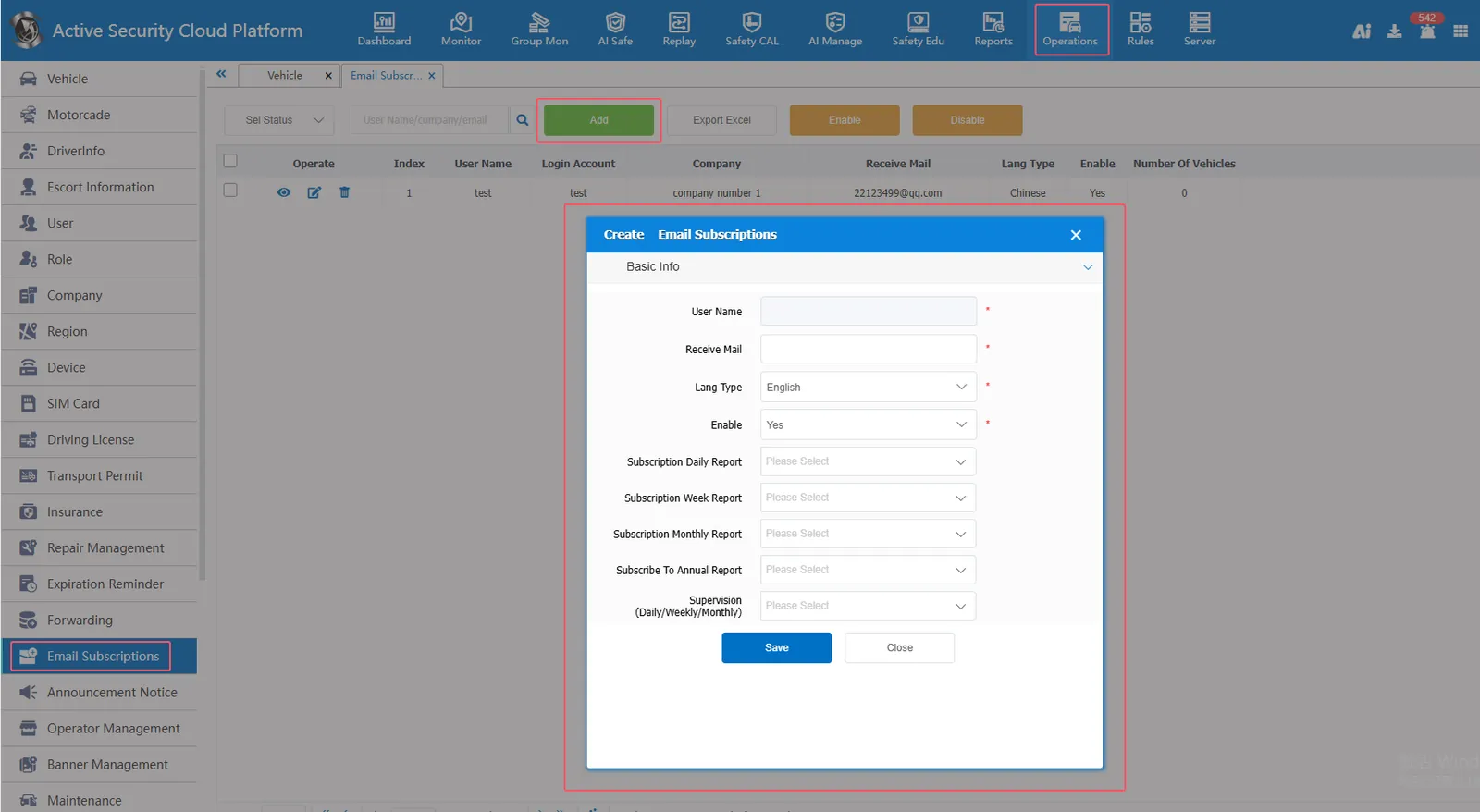
2.2.2 Configure the receiving mailbox and select the report to be sent
[Operation Management]- [Mail Subscription] Click Add, select the user, set the receiving mailbox, set the language type of the report (simplified Chinese, traditional Chinese, English), select Yes to enable, then set the report to be sent by the daily report/weekly report department/monthly report, and save it (Note: the report data sent is the data that the user can query)
2.3 mail sending test
[Server Management]- [Parameter Configuration]- [Mail Configuration] Mail Sending Test Fill in the e- mail box (receiving mailbox) and click Send Test to test whether the mail can be sent normally
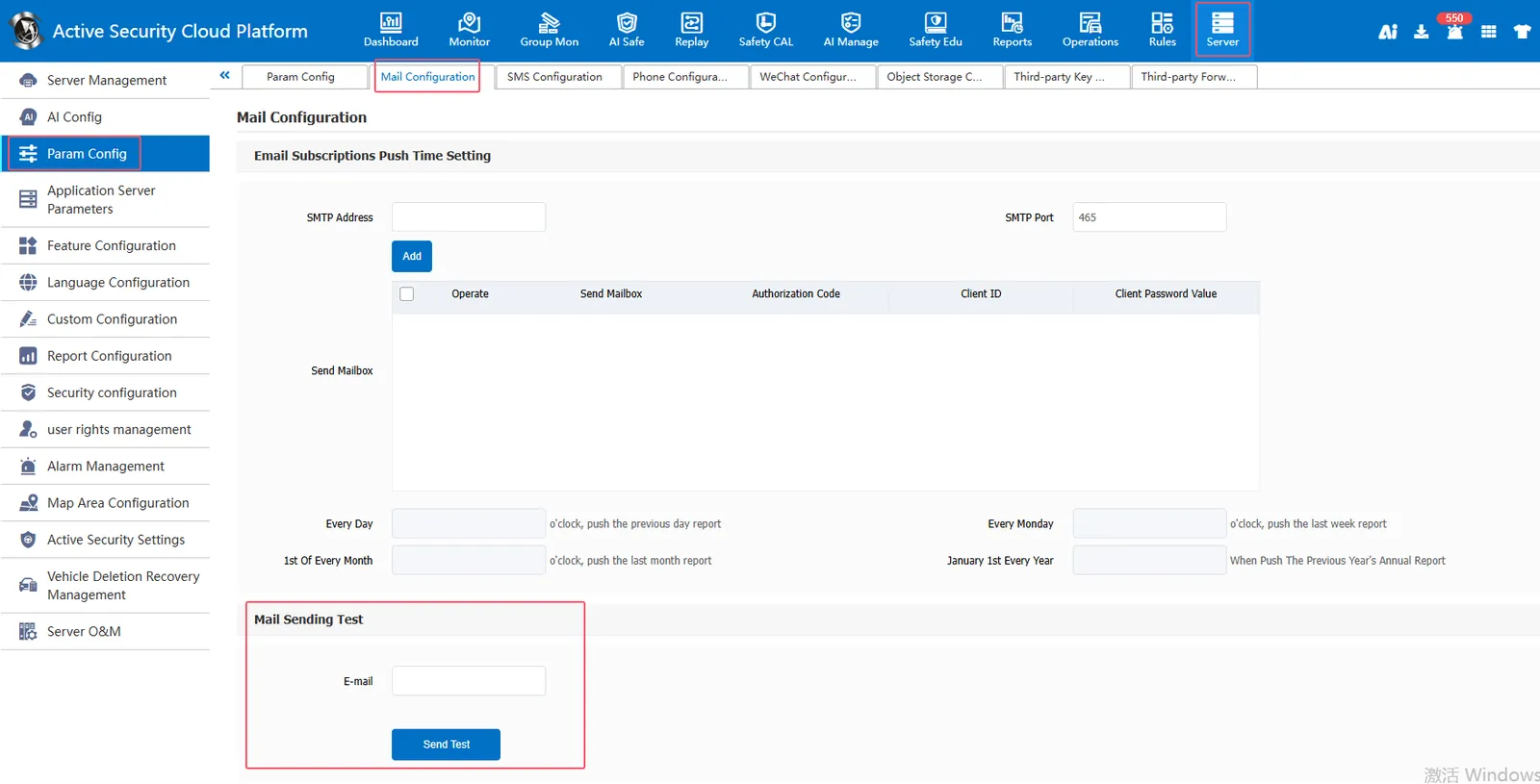
Note: After adding or modifying SMTP addresses and SMTP ports, you must click Save before testing
