1. Function description
Driving rules, there are three types of rules, according to the selected type, respectively generate different alarm types
2. operating instructions
2.1 basic information
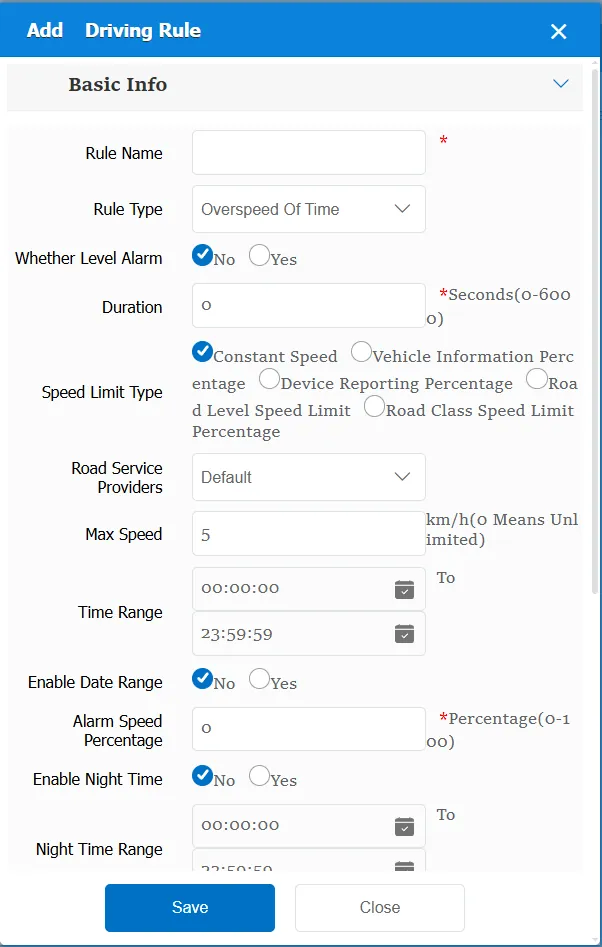
Rule Name: Customize, customize the name according to the actual situation
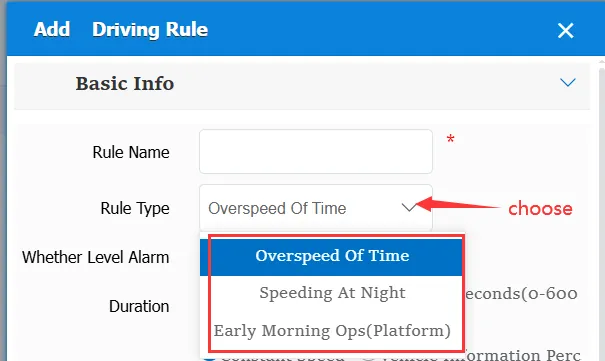
Rule Type:
There are three options: overspeed in time period; Overspeed at night; Early morning operation alarm (platform)
Level Alarm: This item is displayed only when the rule type is Time Period Overspeed or Early Morning Operation Alarm (Platform).
No: This item is invalid
Yes: the corresponding items will be displayed and need to be filled in according to the actual situation.
When the rule type is selected as time period overspeed, when the level alarm is started:
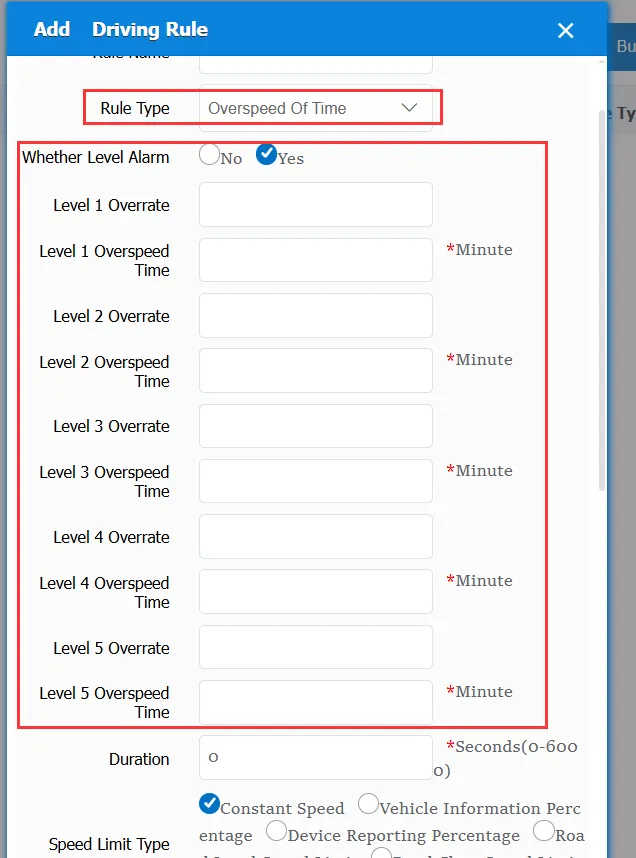
It is an alarm of level 1~5, and it needs to be connected to: integrated description of road grade speed limit
It is based on overspeed rate and overspeed time to determine, generate several levels of overspeed level alarm
When the rule type is selected as early morning operation alarm (platform), when the level alarm is started:
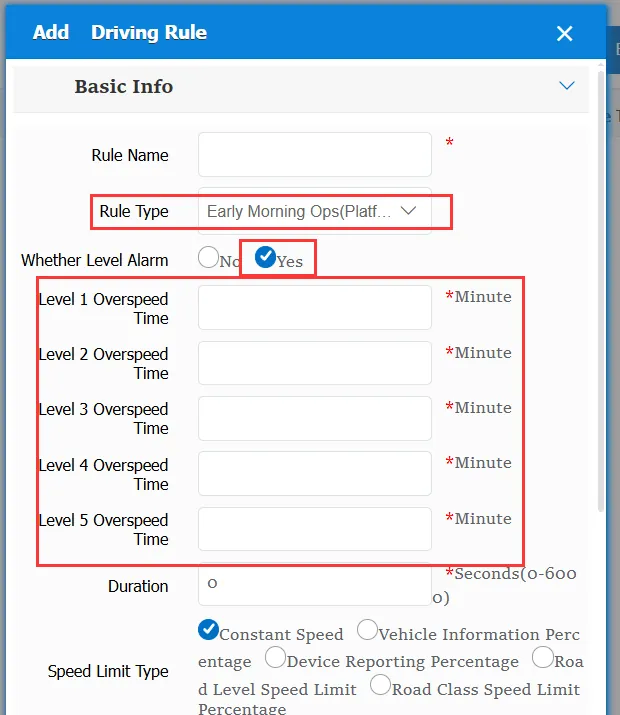
It is an alarm of level 1~5, and it needs to be connected to: integrated description of road grade speed limit
It is determined according to the overspeed time and generates the platform operation alarm level 1~5 in the early morning.
Duration: The alarm information is generated only after the alarm exceeds the specified time.
Speed Limit Type: The speed limit types are:
1. Fixed speed: manually specify the maximum speed of the vehicle, the specific value, fill in the following "maximum speed" item in the rules
2. Percentage of vehicle information: based on the "speed limit value" filled in the vehicle information, multiplied by the percentage filled in the "maximum speed" item in the rules, is the speed limit threshold
3. Equipment reporting percentage: based on the speed limit threshold reported by the equipment, multiplied by the percentage filled in the "maximum speed" item in the rule, the speed limit threshold
4. Road grade speed limit value: the speed limit of the road needs to be connected, and the speed limit value returned by the map interface shall prevail.
5. Road grade speed limit percentage: the speed limit value to be connected to the road is subject to the speed limit value returned by the map interface, multiplied by the percentage filled in the "maximum speed" item in the rule, which is the speed limit threshold value.
This item needs to determine different options according to the actual use.
** Maximum Speed **: It will fill in the speed or percentage according to different option requirements, and pay a little attention to the display at the back for specific actual use.
Time Range: the time period when the rule takes effect.
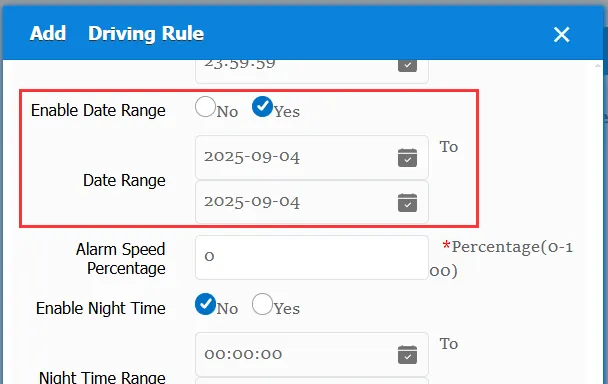
Enable Date Range:
No: This item is invalid, the rule is always valid
Yes: you need to specify a time period for the rule to take effect. Within the specified date range, the rule is valid.
Alarm Speed Percentage: This item needs to be selected to enable the night time, select No, and do not enable
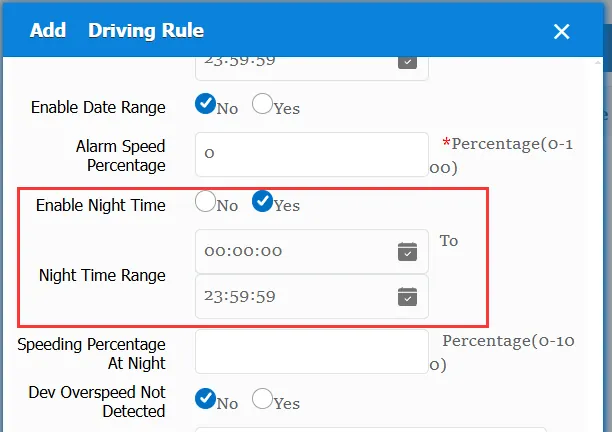
Enable night time selection:
No: This item does not take effect
Yes: Nocturnal time range is required, as well as overnight speeding percentage
Equipment overspeed not detected:
No: This item does not take effect
Yes: if there is an equipment alarm, there will be no platform alarm.
Alarm Voice: the text message sent to the device when the alarm is triggered.
Repeated Reminder: During the alarm continuation phase, an alarm voice is sent to the device every specified time.
Continuous Alarm Interval: No alarm of the same type is generated within the specified time interval after the first alarm ends.
Match all vehicles:
No: Only valid for vehicles assigned by this rule
Yes: this rule is effective for all vehicles of the company.
Global Share:
No: Only visible to this company
Yes: visible to all companies on the platform
2.2 alarm information display
Vehicle bubble box alarm display:
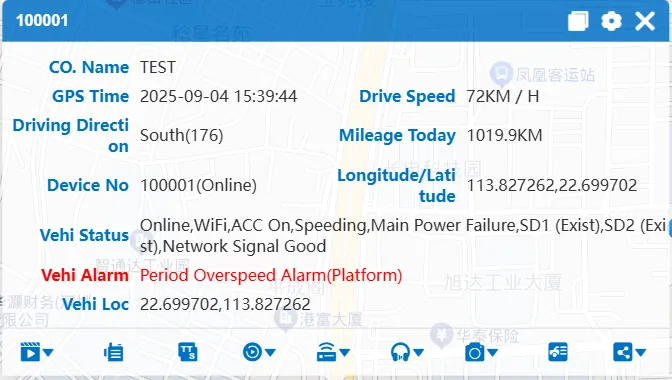
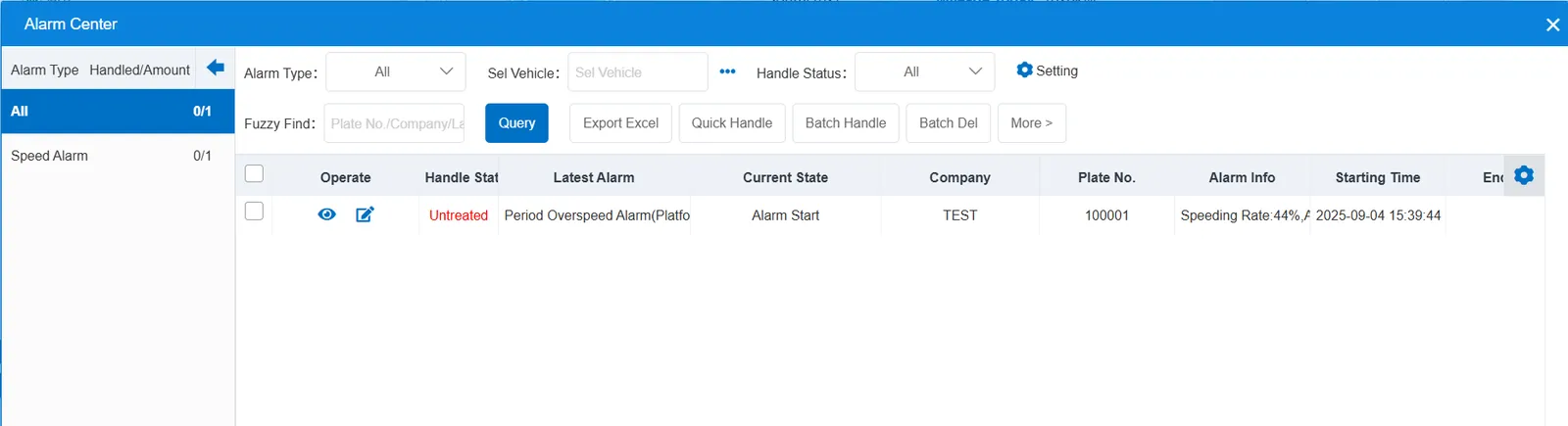
alarm center alarm display:
2.3 alarm information query
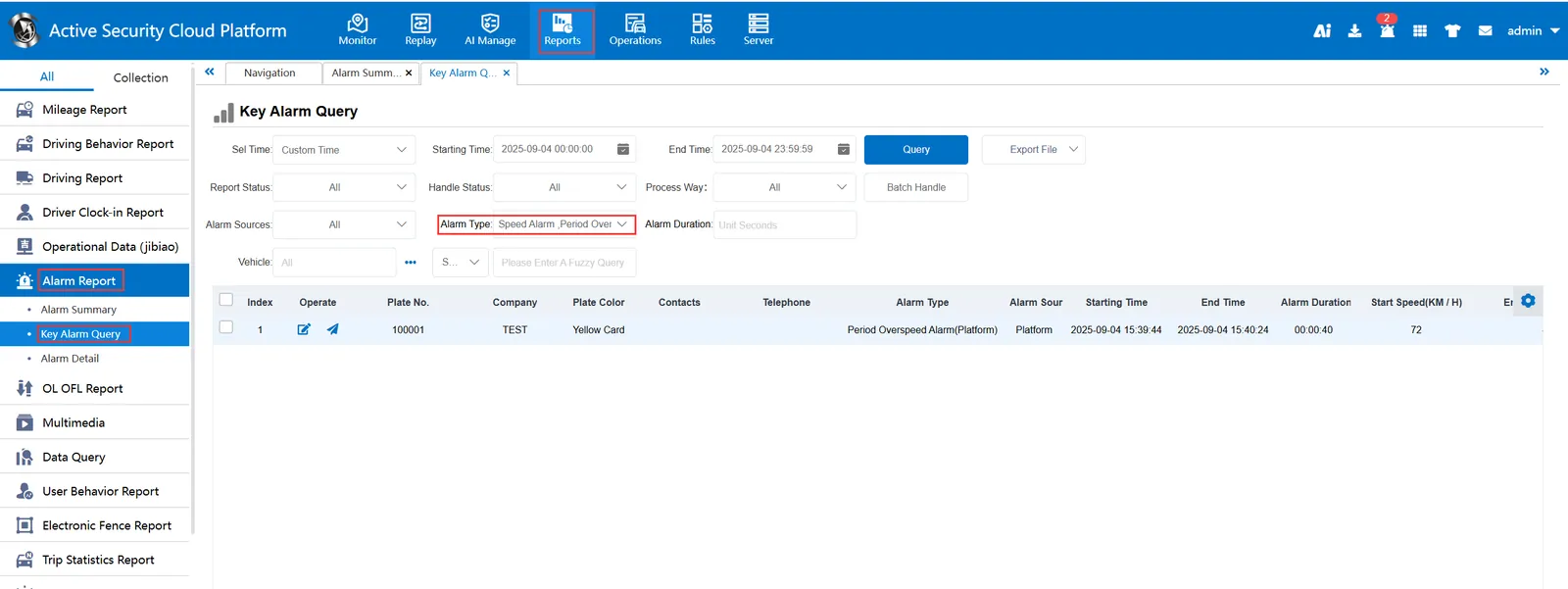
When querying alarms, you can select "Period Overspeed Alarm(Platform)" for "alarm type" in the "Reports"- "Alarm Report"- "Key Alarm Query" report