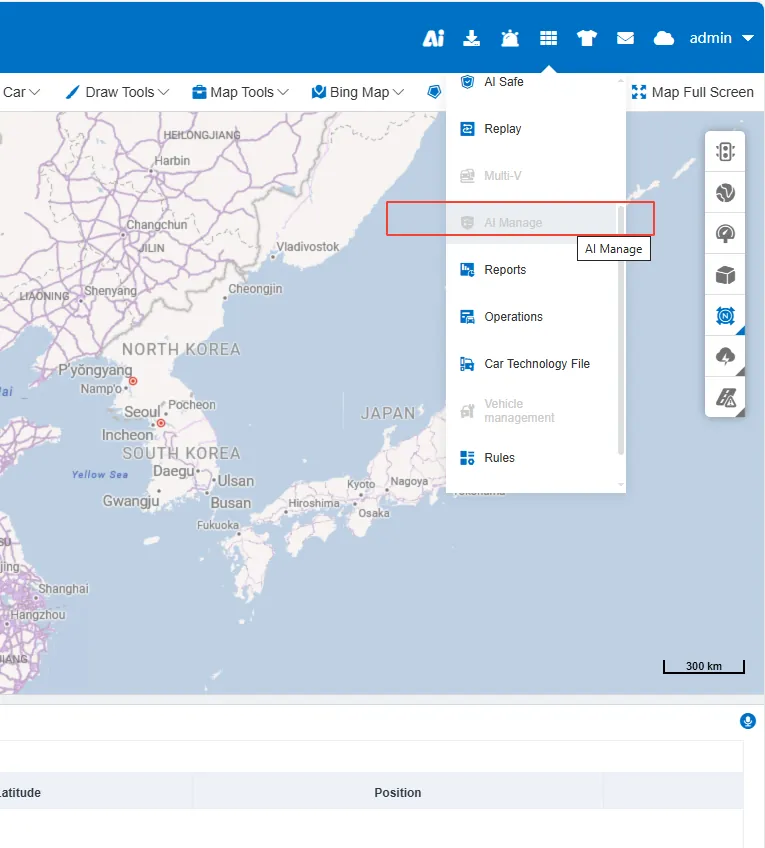
1. Function Description
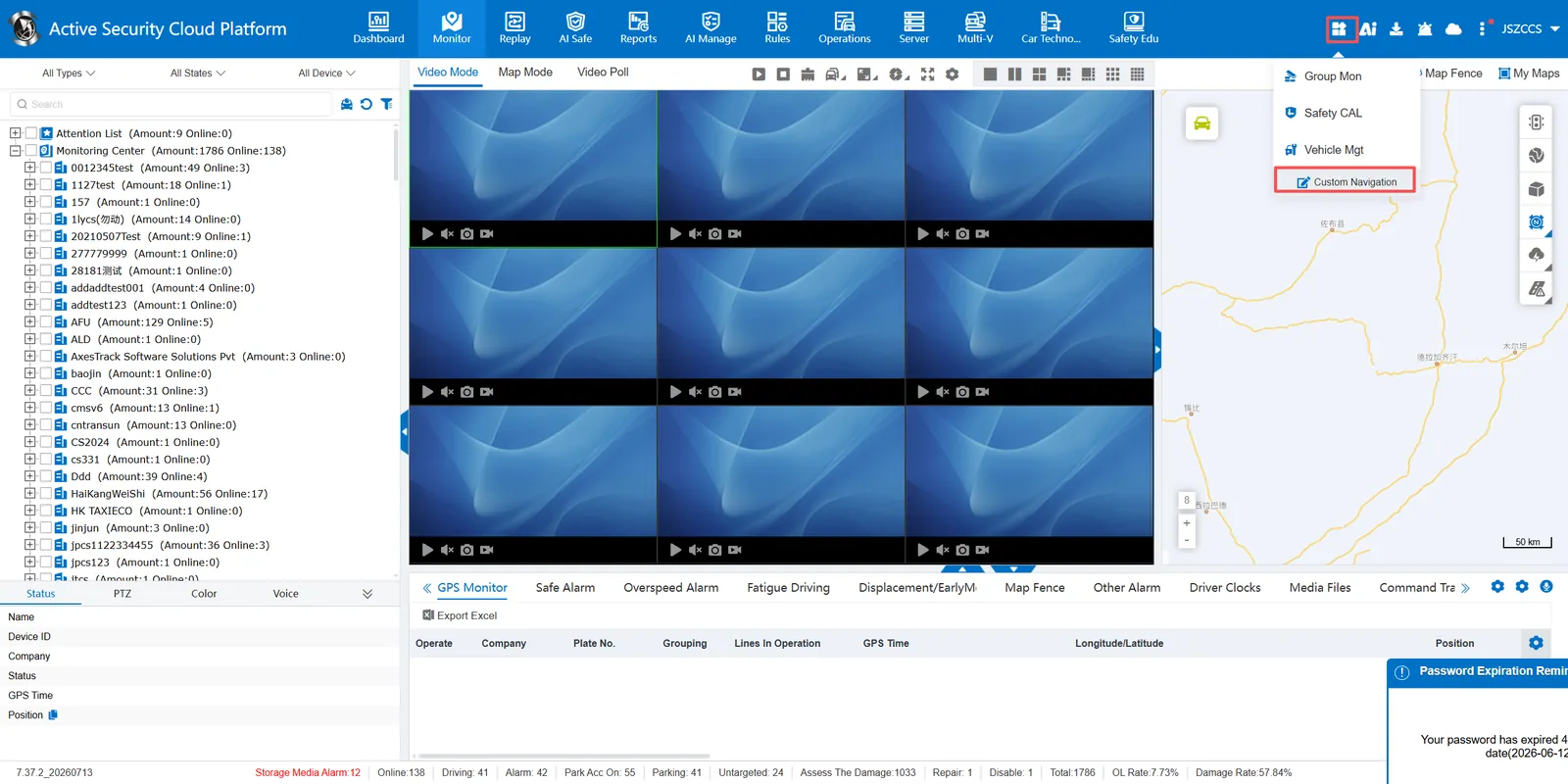
The menu four- square grid provides users with an entrance to core functions and visually displays function modules. Click the function menu module to jump to the corresponding function page, and click Custom Navigation to customize the navigation bar.
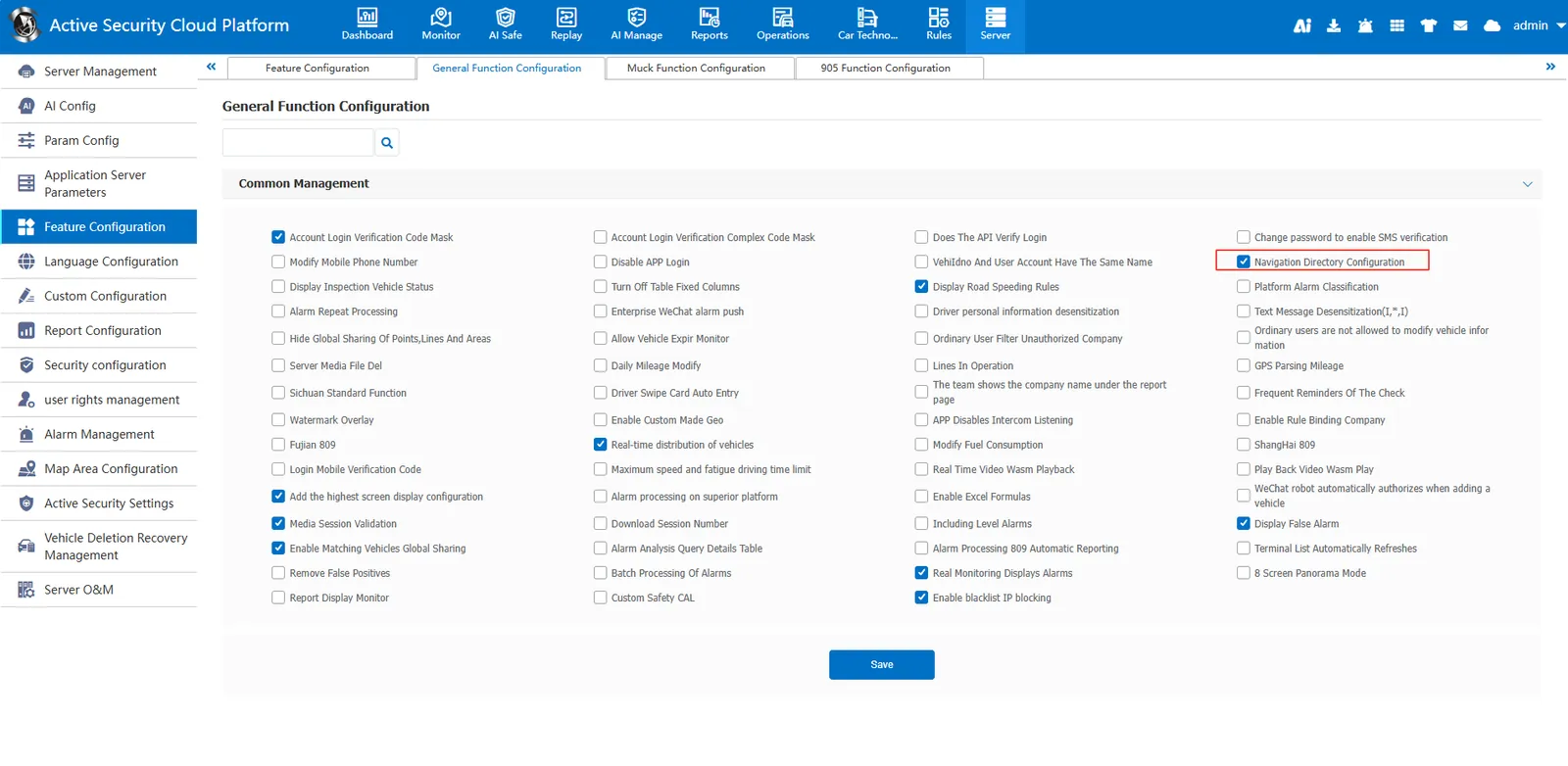
1.1 enable function
[Server Management]> [Function Configuration]> [General Function Configuration], select Navigation Directory Configuration
2. Operating Instructions
2.1web navigation bar customization (7.37 version)
On the right side of the navigation bar at the top of the page, click the corresponding menu to customize the navigation bar

2.1.1 Sort
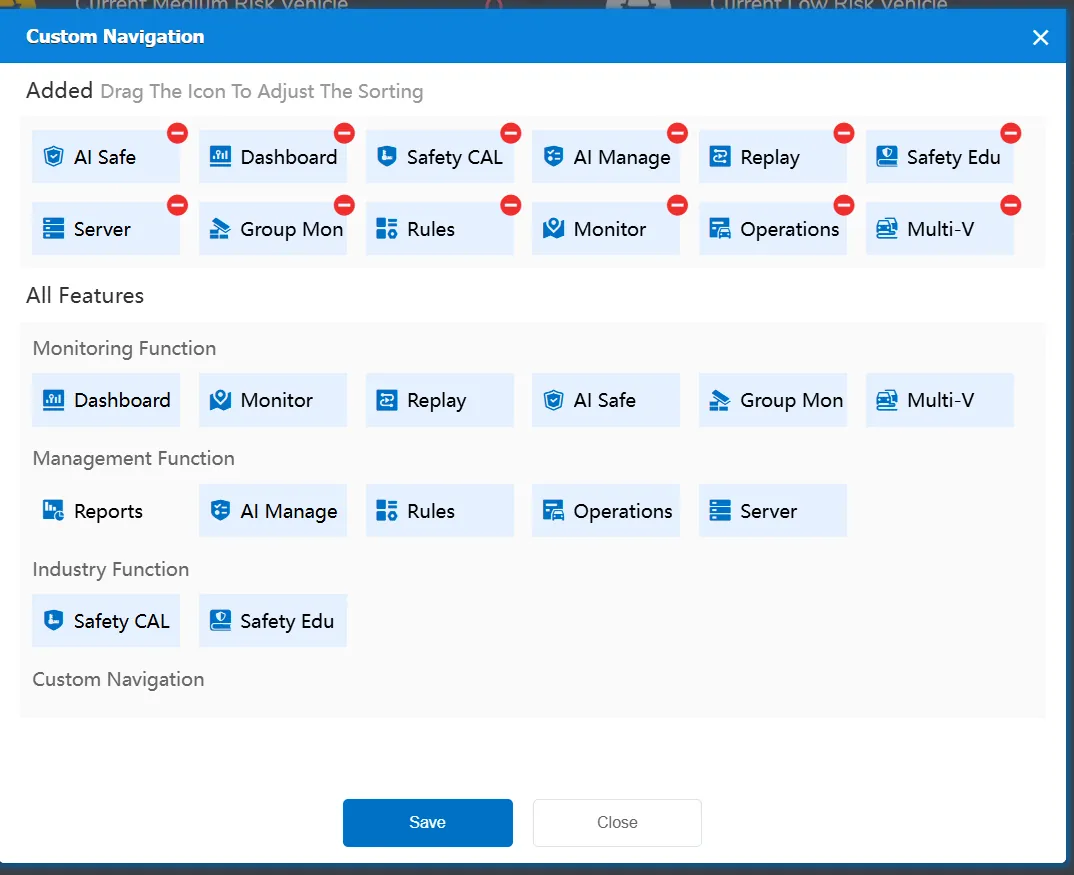
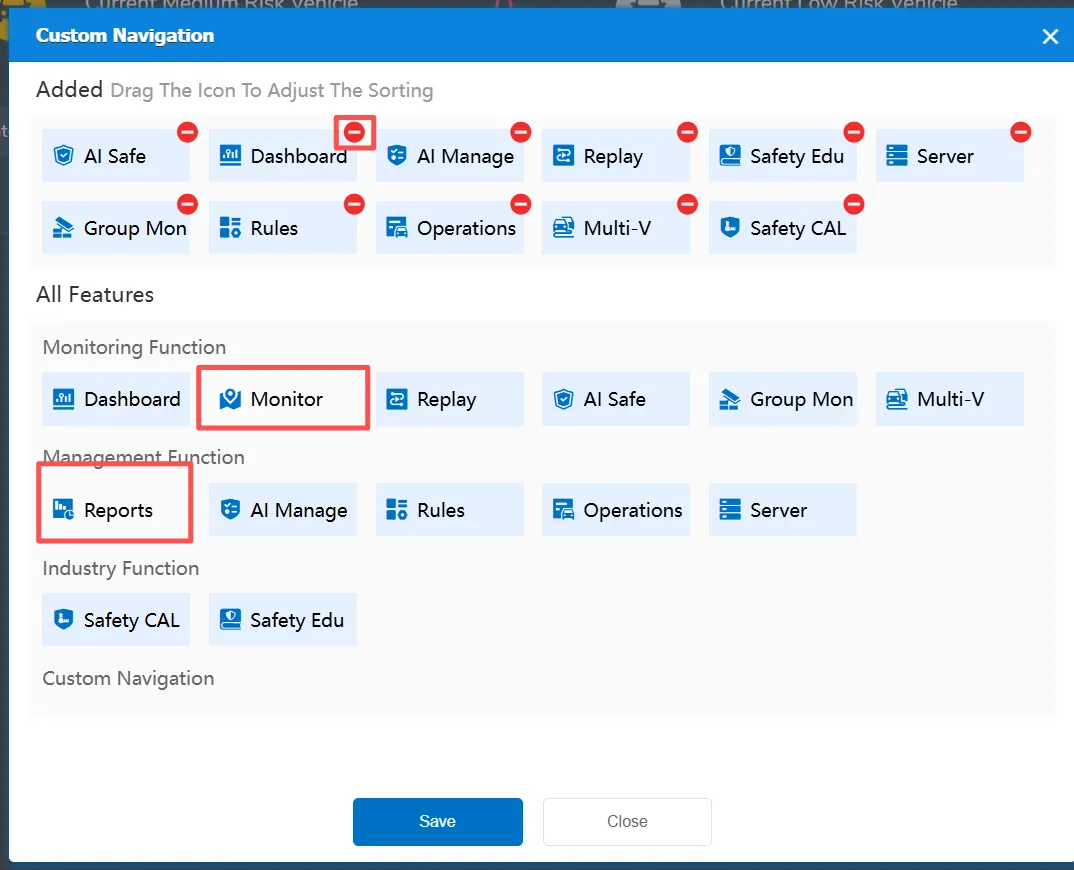
Click Custom Navigation, and you can drag and sort the functions of the navigation bar in the added area.
2.1.2 Delete
Click Delete➖This function will change from light blue to white, and the function of clicking to save the navigation bar will be hidden.

2.1.3 Add
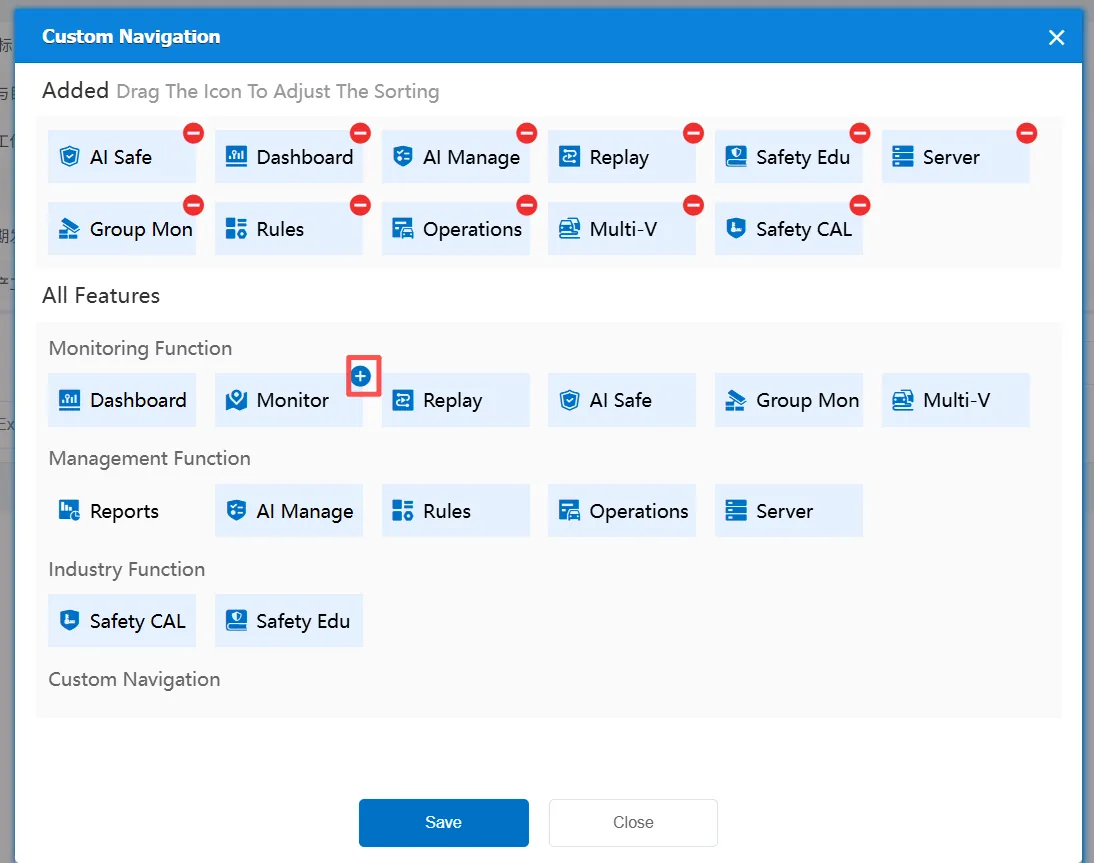
Click Add➕This function will change from white to light blue, and click to keep the function of the navigation bar will be displayed.

2.2 masking/display function main menu (7.36 and earlier versions)
2.2.1 Mask Function Menu
Move the mouse to the corresponding menu, click to close, the menu will return to the Jiugongge menu

2.2.2 Display Function Menu
Open the function menu Jiugongge, click the corresponding menu