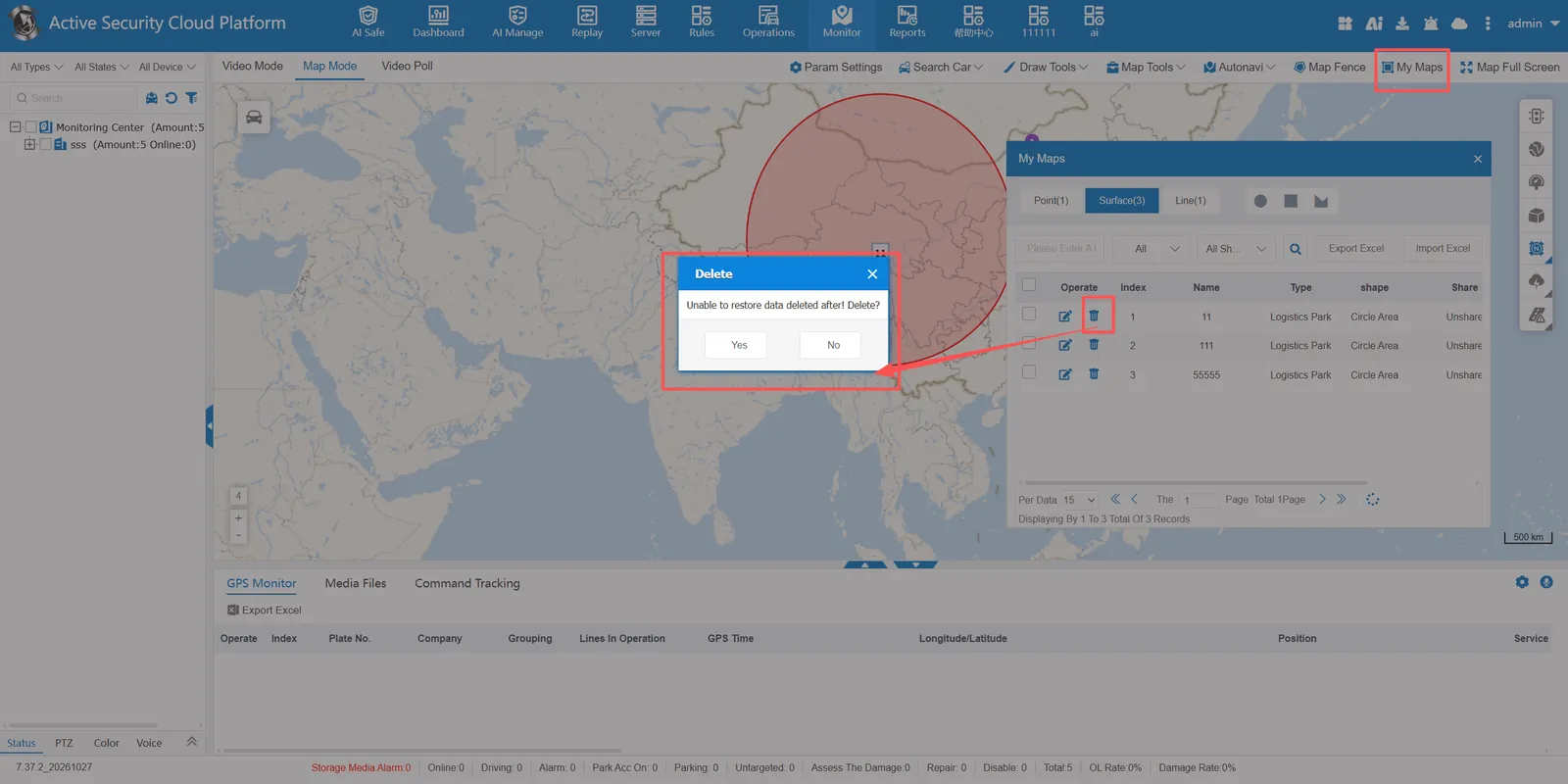
1. Function description
The "My Map" function is a tool used to manage and view map markers and area selection created by users. You can see the fence information related to points, lines and surfaces in the system, quickly display marker points and draw areas on the map, and support data import.
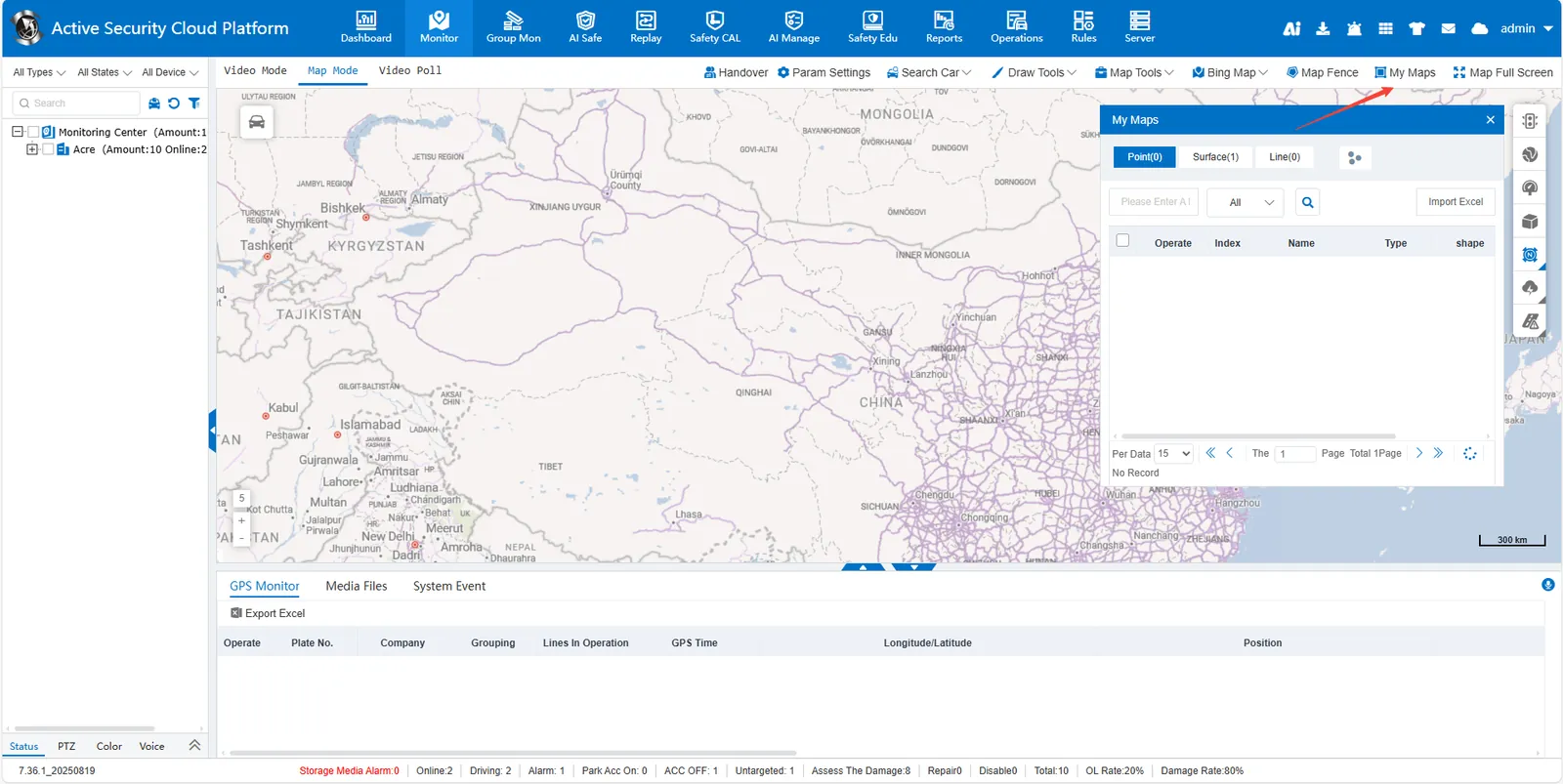
2, operating instructions
2.1 annotation and display
Mark points: click on the drawing toolbar above my map → select shapes (points/lines/circles/rectangles/polygons) → draw on the map → fill in relevant information and save.
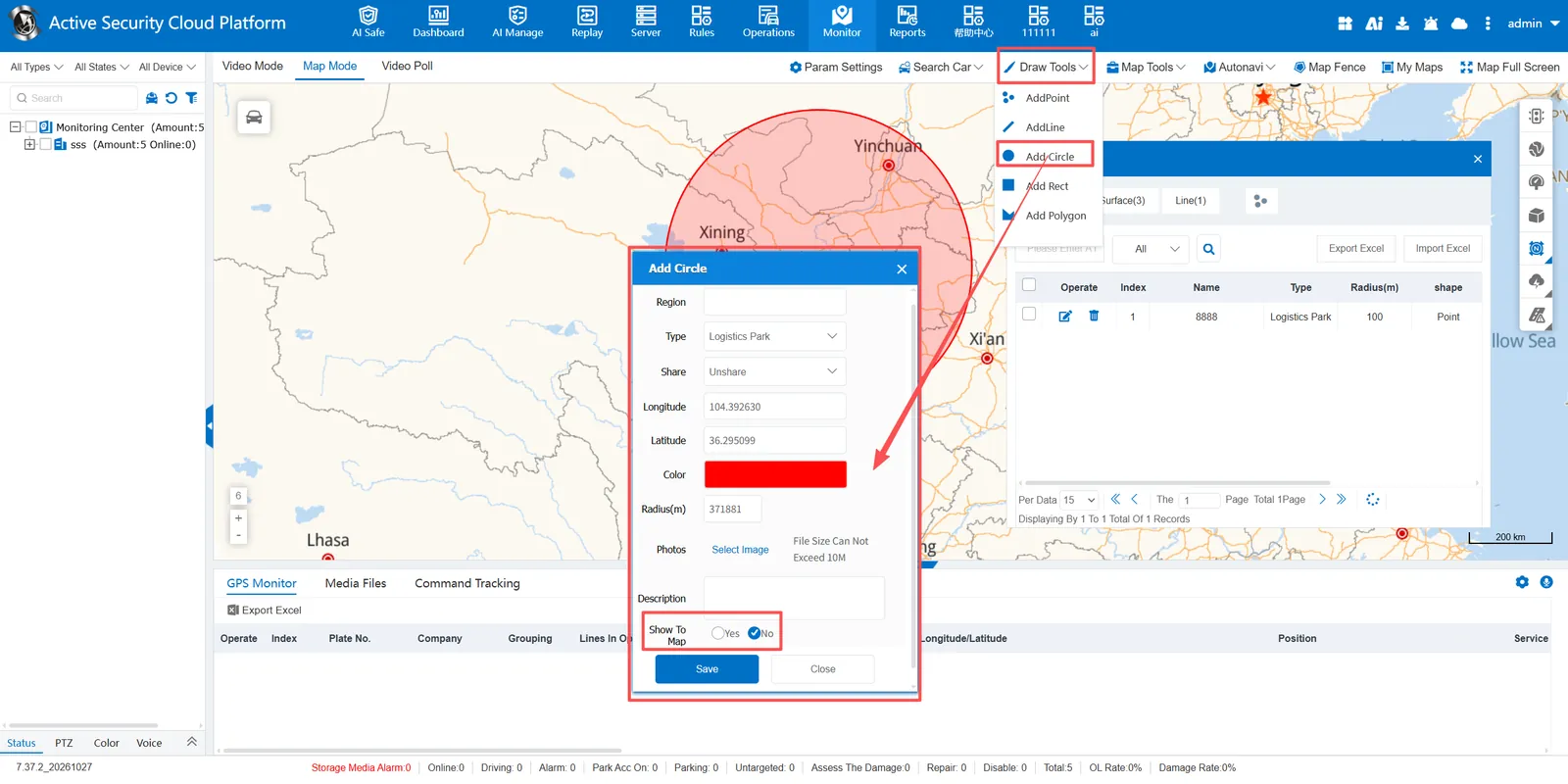
Show to Map: check Yes in the list Show to Map → Map automatically displays the corresponding marked points or areas.
2.2 import data
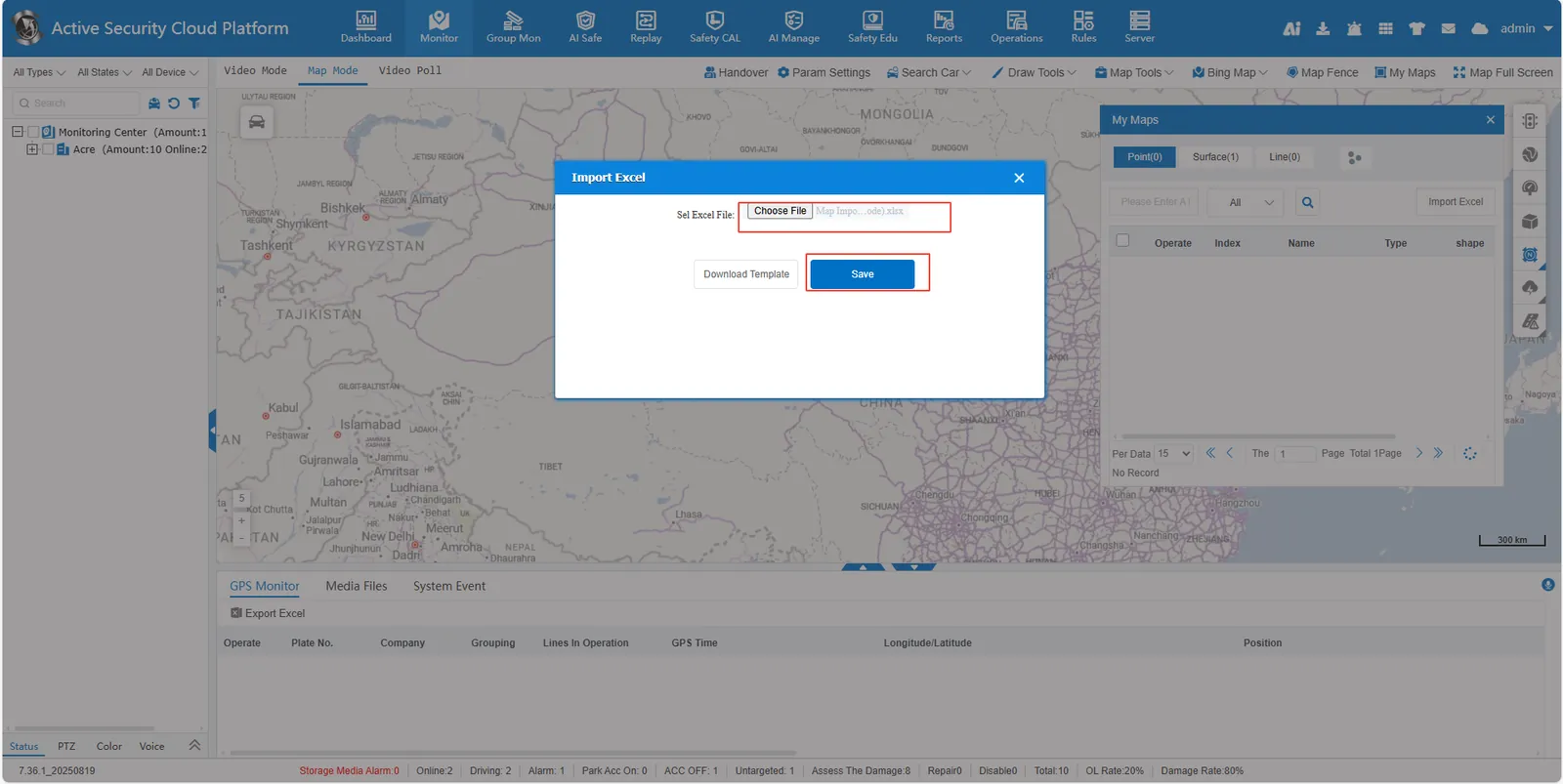
2.2.1 Click [ Import from Excel ] → Download Template
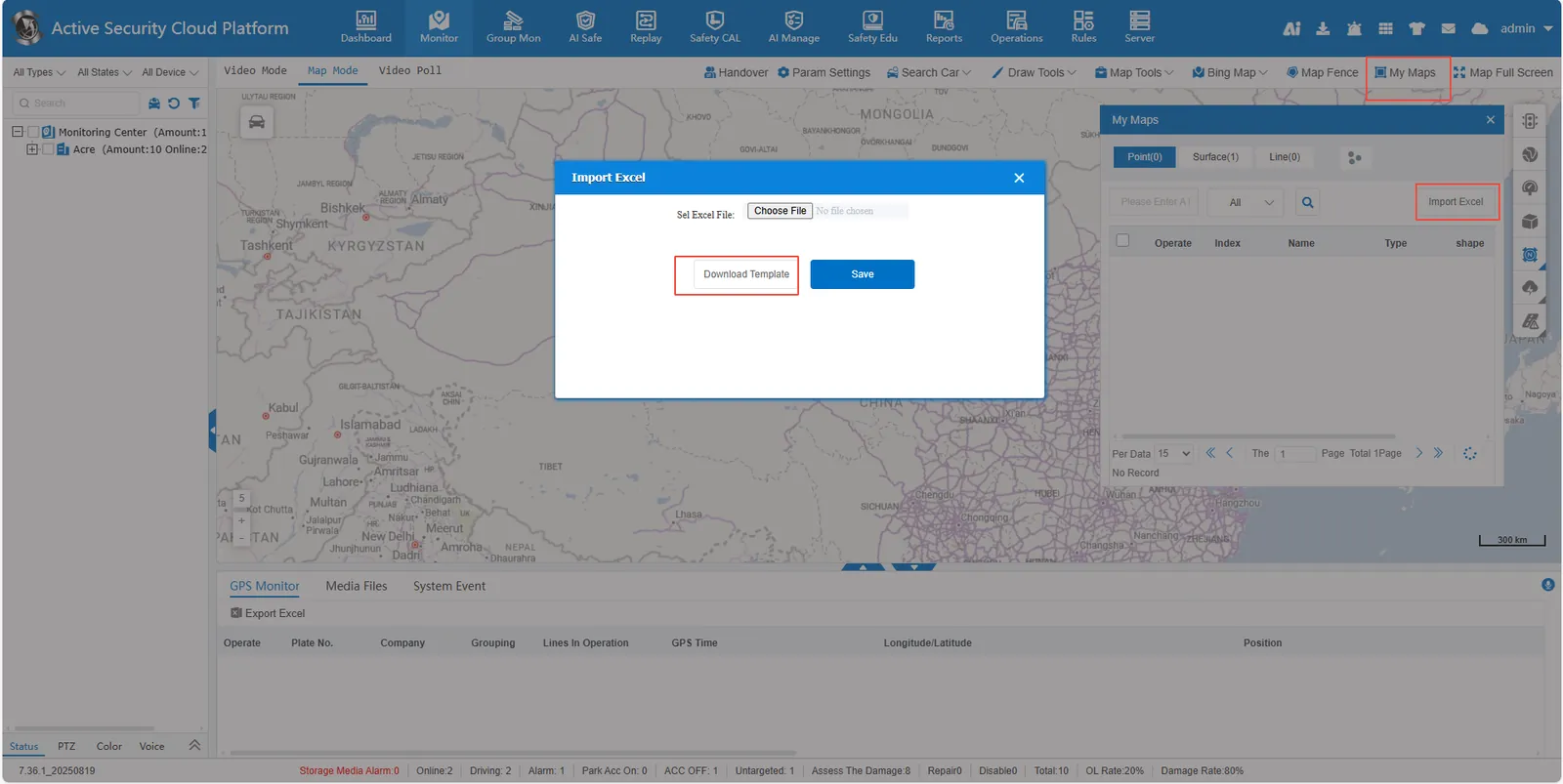
2.2.2 Fill in corresponding information
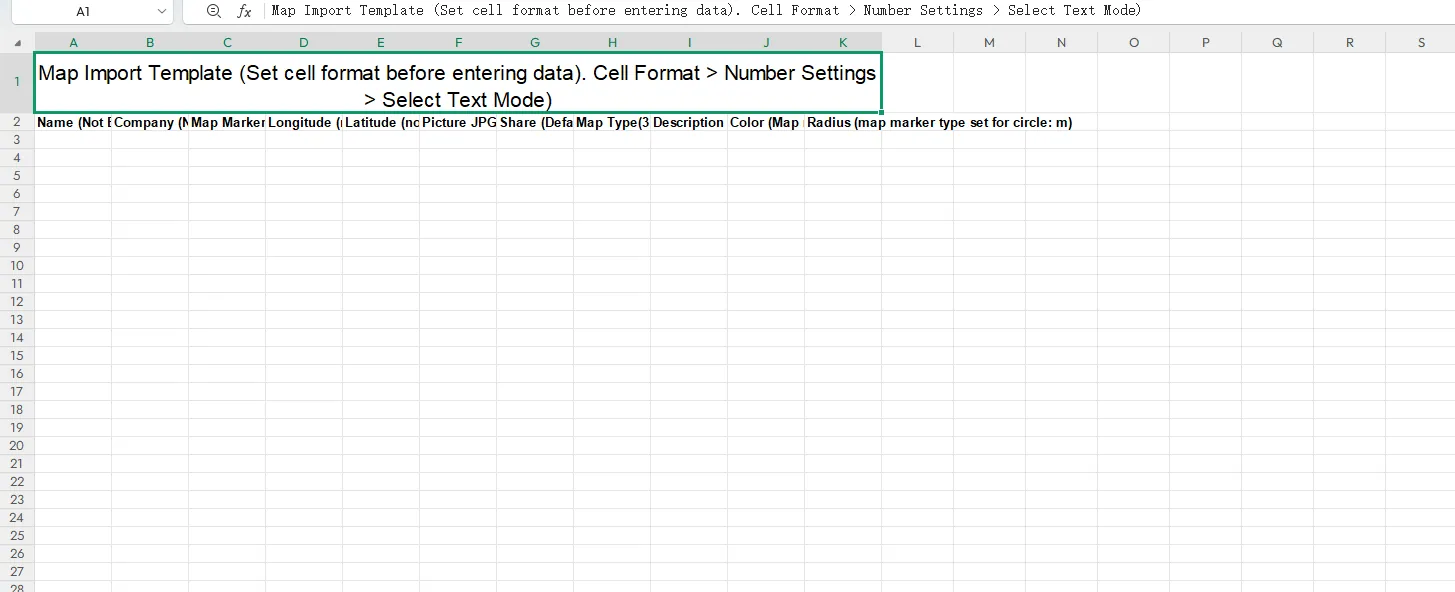
2.2.3 Upload files to import data.
2.3 modify and delete data
2.3.1 In My Map, click Edit button to modify previously labeled data
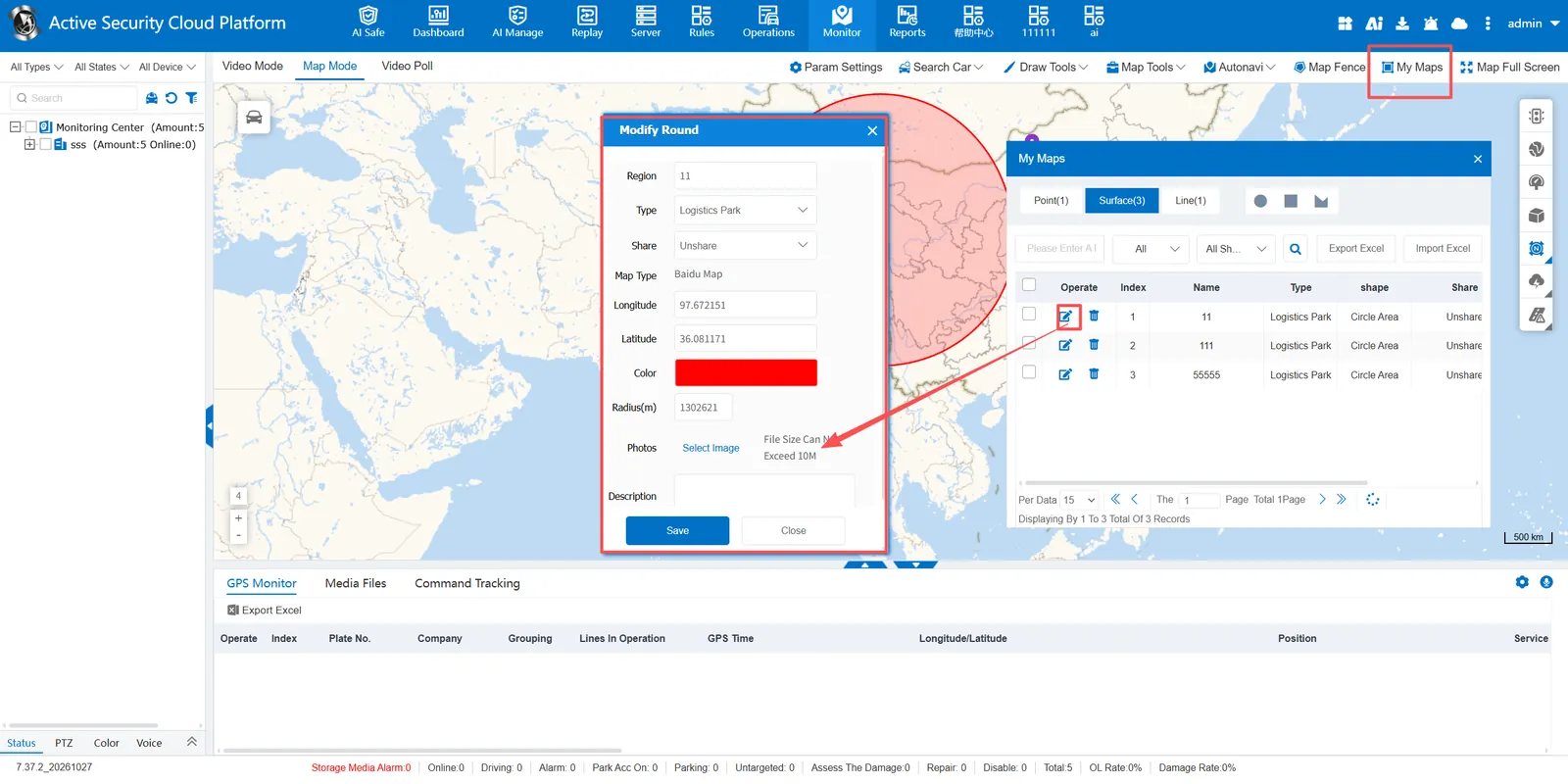
2.3.2 In My Map, click Delete button is to delete data