1 Function description
The electronic fence realizes the safety control of vehicles by setting no- entry area (no vehicles entering) or no- exit area (no vehicles leaving) and combining real- time positioning and alarm rules. When an alarm is triggered, the platform automatically generates an alarm to support subsequent traceability.
2 operating instructions
2.1 enter the add interface
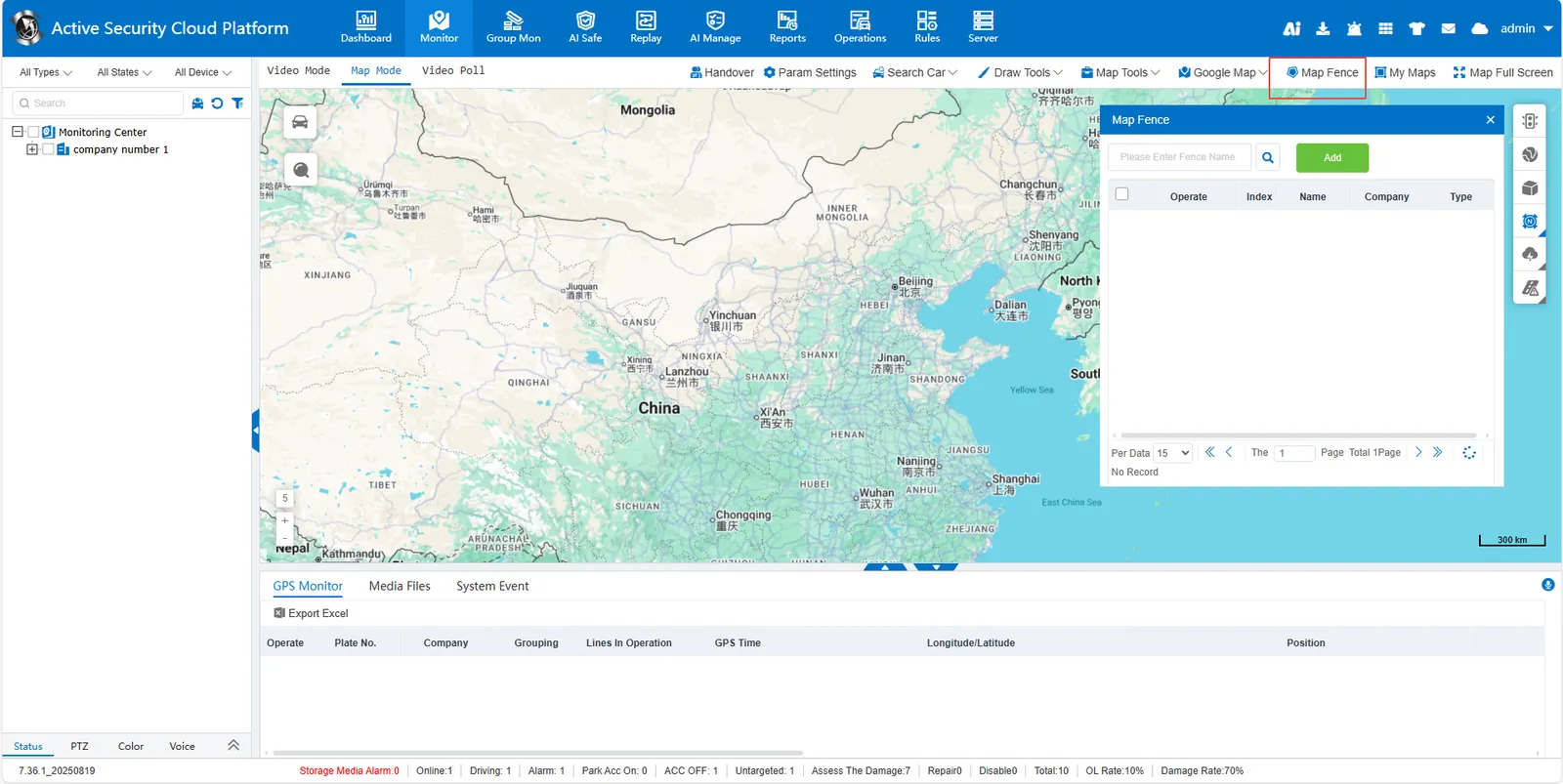
Click the "electronic fence" option to enter the electronic fence management interface. In the management interface, click the "Add" button to enter the detailed setting interface for adding electronic fences.
2.2 fill in basic information
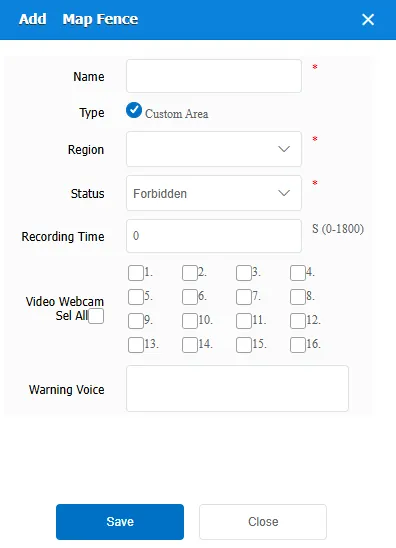
- Name: Enter the name of the electronic fence in the text box.
- Type:
Select Custom Area, then manually draw or select a preset polygonal area on the map.
Custom Area Reference:https://help.cmsv8.com/helpCenter/doc/index.html?isStudy=1&pageType=2&docType=9&docId=323&type=2
Or select Administrative Region and select a specific administrative region from the drop- down menu. - Region: Select a custom region or a specific administrative region name from the drop- down menu, depending on the selected type.
- Status: Select the status of the electronic fence from the drop- down menu. For example, "Forbidden" means that vehicles are prohibited from entering the area, and "Banned Out" means that vehicles are prohibited from leaving the area.
- Recording Time: Set the recording duration in seconds.
- Video Webcam: Check the camera that needs to be recorded. The video recording time is longer than 0.
- Warning Voice: Enter the content of the voice prompt to be played during an alarm in the text box. When an alarm is triggered, the system sends TTS to the corresponding device.
2.3 associated vehicle
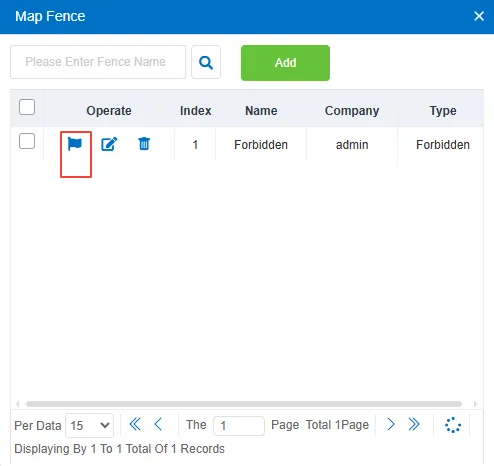
Associate the vehicle by clicking the assign fence icon in the "Action" column.
2.4 Report Query
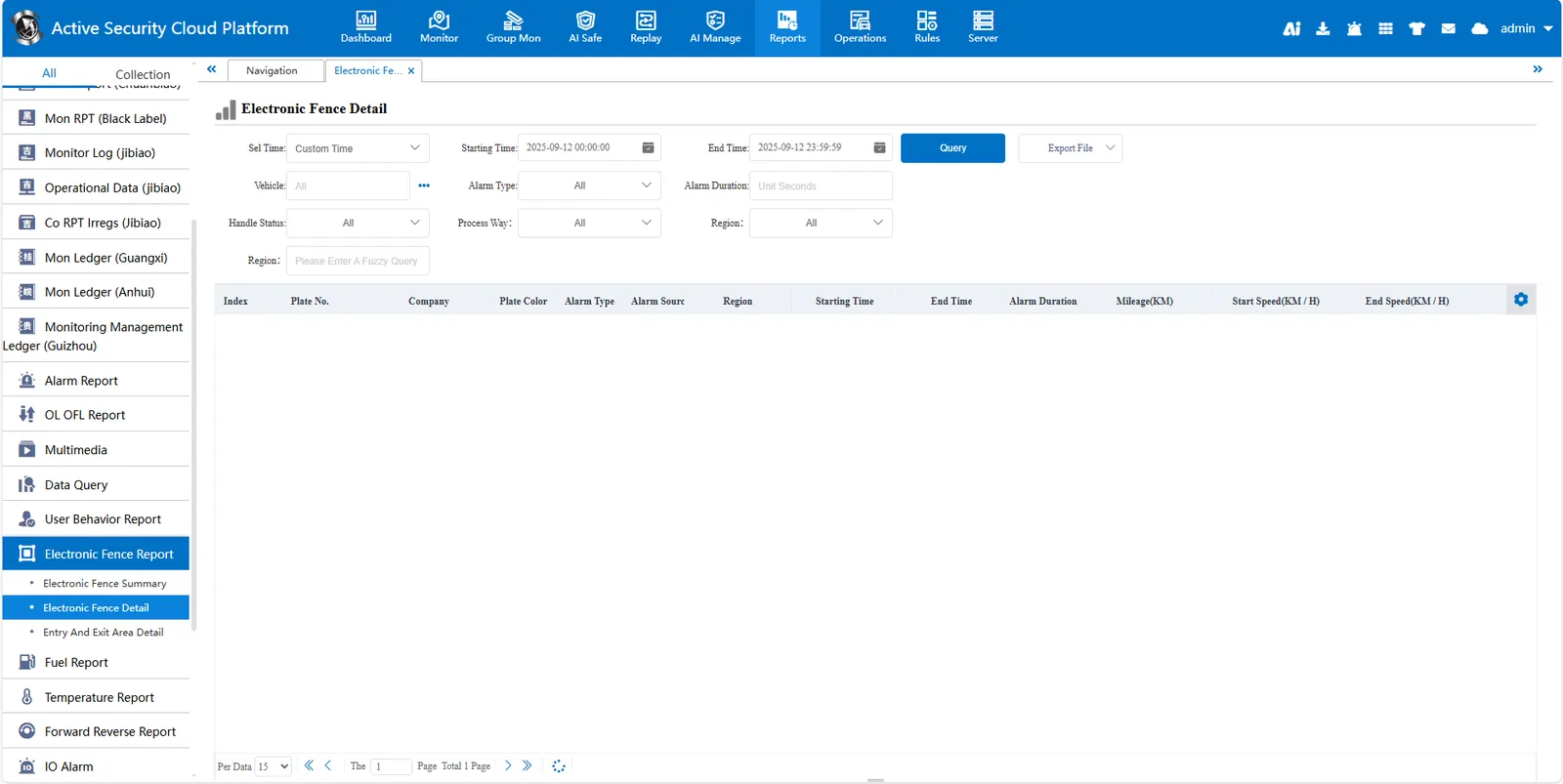
Enter the statistical report function page and query related alarms in the electronic fence report.