Preview the vehicle video in real time.
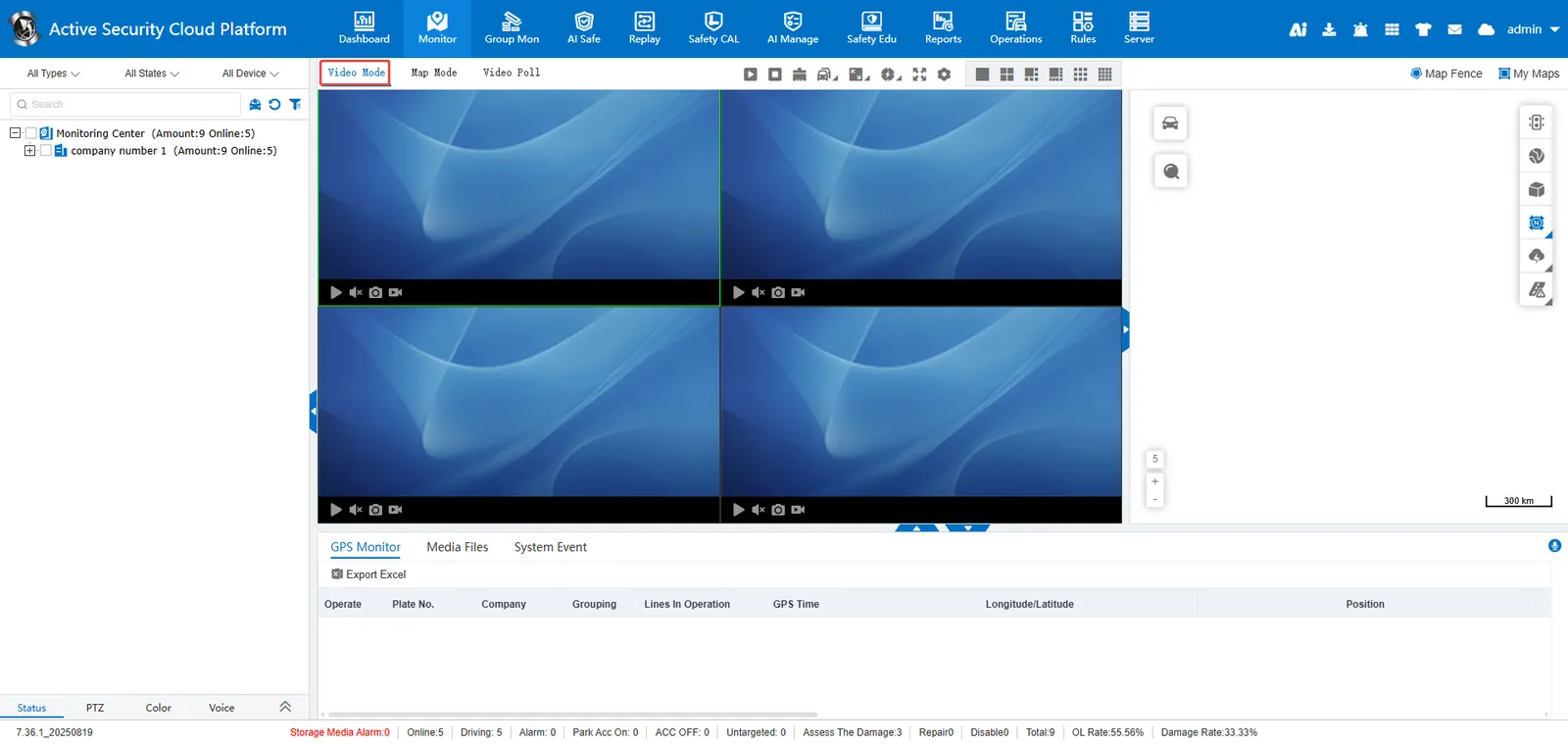
1. real- time preview
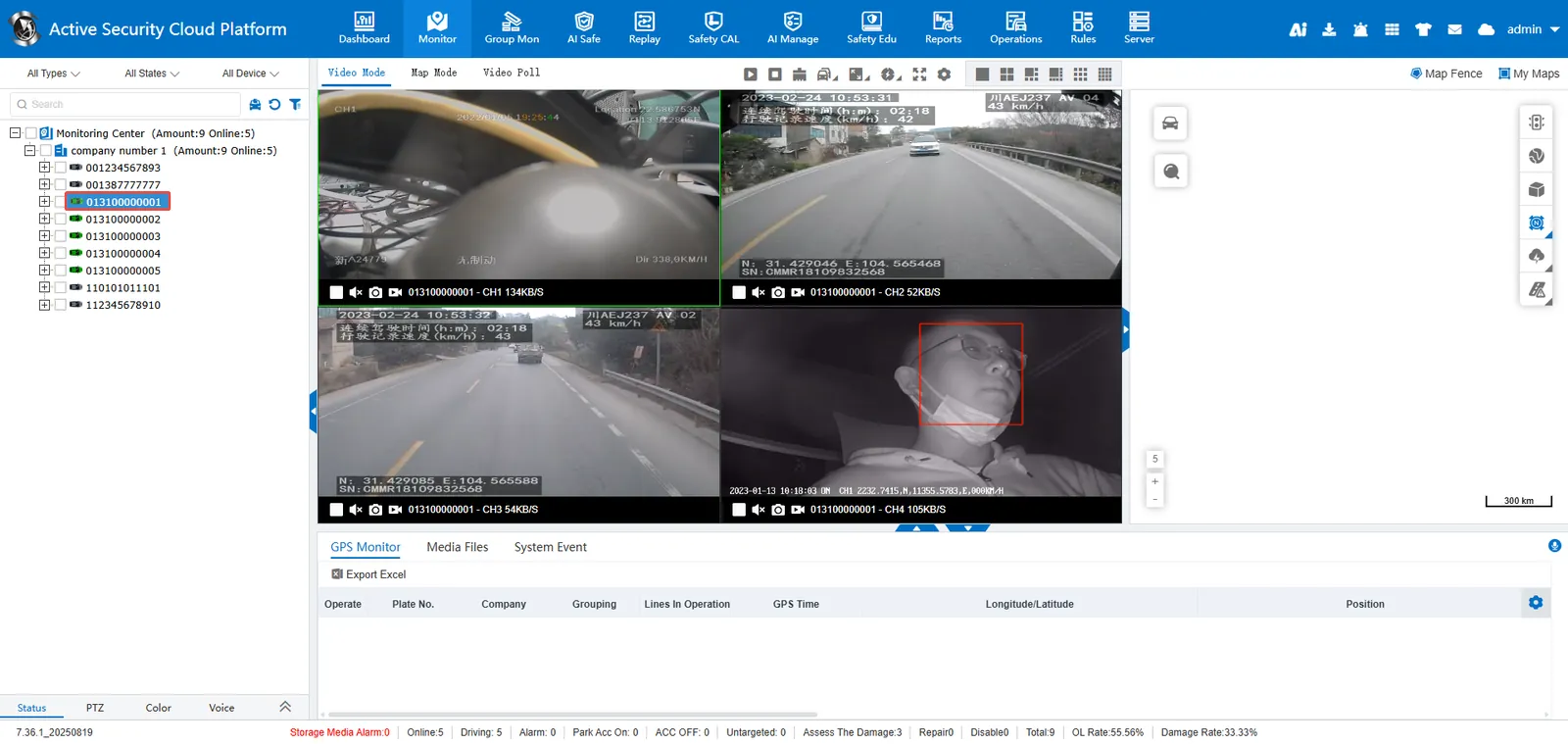
Select the vehicle [Double click] or [Right click] → [Preview all videos]
2. configuration instructions
2.1 the number of custom windows

2.2 custom screen display scale
2.3 custom real- time
** Good real- time performance : The platform will play the video data as soon as it receives it, and the playback may be stuck.
General real- time performance**: The platform caches a piece of video data before starting to play, the playback will be relatively smooth.

Reference Document: Real- time Video Delay Description
2.4 preview all videos
Closed video in preview window

2.5 Stop Preview

Stop all videos: Stop all previewed videos in the window, keep the license plate number and channel number of the window;

Clear All Videos: Stop all videos previewed in the window, and clear the window license plate number and channel number.
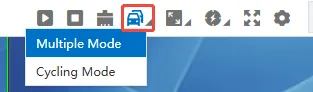
2.6 Preview mode
Multi-vehicle mode: Preview videos of multiple vehicles simultaneously;
Single-vehicle mode: When switching the vehicle preview video, the previously opened vehicle video window will be closed first.
2.7 Full Screen
Display the playback window in full screen

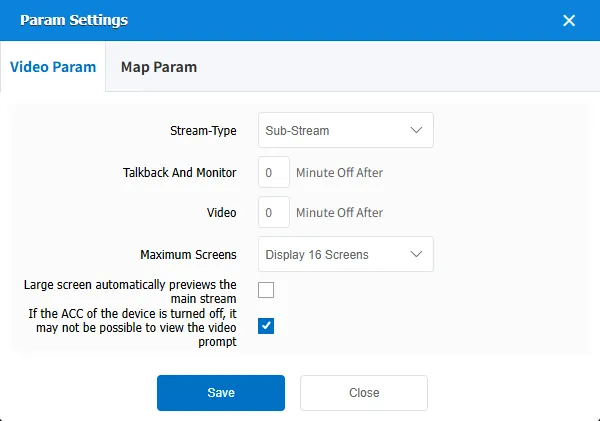
2.8 Settings
Set the default code stream type, automatically close (intercom, monitor, video) duration, display the highest number of pictures, large picture automatically switch to preview the main code stream, remind the user when the equipment ACC is closed