1 Function description
The quick processing function allows the user to quickly process the alarm information according to the pre- configured logic. Through the configuration interface, the user can customize the message content, processing method and alarm type, so that the preset processing operation can be automatically executed when the relevant alarm is received.
2 operating instructions
2.1 configuration shortcut
-
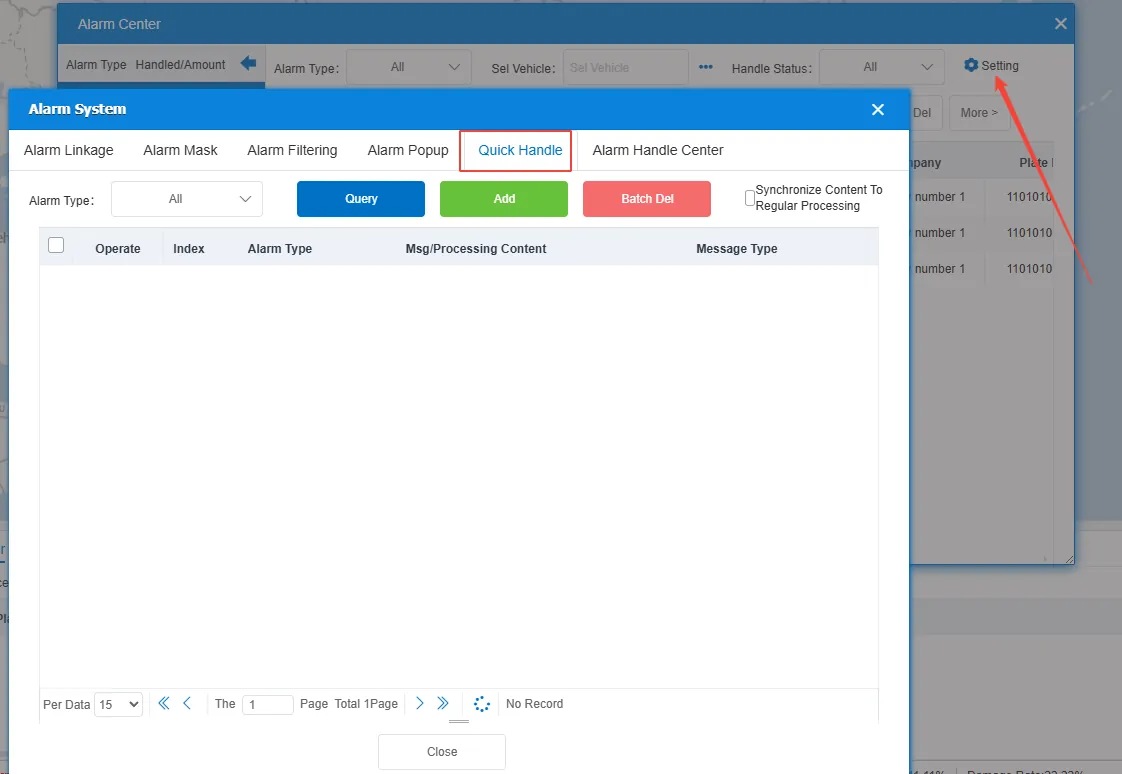
Click the setting button above the alarm center to enter the quick handle setting interface
-
Add configuration
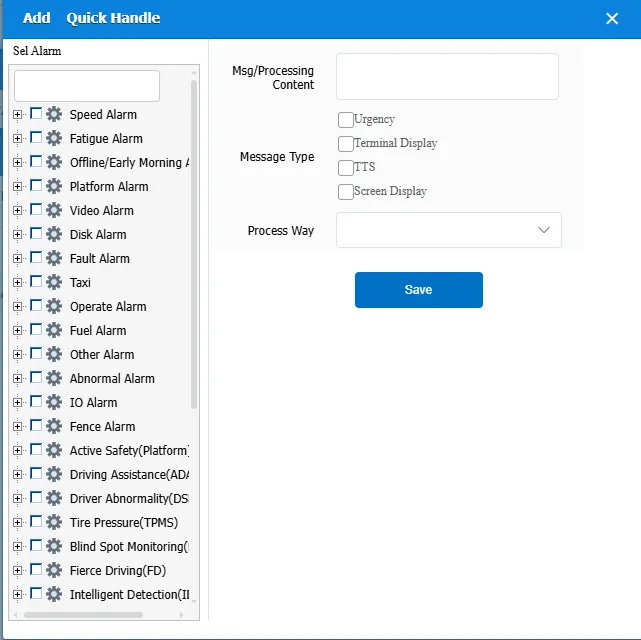
Sel Alarm: In the alarm type list on the left, select the alarm type to be configured.
Msg/Processing Content: In the Message/Processing Content box, enter the message that you want to send to the device when the alarm is processed.
Message Type: Select a suitable message type, such as terminal display, screen display, or terminal TTS playback. Multiple message types can be selected or checked according to actual requirements.
Processing Method: Select a processing method, such as Voice dispatch and phone notification. Users can select and configure according to the alarm type and actual needs.
Save Configuration: After confirming that all configuration information is correct, click Save to save the configuration information to the system.
2.2 alarm quick processing
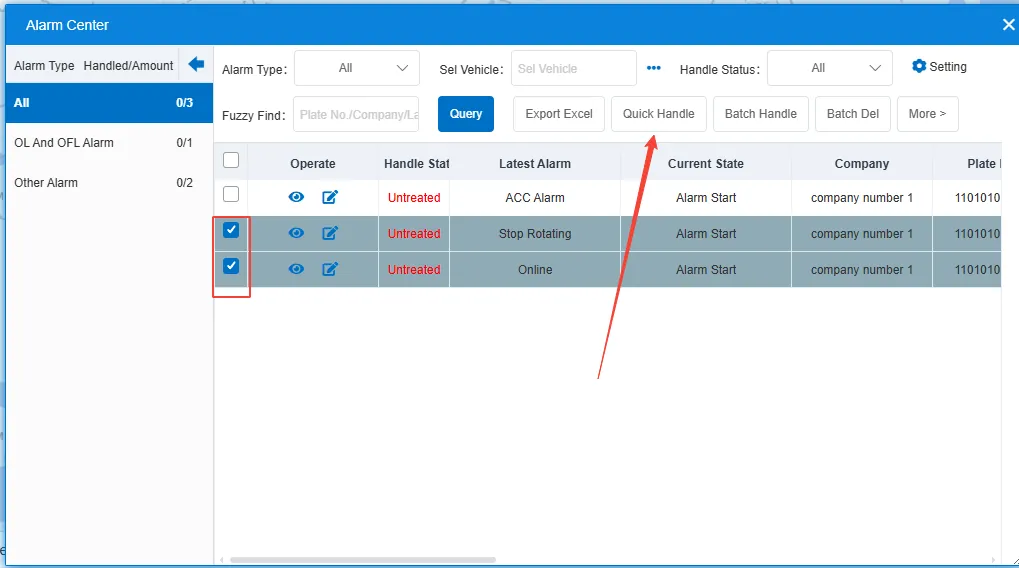
Check the alarm records to be processed in the alarm center and click the "Quick Handle" button.