1. Function description
Temperature and other sensor data docking and platform operation
2. Docking Description of Ministry Standard 808 Protocol
2.1 808- 2019 Standard Protocol Reporting
- Extension ID 0x06 SHORT(signed) Cabin temperature unit is Celsius
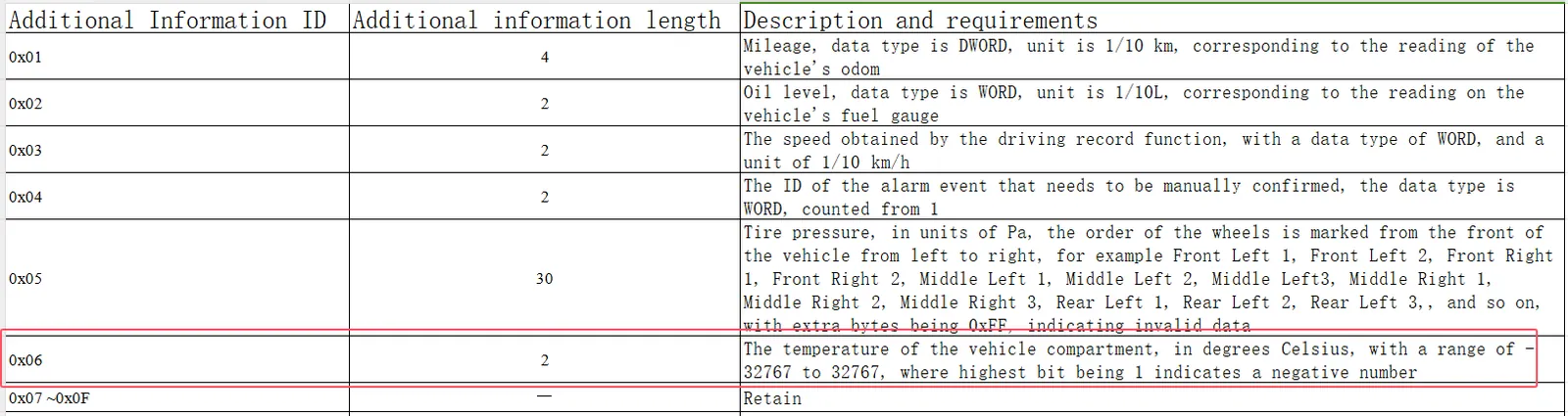
2.2 808 Extended Protocol Reporting (I)
- Extension ID 0xB0 BYTE[8] Fang Hao Temperature Data Additional Protocol
| Start byte | Field | Data type | Description and requirements |
|---|---|---|---|
| 0 | First Temperature Data | WORD | Signed Data, Unit 0.1 ℃ |
| 2 | Second Temperature Data | WORD | Signed Data, Unit 0.1 ℃ |
| 4 | Third Temperature Data | WORD | Signed Data, Unit 0.1 ℃ |
| 6 | Fourth Temperature Data | WORD | Signed Data, Unit 0.1 ℃ |
2.3 808 Extended Protocol Reporting (II)
- Extended ID 0xA2 BYTE[13+5n] Warburg Temperature Protocol
| Start byte | Field | Data type | Description and requirements |
|---|---|---|---|
| 0 | Reserved | BYTE[12] | Reserved |
| 12 | temperature quantity | BYTE | quantity n, the server can support up to 4, the excess will be ignored |
| 13 | temperature data body | BYTE[5]* n | temperature information item |
- Definition of temperature information items:
| Start byte | Field | Data type | Description and requirements |
|---|---|---|---|
| 0 | Temperature value | WORD | Signed data in 0.1 ℃ |
| 2 | Temperature type | BYTE | 0: No alarm 1: Ultra- low temperature alarm 2: Ultra- high temperature alarm |
| 3 | Reserved | BYTE[2] | Reserved |
2.4 808 Extended Protocol Reporting (III)
- Extended ID 0xE4 BYTE[16] Temperature/Humidity Information Report
| Start byte | Field | Data type | Description and requirements |
|---|---|---|---|
| 0 | Temperature/Humidity 1 | WORD | Temperature Unit: 0.01° Range:- 40° to 80° Humidity Unit:% Range: 0% to 100% Note: Fill with either temperature or humidity |
| 2 | Reserved | WORD | None |
| 4 | Temperature/Humidity 2 | WORD | Temperature Unit: 0.01° Range:- 40° to 80° Humidity Unit:% Range: 0% to 100% Note: Fill with either temperature or humidity |
| 6 | Reserved | WORD | None |
| 8 | Temperature/Humidity 3 | WORD | Temperature Unit: 0.01° Range:- 40° to 80° Humidity Unit:% Range: 0% to 100% Note: Fill with either temperature or humidity |
| 10 | Reserved | WORD | None |
| 12 | Temperature/Humidity 4 | WORD | Temperature Unit: 0.01° Range:- 40° to 80° Humidity Unit:% Range: 0% to 100% Note: Fill with either temperature or humidity |
| 14 | Reserved | WORD | None |
Example: temperature value is - 39.18 ℃, value is 0x8F4E; temperature value is 39.18 ℃, value is 0x0F4E |
|||
Note: the server accuracy is 0.1. if the reported value is 12.34, only 12.3 'will be stored' |
2.5 808 Extended Protocol Report (IV)
- Extension ID 0xEB BYTE[12] BSJ Extension Protocol
| Start byte | Field | Data type | Description and requirements |
|---|---|---|---|
| 0 | Data length | WORD | 0x000A |
| 2 | Command | WORD | 0x0003 |
| 4 | Data Body | CHAR[8] | Temperature Control Data Segment |
- Definition of temperature control data segment:
| Start byte | Field | Data type | Description and requirements |
|---|---|---|---|
| 0 | 1st temperature | BYTE | Unit ℃, -1 indicates invalid |
| 1 | Reserved | BYTE | None |
| 2 | Second temperature | BYTE | Unit ℃, -1 indicates invalid |
| 3 | Reserved | BYTE | None |
| 4 | Third temperature | BYTE | Unit ℃, -1 indicates invalid |
| 5 | Reserved | BYTE | None |
| 6 | 4th temperature | BYTE | Unit ℃, -1 indicates invalid |
| 7 | Reserved | BYTE | None |
0xEB=BSJ Extension Protocol
[000A] Length: 10
[0003] Instruction: 3
Temperature control data segment
[21] The first temperature (unit: ℃), -1 indicates invalid: 33
[07] Reserve BYTE [1]
[FF] Second temperature (unit ℃), -1 indicates invalid: -1
[00] Reserve BYTE [1]
[FF] Third temperature (unit ℃), -1 indicates invalid: -1
[00] Reserve BYTE [1]
[FF] 4th temperature (unit ℃), -1 indicates invalid: -1
[00] Reserve BYTE [1]
3. ttx protocol docking description
// Update temperature status
void setTemperature(const TTXTemperature_S& temperature) {m_Temperature = temperature;}

// Get temperature status
virtual TTXTemperature_S GetTemperature() {return m_Temperature;}
4. Platform Description
4.1 real-time temperature
-
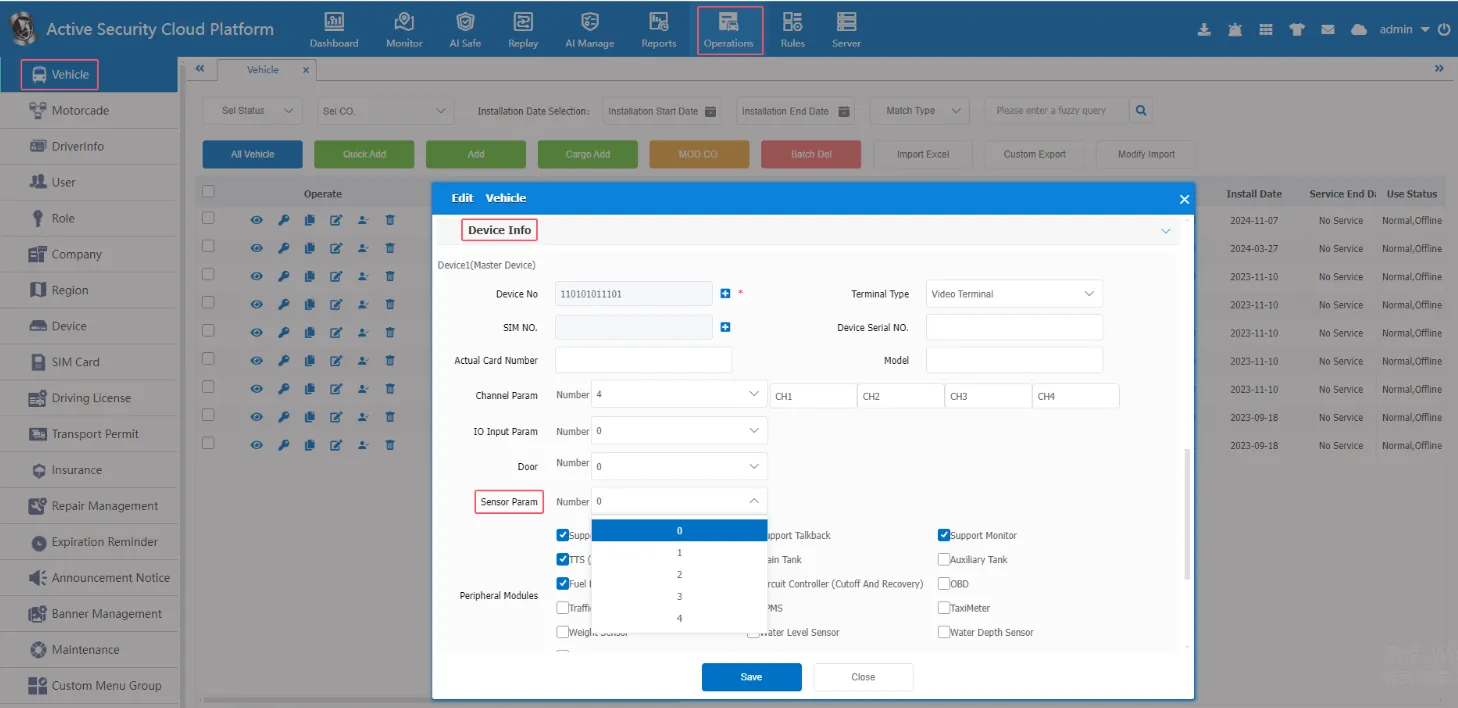
Open [Operations]> Edit [Vehicle]> [Device Info], select the number of sensors in the sensor parameters, and each vehicle can report up to 4 sensors.
-
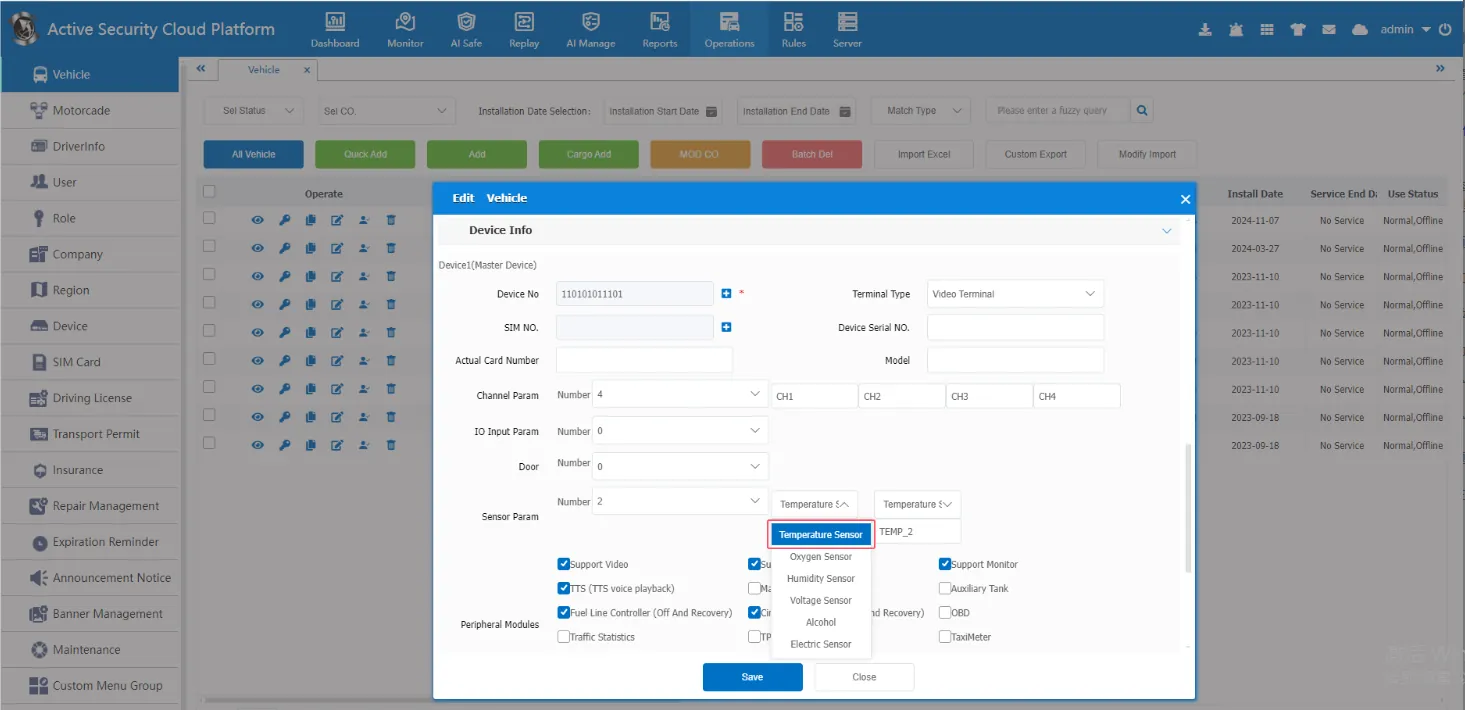
Select the sensor type as "Temperature Sensor", and give the sensor a custom display name, and finally click save.
Example: Change the default name 'TEMP_1 'to 'Temperature 1'
-
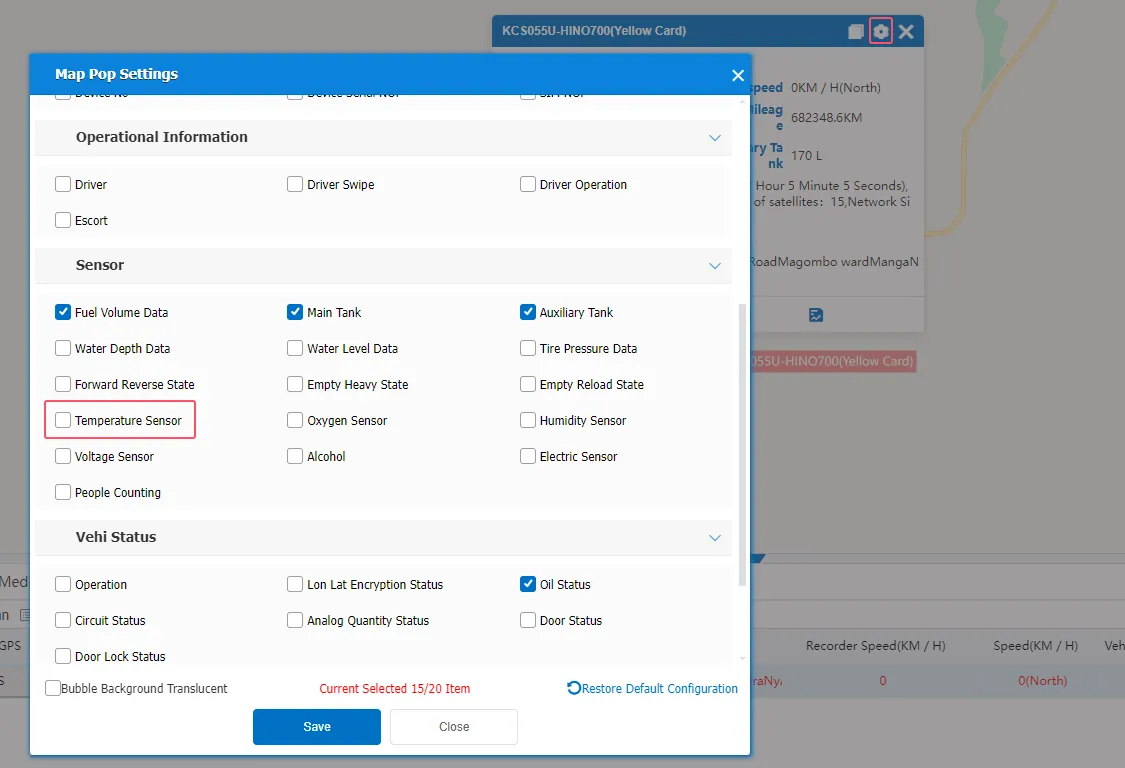
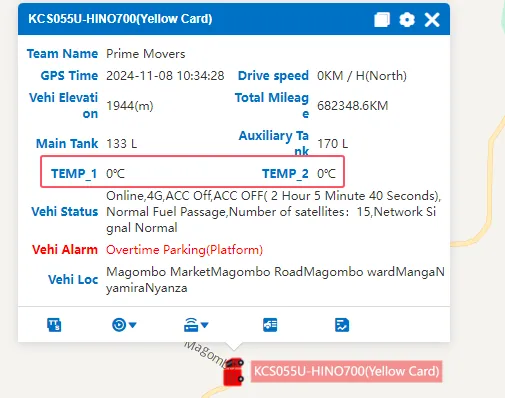
Turn on real-time monitoring, check "Temperature Sensor" in the Map Pop settings and click Save.
-
Refresh the real-time monitoring interface, and display the temperature value in the vehicle status bubble box.
4.2 temperature report
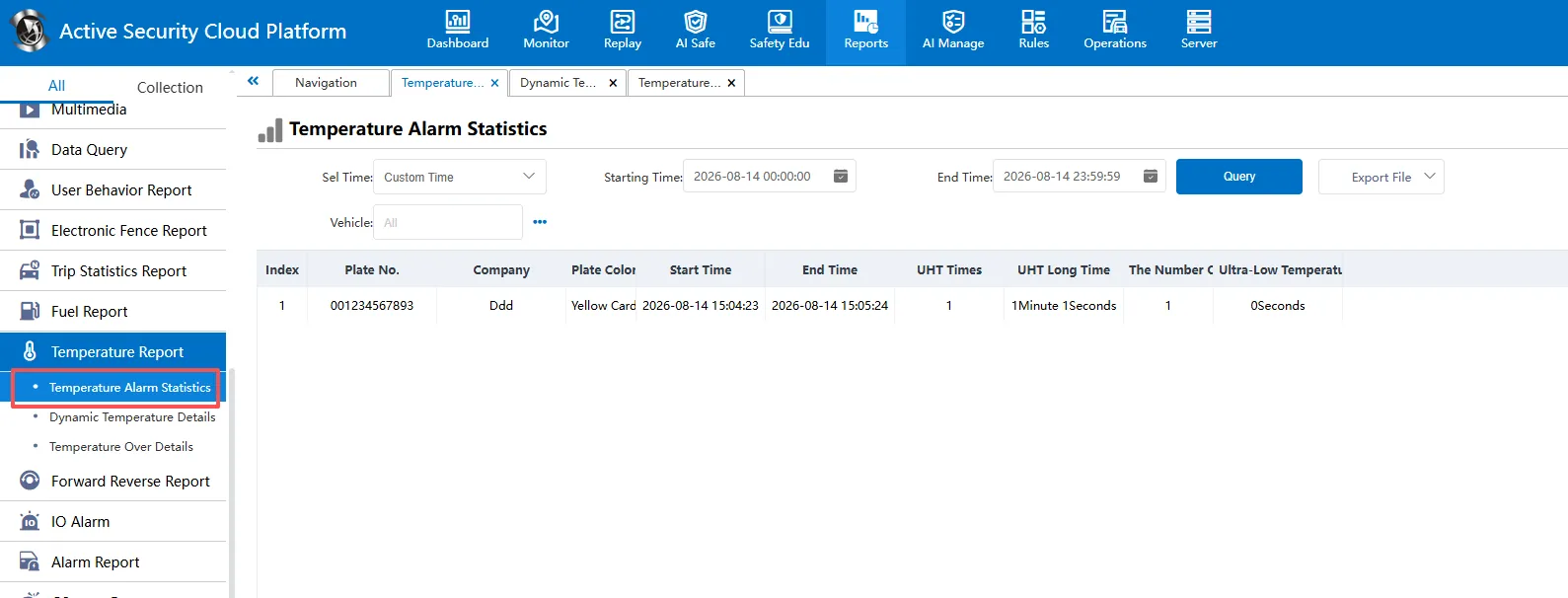
Temperature Alarm Statistics
Statistics of vehicle Ultra-High Temperature Alarm and Ultra-Low Temperature Alarm, alarm times and alarm duration.
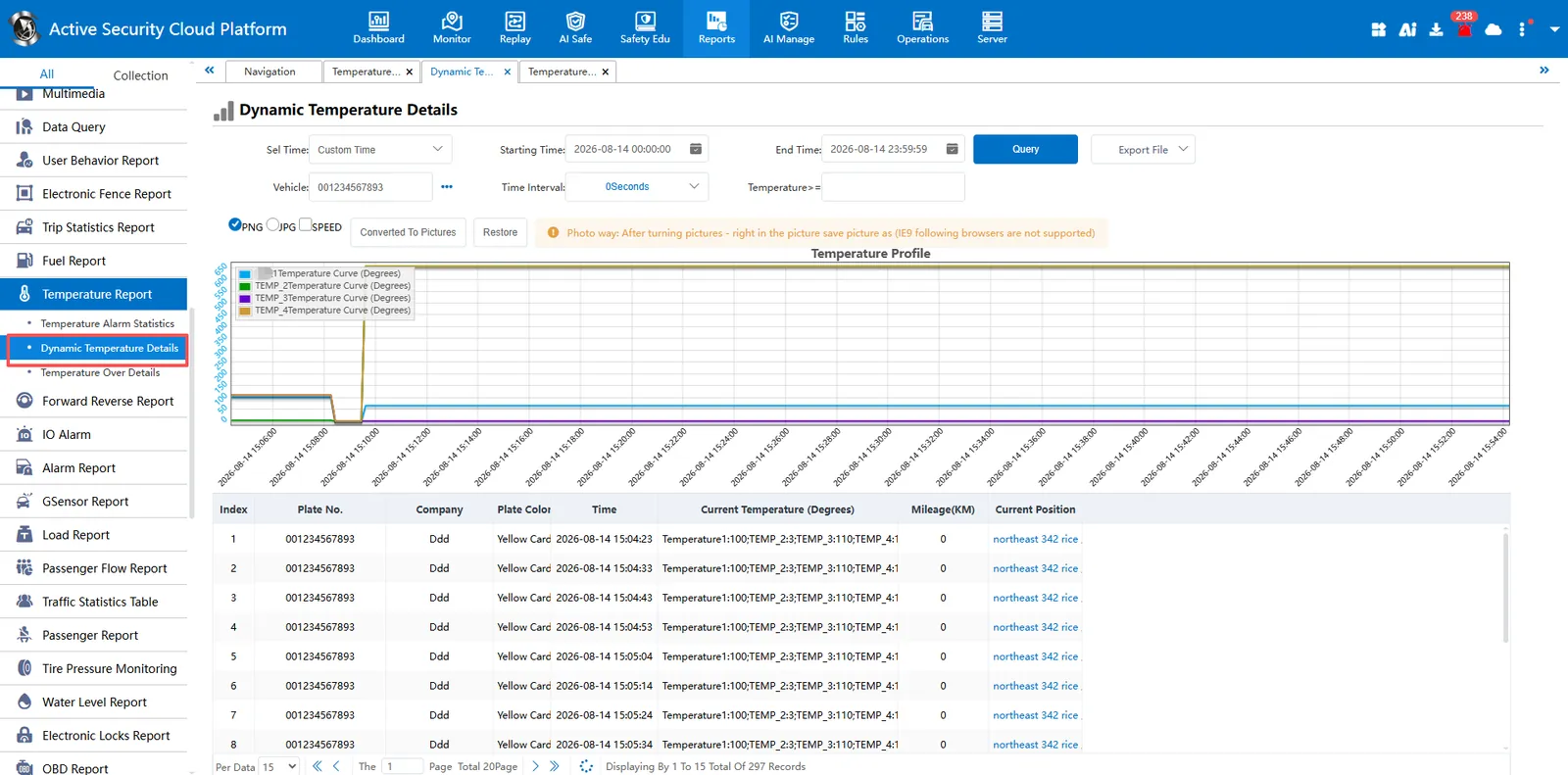
Dynamic Temperature Details
query the detailed temperature data of the vehicle and display it in the form of temperature graph.
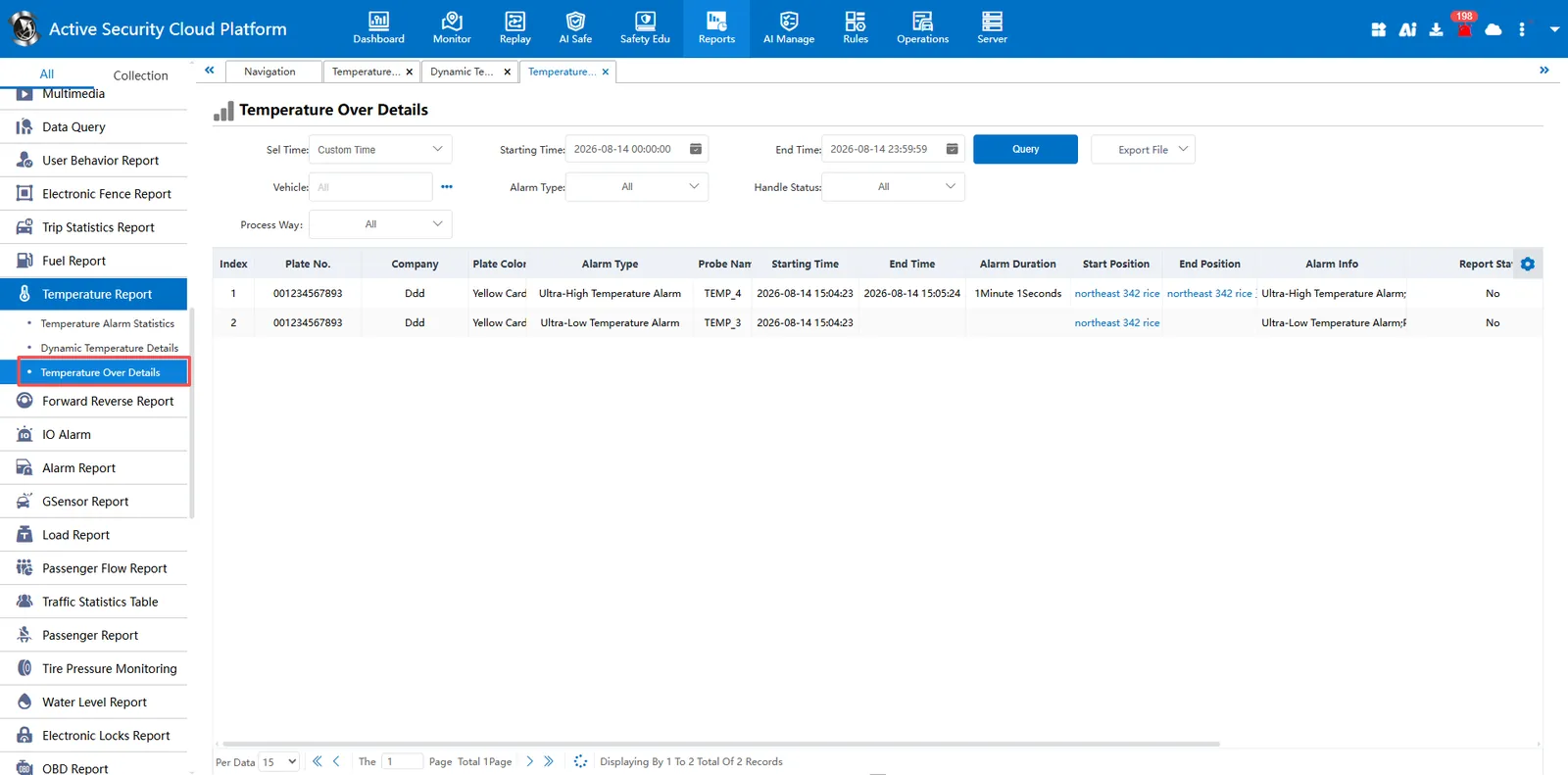
Temperature Over Details
query the details of the Ultra-High Temperature Alarm and Ultra-Low Temperature Alarm.
5. Precautions
- If the device transmits the temperature value to the platform according to the relevant extension protocol, but the vehicle status bubble box does not display data, please check whether the temperature sensor is checked in the bubble setting of the map.