1、 function description
CMSServer server health self- test method and instructions
Self- test content
- Server CPU usage.
- Server memory usage.
- Server security performance check.
- Server disk space check.
- Server data backup check.
Recommendations and requirements
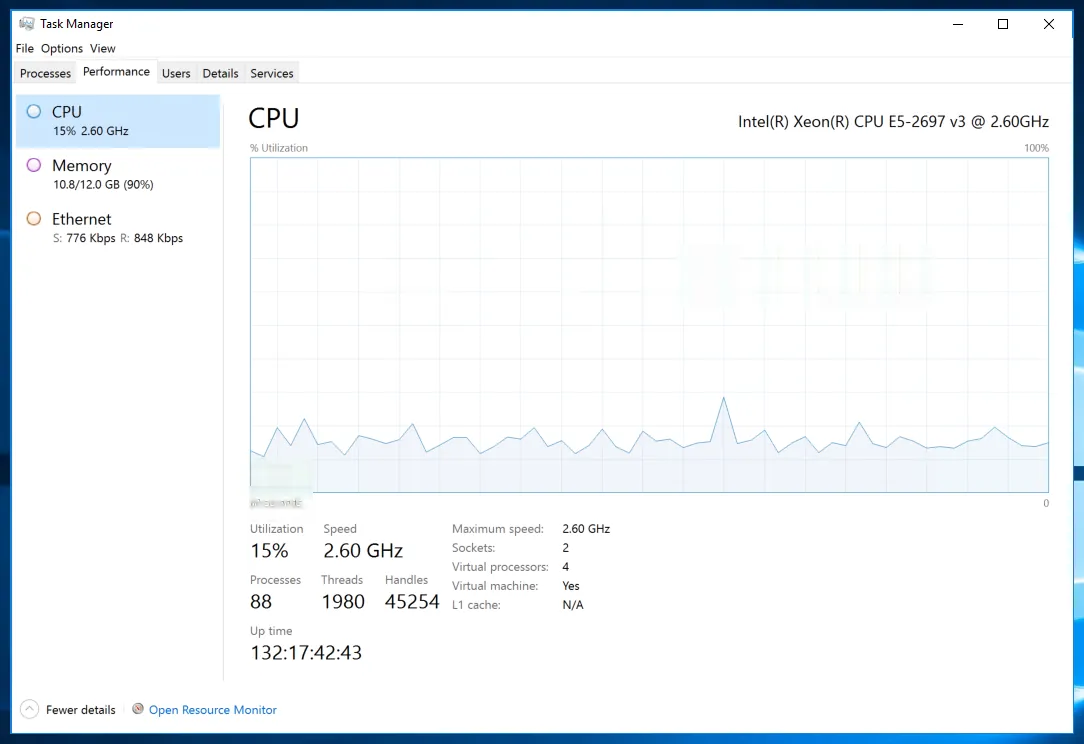
- server CPU operation:<30% is normal;>30% upgrade configuration is recommended.
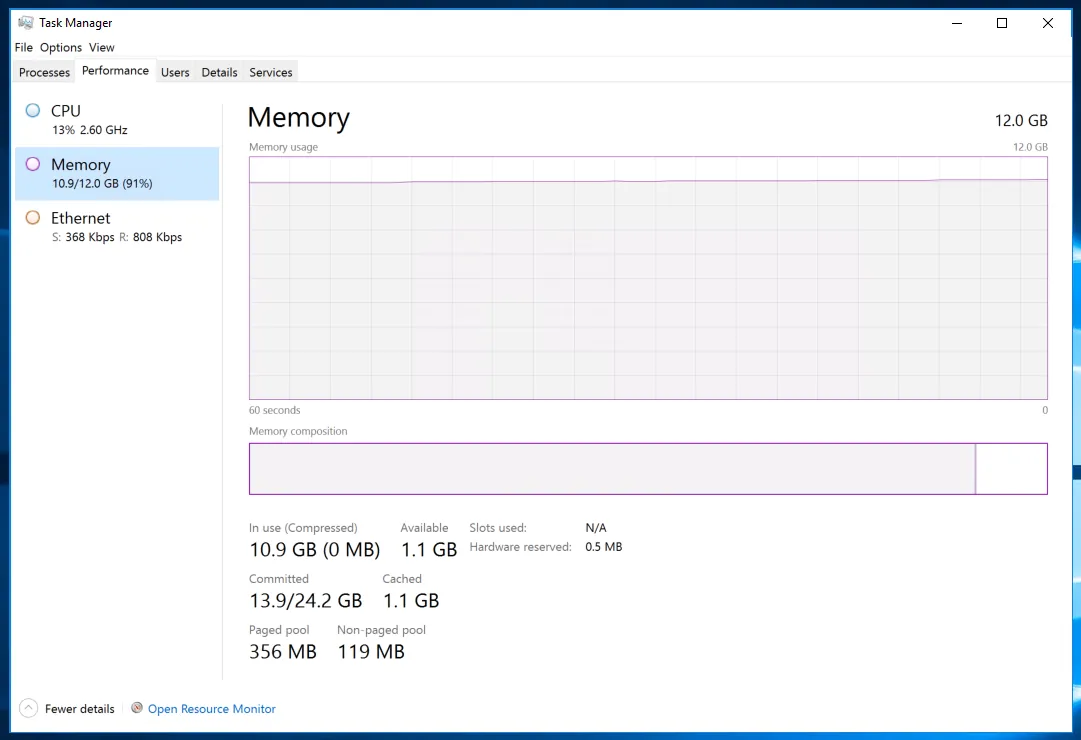
- server memory operation:<50% normal;>50% upgrade configuration is recommended.
- Server security performance inspection: it is recommended to install 360 security guards, tinder and other security protection software, regular virus.
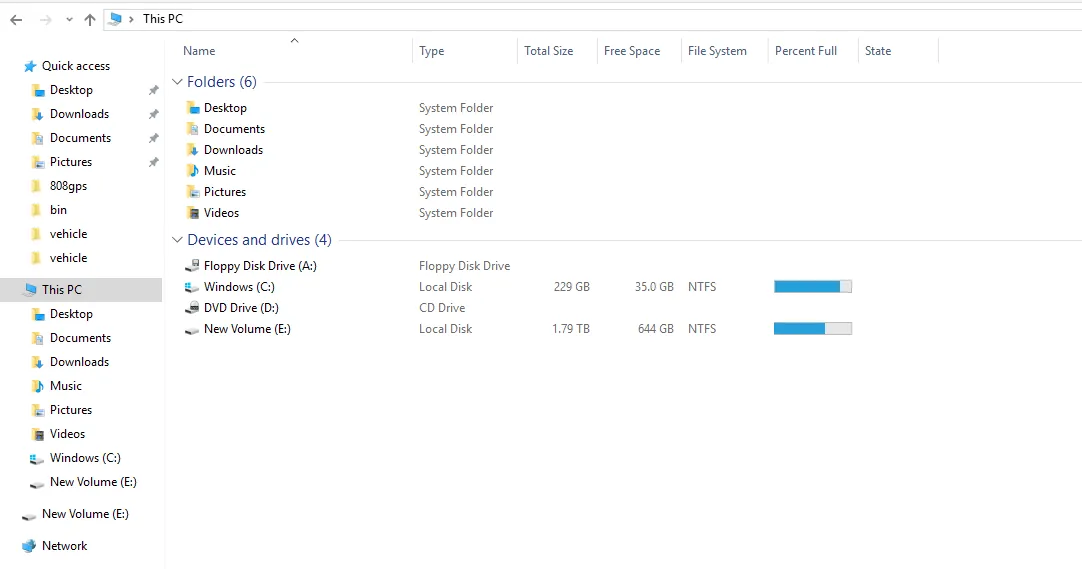
- Server disk space check: If there are many vehicles on the platform, it is recommended to divide the disks into software installation disks (D :), data disks (E :), and active security accessory storage disks (F :); The remaining space of the software installation disk is recommended to be> 20G, and the data disk space is recommended to be> 50G.
- Recommendation: The data disk is separate from the active safety accessory storage disk.
- Server data backup: It is recommended to perform manual backup on a regular basis, and save the backup files separately through other physical methods such as U disk. Confirm whether to start automatic backup and mail backup.
2、 operating instructions
2.1 check the CPU usage of the server.
- Open the Task Manager and click Performance to view the current CPU operation.
2.2 check the server memory usage.
- Open the Task Manager and click Performance to view the current memory operation.
2.3 check the security performance of the server.
- Install antivirus software and perform a full disk scan
2.4 check the server disk space.
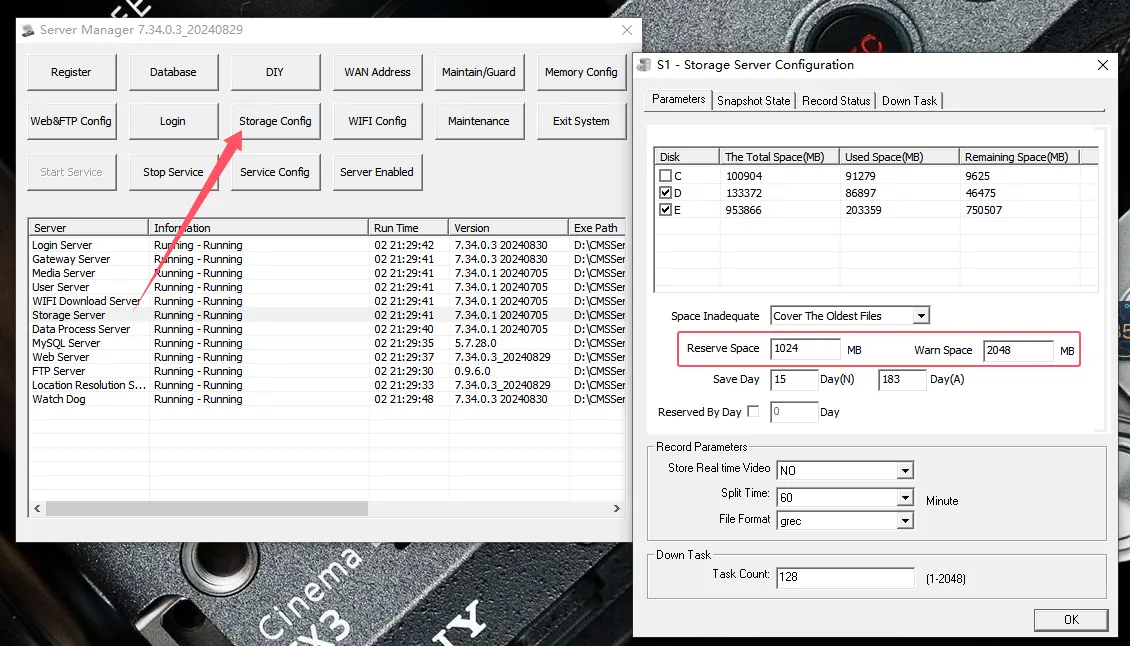
- Streaming media server; Storage server reserved space configuration method:
Click Server List- > Storage Server Configuration- > Set Reserved Space Value; (Storage exceeding the reserved space threshold will automatically overwrite the oldest file)
2.5 check the server data backup.
(1) Manual backup
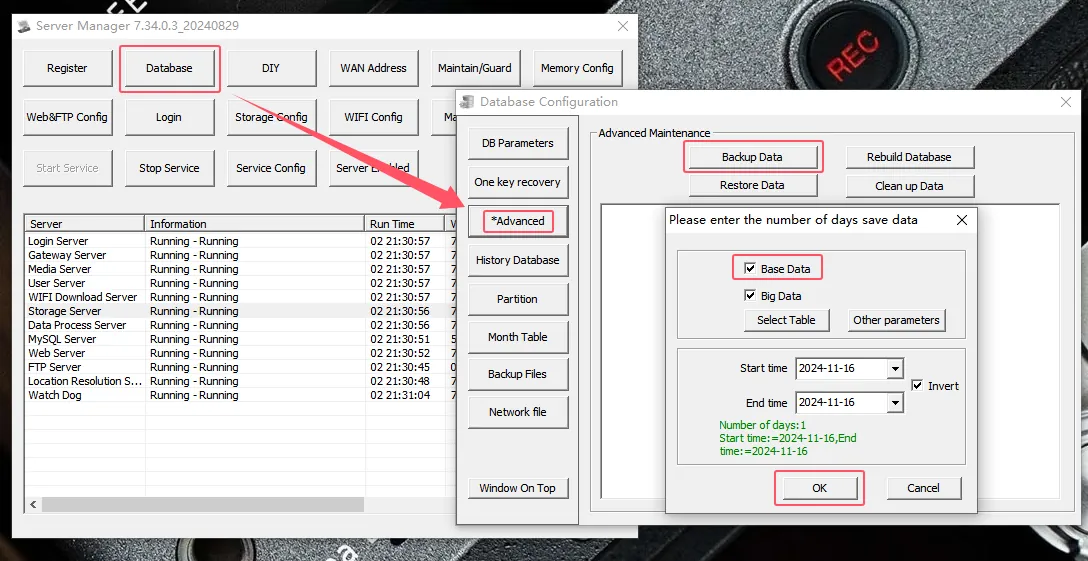
- Open Database Configuration- > Advanced Maintenance- > Backup Data- > Check Basic Data- > OK
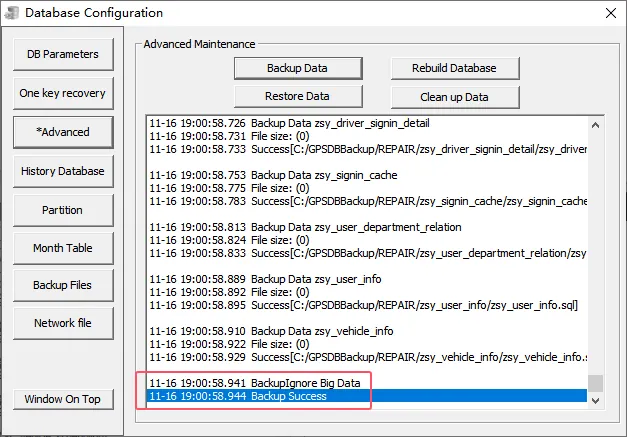
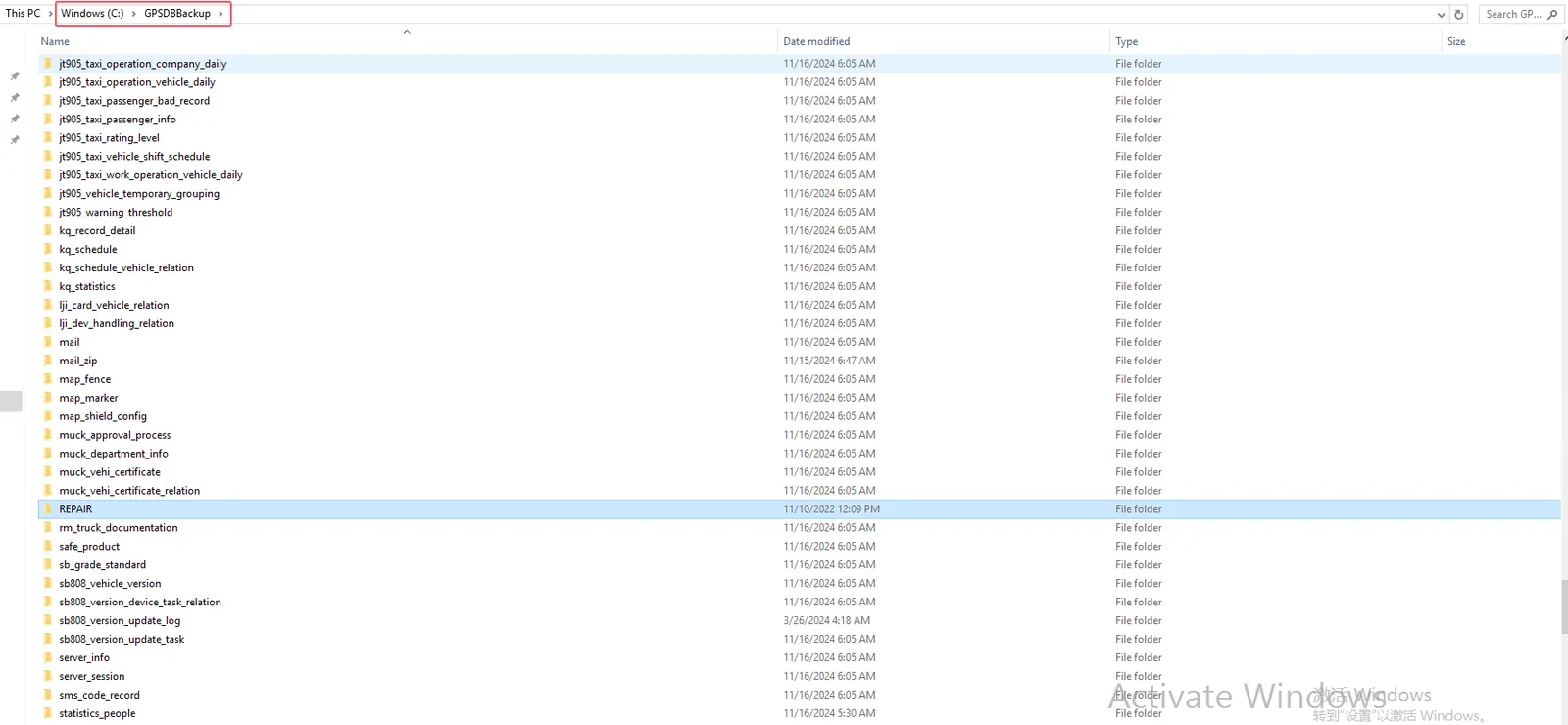
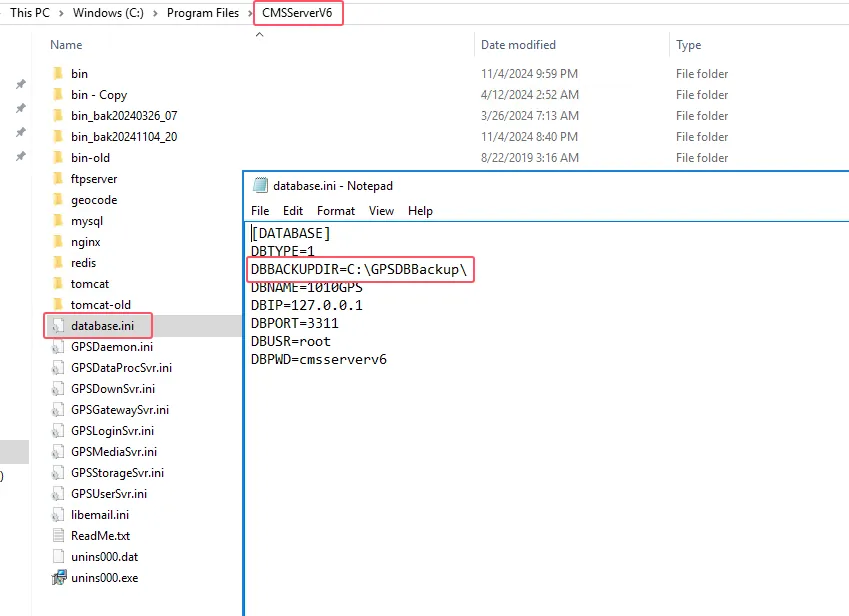
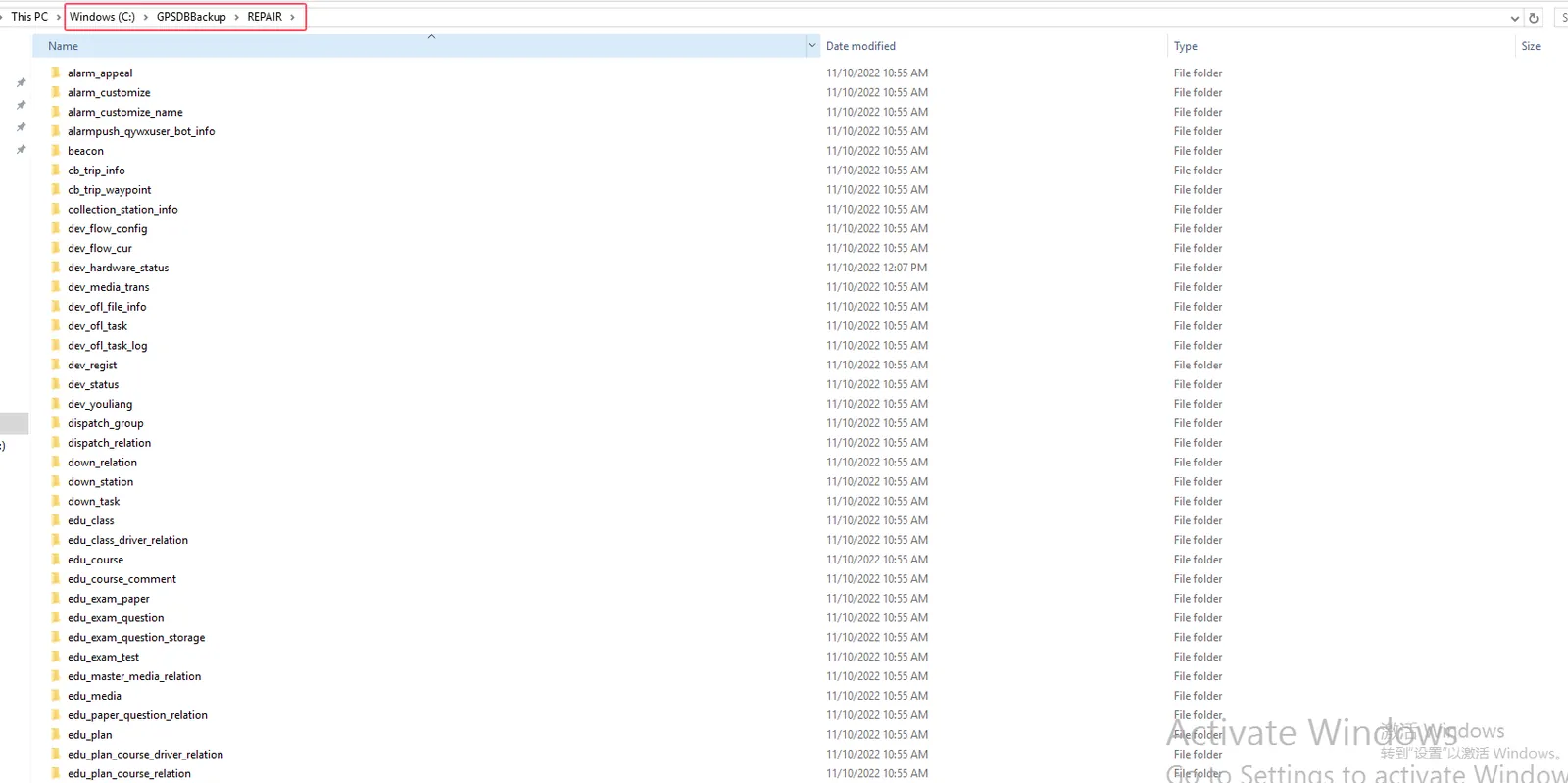
- View the storage path (C:GPSDBBackup) of the backup database. The manually backed up data will generate a REPAIR folder in the root directory of the GPSDBBackup folder, which contains the manually backed up data.
(2) Automatic backup
- Click the [Maintenance/Guard] function module of the server software, check whether automatic backup and mail backup are enabled, and configure the mail address to receive the backup.
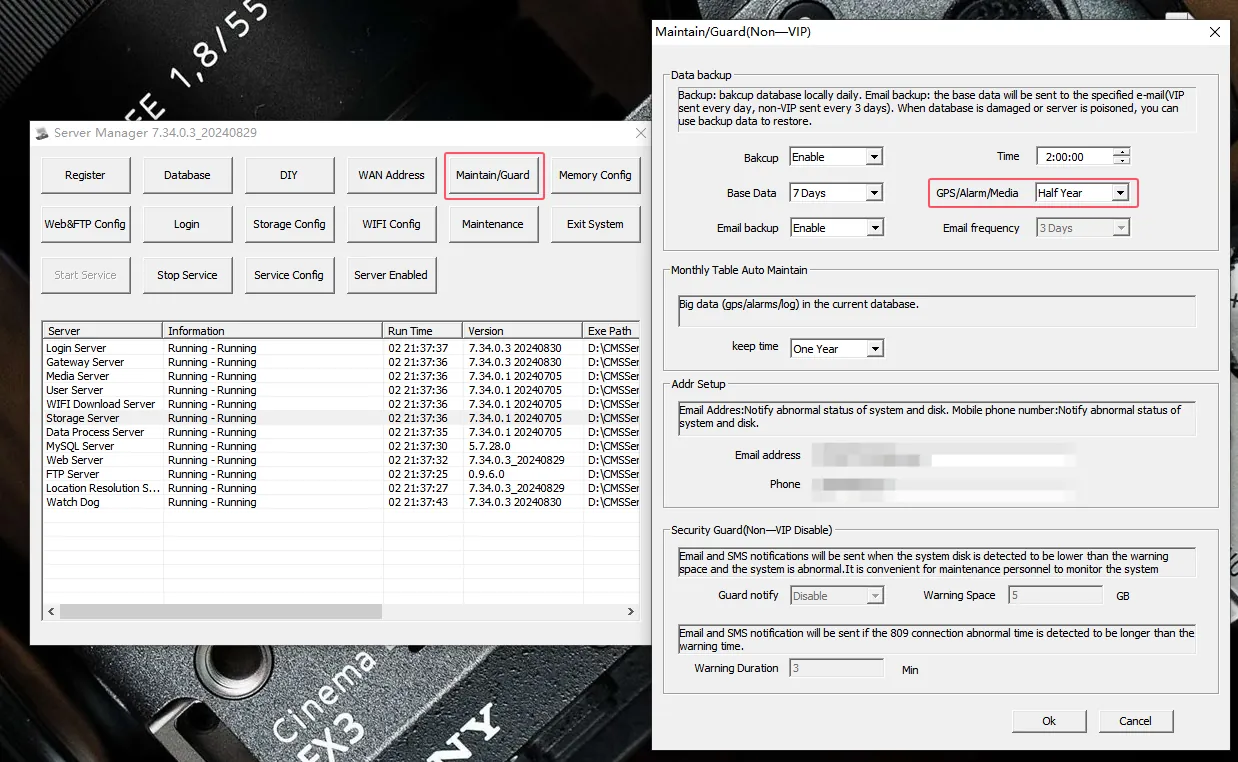
- Automatic backup data is stored directly in the root of the C:GPSDBBackup folder.