1. Functional Description
Migrate server data to another server
2. Operating Instructions
Abstract:
Basic data includes vehicle information, equipment information, company information, user information, role information, etc.
Big data including GPS tracks of vehicles, alarms, etc.
2.1 to migrate all data
As with live database migration to another disk, copy the gserver_dbdata file to the corresponding path of another server. (Live database migrates to another disk
https://help.cmsv8.com/helpCenter/doc/index.html?isStudy=1&docType=1&docId=12&type=1)
2.2 basic data migration
-
First go to the old server for manual backup of basic data
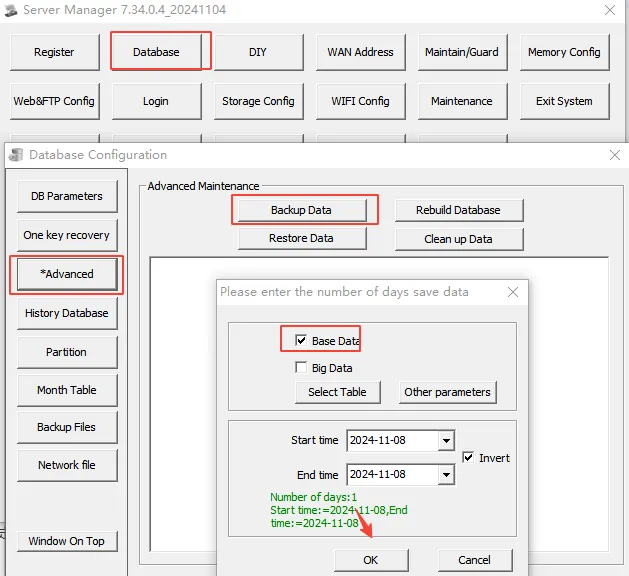
-
Check the storage path of the server software backup database in the database configuration file of the server software
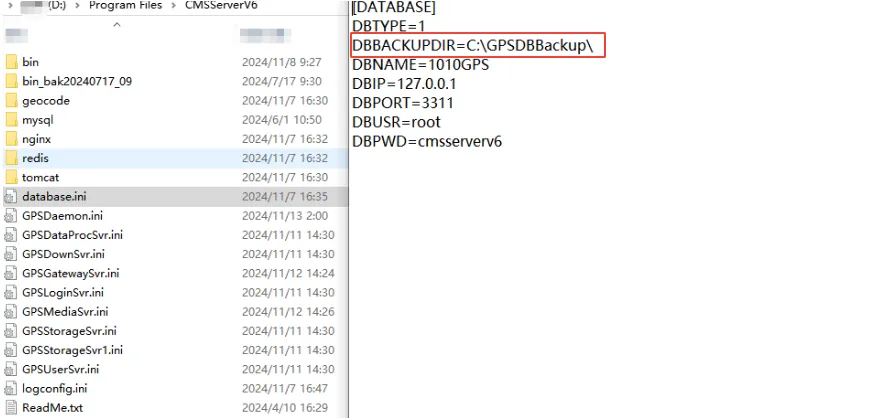
According to the path shown in the above figure, you can find the corresponding backup database.
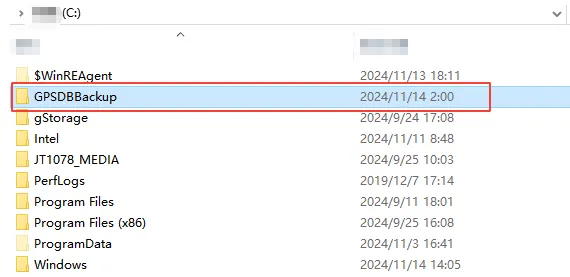
-
Find the repair folder in the backup database and copy it to the corresponding path of the new server.
Find the path of the backup folder on the new server, rename the existing repair folder in the backup folder (if not, put it directly), and then put the repair folder copied from the old server.
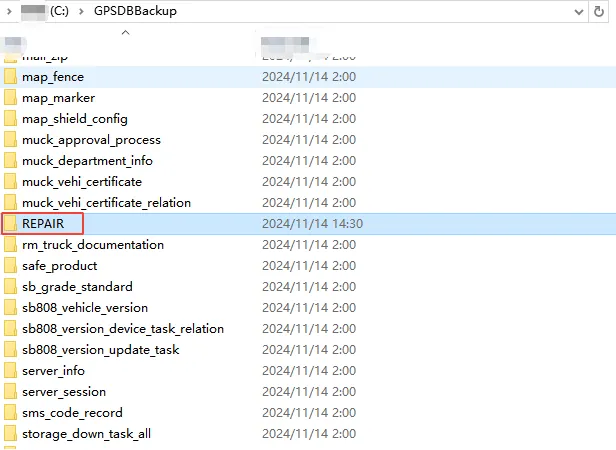
-
After putting the repair folder of the old server into the corresponding path of the new server, the data restoration can be started.
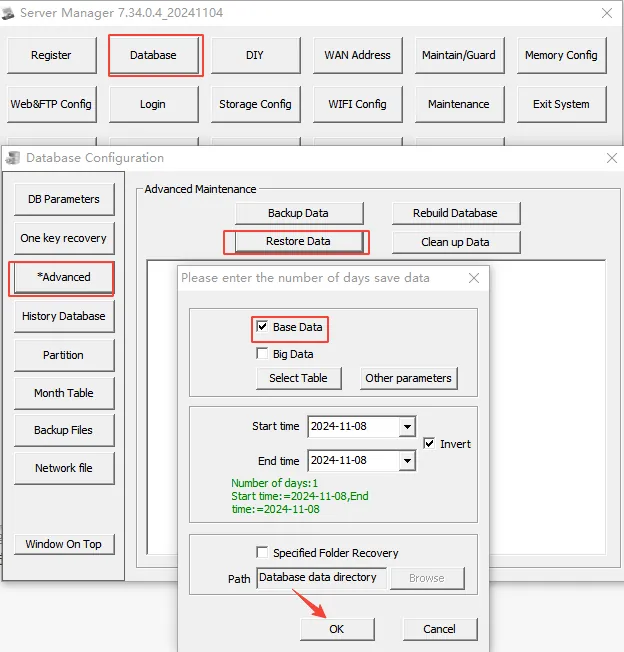
After the data is restored, log in to determine whether the data migration is successful.
