1. Functional Description
Setting mstsc remote and modifying mstsc remote port on physical server
2. Operating Instructions
2.1 open mstsc remote
Step 1: Set fixed (static) ip (LAN ip or public network ip).
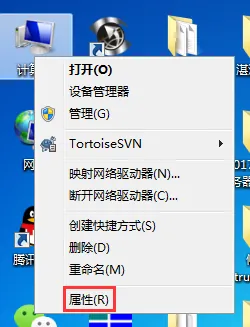
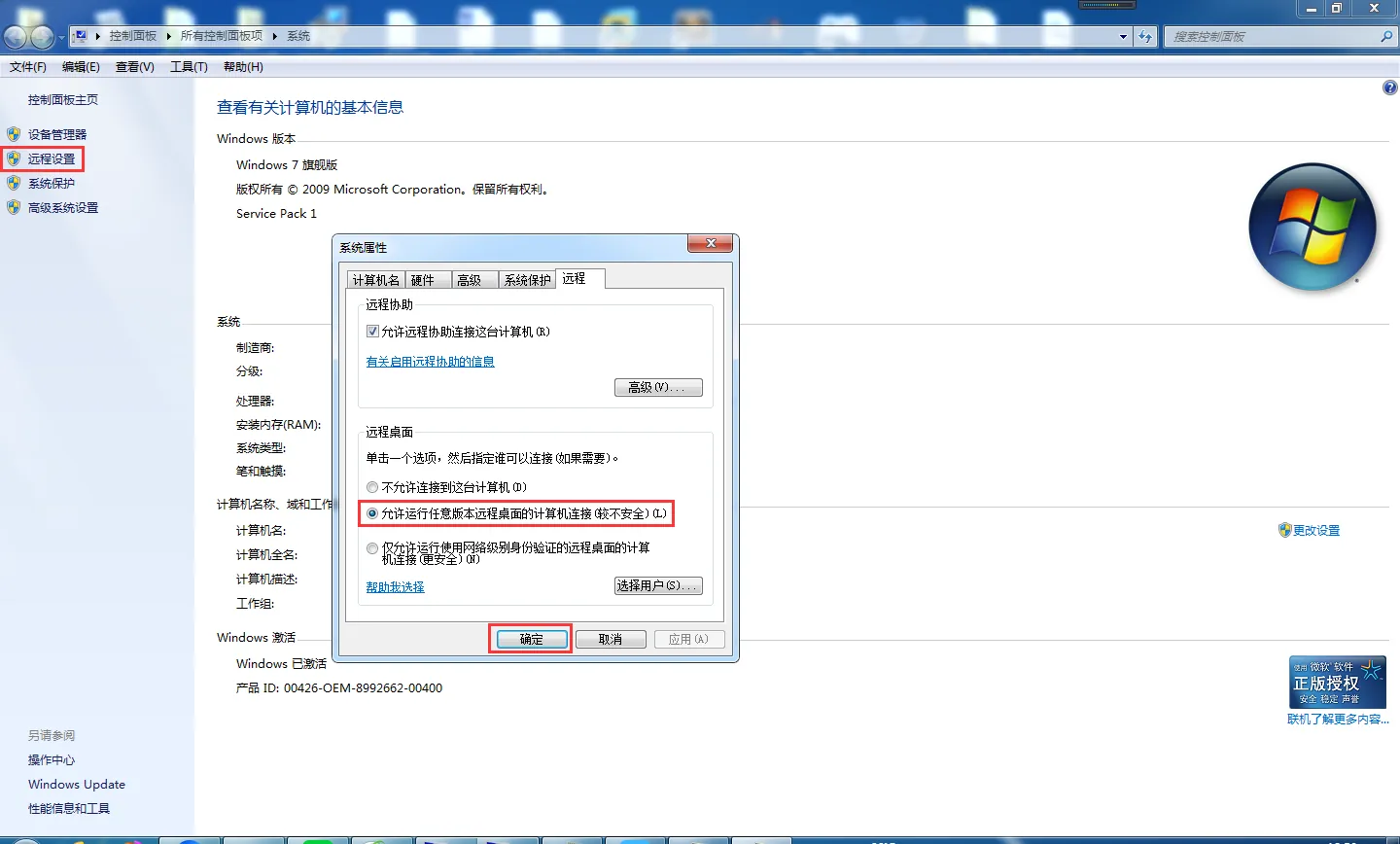
Step 2: Allow desktop remoting.
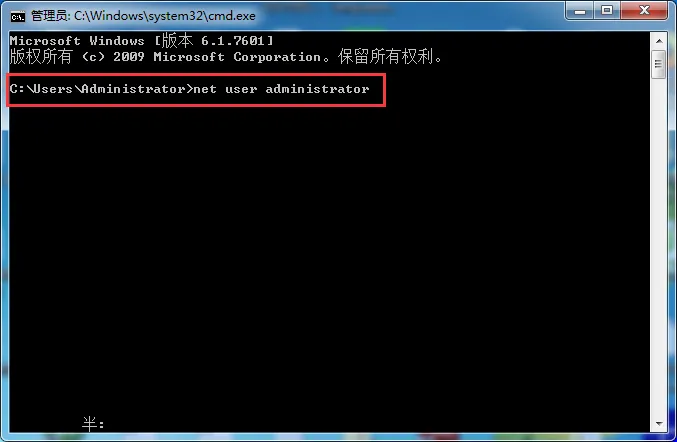
Step 3: Set up the remote user and his password (the password should be composed of Arabic numerals and English letters).
Directly use cmd command to modify: net user user name password
Step 4: Port mapping (the default port for desktop remote is 3389) and firewall settings. In general, the default port (3389) has been mapped to the external network by default.
2.2 method of modifying mstsc port
Open "Start → Run", enter "regedit", open the registry, win7 can run the regedit with administrator rights (this file is in the system directory of the system disk), and enter the following path: HKEY_LOCAL_MACHINE\System\CurrentControlSet\Control\Terminal Server\Wds\rdpwd\Tds\tcp\PortNumber, the "PortNumber" key value under it corresponds to the port number, and the PortNamber value (the default value is 3389) can be modified to the desired port, for example, 8111.
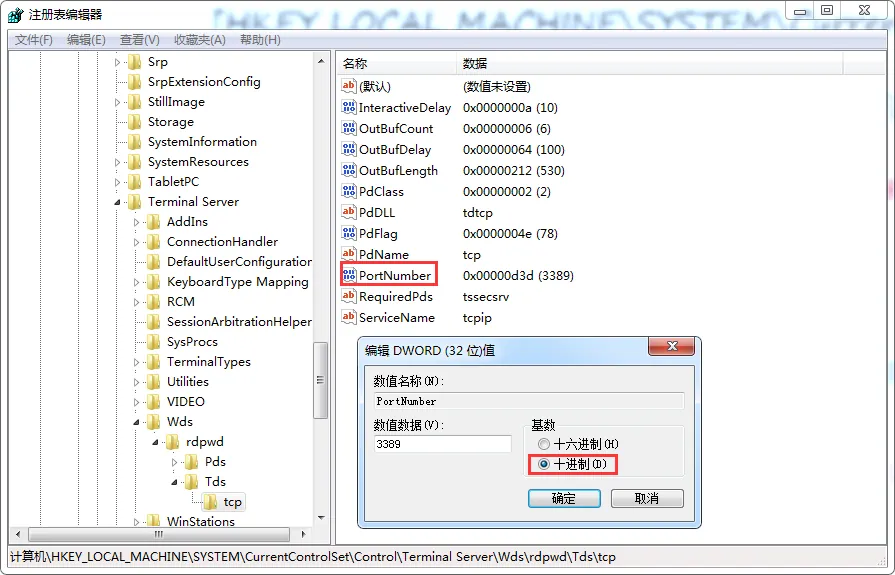
After the modification, remember to do the port mapping of the corresponding port. After the port mapping is completed, restart the server and use port 8111 for remote login.
