1. Function description
Upgrade the Windows server software version.
2, operating instructions
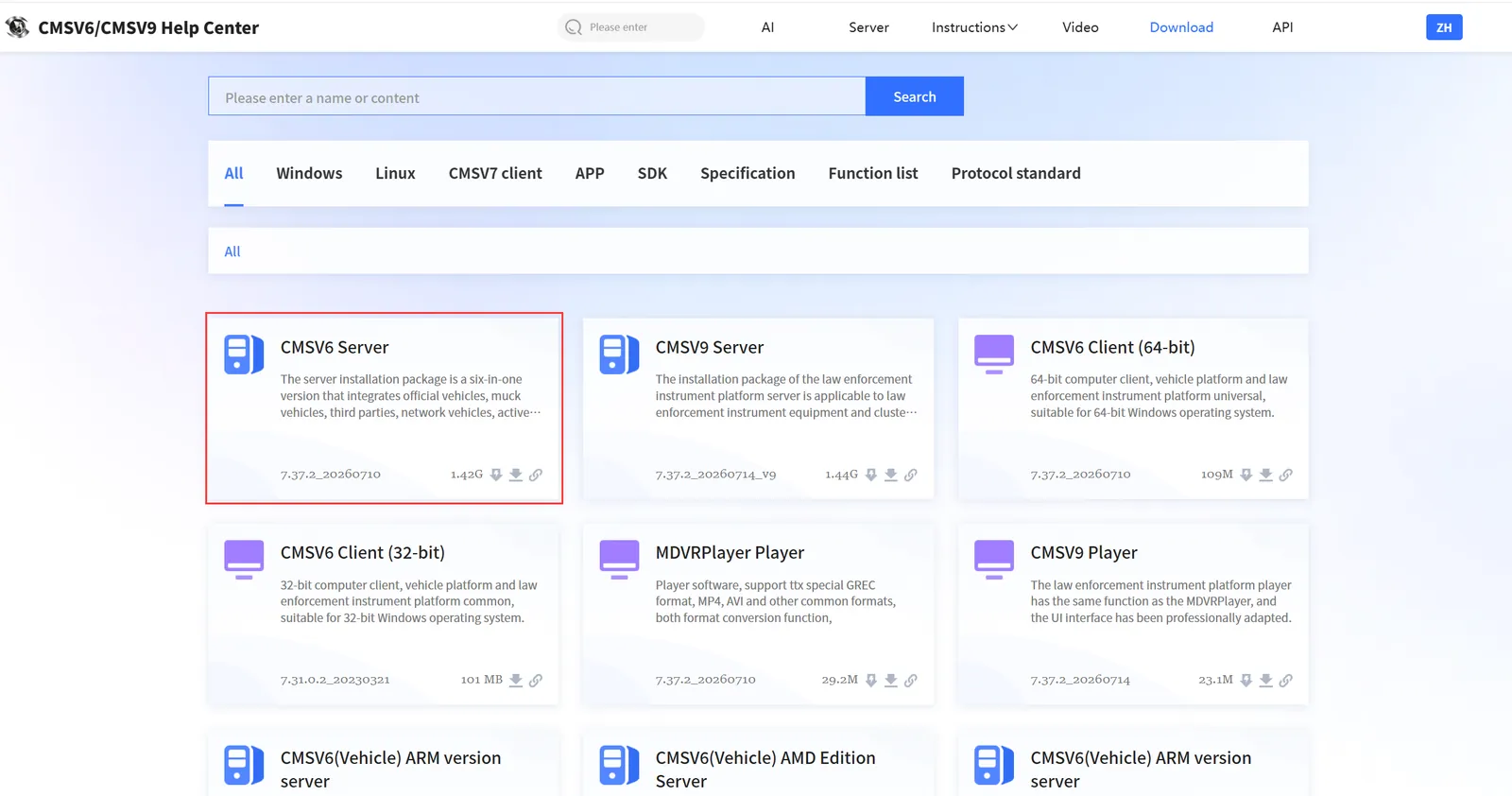
2.1 to obtain the installation package
Website direct download https://help.cmsv8.com/downloadCenter/index.html?isStudy=1&pageNow=1&pageSize=12
2.2 upgrade application
- Note: There is no need to manually exit the server software before upgrading, this step does not affect the use of the platform
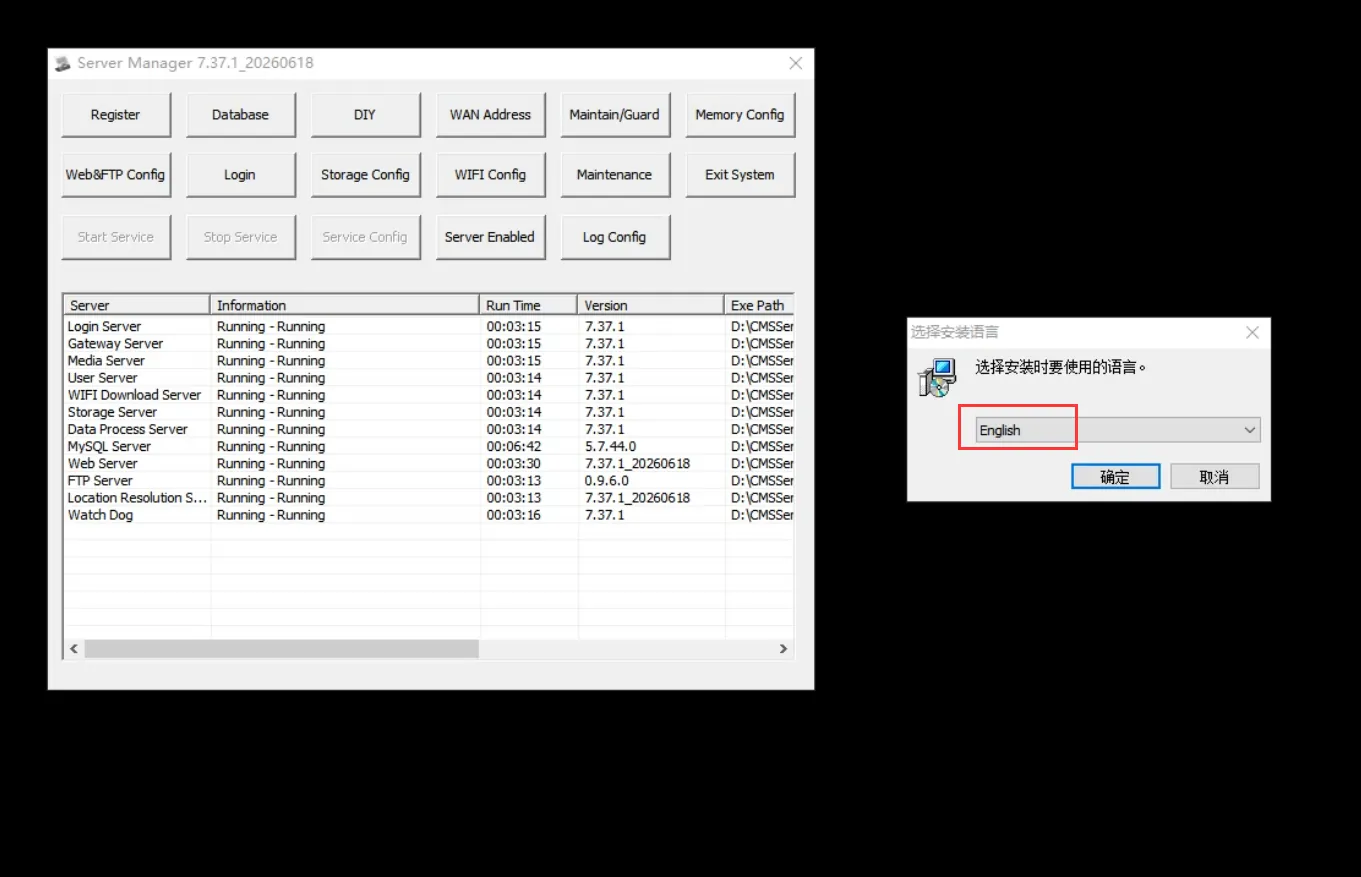
2.2.1 Double- click to run the installation package, and the Select Installation Language interface will pop up. Select the language type and click OK"
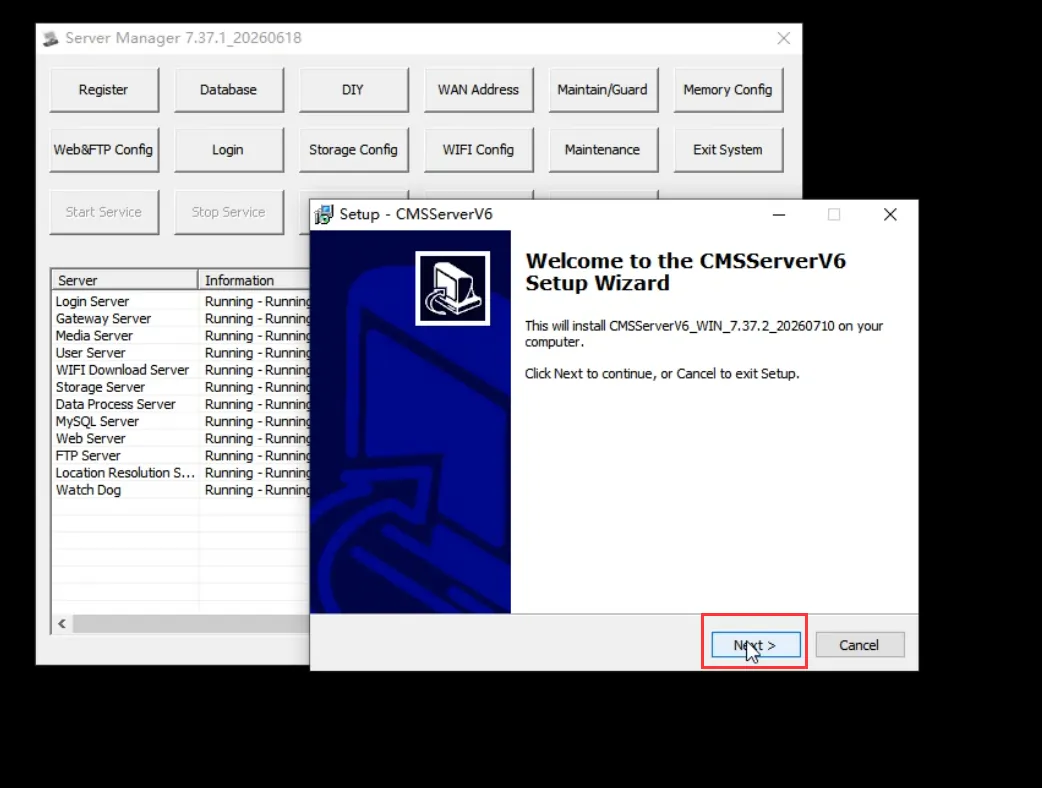
2.2.2 Go to the Installation Wizard page and click Next"
2.2.3 Select the installation path (the default is the original installation path), keep the default, and click "Next"
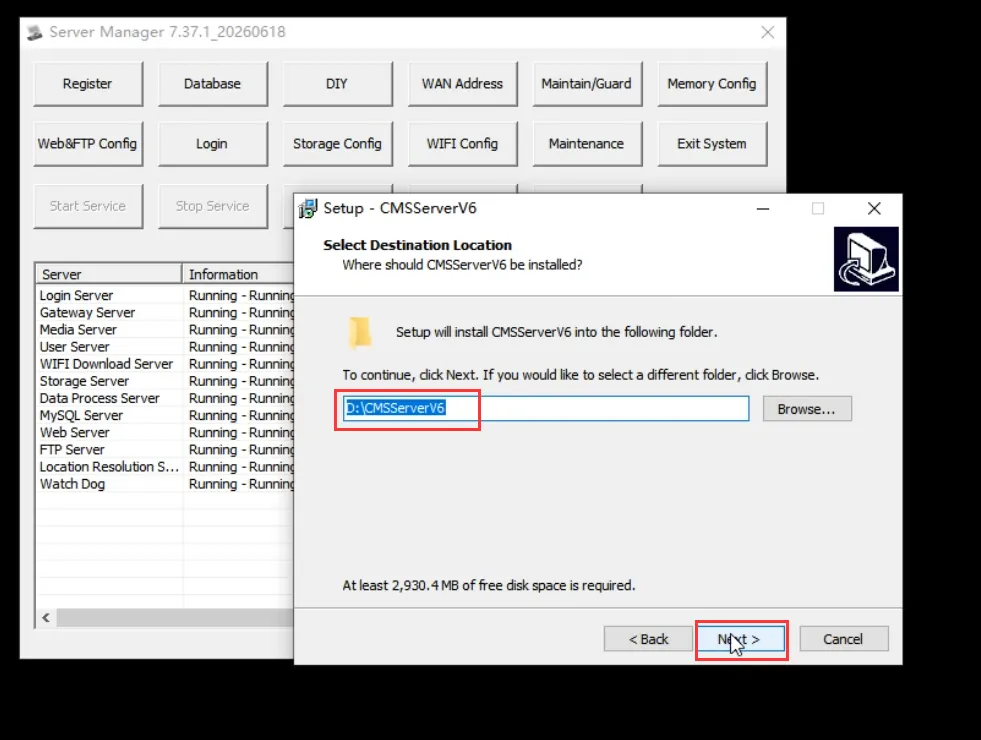
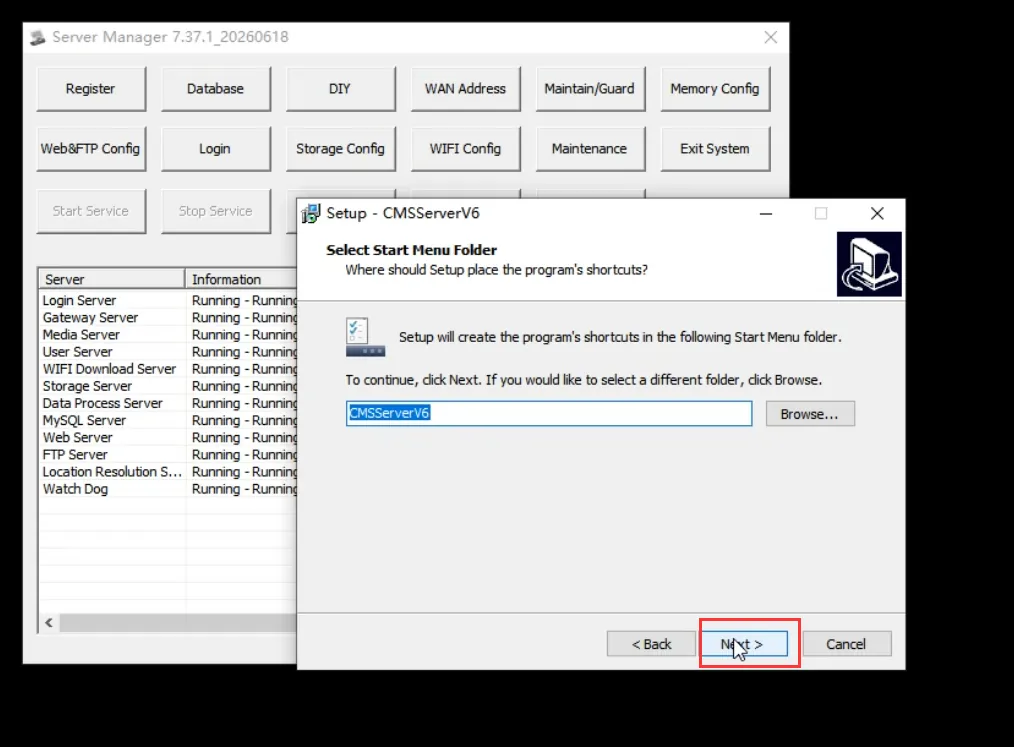
2.2.4 Use the default or set file name, click "Next"
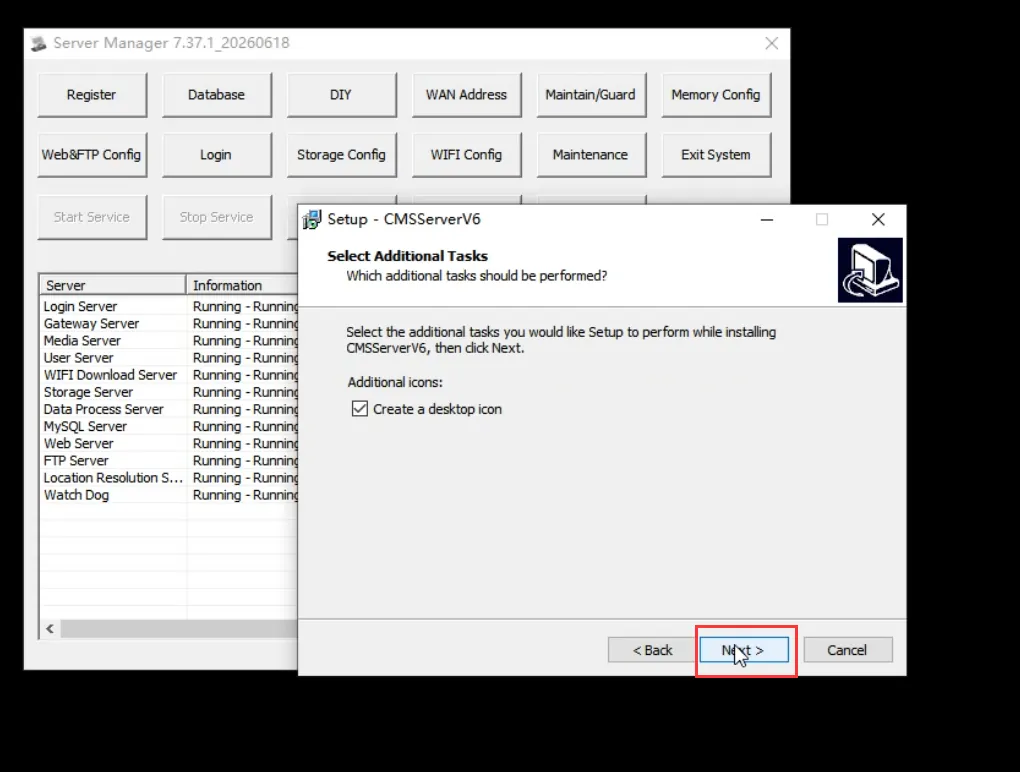
2.2.5 Select whether to create a desktop shortcut and click "Next"
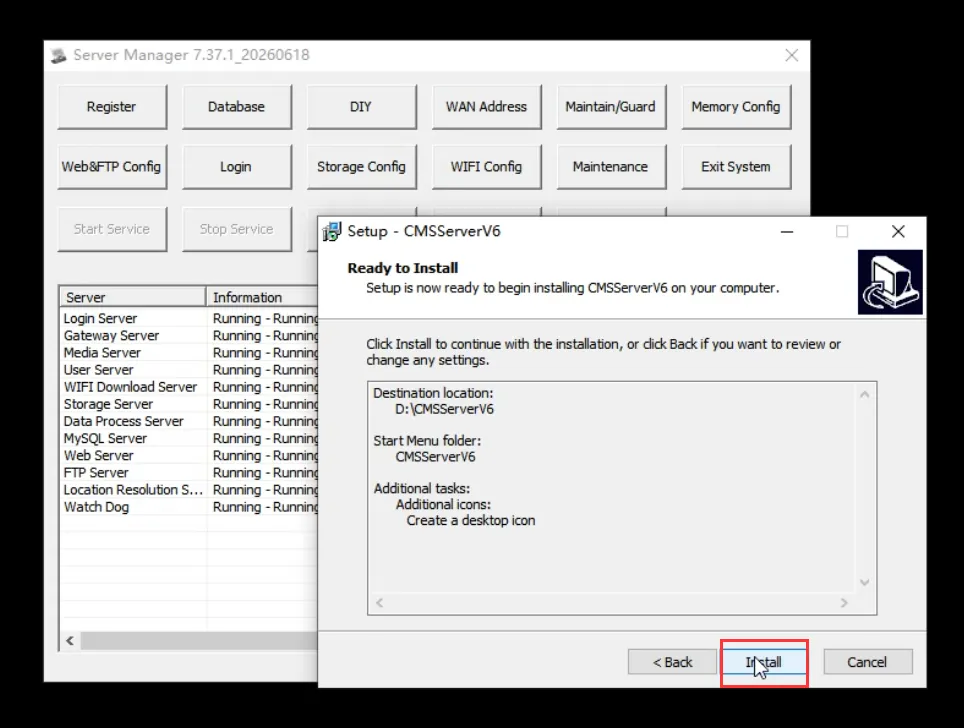
2.2.6 Ready to install interface, click "install"
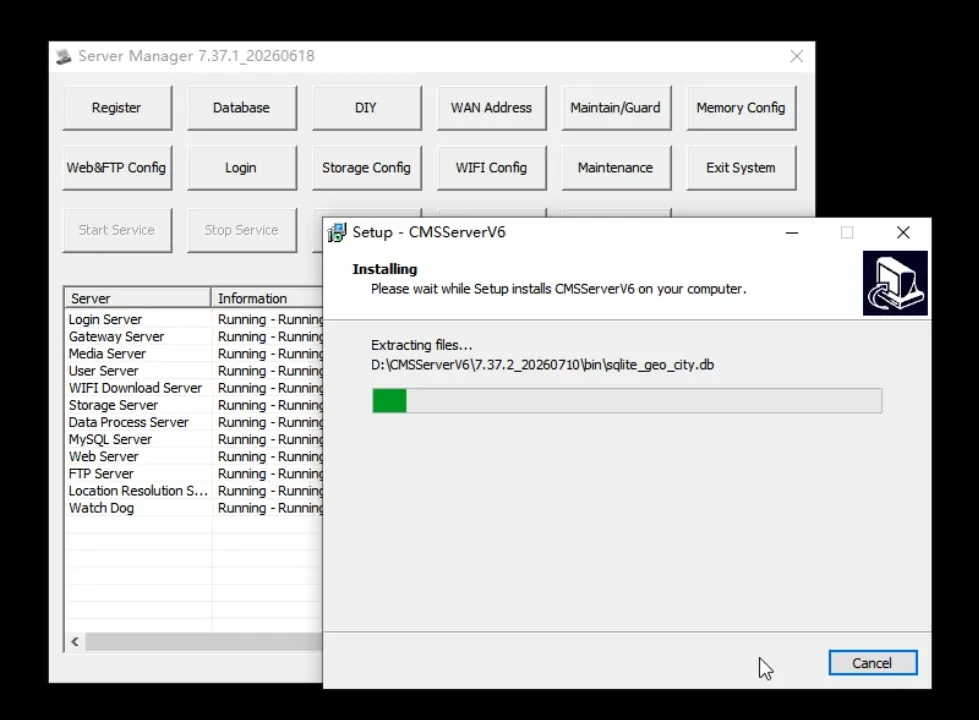
2.2.7 Wait for installation progress bar
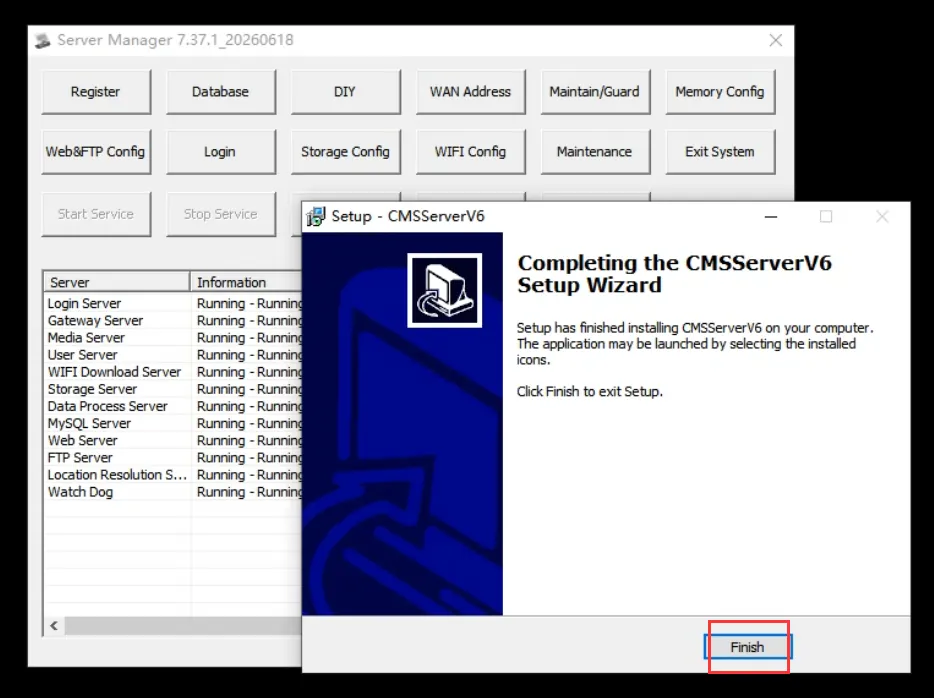
2.2.8 After the installation is complete, click "Finish"
2.3 upgrade database
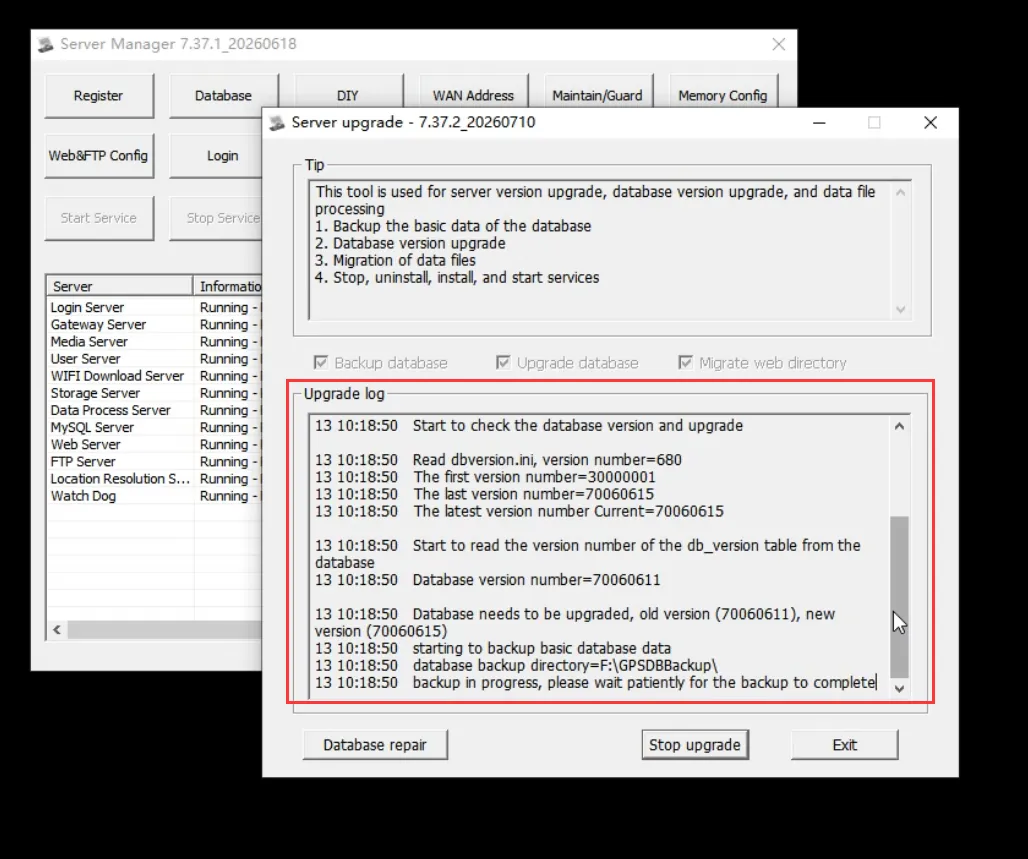
2.3.1 After the application upgrade is completed, the server upgrade tool will pop up to automatically perform database version upgrade and basic data backup, and wait patiently for this step to be completed.
2.4 stop service upgrade
2.4.1 After the operation of upgrading the database is completed, the following dialog box will pop up to remind the user to click "Confirm Upgrade" and the platform will start to interrupt the service and perform a formal upgrade.
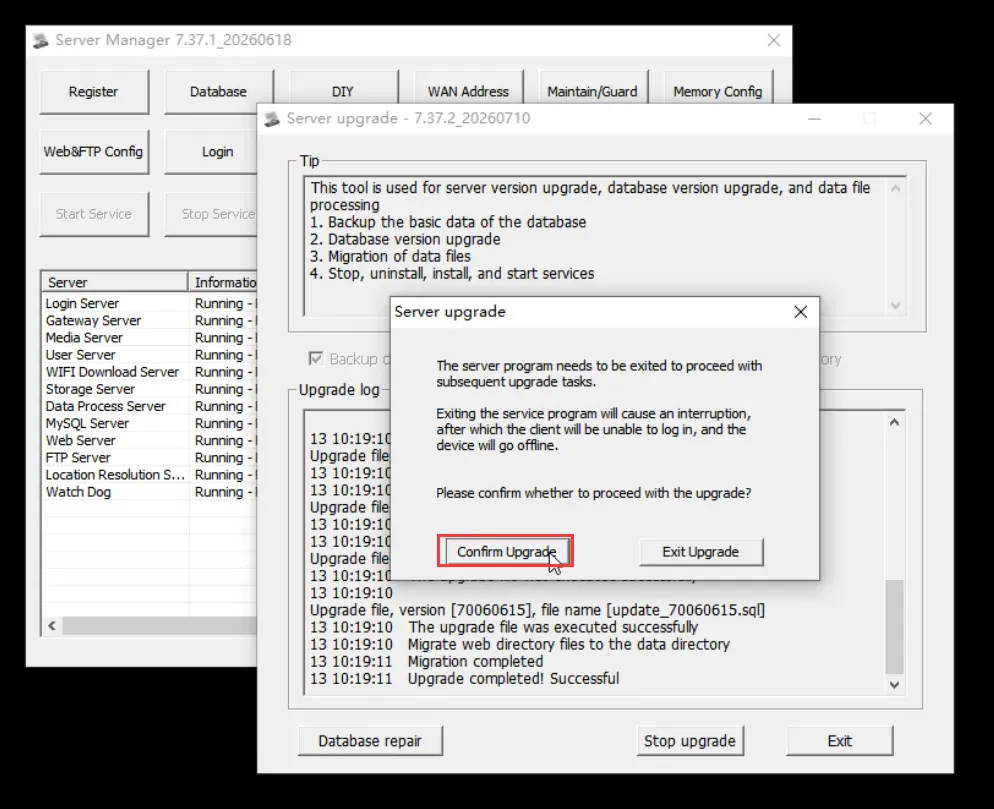
2.4.2 After clicking, the running service will be automatically stopped and uninstalled
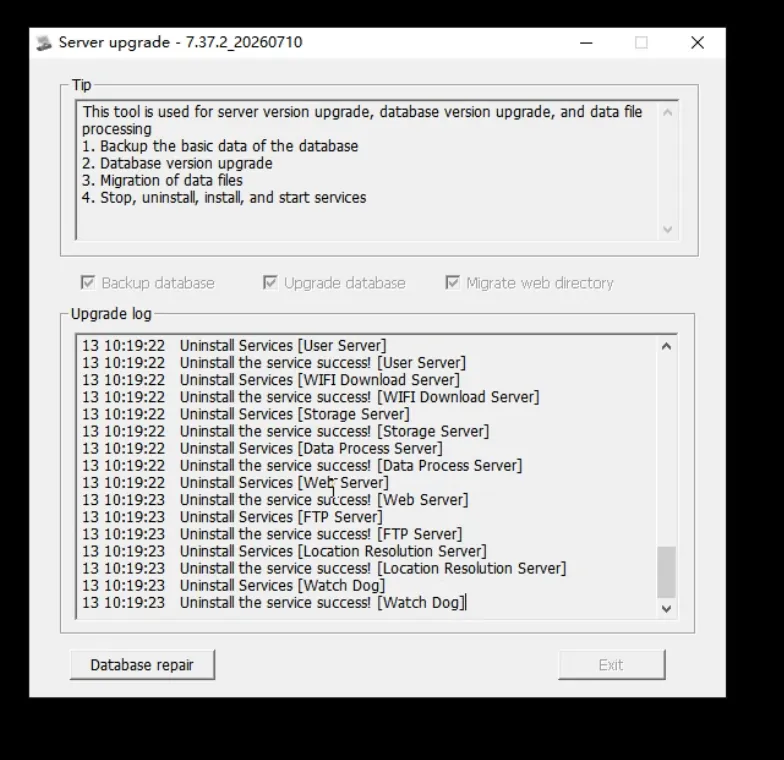
2.4.3 Automate wizard configuration and initialize new service programs
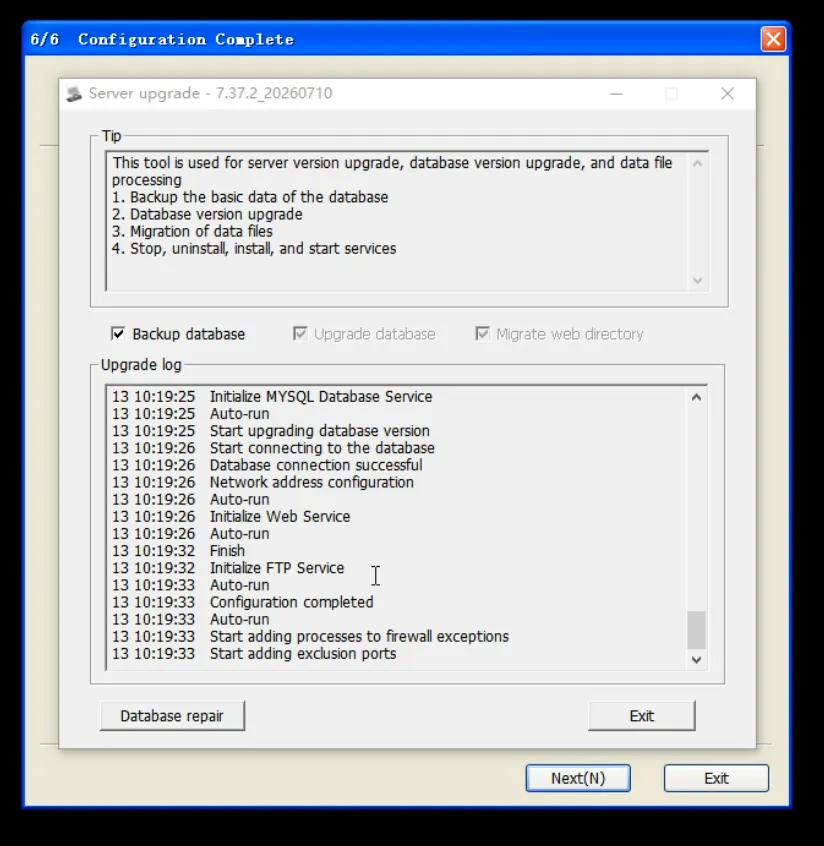
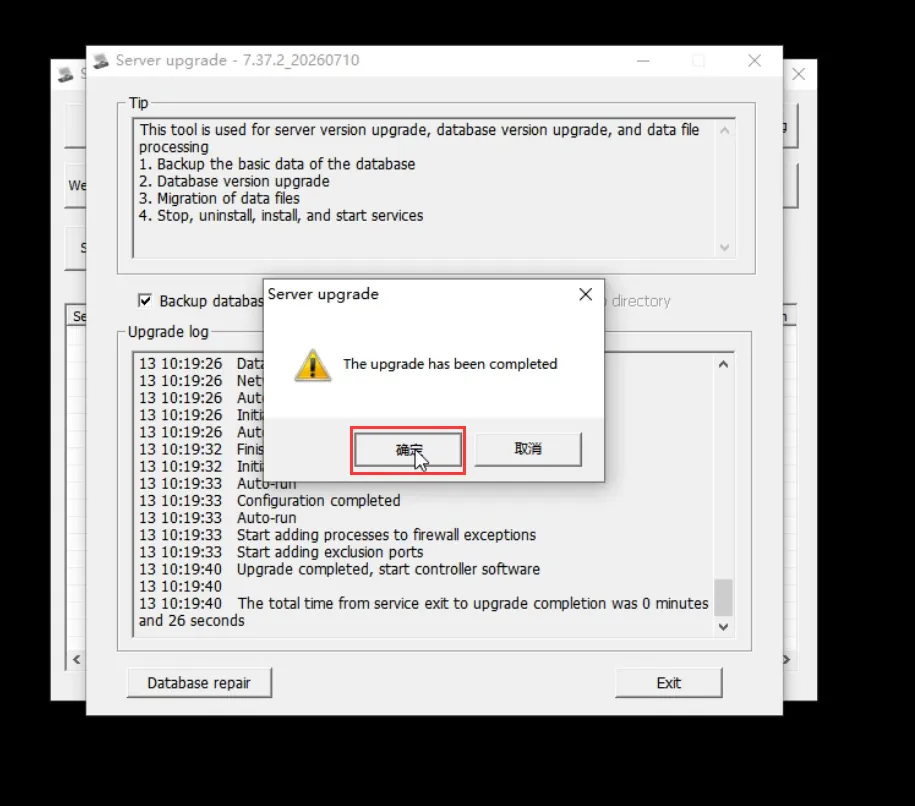
2.4.4 After the configuration is completed, prompt the upgrade is completed, display the upgrade time, click "OK" to start the server software program.
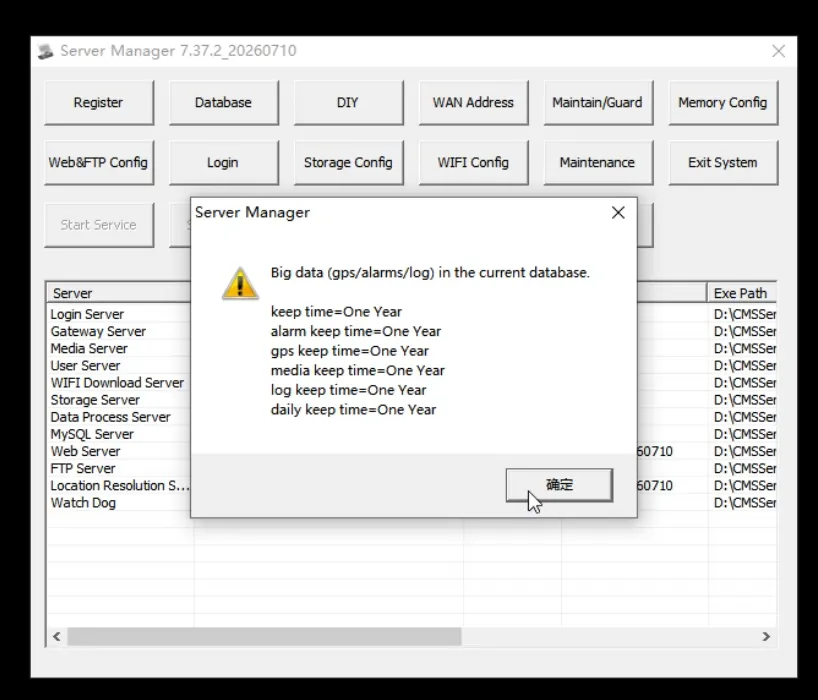
2.4.5 The pop- up window displays the retention duration set for the big data (trace/alarm/log) of the current database, and click OK to close the reminder.
2.5 Observe whether the server software is running normally
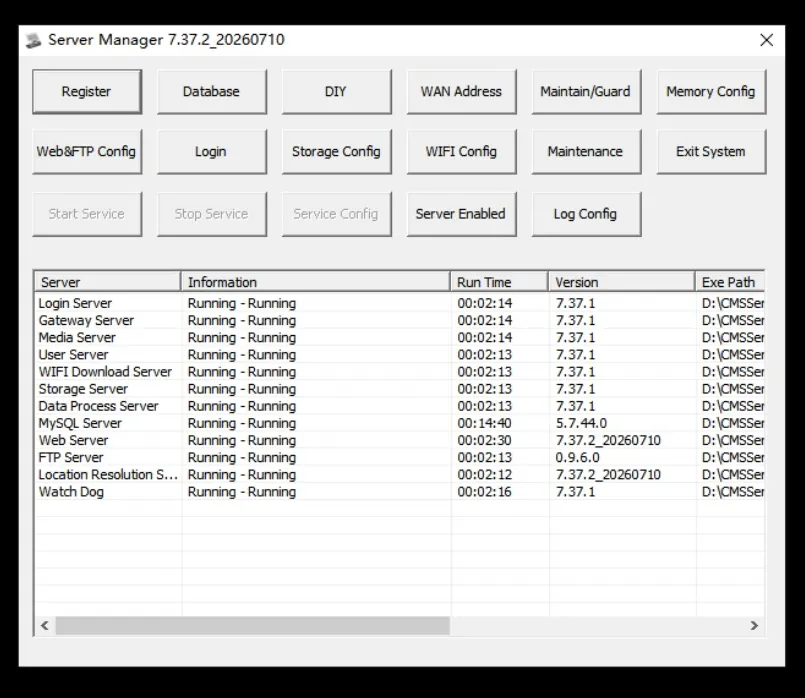
Log in to the platform to check the working status of various functions (positioning, trajectory, video, alarm accessories, etc.) and forwarding plug- in, and observe whether there is any abnormality and everything is normal, which indicates that the server software upgrade is successful.
3. Precautions
- During the execution of 2.3.1, individual scripts may take a long time. You can wait patiently and do not forcibly close the upgrade process.
- Before " 2.4.1 " this step, does not affect the normal use of the software.
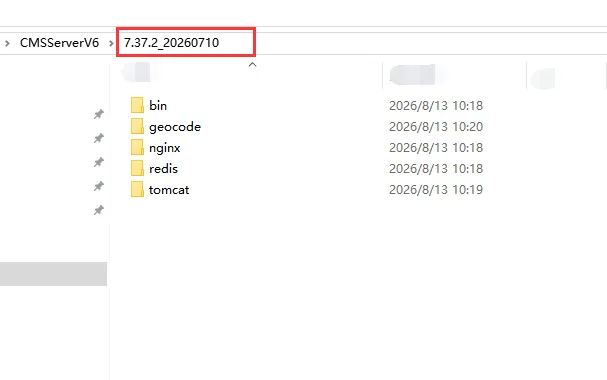
- Starting from the 7.37 version, application files will be saved in the directory named after the installation package version number **, please pay attention to the difference.