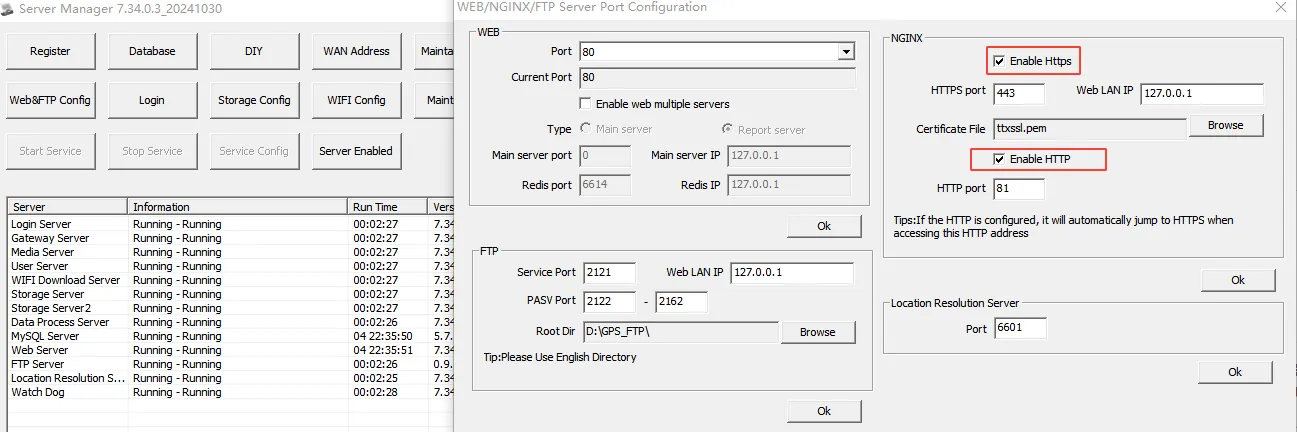
1. Function description
enable https to access the platform using a domain name address
2. operating instructions
2.1 HTTPS use port
HTTPS video preview requires the following additional TCP ports:
443;16601;16603;16604;16605;16607;16608;16609;16611
2.2 to obtain the nginx SSL certificate
Pay to purchase SSL certificates on third-party platforms.
2.3 decompress and place the SSL certificate
Decompress the SSL certificate file and put it in the following path:\CMSServerV6\nginx\conf
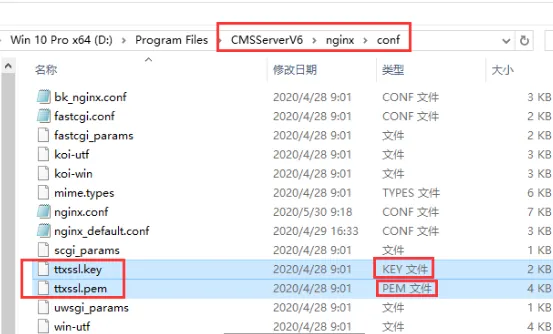
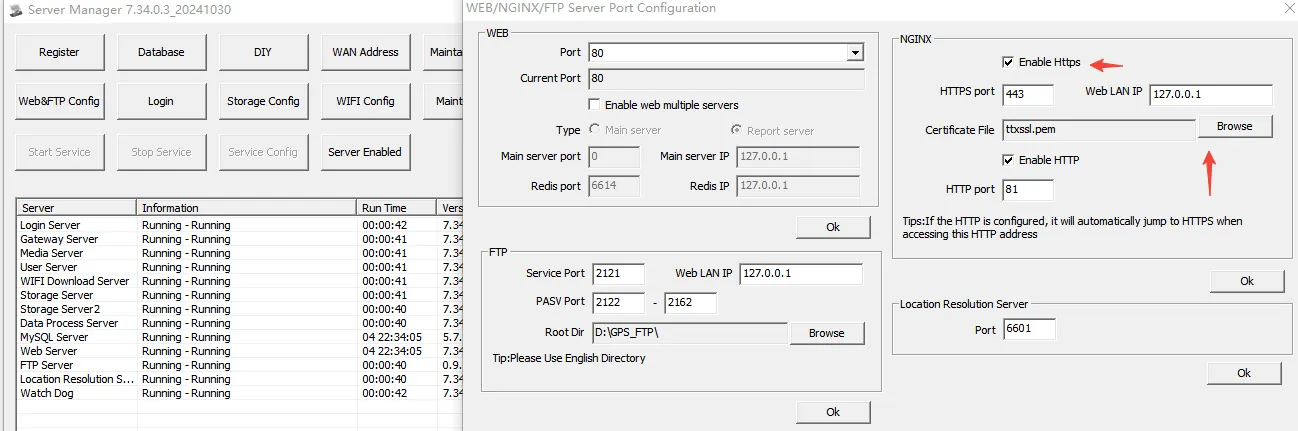
2.4 configure SSL certificate and run Nginx server
Open [WEB&FTP Config], check [Enable Https], the default port 443 can be customized and modified, select. pem or. crt certificate, and finally click OK to run nginx server automatically.
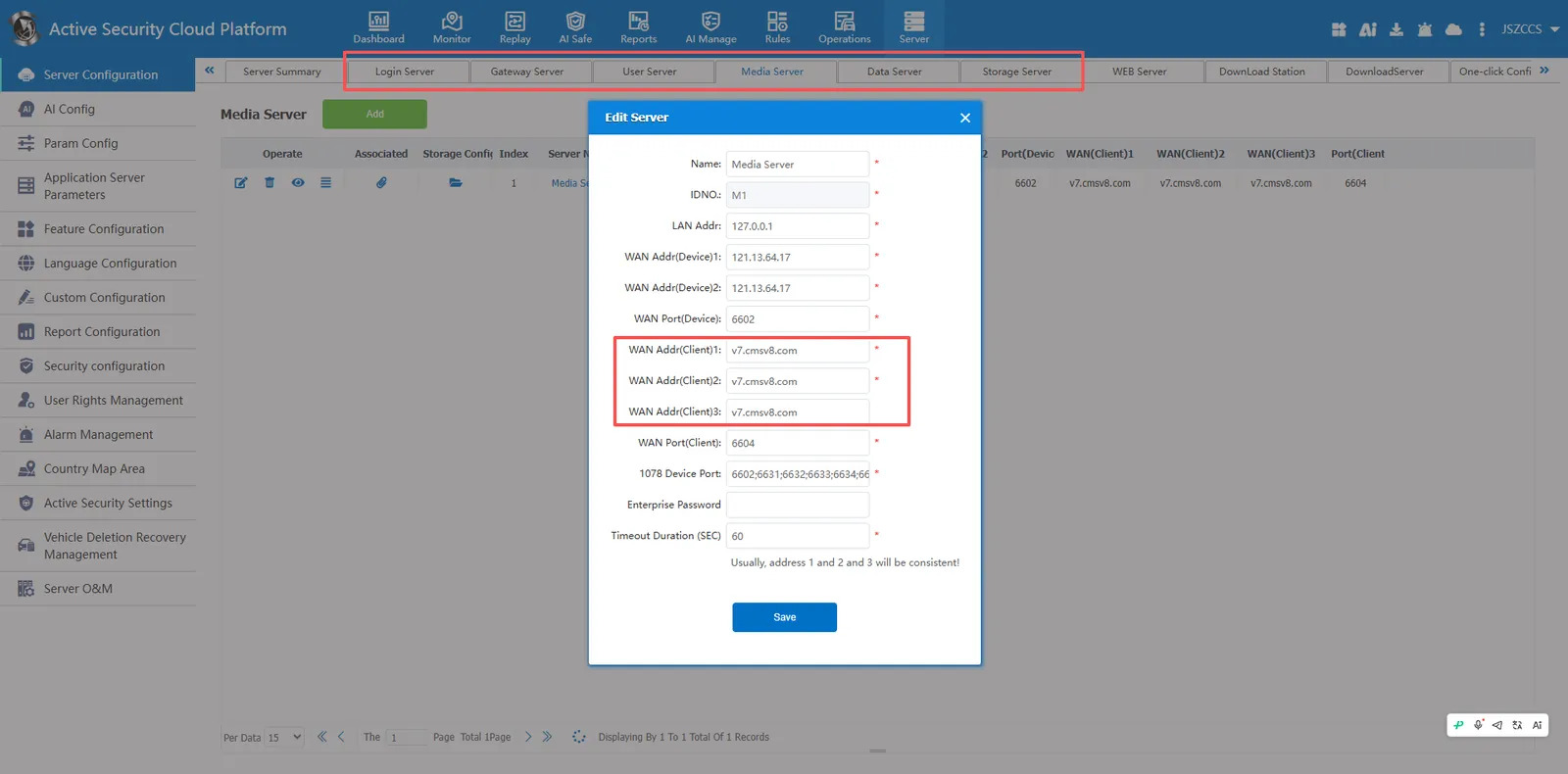
2.5 modify the server address to the domain name
Change the "WAN Addr(Client)" of the following servers from IP address to domain name address, as shown in the figure.
[Login Server, Gateway Server, User Server, Media Server, Data server, Storage Server]
3. Precautions
3.1 if nginx fails to run, look at whether there are multiple nginx processes running in the task manager. If there are multiple nginx processes, you can stop the nginx server, kill all processes and restart the nginx server.
3.2 nginx fails to run or stops running repeatedly, you can view the log error log to troubleshoot the cause of the error in detail. Log path:\CMSServerV6\nginx\logs\error.log
3.3 If you want to jump to the https website when accessing the http website, or jump to the https://v7.cmsv8.com when accessing the http://v7.cmsv8.com, you need to check [Enable HTTP] and map the relevant http port, such as port 80